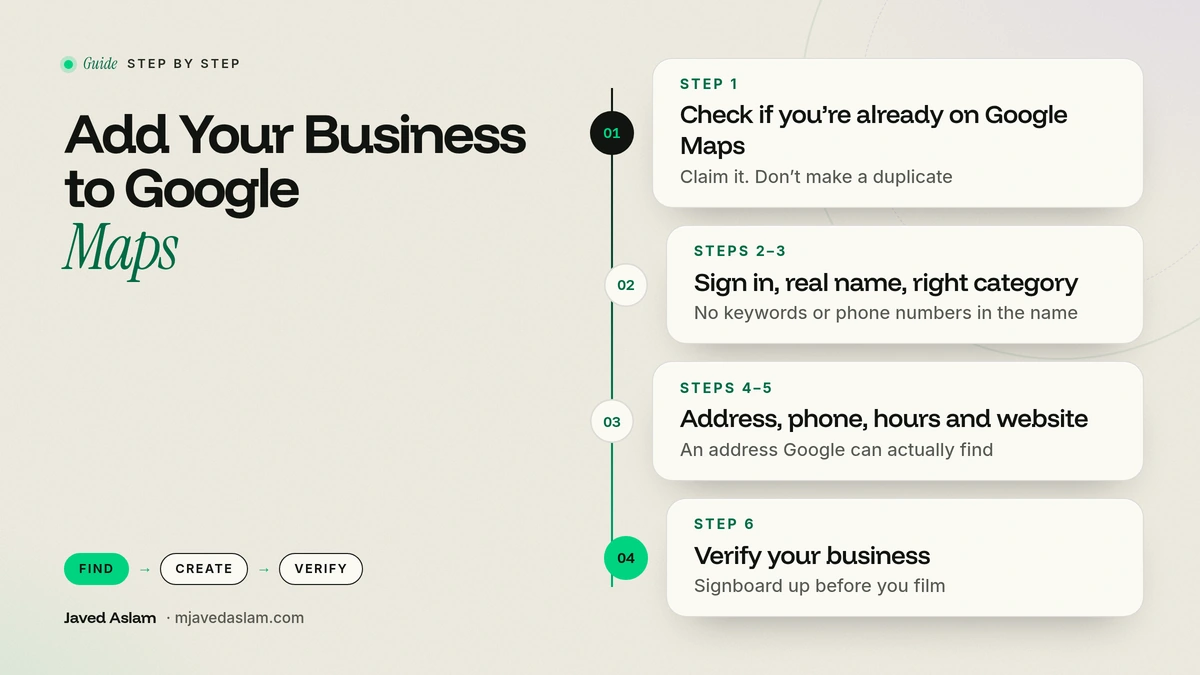
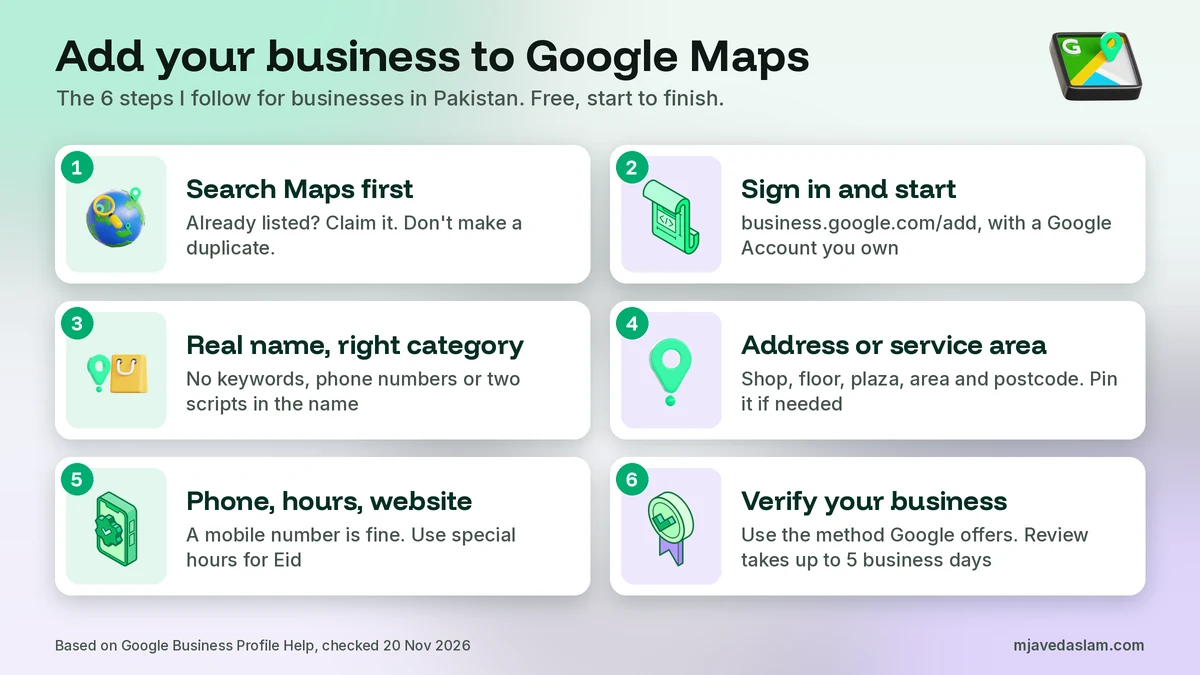
Here’s the short answer. To add your business to Google Maps in Pakistan, sign in with a Google Account, go to business.google.com/add, enter your business name, category, address or service area and phone number, and then verify with the method Google offers you. It’s free. Google says “You can add or claim your business at no charge.” Once Google reviews your verification, which it says takes up to 5 business days, your business can show on Google Maps and Search.
I’m Javed Aslam, a digital marketer based in Multan. I set up and fix Google Business Profiles for small businesses in Pakistan, and most of the problems I see start in the first 30 minutes. A shop name typed in capitals with “Best” and the city added. An address Google can’t find. A pin dropped on the wrong street. A video that gets rejected because the signboard isn’t in it. This guide walks through the whole process the way I do it for clients, using Google’s own help pages, with the Pakistan-specific details Google’s pages don’t spell out. If you’d rather have it done for you, see my Google Business Profile service.
Before you start: is your business eligible?
Google’s guidelines for representing your business open with the basic rule: “If your business either has a physical location that customers can visit, or travels to customers where they are, you can create a Business Profile on Google.” In practice, every Pakistani business I work with falls into one of three types. Pick yours before you start, because it changes what you enter for the address and what you show in a verification video.
| Business type | What Google means | Examples in Pakistan | What you enter |
|---|---|---|---|
| Storefront | Customers visit you at a fixed place with permanent signage | A shop in a bazaar or plaza, a clinic, a salon, a school, a restaurant | Full address and map pin, shown to customers |
| Service-area business | You visit or deliver to customers, and don’t serve them at your address | Plumber, electrician, AC or solar technician, home tutor, home-based caterer | Service areas only. Hide the address |
| Hybrid | Customers visit you, and you also visit or deliver to them | A restaurant that also delivers, a computer shop that also does home repairs | Address shown, plus service areas |
A few things make a business ineligible, and I see all of them in Pakistan. Google says a virtual office, meaning a mailing address you rent but don’t work from, “isn’t eligible for a Business Profile.” A co-working desk only counts if it has clear signage, receives customers during business hours and is staffed by your team. P.O. boxes aren’t accepted. And Google says businesses that show their address “should maintain permanent fixed signage of their business name at the address.” If your only sign is a temporary banner, put up a proper board before you verify. I explain the home-based option in detail in my guide to service-area businesses on Google Business Profile.
Step 1: Check whether your business is already on Google Maps
Don’t create a new profile until you’ve searched. Many shops are already on Google Maps, often added by a customer, a delivery rider or a former employee. Google says anyone can add a missing place, and the place shows publicly once it is added. If you create a second listing for the same business, you now have a duplicate. Google’s duplicate profiles page says: “If a profile is considered a duplicate, it won’t show on Google Search or Maps.”
Open Google Maps, search for your business name and city (for example, your shop name plus “Multan”), and also look at the map around your location. Then follow the path that matches what you find:
- Not on Maps at all: go to Step 2 and add it.
- Listed but nobody has verified it: open the listing and select Claim this business and then Manage now. In the Google Maps app, it’s under the About tab. This is covered in Google’s add or claim page.
- Already verified by someone else: if a former partner, employee or agency verified it, use Google’s request ownership process. Don’t create a new one.
I go through each of these paths, including the ownership request, in my guide on how to claim a Google Business Profile. If you already have two listings, my post on how to fix a duplicate Google Business Profile will help.
Step 2: Sign in and start your Business Profile
You need a Google Account. Google’s verification page says you can create a new one with a Gmail address or your preferred email address, or use an existing account. My advice for Pakistani business owners: use an account you control and will keep for years, not your nephew’s or your web designer’s. Turn on 2-Step Verification, and add your agency or staff later as managers instead of sharing the password. My guide on how to add a manager to Google Business Profile shows how.
Then follow Google’s own steps. They’re the same steps whether you add a business to Google Maps in Pakistan or anywhere else:
- On a computer, go to business.google.com/add. You can also start from the Google Maps app.
- Click Add your business to Google.
- Follow the on-screen instructions to add your business details.
- Select a verification option and follow the on-screen steps.
The screens change from time to time, but in my experience they ask for the same things in roughly this order: business name, business category, whether customers visit you, your address and map pin, the areas you serve, your phone number and your website. The next sections cover each one, with the details that trip up Pakistani businesses.
Step 3: Enter your business name and category the right way
Google says your name “should reflect your business’s real-world name, as used consistently on your storefront, website, stationery, and as known to customers.” Its guidelines list what you can’t add to the name. Marketing taglines, phone numbers, website addresses, location details, services and words in all capitals are all on that list. Google warns that unnecessary information in your name “could result in the suspension of your Business Profile.”
| Not allowed | Allowed |
|---|---|
| BEST AC REPAIR MULTAN 0300-XXXXXXX | Rana Cooling Services (if that’s the name on your board) |
| Al-Noor Pharmacy Near Chowk Kumharan | Al-Noor Pharmacy |
| Ali Tailors | Cheapest Suits in Lahore | Ali Tailors |
| Royal Bakers رائل بیکرز (both scripts together) | Royal Bakers, or رائل بیکرز, not both |
That last row matters in Pakistan. Many signboards show the name in both English and Urdu. Google’s guidelines specifically list “Repeating the same business name in multiple scripts or languages, even if it appears this way on physical storefront signage” as not acceptable. Pick the version your customers search for and use it on your profile, your website and your social pages. My Google Business Profile name guidelines post has more examples.
For the category, Google asks you to choose the fewest categories that describe your core business. The primary category is the one that matters most, so choose the most specific one, such as “Pharmacy” rather than “Store”. I explain how to pick it in my guide to the Google Business Profile primary category.
Step 4: Write a Pakistani address Google can actually find
This is where most Pakistani listings go wrong. Our addresses often look like “Shop 12, Ground Floor, Madina Plaza, near Chungi No. 9, Multan.” Many streets in older mohallas have no number at all. Google’s help pages were written with numbered streets in mind, but they do allow for this. Here’s what Google’s address guidelines say, in plain terms:
- Use your official address and add unit details. Google’s address help page says to include “building, suite, and floor numbers and other unit info.” For a plaza shop, that means shop number, floor and plaza name.
- Landmarks only where needed. Google’s guidelines say: “Only include information like cross-streets and nearby landmarks in regions where the official street address doesn’t accurately pinpoint the business’s location.” In much of Pakistan, that’s exactly the case, so a nearby chowk or well-known building can be part of the address. Keep it factual.
- No sales words or directions. Google tells you to avoid showing your address like “Corner of Main St. and Broadway Ave.” or “Across from Central Park,” and not to put URLs or keywords in address lines.
- Add the right postal code. Pakistani postcodes have five digits. You can look yours up in the postcode list on the Pakistan Post website. Google uses postal codes for service areas too, so it’s worth getting right.
- Pin it if Google can’t find it. Google says: “If your address doesn’t have a street number or if the system can’t find a correct address, you can pin your location on the map.” In the location step, select Adjust, move the map so the pin sits on your entrance, and then select Done and Save.
A tip I give every client: switch to satellite view before you place the pin and put it on your actual building, not the middle of the road. If customers keep calling to ask where you are, the pin is usually the problem. My guide on how to fix a wrong Google Maps pin covers this in more detail.
Google Maps also gives every spot a Plus Code, a short code like “JJXX+HR8” that Google describes as “a simple digital address.” It’s handy for checking your exact location and for sending it to customers and riders on WhatsApp. I still enter the full written address on the profile and use the pin for accuracy.
If you work from home or travel to customers
Don’t show your home address. Google’s guidelines say a service-area business “should hide your business address from customers,” and give the example of a plumber running the business from home. Google’s service area page lets you add up to 20 service areas “based on the cities, postal codes, or other areas you serve.” You can’t set a radius, and Google says the overall area “shouldn’t be more than about 2 hours of driving time from where your business is based.” For a technician in Multan, that might mean Multan, Shujabad and Khanewal, not “All Pakistan.”
Step 5: Add your phone number, hours and website
Most Pakistani small businesses run on a mobile number. Google doesn’t ask for a landline. Its Edit your Business Profile page lets you add up to 2 more numbers after your main one and says they “can be mobile numbers or landline, but not fax.” The guidelines add three rules: use a local number instead of a central call center helpline where you can, the number “must be under the direct control of the business,” and premium numbers aren’t accepted. I recommend a dedicated business SIM that you’ll keep for years, because changing the number later is extra work. If you ever need to, here’s how to change your Google Business Profile phone number.
Set your normal opening hours. For Ramadan timings, Eid and other holidays, don’t change your regular hours. Use Google’s special hours feature instead, which Google says works when your business “temporarily adjusts its hours of operation or remains closed for up to 6 days in a row.” Google also suggests confirming your hours for official holidays even when they don’t change. My post on Google Business Profile holiday hours shows the steps.
A website is optional. Google’s guidelines ask for “a phone number that connects to your individual business location, or provide a website that represents your individual business location.” A Facebook page shouldn’t go in the Website field, though. I explain why, and the cheapest way to get a simple site, in my post on whether you need a website for Google Business Profile.
Step 6: Verify your business
Your profile doesn’t fully belong to you until it’s verified. Google’s verification page is clear on one point that confuses many owners: “Verification methods are automatically determined by Google and can’t be changed.” The options you see “depend on your business type, public info, region, or business hours,” and sometimes you’ll need more than one method. So if your friend in Lahore got a phone code and you’re asked for a video, that’s normal.
| Method | How it works | What to watch for |
|---|---|---|
| Phone or SMS | Google calls or texts a code to your business number | You must answer the call yourself. Google says IVR systems won’t get the code |
| You follow the steps in an email Google sends | You must be able to use the email address shown on the screen | |
| Video recording | You record one live video of your business from your phone | At least 30 seconds, unedited, recorded and uploaded through your profile |
| Live video call | You show your business to a Google support person on a video call | Only during your business hours. Not available for every business |
| Postcard | Google posts a 5-digit code to your address | Not available for all businesses. Most codes arrive within 14 days and expire after 30 |
After you finish, Google says “verification reviews take up to 5 business days,” and “On rare occasions, reviews may take longer.” Google can verify some profiles instantly, for example when you’ve verified your website in Google Search Console. When it’s done, you’ll get a confirmation email.
Video verification: what Pakistani businesses should show
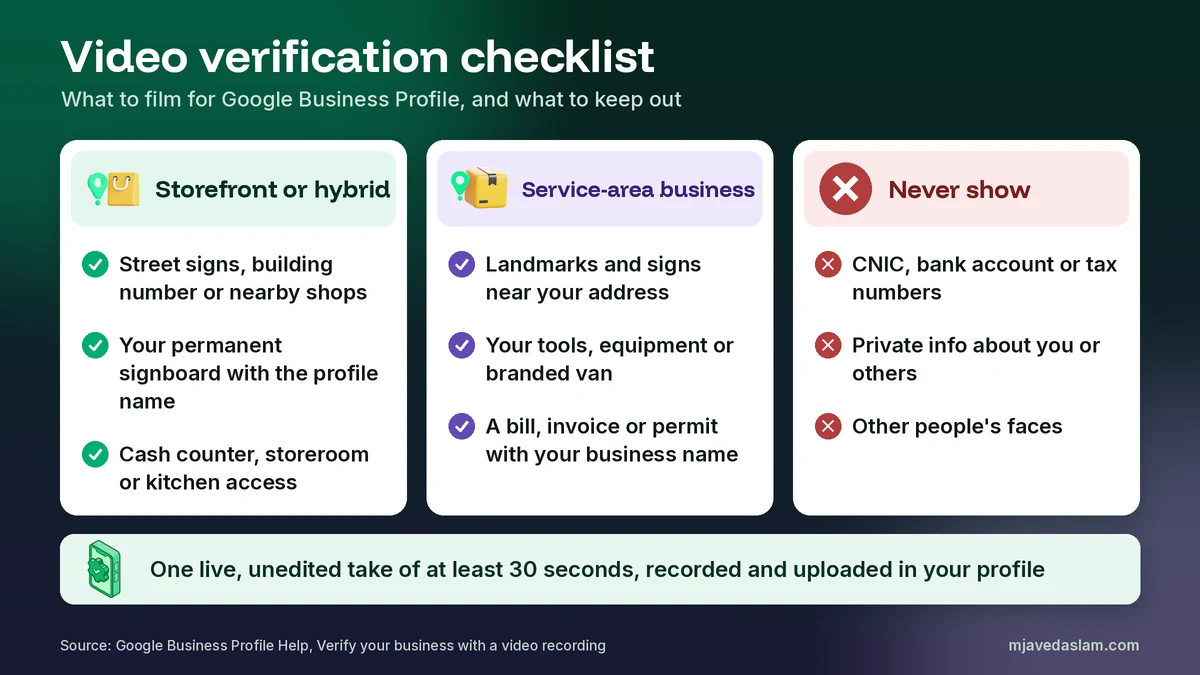
Video recording is a common option, and Google itself says: “If your business is eligible for video verification, we recommend that you use this option.” Google’s video recording page sets the rules. The video must be live, “unedited, unique, and complete,” with no breaks, at least 30 seconds long, and recorded and uploaded from a mobile device through your Business Profile. You can’t record it offline and upload it later.
What you film depends on your business type:
- Storefront and hybrid businesses: show the location (street signs, building numbers, nearby businesses or familiar places), show your signboard with your name “clearly printed on a permanent fixture, like a signboard, wall, or window,” and show proof that you run the place, such as opening the cash counter, the storeroom or the kitchen. Google says the name in the video must match the name on your profile.
- Service-area businesses: show street signs or landmarks near your address. Google says home-based businesses can film landmarks and signs in their immediate neighborhood. Then show your tools, equipment or products, and proof that you manage the business, like unlocking a branded van or showing a business permit, invoice or utility bill that matches the name on your profile.
- Never show: sensitive info like bank account, tax or ID numbers, private info about you or others, or other people’s faces. In Pakistan, that means keep your CNIC number and bank details out of the shot.
My own practical tips for Pakistan: record in daylight or with the shop lights on, so the board is readable. Walk out from the nearest chowk or main road so Google can see where you are. Plan the route before you press record, and make sure you have a strong mobile data signal, because the upload happens straight from the app. If the video is rejected, you’ll see a “Review issues” notice with reasons such as “Business name not visible on storefront” or “No nearby area shown,” and you can record a new one. My full guide to Google Business Profile video verification has a shot list.
Postcard and other methods
If you’re offered a postcard, Google says not to edit your business name, address or category and not to request a new code while you wait, because both make the code in the mail stop working. Write the address the way your local post office would expect, and tell whoever sits at the counter to watch for a card from Google. My guide to postcard verification covers what to do if it never arrives.
One warning that matters a lot here: Google says it “will never ask for your verification code,” and you shouldn’t share it with anyone. In my experience, fake “Google” callers who ask for codes or payment are common. Google does say it may reach out with automated calls, texts or WhatsApp messages to your verified number to confirm your details, so learn the difference in my post on Google Business Profile scam calls.
After you’re verified: finish the profile
Verification gets you on the map. A complete profile gets you calls. Google’s local ranking page says “Local results are mainly based on relevance, distance, and popularity,” and it asks businesses to “provide complete and detailed business info.” Google also says: “There’s no way to request or pay for a better local ranking on Google.” So here’s what I finish in the first week:
- Photos. Your board, the inside of the shop, your team at work and your products. Follow the Google Business Profile photo guidelines.
- Description. What you do, who you serve and since when. Google doesn’t allow links in the description, or text focused on promotions and prices. My business description guide has examples.
- Products and services. List what people actually search for, like “AC gas filling” or “solar panel installation.” See my guide to products and services on Google Business Profile.
- Chat. Google says text and WhatsApp chat options are “currently available for select regions,” so check whether your profile has it. My post on Google Business Profile messaging explains the setup.
- Reviews. Ask happy customers for a review, and reply to every one. A Google review QR code at the counter works well in Pakistani shops.
Edits on a verified profile are reviewed. Google’s edits page says they “usually take up to 10 minutes to review, but sometimes it can take up to 30 days.” You can manage all of this from your phone, as I show in my guide to the Google Business Profile app. When you’re ready to compete for the top three spots, read my guide on how to rank in the Google Map Pack.
Mistakes I see when people add a business to Google Maps in Pakistan
- Keywords and phone numbers in the name. “BEST MOBILE REPAIR MULTAN 03XX” looks clever and risks a suspension.
- A new profile instead of claiming the old one. The old listing often has years of reviews. Claim it.
- Home address shown for a service business. Hide it and use service areas.
- “All Pakistan” as a service area. Google limits you to 20 areas within about 2 hours of driving.
- Verifying before the signboard is up. A video without a permanent board with your name on it is a common reason for rejection.
- Editing the name or address while a postcard is on its way. The code in the mail stops working.
- Letting an agency own the profile. Keep ownership yourself and give them manager access.
- Sharing the verification code with a caller. Google says it will never ask for it.
Frequently asked questions
01Is it free to add my business to Google Maps in Pakistan?
Yes. Google says you can add or claim your business at no charge, and that applies in Pakistan too. You only need a Google Account. Anyone who asks for money to “approve” or “activate” your listing is selling a service, not a Google fee.
02How long does it take to get my business on Google Maps?
In my experience, creating the profile takes about 15 to 30 minutes if your details are ready. After you finish the verification steps, Google says reviews take up to 5 business days, and sometimes longer. If you get a postcard, Google says most codes arrive within 14 days. Later edits usually take about 10 minutes but can take up to 30 days.
03Can I add my business to Google Maps without a shop or office?
Yes, if you visit or deliver to customers. Plumbers, electricians, AC technicians, tutors who travel to students and home cooks who deliver can use a service-area profile. Google says you should hide your address if you don’t serve customers there, and set up to 20 service areas by city or postal code.
04Should I write my business name in Urdu or English?
Use the name your customers see on your signboard and know you by. Google’s guidelines don’t allow repeating the same name in two scripts or languages, even if your signboard shows both. So pick one version, such as Rana Electronics or its Urdu form, and use it everywhere.
05Can I use my mobile number on Google Business Profile?
Yes. Google doesn’t require a landline. Its guidelines ask for a number that connects to your business and is under your direct control, and its Edit profile page says additional numbers can be mobile or landline, but not fax. Use a number you can answer, because phone or SMS verification won’t work through an automated IVR system.
06What if my address has no street number or Google can’t find it?
Enter the most complete official address you have, including shop, plaza, floor and area. If Google still can’t find it, select Adjust and pin your business on the map. Google allows nearby landmarks only where the official street address doesn’t pinpoint the business.
07Can someone else add my business to Google Maps?
Yes. Anyone can add a missing place to Google Maps, and it shows publicly once added. That doesn’t make them the owner. To control the listing, search for it and select Claim this business. If someone else already verified it, request ownership from the current owner.
Next step
Adding your business to Google Maps in Pakistan is free and doesn’t take long. Getting it right the first time is what saves you weeks of rejected videos and pending edits. If you’d like me to set up or check your profile, see my Google Business Profile service or my local SEO service, or get in touch with your business name and city.

✳Written by
Javed Aslam
Digital marketer, copywriter and SEO specialist. I help small businesses get found, read and chosen. More about me.