A service area business Google Business Profile is for companies that go to the customer — plumbers, cleaners, mobile detailers, lawn care — instead of hosting walk-ins at a public storefront. You still get a profile on Search and Maps, but you hide the street address and show the cities or ZIP codes you actually serve.
Getting this wrong is common. People either publish a home address they shouldn’t, create five profiles for five suburbs, or draw a huge “we serve the whole state” blob that Google doesn’t want. The fix is simpler than the myths: one profile for the metro area you cover, address hidden if customers never visit you, and up to 20 specific service areas.
I’ll walk through Google’s definitions, the setup steps, how to hide the address, how to edit service areas, hybrid businesses that have both a shop and delivery, and the mistakes that get profiles limited. This pairs with claiming a profile (how to claim Google Business Profile) and my Google Business Profile service work for home-service clients.
Quick definitions: service-area vs hybrid vs storefront
Google’s help on service areas for service-area and hybrid businesses draws three useful lines:
- Service-area business — You visit or deliver to customers; you don’t serve customers at your business address (example: plumber, cleaner). One profile covers the whole area you serve. Hide the address.
- Hybrid — Customers can visit your address and you visit/deliver (example: restaurant with dining room plus delivery). Show the storefront address, set hours for when staff are on-site, and add a service area.
- Storefront only — People come to you; no service area required.
Google also notes that businesses selling age-restricted products (alcohol, cannabis, weapons and similar) need a storefront. And if you don’t have permanent on-site signage, you’re generally not eligible to present as a storefront — list as service-area instead.
Should you hide your address?
Yes — if customers never come to that address. Google’s Manage your business address article is explicit: only turn off “Show business address to customers” when you are a service-area business. After you hide it, the profile shows your service area. If you haven’t entered one, Google may pick a local area for you until you edit it.
Don’t hide a real shop address to “look exclusive.” Don’t show a residential address on a service business if you don’t want strangers and couriers at the door — hide it and list service areas instead.
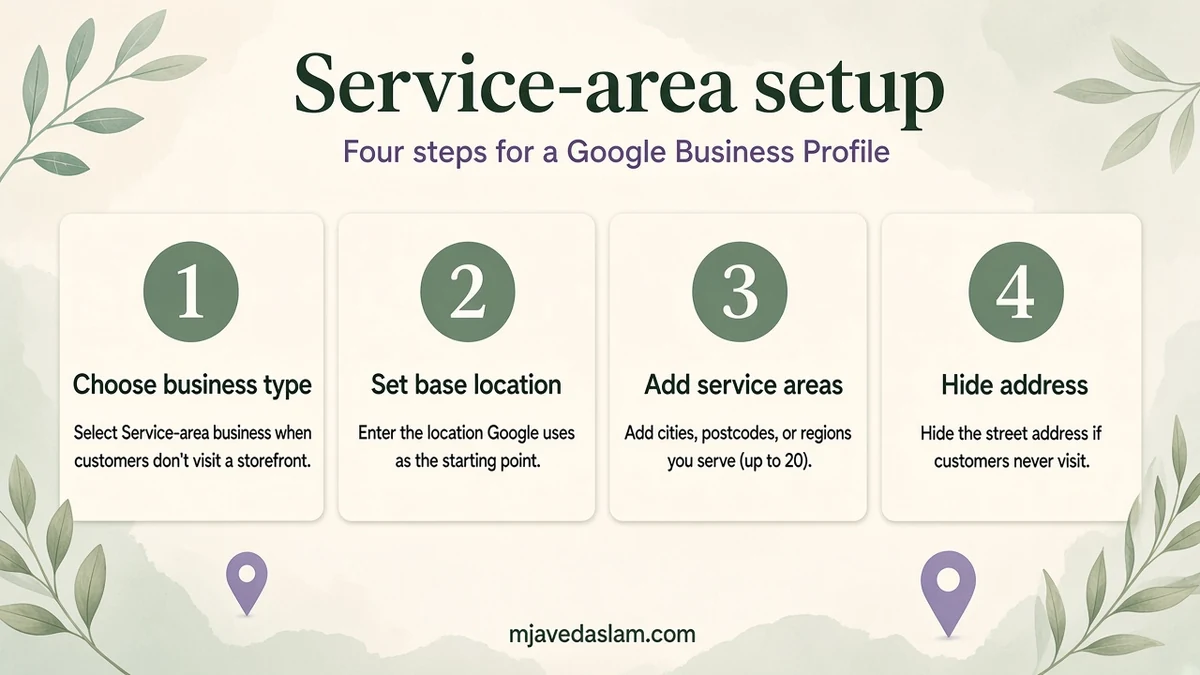
How to set up a service-area Business Profile
If you’re creating a new profile:
- Start at business.google.com/add (or finish claiming an existing listing first).
- When Google asks whether customers visit your location, answer accurately for a service business — you’re setting the storefront vs service-area path.
- Enter where the business is based when prompted (Google still needs a real operating base for verification even when the public address is hidden).
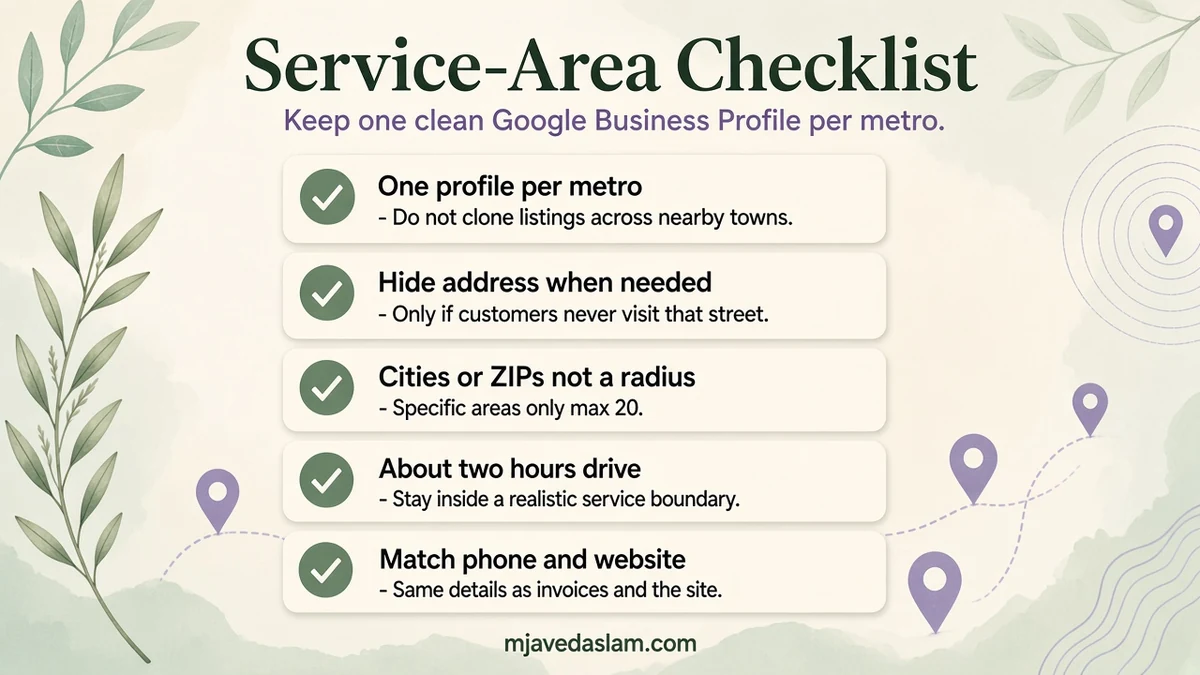
- Add service areas by city, postal code or other supported area types — up to 20.
- Complete category, phone, website and verification.
Google’s signup guidance recommends keeping the overall service boundary within about two hours’ driving time from where the business is based (some businesses may reasonably go further — use judgment, don’t spam half the country).
Best practice from Google’s service-business signup notes: create only one Business Profile for the metropolitan area you serve. Multiple profiles for the same business in the same metro can lead to suspension.
How to hide the address on an existing profile
- Open your Business Profile as an owner or manager.
- Select Edit profile → Location.
- Next to Business location, select Edit.
- Turn off Show business address to customers.
- Save.
Then immediately set or clean up service areas so Maps isn’t guessing for you.
How to add or edit service areas
- Business Profile → Edit profile → Location.
- Next to Service area, select Edit.
- Choose a suggestion or type cities / postal codes / other areas you serve (max 20).
- Save. Google notes approved edits may take up to 48 hours to show.
Important change from older tutorials: you can’t set a radius in miles/kilometers as the modern service area. If you still have a legacy radius you can’t edit, switch to city/ZIP-style areas instead.
Be specific. “Dallas–Fort Worth” style metros via real cities and ZIPs you cover beat vague mega-regions you never drive to. Over-claiming areas you don’t serve wastes impressions and looks bait-and-switch when someone calls from 90 minutes away.
Hybrid businesses: show address + service area
If people walk into your shop and you deliver or go onsite:
- Keep the public address on.
- Set accurate on-site hours.
- Add service areas for the delivery/visit territory.
That combination is what Google describes for hybrids. Don’t hide the address of a real storefront just because you also deliver.
Categories, NAP and the rest of the profile
Hiding the address doesn’t replace the other basics:
- Primary category that matches the job (Plumber, House cleaning service, etc.).
- Phone that a human answers in your service window.
- Website or booking page that lists the same cities you claim.
- Photos of real vans, kits, before/after work — not stock “happy handshake” filler.
- Review workflow — a review link or QR still works for field jobs; see Google review QR code.
Keep name, phone and website consistent with your site and directories. For vertical playbooks (starting with plumbers), see local SEO for plumbers and the broader local SEO service page.
Common mistakes that hurt service-area profiles
- One profile per suburb for the same brand in one metro — against Google’s one-profile guidance and a suspension risk.
- Showing a home address when you never want customers there.
- Hiding a real shop address that customers do visit.
- Legacy radius thinking — switch to cities/ZIPs.
- 20 areas you don’t serve — pad less; accuracy matters more than coverage bragging.
- Keyword-stuffed business names with every city you cover — violates representation guidelines.
FAQ: Service-area businesses on Google
What is a service area business on Google Business Profile?
A business that visits or delivers to customers and does not serve customers at its own address. The public profile shows service areas instead of a street address.
How do I hide my address on Google Business Profile?
Edit profile → Location → Business location → Edit → turn off “Show business address to customers” → Save. Only do this if you’re a service-area business.
How many service areas can I add?
Up to 20, based on cities, postal codes or other area types Google accepts. Edits may take up to 48 hours to appear.
Can I set a service area as a radius (e.g. 25 miles)?
No for new setups. Google says you can’t set service area as a distance radius; use cities, postal codes or other area types. Legacy radius areas may not be editable.
Should I create a separate profile for each city I serve?
No for the same business in one metropolitan area. Google recommends one profile for the metro you serve.
What’s a hybrid business?
You serve customers at your address and also visit or deliver. Show the storefront address, set on-site hours, and add service areas.
Will a service-area profile still show on Maps?
Yes — eligible profiles can show on Search and Maps based on relevance and location signals. Hiding the street address does not remove you from Google; it changes what location detail customers see.
Next step
Decide storefront, hybrid or service-area. Hide the address only if customers never visit. Cap service areas at what you truly cover (≤20), verify the profile, then align your website cities with the same list.
If you want help setting this up cleanly for a home-service brand, start from Google Business Profile or local SEO.