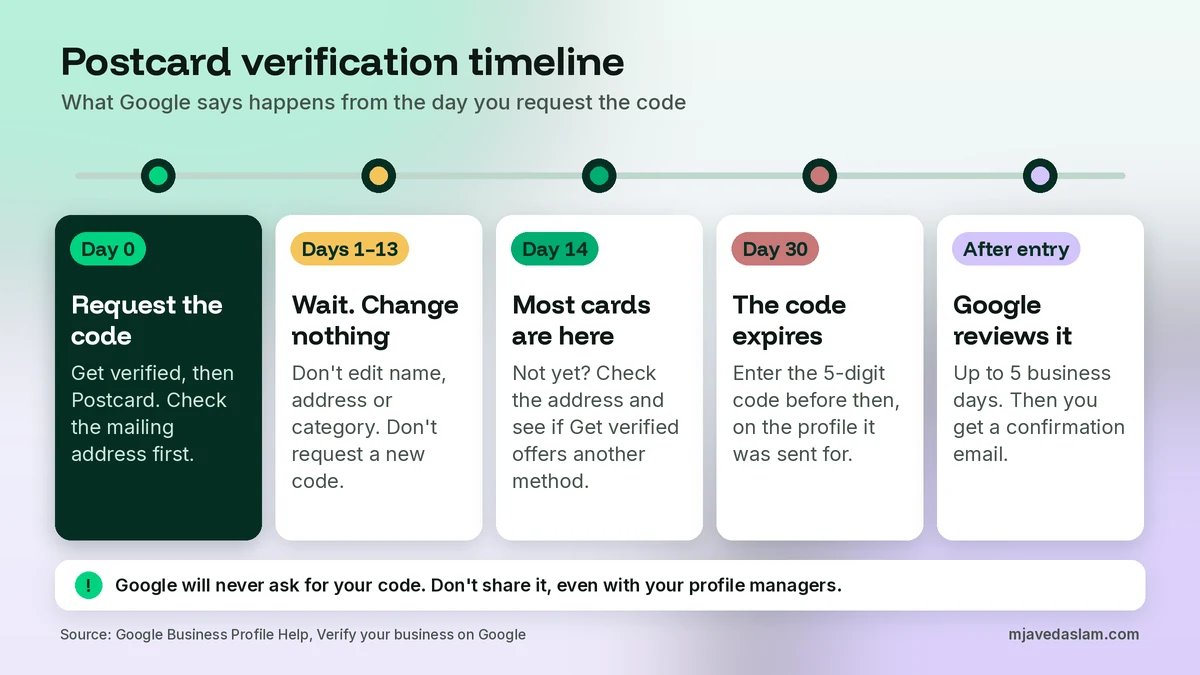
Here’s the short answer. For Google Business Profile postcard verification, open your profile, select Get verified, choose Postcard, check that the mailing address is correct, and request the code. Google says most codes arrive within 14 days. While you wait, don’t edit the business name, address or category, and don’t request another code, because either one cancels the card that’s already in the mail. When it arrives, enter the 5-digit code on your profile before it expires at 30 days, then allow up to 5 business days for Google’s review. One catch: postcard isn’t offered to every business. Google picks the verification methods for you, so your screen may show video, phone, text or email instead.
This is one of the questions local owners ask me most, usually once the card is late. Often they’ve already clicked “request another code”, and that extra click is what keeps them stuck. In this guide I’ll walk through the exact steps from Google’s own help page, what to check before you ask for a card, what to do on day 14 if nothing has arrived, why a code can fail even when you type it correctly, and when to stop waiting and use another method. If you haven’t set up the profile yet, start with my guide on how to claim your Google Business Profile, then come back here.
Is postcard verification still available?
Sometimes. Google’s Verify your business on Google help page is clear that verification methods are automatically determined by Google and can’t be changed. The options you see depend on your business type, your public information, your region and your business hours. In some cases Google asks you to verify with more than one method.
Google lists this option under Mail on its help page, so you may also see it called verify by mail. On the mail option itself, the same page says verification through postcard isn’t available for all businesses. Google recommends trying the options you do have, and contacting support only if you still can’t verify. So if you open Get verified and there is no Postcard choice, there’s no setting that adds it, because Google says the methods can’t be changed. That’s normal, not a penalty.
Google also says that if your business is eligible for video verification, it recommends that option. A video can be recorded today, while a card can take two weeks to arrive. I explain what to film in my guide to Google Business Profile video verification. But if Postcard is the method on your screen, or the only one you can complete, it still works. You just need to do it carefully.
Before you request the postcard: get the address right
A postcard only works if it can reach you and if the details on the profile won’t change for the next few weeks. I spend five minutes on these checks before I let a client click Request.
1. Use a real, complete street address
Google’s Manage your business address page asks for a complete street address that Google can find, including building, suite, floor and other unit details. Only include what is part of the official address. In places where the official address isn’t accurate, Google allows nearby cross-streets or landmarks. That matters a lot in cities like Multan, where a plaza name, floor and a nearby landmark often do more for the postman than the street name.
Google’s guidelines for representing your business add the hard limits. P.O. boxes and mailboxes at remote locations aren’t acceptable. A virtual office, meaning a rented mailing address you don’t operate from, isn’t eligible for a Business Profile. An office at a co-working space only qualifies if it has clear signage, receives customers during business hours, and is staffed by your team during those hours. If your physical address needs a mailbox or suite number, put the physical address in Address line 1 and the suite or mailbox in Address line 2.
2. Lock the name, category and pin first
Because editing the name, address or category after you request the card breaks the code, I finish those edits before requesting. Check the name against Google’s rules in my post on Google Business Profile name guidelines, choose your primary category carefully, and if the map marker is off, fix the Google Maps pin now rather than in the middle of the wait.
3. Service-area businesses: the address is still on file
If you visit customers and hide your address, your profile shows a service area instead of a street address. Google’s postcard step still tells you to make sure your business mailing address is correct, so check the address you entered under Location even if customers can’t see it. My service-area business setup guide covers when to hide the address and how to set the area.
4. Tell whoever collects the mail
This sounds small, but it matters. In an office building or a market, the post often lands with a receptionist, a guard or a neighbouring shop. Tell them a card from Google is coming and ask them to keep it for you. If your business sign or name isn’t on the door or mailbox, the card is easier to lose.
How to verify Google Business Profile by postcard, step by step
These steps follow Google’s verification help page. Sign in to the Google Account that manages the profile first. Google says you must be signed in to that account to find the profile, for example by searching for your business name and city or for my business on Google Search.
Step 1: Request the code
- Go to your Business Profile.
- Select Get verified, then Postcard.
- Make sure your business mailing address is correct.
- Request the code.
Note the date. Every decision later depends on how many days have passed since this moment.
Step 2: Wait, and change nothing
Google’s rules for the waiting period are short and strict:
- Do not edit your business name, address or category. If you do, the code that’s already in the mail won’t work.
- Do not request a new code. Google invalidates the code in the mail and sends a new one, which can make the process longer.
- Verification codes expire after 30 days.
Other edits, like adding photos, are not on Google’s list of things that break the code. I still keep a profile quiet while a card is on the way. It’s easier to know what went wrong if something does.
Step 3: Enter the 5-digit code
- Go to your Business Profile.
- In the Code field, enter your 5-digit verification code.
- Select Submit.
Google also says to keep the code secure, that Google will never ask for your verification code, and not to share it with anyone, even people who manage your Business Profile. If a caller says they’re from Google and asks you to read the code from the card, hang up. If you work with an agency, add them as a manager after you’re verified instead of giving them the code. I explain how in my guide on how to add a manager to Google Business Profile.
Step 4: Wait for the review
After you submit, Google reviews the information. Google says verification reviews take up to 5 business days, and on rare occasions longer. When it’s done you get a confirmation email. Only then is the profile fully yours to edit and reply from.
GBP postcard not received? What to do if it never arrives
This is the part most guides skip. Here is the order I follow, based on what Google’s help page actually says.
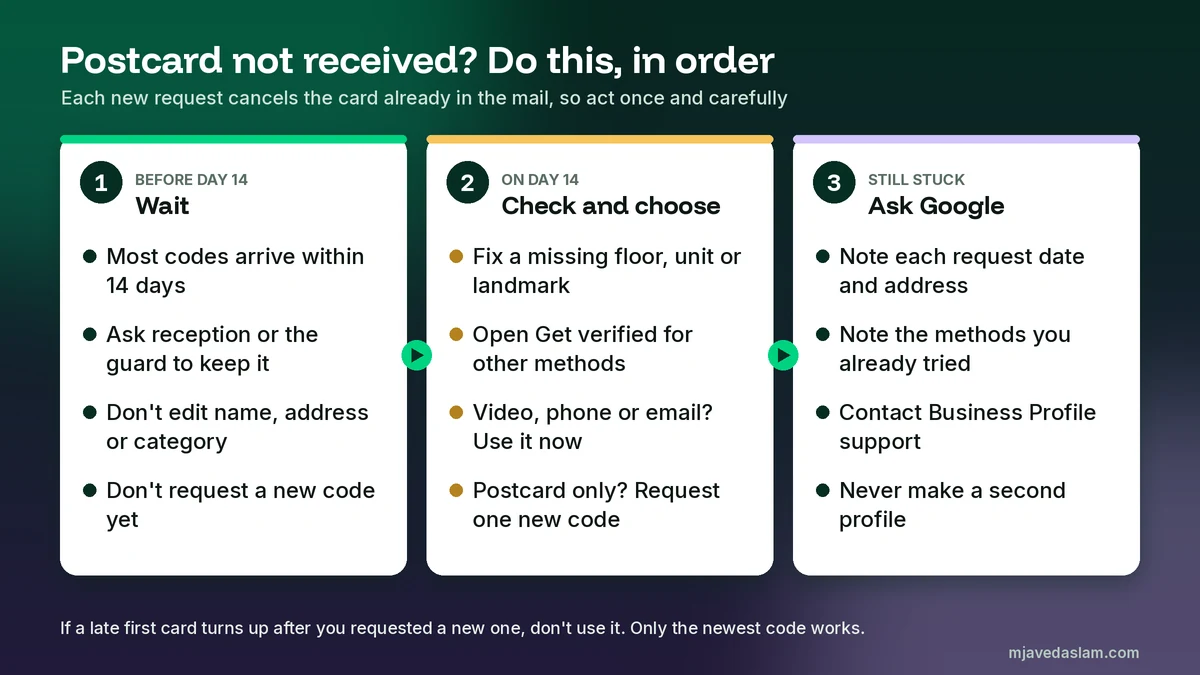
Days 1 to 13: wait
Google says most codes arrive within 14 days. Before that, a missing card isn’t a problem yet. Don’t request a new one, don’t edit the three locked fields, and don’t create a second profile “to try again”. Ask the people who collect your mail to keep looking.
Day 14 and still nothing: check, then choose
- Check the mailing address on the profile. Look for a missing unit or floor number, a wrong city or postal code, or a landmark that would help the postman.
- Open Get verified again and look at your options. Google recommends trying the options available to you. If video, phone, text or email now appear, use one of them instead of waiting longer for the mail. For phone, Google notes that interactive voice response (IVR) menus won’t get the code, so make sure you can answer the call yourself. If you plan to change the number first, read my guide to changing your Google Business Profile phone number.
- If Postcard is still the only option, fix the address if it was wrong and request one new code. Know that this cancels the old card. If the first card turns up later, don’t use it. Wait for the new one.
- Request once, not again and again. Each request restarts the clock.
Still stuck: contact support
Google’s advice is to try the verification methods available first and contact support if you’re still unable to verify. Support is easier to work with when you can say exactly which methods you tried and when. I keep a short note with the date of each request, the address used, and any messages shown on the profile.
Volunteer Product Experts on the Google Business Profile Community also say support generally won’t help with a missing postcard until 14 days have passed. That’s community guidance rather than an official rule, but it matches Google’s own 14-day estimate.
Why a postcard code doesn’t work
When an owner tells me “the code is wrong”, it’s almost always one of these:
| What happened | Why the code fails | What to do |
|---|---|---|
| You edited the name, address or category after requesting | Google says the code it sent won’t work after those edits | Use the method Google now shows in Get verified. If it’s Postcard, request one new code and change nothing until you enter it |
| You requested another code | The older card is invalidated when a new one is sent | Wait for the newest card and use only that code |
| More than 30 days passed | Verification codes expire after 30 days | Request a new code and enter it as soon as it arrives |
| You’re signed in to a different Google Account | The code has to be entered on the profile you requested it for | Sign in to the account that manages that profile and enter it there |
| You’re entering it on a different listing | The code belongs to the profile you requested it for, not a duplicate of it | Find and fix the duplicate first. See how to fix a duplicate Google Business Profile |
After you enter the code: “Get verified” or more info requested
Entering the code isn’t always the end. Google’s help page lists what to do when the review doesn’t go through:
- The Get verified button appears again. Google says this means it couldn’t completely verify your business. Re-verify. If your profile shows more than one method, you can try another one.
- Google asks for additional info to re-verify. Google says this is likely because some business details were recently updated. Select Get verified and complete the steps.
- You get a confirmation email. You’re verified. Now you can edit the profile, reply to reviews and add managers.
Google also says some profiles are verified instantly, for example when you’ve verified your website with Google Search Console, or when you use bulk verification. Bulk verification is for businesses with 10 or more locations of the same business, and I cover how it works in my guide to managing multiple locations on Google Business Profile. A single shop with its own website may still be asked for a normal method.
Postcard vs the other verification methods
Google Business Profile postcard verification is only one of several methods. You don’t get to pick freely, but it helps to know what each method needs when Google offers more than one. This is based on the current help page.
| Method | What you need | Watch out for |
|---|---|---|
| Postcard (mail) | A correct mailing address and someone to collect the card | Most codes arrive within 14 days. Edits to name, address or category, or a new request, cancel the code. Expires at 30 days |
| Phone or text | A business number you can answer, or that can receive texts | Interactive voice response (IVR) systems won’t get the code |
| Access to the exact email address shown on the verification screen | If you can’t open that inbox, choose another method | |
| Live video call | A device for video, being at the business during business hours | Not available for all businesses. Be ready to show signage, equipment and proof you manage the place |
| Video recording | A phone and one unedited, unbroken video showing the location, the business and proof you manage it | Reviewed in up to 5 business days. A “Review issues” notice means it wasn’t accepted. See my video verification guide |
Mistakes I see during postcard verification
- Requesting a new code on day 5. It cancels the first card and restarts the wait.
- Changing the category or name while waiting. Google says the code won’t work after those edits.
- Using a P.O. box or a virtual office. These go against Google’s address guidelines, and a profile built on them can be suspended even if the card arrives.
- Creating a second profile to “start again”. Google allows one profile per business. A second listing creates a duplicate you’ll have to clean up later.
- Sharing the code with an agency or a caller. Google says never share it, even with managers.
- Ignoring the other options. If Get verified offers video or phone on day 14, use it rather than waiting another month for the mail.
A note for businesses in Pakistan and outside the US
Google Business Profile postcard verification follows the same steps in every country where it’s offered, but Google doesn’t publish country-by-country delivery times. The only official timing is the general one: most codes arrive within 14 days, and codes expire after 30. Because Google chooses methods by region, don’t be surprised if postcard isn’t offered at all and you see video, phone or email instead. If postcard does appear, write the address the way your local post office would expect, add a landmark where the official address doesn’t pinpoint the shop, and make sure someone at the business knows to look for a card from Google.
Once you’re verified, the work that actually brings calls begins. My guides on how to rank in the Google Map Pack and how to optimize Google Business Profile for AI search are the next steps I’d take, and the Google Maps app guide shows how to manage the profile from your phone.
FAQ
How long does a Google Business Profile postcard take to arrive?
Google says most verification codes arrive within 14 days. Don’t request a new code or edit your business name, address or category during that time, because both cancel the code in the mail.
Why can’t I see the postcard option?
Google decides which verification methods you get based on your business type, public information, region and hours, and you can’t change them. Postcard verification isn’t available for all businesses. Use one of the methods you are offered, such as video, phone, text or email.
What should I do if my postcard never arrived?
After 14 days, check the mailing address on the profile and look at Get verified for other methods. If postcard is the only option, correct the address if needed and request one new code, knowing the old code stops working. If you still can’t verify, contact Business Profile support.
How long is the postcard verification code valid?
Verification codes expire after 30 days. Enter the 5-digit code on your Business Profile as soon as the card arrives, then allow up to 5 business days for Google’s review.
Can I edit my profile while waiting for the postcard?
Don’t edit the business name, address or category. Google says the code won’t work if you do. I also avoid other changes until the code is entered, so it’s easier to know what went wrong if something fails.
Can I share the postcard code with my agency?
No. Google says to keep the code secure, never share it with anyone, even people who manage your profile, and that Google will never ask for it. Add your agency as a manager after you’re verified instead.
Next step
If verification is stuck or the profile keeps asking you to verify again, I can look at the listing, the address and the methods on offer, and tell you the fastest safe route. Start with my Google Business Profile service page, or get in touch with your business name, city and the date you requested the card. With Google Business Profile postcard verification, the fix is usually patience plus one careful correction, not a new profile.