
Here’s the short answer. To export Google Business Profile insights, use a computer. Open Business Profile Manager at business.google.com/locations, tick the profile (or profiles) you want, then click Actions > Insights. Pick a timeframe, click Download Report, and open the spreadsheet in Excel or Google Sheets. That is the only download route Google documents. The Performance screen on Google Search and in the Google Maps app lets you view your numbers, but Google gives no download steps for it.
I set up and manage Google Business Profiles for small businesses, and I export these numbers for every client each month. The dashboard is fine for a quick look. A spreadsheet is better when you want to see a trend, compare branches or send a report. This guide shows how to export Google Business Profile insights step by step, what the file contains and what it leaves out, and the simple monthly routine I use. If you first want to know what each number means, read my guide to Google Business Profile insights.
Before you start: what you need
Google’s help page on Business Profile performance sets two rules. Performance data is only available for verified profiles. And you must be signed in to the Google Account linked to the profile. In practice, that means:
- A verified profile. If yours still says unverified, finish that first. My guide to Google Business Profile video verification covers the most common method today.
- Owner or manager access. Google says owners and managers can check views, clicks and other interactions. If a staff member or agency needs the report, add them as a manager instead of sharing your password.
- A computer. Google’s download steps start with “On your computer”. Google gives no download steps for the Google Maps app.
- The right Google Account. Many owners have two or three Google Accounts. If you open Business Profile Manager and see no businesses, you are probably signed in to the wrong one.
How to export Google Business Profile insights (step by step)
These steps follow Google’s own help page. They work the same for one profile or for fifty.
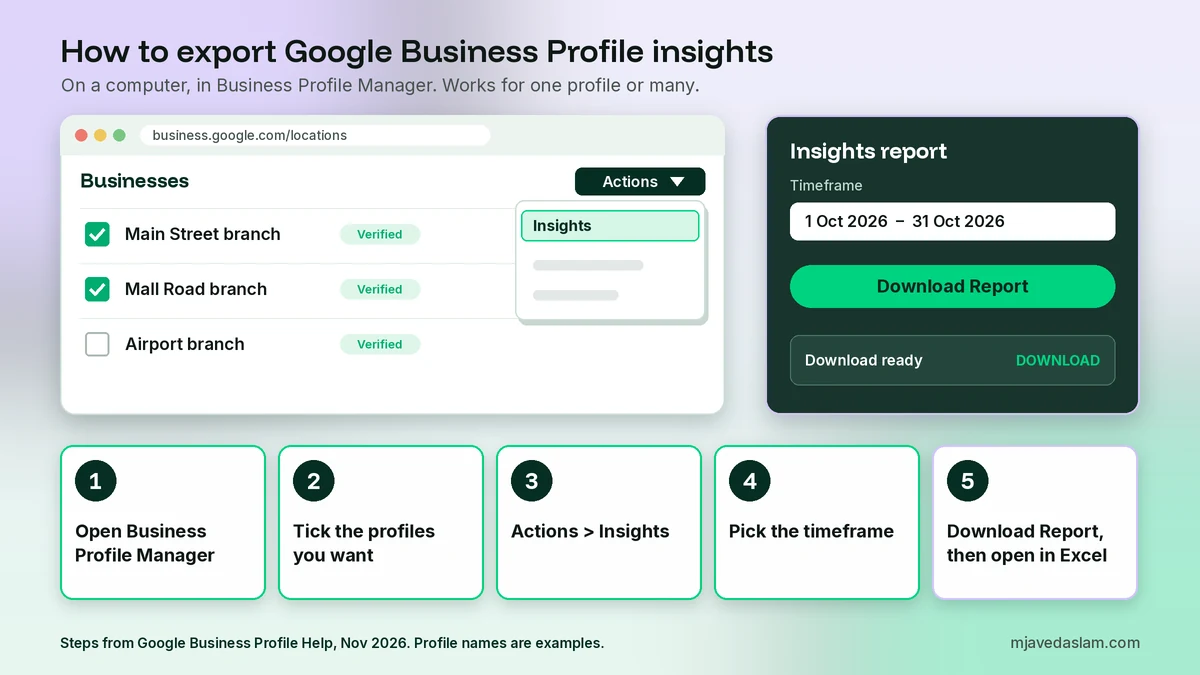
- On your computer, go to Business Profile Manager (business.google.com/locations). You will see a list of the profiles your account manages.
- Tick the checkbox next to each profile you want data for. For a single business, tick just that one.
- At the top right, click Actions, then Insights.
- Select the timeframe for your data. For a monthly report, choose the first and last day of last month.
- Click Download Report. When a “Download ready” box appears at the bottom left of the screen, click Download.
- The download finishes in a new tab, which you can close. Then open the file from your Downloads folder.
That’s it. The whole job takes about two minutes once you know where the buttons are.
Export several locations at once
If you run more than one branch, this is where the export really helps. Google says you can download performance data for several profiles at once “to compare the performance of different locations”. Tick every branch in step 2, and the report puts them side by side in one file, one row per profile. I find this much faster than opening each profile’s Performance screen one at a time.
Tidy profiles make tidy reports. If one branch appears twice in the list, sort that out before you trust the totals. My guide to fixing a duplicate Google Business Profile explains how.
What the export file contains
The first columns identify each profile, such as its name and address. After that come the metric columns. Here is what each one means, based on Google’s metric definitions:
| Column | What it counts | My note |
|---|---|---|
| Google Search – Mobile | People who viewed your profile on Google Search on a phone | Usually your biggest views column |
| Google Search – Desktop | People who viewed your profile on Google Search on a computer | Add the four view columns for total views |
| Google Maps – Mobile | People who viewed your profile on Google Maps on a phone | Strong for walk-in businesses |
| Google Maps – Desktop | People who viewed your profile on Google Maps on a computer | Often the smallest views column |
| Calls | Clicks on the call button | A tap, not a confirmed call |
| Messages | Conversations started from your profile | Zero if messaging is off |
| Bookings | Bookings completed through a booking provider | Blank unless you use a provider |
| Directions | Requests for directions to your business | Google filters repeat taps, cancellations and spam |
| Website clicks | Clicks on your website link | Check them against GA4 |
| Food orders, food menu clicks, hotel bookings | Restaurant and hotel actions | Ignore if they don’t apply to you |
Two details matter when you read the file. First, there is no single “total views” column. Views are split into four columns by platform and device, so add them together. Second, Google counts views carefully. Its help page says a person is counted only once a day, and a person who uses several devices is counted a limited number of times. That is why the total can be lower than the number in Google’s emails to you.
What the file does not include
- Search terms. Google’s download steps do not mention the searches report. Copy your top search terms from the Performance screen instead. Google says this report updates at the start of each month and can take up to five days to show.
- Reviews and ratings. Track your review count and average rating yourself. I add them as two extra columns in my monthly sheet.
- Revenue or real outcomes. A call click is not a sale. Match calls and website clicks to your own enquiry records.
Open the export in Excel or Google Sheets
The file opens like any other spreadsheet. In Google Sheets, I use File > Import > Upload, so I can add it as a new tab in my master report. In Excel, you can double-click the file, or use Data > From Text/CSV if the columns look squashed together.
Then do three quick clean-up jobs:
- Check the header rows. If there is an extra row of descriptions under the column names, delete it before you sort or make a chart.
- Add a Total views column. In Excel or Sheets, a formula such as =SUM(E3:H3) adds the four view columns. Change the letters to match your file.
- Label the file. Rename it with the month, for example gbp-insights-2026-10.csv. Six months from now you will thank yourself.
If you want charts for a client or your boss, connect the Google Sheet to Looker Studio as a data source. It updates whenever you add a new month.
My monthly export routine
One export is a snapshot. A file every month becomes a history you control. The Performance screen lets you choose a time period, but Google’s help page does not promise how far back it goes. So I never rely on the dashboard for old data. This is the routine I follow for every client:
- First working day of the month: export last month for every profile, using exact start and end dates.
- Paste the totals into one master sheet: one row per month per location, with views, calls, website clicks, directions, messages and bookings.
- After the 5th: open the Performance screen and copy the top search terms, because Google can take up to five days to update them.
- Write one line of notes: for example, “added 15 photos”, “changed primary category” or “closed for Eid”. The notes explain the numbers later.
- Compare the same month last year, not just last month. Many local businesses are seasonal.
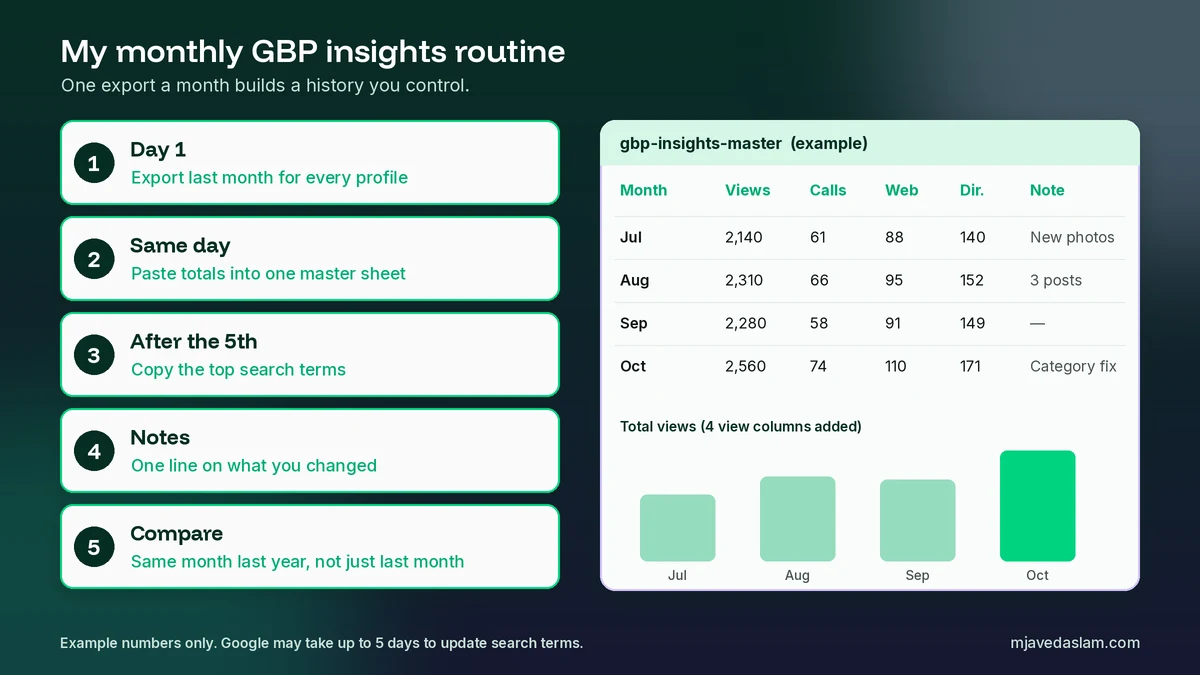
Why the notes? Because numbers alone don’t tell you what caused them. If views jump the month you published three new posts, that’s a clue worth testing again. My guide to Google Business Profile posts has ideas for those tests. If you change your hours for a holiday, note that too, since calls and directions can dip. See my guide to holiday hours.
All the ways to get your Google Business Profile data
The download is not the only option. Here is how they compare:
| Option | Who it suits | Download? |
|---|---|---|
| Performance screen on Google Search | A quick check on one profile | No documented download |
| Performance in the Google Maps app | Checking numbers on your phone | No documented download |
| Business Profile Manager: Actions > Insights | Owners, managers and agencies, one or many profiles | Yes, a spreadsheet |
| Business Profile Performance API | Developers and agencies with many locations | Yes, through your own code |
| Third-party reporting tools | Agencies that want automatic dashboards | Depends on the tool |
For most small businesses, the Business Profile Manager download is all you need. It is free and official, and you don’t have to give a third party access to your account.
Export Google Business Profile insights with the API (for agencies)
If you manage dozens of locations, Google’s Business Profile Performance API can pull the same data automatically. It is a developer tool, not a button. Google’s API prerequisites say you need a Google Cloud project and must request access to the Business Profile APIs, then wait for approval before you can use them.
Once you have access, two methods matter for reporting:
- fetchMultiDailyMetricsTimeSeries returns a value for each day in a date range. Its daily metrics include impressions on Maps and Search (desktop and mobile), direction requests, call clicks, website clicks, bookings and food menu clicks. Google notes that several impressions by one user in a single day count as one.
- searchkeywords.impressions.monthly.list returns the search terms people used to find you, grouped by month. For small numbers, it gives a threshold instead of an exact count. See Google’s search keywords method.
So the API does two things the spreadsheet download doesn’t: it gives you daily values and it gives you search terms. For a single shop, though, that’s more setup than it is worth. I only suggest it for agencies and chains.
Troubleshooting the export
The columns show *** instead of numbers
Google’s help page says you may see “***” in the columns if you haven’t enabled your profile for downloads. It points you to the guide on Business Profile status. Check the status column in Business Profile Manager. If a profile is unverified, pending or has errors, fix that first and try the download again.
I can’t find Insights under Actions
Make sure at least one profile is ticked, because the Actions menu works on the profiles you select. Also make sure you are on a computer and signed in to the account that owns or manages the profile.
The numbers look lower than my email reports
This is normal. As explained above, Google counts unique viewers, not every visit. Use one source and stick to it. I always use the exported file, so my month-to-month comparisons are fair.
Website clicks don’t match Google Analytics
They rarely match. A click is counted when someone taps the link, while GA4 only records a visit once the page loads, and only if the visitor accepts tracking where a consent banner is used. To see those visits clearly in GA4, add UTM tags to your profile’s website link. My guide to UTM tracking for Google Business Profile shows how.
Turn your export into decisions
A spreadsheet is only useful if it changes what you do next. Here is how I read a monthly export:
- Views are falling: check your categories and description first. See my guides to the primary category and the business description.
- Views are fine but actions are low: improve what people see on the profile, starting with better photos and fresh posts.
- Calls are high but jobs are not: listen to how calls are answered. The profile did its job, so the problem is after the call.
- One branch lags the others: compare its categories, photos and reviews with your best branch, line by line.
FAQ: Exporting Google Business Profile insights
Can I export Google Business Profile insights to Excel?
Yes. On a computer, open Business Profile Manager, tick your profile, click Actions and then Insights, choose a timeframe and click Download Report. Google gives you a spreadsheet file that opens in Excel or Google Sheets. It works for one profile or several at once.
Can I download insights from the Google Maps app?
Google’s help page shows how to view Performance in the Google Maps app, but its download steps are for a computer only. Check your numbers on your phone if you like, then use Business Profile Manager on a laptop or desktop when you need the spreadsheet. You can also manage your profile in the Google Maps app.
How far back can I export Google Business Profile insights?
Google’s help page lets you choose a timeframe but does not state a fixed history limit, so check the date picker in your own account. Don’t depend on it for old data. Export last month’s numbers at the start of every month and keep the files, so your history never disappears.
Why does my export show *** instead of numbers?
Google says you may see *** in the columns if your profile isn’t enabled for downloads, and it links this to your profile’s status in Business Profile Manager. Check the status column. If the profile is unverified, pending or shows errors, fix that first and download again.
Does the export include search terms?
Google’s download steps do not mention search terms, so copy them from the Performance screen each month. Google updates the searches report at the start of each month and says it can take up to five days to appear. Agencies can also pull monthly search keywords through the Business Profile Performance API.
Can I export insights for multiple locations at once?
Yes. In Business Profile Manager, tick every location you want before you click Actions and then Insights. Google says this lets you compare the performance of different locations in one spreadsheet, so you don’t need to open each profile separately.
Next step
Open Business Profile Manager on your computer today and download last month’s report. Start a master sheet with that one row, and add a new row on the first working day of every month. If you would rather have me set up the report and review it with you, see my Google Business Profile service or my wider local SEO work.