Here’s the short answer. There is no separate Google Business Profile app any more. Google retired the old Google My Business app in 2022. Today you manage your profile on your phone inside the Google Maps app. Sign in with the Google Account that manages your business, tap Business at the bottom right, then tap Edit profile. Make your change and tap Save. From the same place you can reply to reviews, post updates, check performance and turn on alerts.
I manage Google Business Profiles for small businesses, and most of my clients are busy owners who rarely sit at a desk. So I teach them to handle small jobs from their phone, like a holiday closing time or a reply to last night’s review. This guide shows you how to manage Google Business Profile from your phone, step by step. It also covers what still works better on a computer, and how to fix the most common problem: the Business tab or the Edit profile button is missing. If you are starting from zero, first claim your Google Business Profile.
Is there a Google Business Profile app?
No, not as a separate download. In November 2021, Google announced on its official blog that it was renaming Google My Business to Google Business Profile. It said it would retire the Google My Business app in 2022 and recommended that small businesses manage their profiles directly on Search or Maps. The app stopped working in July 2022.
So the real Google Business Profile app is the Google Maps app you already have. On a computer, you manage the same profile from Google Search, or from Business Profile Manager if you run several locations.
One warning. Apps in the app stores with “business profile” or “GMB” in the name are made by other companies, not Google. Never give one your Google password. If a tool needs access, add it as a manager.
Before you start: four quick checks
Most “the app doesn’t work” problems come from one of these.
- The right Google Account. Google says you must sign in to the Google Account linked to your Business Profile to edit it. Tap your profile picture at the top right of Google Maps and check the email. Many owners have a personal Gmail and a business one, and they are often signed in to the wrong one.
- Owner or manager access. Both roles can manage the profile on Search and Maps, edit info, reply to reviews and publish posts. If you were never added, ask the owner to add you as a manager.
- A verified profile. Google lets you edit only some basic info on an unverified profile, such as name, category, address, hours, phone and website. To edit everything and reply to reviews, finish verification first. Many new profiles are now asked to verify with a short video recorded in the Google Maps app. See my guide to Google Business Profile video verification.
- An updated Google Maps app. Update it from the App Store or Google Play. Google says some features differ between Search, Maps and phone operating systems.
How to open your Business Profile in the Google Maps app
These steps follow Google’s help page on finding your business on Google. They work on Android and iPhone.
- Open the Google Maps app on your phone.
- Tap your profile picture at the top right and make sure the account that manages the business is selected. Switch account if it is not.
- At the bottom right, tap Business. Your Business Profile opens in manager view.
- If you manage more than one business, tap the Down arrow at the top and choose the business you want.
- To change your details, tap Edit profile. When you finish, tap Save.
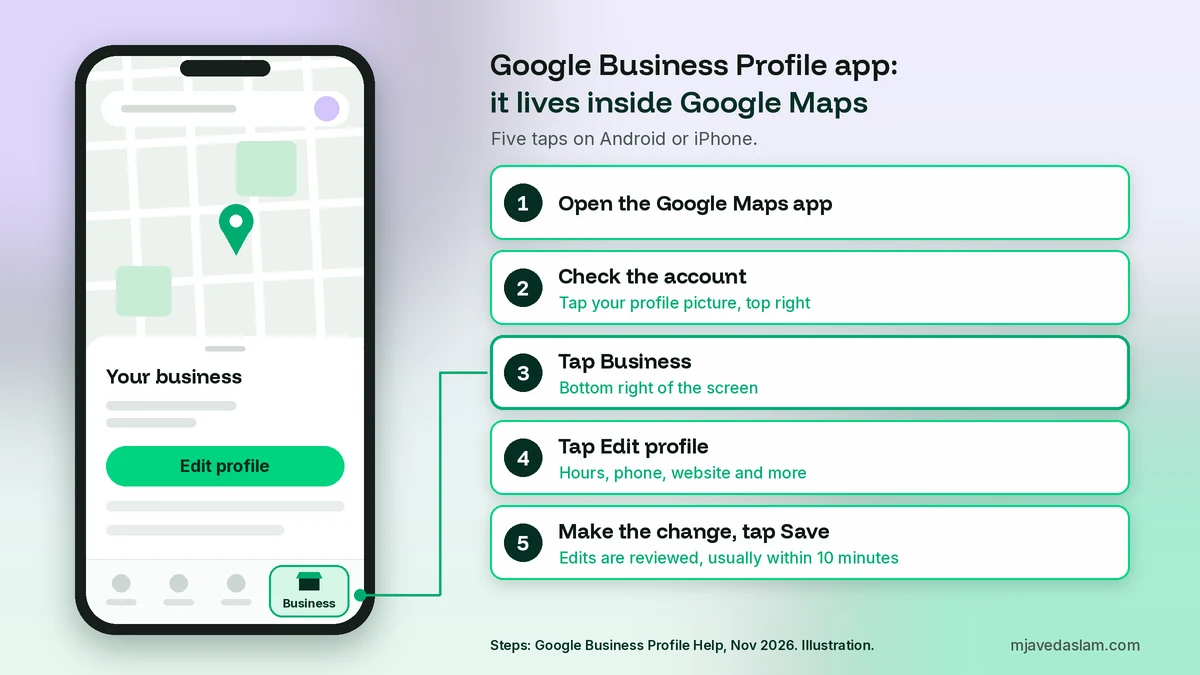
That is the whole route. Everything else in this guide starts from the Business tab.
What you can manage from your phone
Here is where each job lives in the Google Maps app. Menu names change from time to time, so look for the nearest match if a label differs.
| Task | Where to find it in the Google Maps app | Phone or computer? |
|---|---|---|
| Edit name, hours, phone, website, description | Business > Edit profile > Save | Phone is fine |
| Holiday and special hours | Business > Edit profile > Hours | Phone is fine |
| Read and reply to reviews | Business > Reviews | Phone is fine |
| Reply to customer photo updates | Business > See Business Profile > Updates > By visitors | Phone only |
| Posts, offers and events | Your profile’s Updates tab, “By Owner” | Phone is fine |
| Check performance | Business > Performance > See more | Phone to view |
| Download performance reports | Not available in the app | Computer only |
| Notifications | Business > Notifications (top right) | Phone is best |
| Add or remove managers | Business Profile settings > People and access | Either |
Two rows deserve a note. Customer photo updates can only be found, answered and reported in the Google Maps app, according to Google’s help page on photo updates from customers. And performance reports can be viewed on the phone but not downloaded. For spreadsheets, use a computer and follow my guide to export Google Business Profile insights.
Edit your business info from your phone
Google’s help page on editing your Business Profile confirms the route: Business, then Edit profile, then Save. Inside Edit profile you will find your name, category, location, service area, hours, contact details, website, description and more.
What I tell every client before they touch these fields:
- Your name and address are sensitive. Google says that if you change your business name after verification, you might need to verify again. If you move to a new address, you must verify again. Don’t change either one on a whim. Read my Google Business Profile name guidelines first.
- Your description has a 750-character limit and must not contain URLs or HTML. Write it on a computer if you want to polish it. My guide to the Google Business Profile description has examples.
- Your primary category matters most. Pick it with care, not in a rush on your phone. See how to choose a Google Business Profile primary category.
- Your pin should sit on your real door. If customers say the map sends them to the wrong place, follow my steps to fix a wrong Google Maps pin.
After you save, Google reviews the change. Its page on what happens to your edits says edits usually take up to 10 minutes to review, but sometimes up to 30 days. Each edit shows as Accepted, Not approved or Pending. If an edit is pending, wait. Saving the same change again doesn’t help.
Holiday and special hours
This is my most common phone job. Go to Business, tap Edit profile, then Hours, and find Special hours. Add the date, mark it closed or enter the changed hours, and save. Google says special hours are for short changes, such as holidays, events or closures of up to 6 days in a row. For a week or more, mark the business temporarily closed instead. My full guide to Google Business Profile holiday hours lists the dates to plan ahead.
Reply to reviews from the Google Maps app
Open Business and tap Reviews. Find the review, tap Reply, write your answer and send it. Google checks replies against its content policies before they go live. It says this usually takes up to 10 minutes, but can take up to 30 days. The customer gets a notification when you reply, and your reply shows as the business, not under your personal name.
A fast, polite reply to an unhappy customer can calm things down. But don’t type an angry reply in a hurry. Keep a few ready answers in your phone’s notes and adjust them. My Google review response templates are a good starting point.
If a review breaks Google’s rules, report it. In the app you can also report the reviewer: in Reviews, tap their name, then More, then Report. Google removes only reviews that break its policies, not ones that are just negative. For fake competitor listings, see how to report a fake Google Business Profile.
Reply to customer photo updates (Maps app only)
Customers can post photo updates on your profile from the Google Maps app. These are photos, with or without text, about things like new products, a seasonal menu or changed hours. A customer can leave only one review, but they can post many photo updates. Google says photo updates don’t affect your review score, but other customers can see them.
You can find, reply to and report these updates only in the Google Maps app. Go to Business, tap See Business Profile, open the Updates tab and choose By visitors. Tap Reply to answer, or More, then Report, if an update breaks Google’s policies. Check this tab weekly. Many owners have updates there they have never seen.
Post updates, offers and events
Your own posts appear in the “By Owner” section of the same Updates tab. Google offers three post types: Updates for news, Offers for sales and promotions, and Events with start and end dates. You can add a photo or video and a button with a link. If you add a link, tag it so you can track the visits in Analytics; my guide to UTM tracking for Google Business Profile shows how.
Two rules from Google’s posts help page catch people out. First, a post that includes a phone number might be rejected if Google can’t verify that the number belongs to the business. Second, posts older than six months are archived unless they have a date range. So post short, regular updates, and give offers and events proper dates.
A phone photo of today’s work plus two plain sentences is a good post. For more ideas, read my Google Business Profile posts best practices.
Check your performance on your phone
Tap Business at the bottom right. Next to “Performance”, tap See more. Choose a time period at the top and tap Apply. You will see views, calls, direction requests and website clicks. My guide to Google Business Profile insights explains what each number means and which ones to trust.
Google gives no download steps for the app, so for real reporting I use a computer.
Add or remove managers
Google’s help page on owners and managers uses the same path everywhere: open your Business Profile, go to More > Business Profile settings > People and access. There you can add a person by email and choose Owner or Manager, change a role, or remove someone. Only owners can add or remove users. Managers can do almost everything else, including editing info, replying to reviews and posting.
Give your agency or staff Manager access, not Owner, and never share your password. Also remember Google’s 7-day rule: a new owner or manager has to wait 7 days before they can remove other users, delete the profile or transfer primary ownership. My guide to transfer Google Business Profile ownership walks through the full process.
Turn on notifications so nothing slips
A phone’s biggest advantage is that it tells you when something happens. Google’s notifications help page lists the types: account updates, features and tips, customer activity such as new reviews and photos, business info alerts, and bookings and requests. In the Google Maps app, tap Business, then tap Notifications at the top right. Also check your phone’s own settings and make sure Google Maps is allowed to send notifications.
At the very least, switch on alerts for new reviews and for Google updates to your business info. Google sometimes changes details based on user reports, and an alert lets you check and correct them quickly.
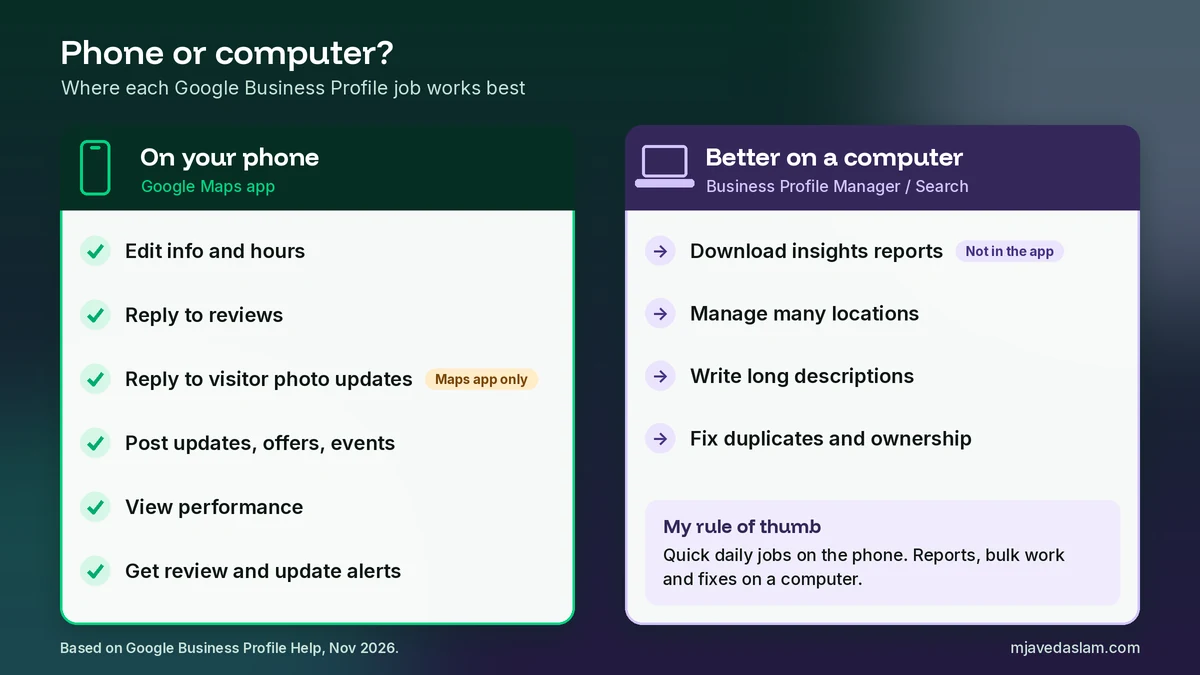
What still works better on a computer
I love the phone for quick jobs, but some tasks are easier or only possible on a bigger screen:
- Downloading reports. Insights downloads happen in Business Profile Manager on a computer. See how to export your insights.
- Many locations. Business Profile Manager shows all your branches in one list, which beats switching profiles in the app.
- Long writing. Descriptions and service lists are easier to write on a keyboard.
- Fixing problems. Duplicates and ownership disputes need forms and screenshots. See how to fix a duplicate Google Business Profile.
Business tab or Edit profile missing? Fix it in this order
This is the question I get most. Work through these checks in order. Each takes a minute.
- Check the account. Tap your profile picture in Google Maps. Is it the email that manages the business? If not, switch accounts, close the app and open it again.
- Update the app. An out-of-date Google Maps app can hide the Business tab or newer options.
- Search for your business. In Google Maps, search your business name and city. If you are signed in to the right account, you should see manager options on the profile.
- Ask who else has access. If no account works, the profile may belong to someone else, such as a past employee or an old agency. Ask them to add you under People and access.
- Claim it if nobody manages it. If the business has never been claimed, follow my steps to claim your Google Business Profile and verify it.
My 10-minute weekly phone routine
This is the short routine I give owners who want an active profile without hiring anyone:
- Reviews (3 minutes). Open Business > Reviews and reply to every new review, good or bad.
- Photo updates (1 minute). Check Updates > By visitors and reply to anything new.
- One post (3 minutes). Share one real photo from this week with two plain sentences.
- Hours check (1 minute). Is there a holiday or closure in the next two weeks? Add special hours now.
- Alerts (2 minutes). Read any Google update notices and confirm your info is still correct.
Add a quick look at Performance once a month. For the wider picture of how your profile fits into local search, read my guide to local SEO.
FAQ: The Google Business Profile app
Is there a Google Business Profile app?
Not as a separate app. Google retired the Google My Business app in 2022 and moved profile management into Google Maps and Google Search. On a phone, open the Google Maps app, sign in with the account that manages your business and tap Business at the bottom right.
How do I manage my Google Business Profile from my phone?
Open the Google Maps app and check that you are signed in to the Google Account linked to your profile. Tap Business at the bottom right, then tap Edit profile to change your details and tap Save. From the same Business tab you can reply to reviews, post updates, view performance and manage notifications.
Why don’t I see the Business tab in Google Maps?
Usually you are signed in to the wrong Google Account, or your account has not been added as an owner or manager. Check the account under your profile picture, update the Google Maps app, and ask the current owner to add you under People and access. If nobody manages the profile, claim and verify it.
Can I reply to Google reviews from my phone?
Yes. In the Google Maps app, tap Business, then Reviews, then Reply under the review. Google checks replies against its content policies, which usually takes up to 10 minutes but can take up to 30 days. Your reply appears as the business, and the customer is notified.
Can I download my Business Profile insights in the Google Maps app?
You can view them but not download them. In the Maps app, tap Business, then See more next to Performance, and choose a time period. To get a spreadsheet, use Business Profile Manager on a computer: tick the profile, choose Actions, then Insights, and download the report.
Can a manager use the Google Maps app to manage the profile?
Yes. Google says managers have mostly the same access as owners, including editing info, replying to reviews and managing posts on Search and Maps. Managers cannot add or remove users or remove the profile. Those tasks need an owner.
Next step
Open Google Maps on your phone now, tap Business and check one thing: are your hours for the next two weeks right? Then turn on review alerts. If you would rather have me set up and look after your profile for you, see my Google Business Profile service or my wider local SEO work.