Here’s the short answer. Apple Business Connect vs Google Business Profile is not an either-or choice. Google Business Profile controls how your business looks on Google Search and Google Maps. Apple Business Connect controlled your place card on Apple Maps, and in April 2026 Apple replaced it with a new free platform called Apple Business. Both are free. If customers visit your premises, claim both, start with Google, and keep your name, address, phone number and hours exactly the same on each.
I set up and fix Google Business Profiles for small businesses, and more owners now ask me about Apple Maps. This guide compares the two, explains what changed in 2026 and shows how to claim your Apple listing. It ends with the NAP-parity checklist I use. If you are new to Google’s side, start with my guide on how to claim your Google Business Profile.
Apple Business Connect is now Apple Business
Many articles still use the old name. In its March 24, 2026 announcement, Apple introduced Apple Business, an all-in-one platform that replaced three older services: Apple Business Connect, Apple Business Essentials and Apple Business Manager. It launched on April 14, 2026, as a free service in more than 200 countries and regions.
Here is what that means for you as a local business owner:
- Your old data moved over. Apple says claimed locations, place card details, photos and account details migrated automatically at launch.
- You sign in at business.apple.com. Apple warns that your first sign-in migrates your organization. After that, the old Business Connect login stops working.
- The tools carried over. Brand profiles, place cards, showcases, custom actions and location insights are all still there.
- Personal Apple Accounts still work. However, Apple says they get only the brand and location features. A work account unlocks the rest.
So “Apple Business vs Google Business Profile” and the older “Business Connect” question are the same thing. Below, I use the new name.
What each listing controls
Both tools let the verified owner control the facts a map app shows. The difference is where those facts appear.
Google Business Profile covers your listing on Google Search and Google Maps. Google’s own Business Profile page calls it a free Business Profile that you can personalise with photos, use to manage customer reviews, and use to share offers and updates.
Apple Business covers your place card. Apple’s guide says the place card appears in many parts of Apple’s software, from Maps to Siri to Calendar, Messages and more. Apple’s announcement adds Safari and Spotlight. In other words, when an iPhone user taps your pin in Apple Maps or asks Siri about a nearby business, they see Apple’s data. Your Apple listing is how you control it, and your Google profile has no say there.
That is why one never replaces the other. An iPhone user may never open Google Maps, and an Android user will never see your Apple place card.
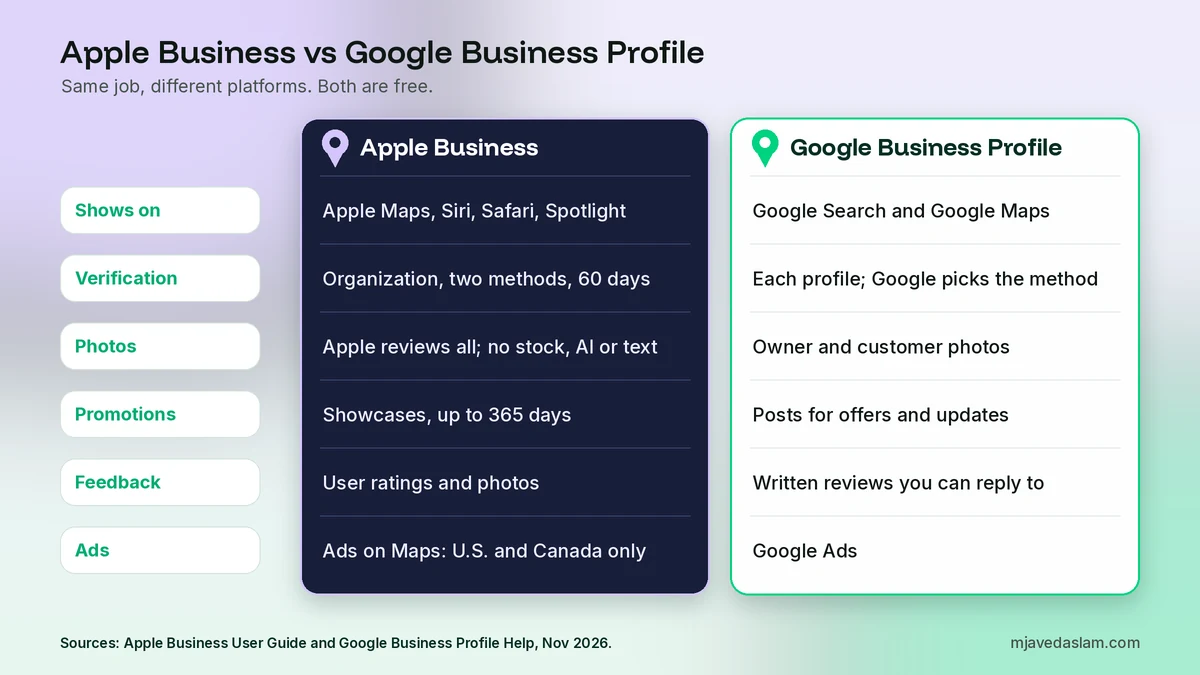
Apple Business vs Google Business Profile: side-by-side comparison
Here are the parts that matter for a small local business. Apple rows come from Apple’s guide and announcement; Google rows come from Google’s help pages.
| Apple Business (formerly Business Connect) | Google Business Profile | |
|---|---|---|
| Cost | Free (paid extras optional) | Free |
| Where it shows | Apple Maps, Siri, Safari, Spotlight and more | Google Search and Google Maps |
| Verification | Verify your organization within 60 days with two methods, such as a Business ID plus an official document | Google picks the method: phone, text, email, video or postcard |
| Name rules | Name on your sign; no descriptions or ®, © and ™ symbols | Real-world name; no taglines, store codes or hours |
| Categories | One primary category plus up to 19 additional | Fewest categories that describe your core business |
| Map pin | Centred on top of the building | On your location, or a service area instead |
| Photos | Reviewed by Apple; no stock, AI images or added text | Photos from you and from customers |
| Promotions | Showcases, up to 365 days | Posts for offers, updates and events |
| Customer feedback | User ratings and photos, where available | Written reviews that you can reply to |
| Insights | Searches, views, calls, directions; CSV download | Searches, calls, website clicks, directions and more |
| Ads | Ads on Maps, in the U.S. and Canada only | Google Ads, a separate paid product |
Two rows deserve a closer look. First, photos: Apple is far stricter. Second, verification: Apple verifies your organization once, and new locations under a verified organization skip that step. Google verifies each profile. If you manage several branches, that difference changes your workflow.
Apple Business Connect vs Google Business Profile: do you need both?
For most local businesses with a shop, office or clinic that customers visit, my answer is yes. Here is how I decide:
- You have premises customers visit: claim both. Restaurants, clinics, salons, shops, gyms and offices all fit here.
- You serve customers at their address: Google is your must-have, because it lets a service-area business show an area instead of a street address. My guide to service-area businesses on Google Business Profile explains the setup. Apple, on the other hand, describes the address as the place “where customers can get goods or services during open hours”. So I would not put a home address on an Apple place card. If you have a real office or showroom, list that instead.
Order matters too. I set up Google first, because most local SEO work, reviews and citations are built around it. Then I copy the same facts into Apple, so Apple mirrors Google.
How to claim your business in Apple Business
This is the “claim Apple Business Connect” process in its 2026 form. The steps below follow Apple’s guides to signing up and verifying your organization and adding a single location.
Step 1: Create your organization
- Go to business.apple.com and choose Sign up now. If you already used Business Connect, sign in instead and your organization migrates.
- Enter your organization’s name, website and address, then your own name, country and phone number.
- Confirm the codes Apple sends to your email and phone, then agree to the terms.
Step 2: Verify your organization
You have 60 days to verify, or Apple deletes the organization and its data. Verification needs two methods and takes up to five business days. The first is one of these:
- Business ID: a government-issued business number. The accepted type varies by country.
- Domain validation: a TXT record added to your domain’s DNS.
The second is an official document, such as a business licence, lease or utility bill. For my readers in Pakistan, Apple’s list of accepted Business ID types includes a Pakistan Tax Identification Number, a Securities and Exchange Commission number and a Registry of Firms number for sole proprietorships and partnerships, among others.
Step 3: Add and claim your location
- In Apple Business, choose Brands > Locations, then Add Location and Add single location.
- Type your business name and select your place, or add a new one. Drag the map so the marker sits on the right building.
- Add the display name, primary category, status, phone number with country code, website and hours.
- Choose your brand, then verify. For a place already on Maps, Apple may offer a phone call with a four-digit code.
Does a former agency still manage your location? Apple will say it is already managed. Add it anyway, then request a transfer with a business licence or utility bill. Apple says that review takes up to five business days.
Google works differently. Its verification help page says Google chooses the method for you. If it asks for a recording, my guide to Google Business Profile video verification walks you through it.
The rules that differ (and trip people up)
Both platforms want the truth, but a listing that passes on Google can still be rejected on Apple. These come from Apple’s guide to location attributes and its photo and text standards.
Business name
Apple says the display name must match the name on your storefront, signage or official website, with no descriptions and no ®, © or ™ symbols. A city is allowed only if it is part of the real brand name, such as “Stella Coffee Beverly Hills”. Google’s guidelines for representing your business take the same line on taglines and extra words. My post on Business Profile name guidelines covers Google’s edge cases. In practice, if your Google name is clean, use the identical name on Apple.
Map pin and address
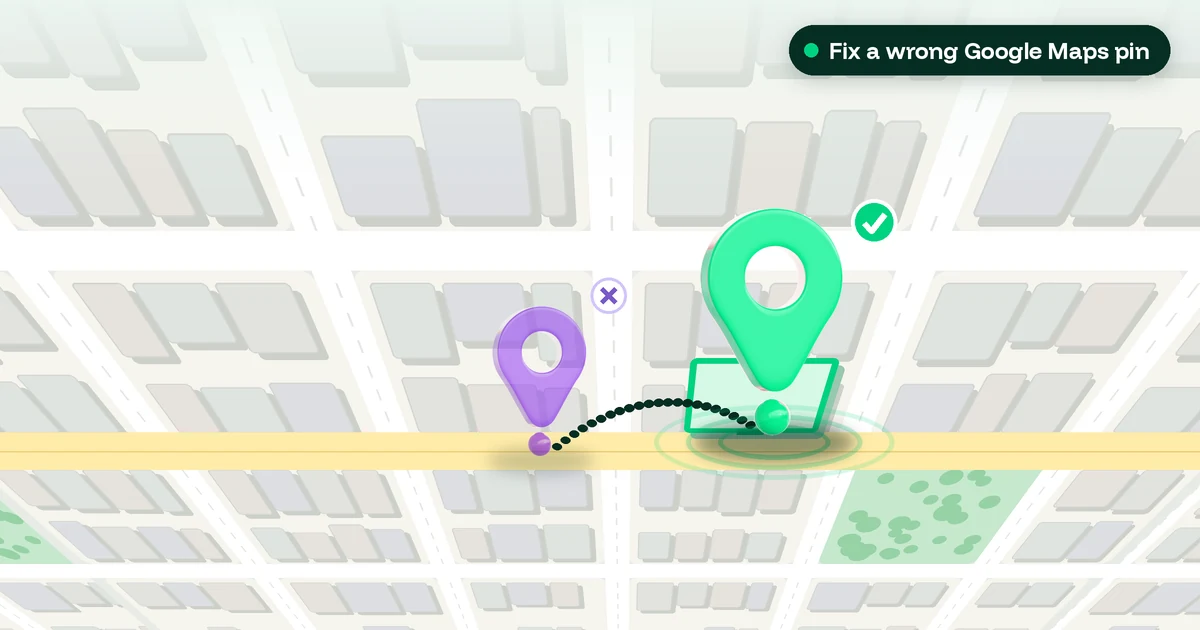
Apple wants the coordinates on top of your building and centred over your location. They cannot sit on the sidewalk, the road, the nearest intersection or your entrance. The address should match your website. Apple also wants the phone number from your website, with the country code, and a location-specific page as the website link if you have one. A Facebook, Instagram or TikTok page is allowed, but a third-party site is not. If your pin is wrong on Google, my guide to fix a wrong Google Maps pin shows the fix.
Hours
Apple asks that place card hours match the hours on your official website whenever possible. If you work by appointment only, list the hours when appointments can be made. Apple also supports temporary hours for holidays and closures, much like Google’s special hours. Set both at the same time, using my guide to Google Business Profile holiday hours as your reminder list.
Photos
This is the biggest difference. Apple reviews every photo, which can take up to three business days. Its rules say no stock photos, illustrations, AI-generated content, added text, added graphics, borders, collages, QR codes or watermarks, and no obvious filters. You also need permission from every person in a photo. So promo graphics made for Google will not pass. Use plain, real photos of your premises, team and products. My Google Business Profile photo guidelines cover the Google side.
Categories
Apple wants one specific primary category and allows up to 19 extra ones. Google asks for the fewest categories it takes to describe your core business. My guide to the Google Business Profile primary category helps you choose. The lists differ, so pick the closest true match on each.
NAP-parity checklist: keep both listings identical
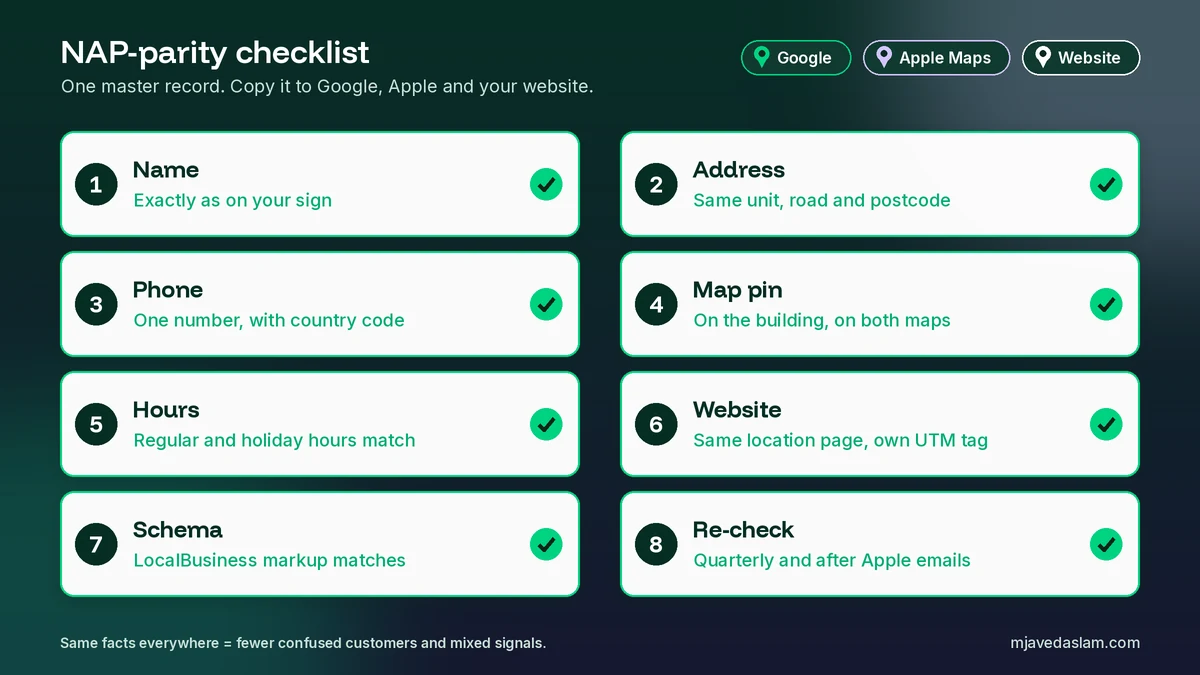
NAP means name, address and phone number. When these differ between Google, Apple and your website, customers get confused and map apps get mixed signals. This is my checklist:
- Write one master record. Note the exact name, address, phone, website URL, hours, holiday hours and categories. Every listing copies from it.
- Use the sign name, character for character. Same spelling, same “&” or “and”, no extra keywords on either platform.
- Format the address the same way. Same unit or shop number, same road name and same postcode on Google, Apple and your website footer.
- Use one main phone number. Include the country code on Apple, for example +92 for Pakistan, and make sure the same number is on your website.
- Check the pin on both maps. Open your listing in Google Maps and in Apple Maps on an iPhone and zoom in on the building.
- Match regular and holiday hours. Update Google, Apple and your website on the same day. Add holidays to both before they arrive.
- Link to the same page. Use the same location page on both. If you track visits, add a separate UTM tag for each one, as in my guide to UTM parameters for Google Business Profile.
- Match your website schema. Your LocalBusiness markup should carry the same NAP and hours. See my guide to LocalBusiness schema in WordPress.
- Remove duplicates. One profile per location on Google, and one location record per site on Apple. My guide to fix a duplicate Google Business Profile shows the Google clean-up.
- Re-check every quarter, after any move or rebrand, and whenever Apple emails you (see below).
When Apple edits your listing
Apple’s guide to maintaining location accuracy says customers can report from your place card if, for example, it says you are open but they find you closed. Apple reviews those reports and may edit your location name, status or hours. When it does, it emails your account administrators. You can then accept the change with Looks Good, or contest it. A contested name change goes back to Apple for review, which can take up to five business days. So use an inbox you read.
Insights, promotions and ads
Apple’s location insights show search taps, the type of search (your name, a category or other) and place card views. They also count taps on directions, website, call, share and photos. You can download a CSV file and get a monthly recap. On Google, my guide to Google Business Profile insights explains each number.
For promotions, Apple has showcases. A showcase has a headline of up to 38 characters, a body of up to 100 characters, an image and a button. It can run for up to 365 days, with 90 days as the default. Apple reviews each one, so plan three days ahead. Google’s version is posts; see my guide to Google Business Profile posts for ideas.
Finally, Apple’s feature availability page lists Ads on Maps only for the U.S. and Canada. It does list Brand and Location Management for Pakistan, so businesses here can claim place cards, even without Maps ads.
My recommended setup order
- Day 1: audit or claim your Google Business Profile, fix the basics and write your master record from it.
- Day 2: sign up for Apple Business, start verification and add your location with the same facts.
- After approval: add real photos, a logo, a cover photo and Good to Know details such as payments and parking. Then compare both listings every month.
FAQ: Apple Business Connect vs Google Business Profile
Is Apple Business Connect the same as Apple Business?
Apple Business replaced Apple Business Connect on April 14, 2026. Apple says existing Business Connect data, such as claimed locations, place card details and photos, moved to Apple Business automatically. You now manage your Apple Maps place card at business.apple.com.
Is Apple Business free like Google Business Profile?
Yes. Apple says Apple Business is free to get started and includes place card customization on Apple Maps. Paid extras such as more iCloud storage and AppleCare+ for Business are optional. Google also says creating a Business Profile and listing your business on Google is free.
Do I need both Apple Business and a Google Business Profile?
If customers visit your premises, yes. Google Business Profile controls your listing on Google Search and Maps, while Apple Business controls your place card in Apple Maps, Siri, Safari and Spotlight. Set up Google first, then copy the exact same name, address, phone and hours into Apple.
How do I claim my business on Apple Maps?
Sign up at business.apple.com, verify your organization within 60 days using two methods, such as a Business ID and an official document, then go to Brands > Locations and add your location. If your place already exists on Maps, Apple may let you verify it with a phone call and a four-digit code.
Can I use the same photos on Apple Maps and Google?
Only if they meet Apple’s stricter rules. Apple reviews every photo and does not allow stock photos, illustrations, AI-generated images, added text, QR codes, watermarks or obvious filters. Plain, well-lit, real photos of your premises, team and products usually work on both platforms.
Is Apple Business available in Pakistan?
Yes. Apple’s feature availability page lists Brand and Location Management for Pakistan, so businesses can claim and manage place cards. Ads on Maps is listed only for the U.S. and Canada. Apple’s accepted Business IDs for Pakistan include a Tax Identification Number and a Securities and Exchange Commission number.
Next step
Open Google Maps and Apple Maps on your phone today and look up your own business. If the name, pin, phone or hours differ, fix Google first, write your master record, then claim or update your Apple listing to match. If you want me to set up or audit both listings for you, see my Google Business Profile service or my wider local SEO work.