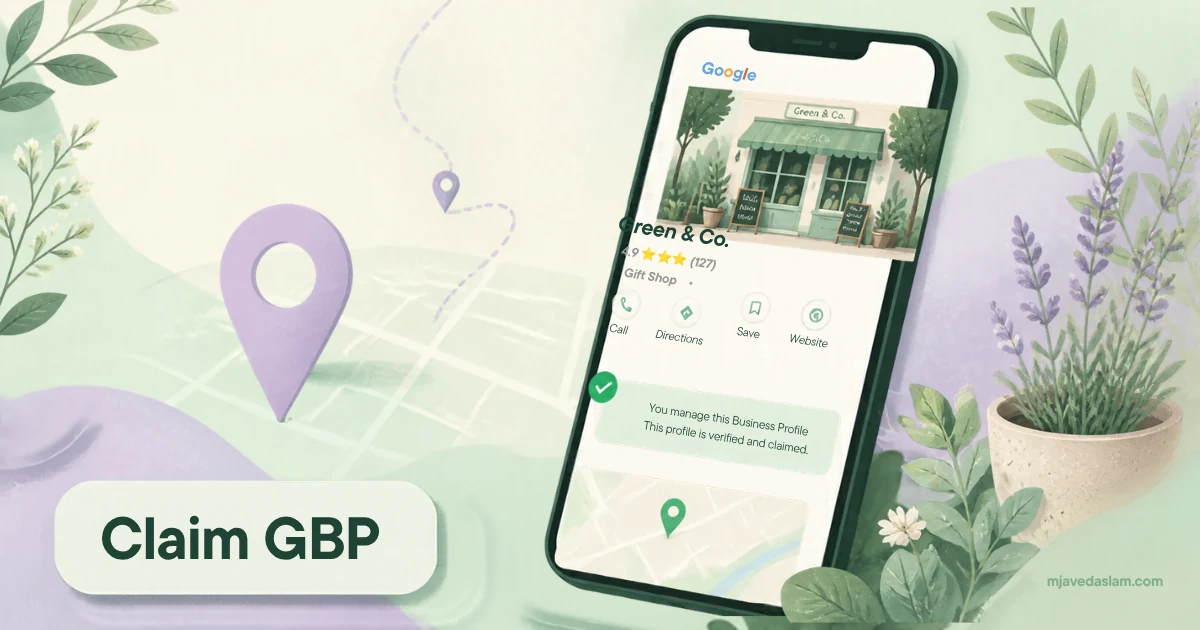
If you need to know how to claim Google Business Profile for your shop or service business, start here: search for your business on Google Maps or Google Search. If an unverified listing already exists, choose Claim this business (or Manage now), then complete the verification Google offers. If nothing exists yet, create a new profile at business.google.com/add and verify it. Claiming is free.
A claimed, verified profile is how you control your name, hours, phone, photos and reviews on Search and Maps. Until then, anyone can suggest edits — and you can’t reliably reply to reviews or post updates. For most small businesses in the US, this is the first step of local visibility, before ads or fancy website work.
In this guide I’ll walk you through the three real situations owners hit (no listing, unverified listing, already owned by someone else), the official claim steps on desktop and the Maps app, what happens with ownership requests, and what to do the same day you’re verified. This is the same path I use when setting up a client’s Google Business Profile.
Quick answer: which claim path are you on?
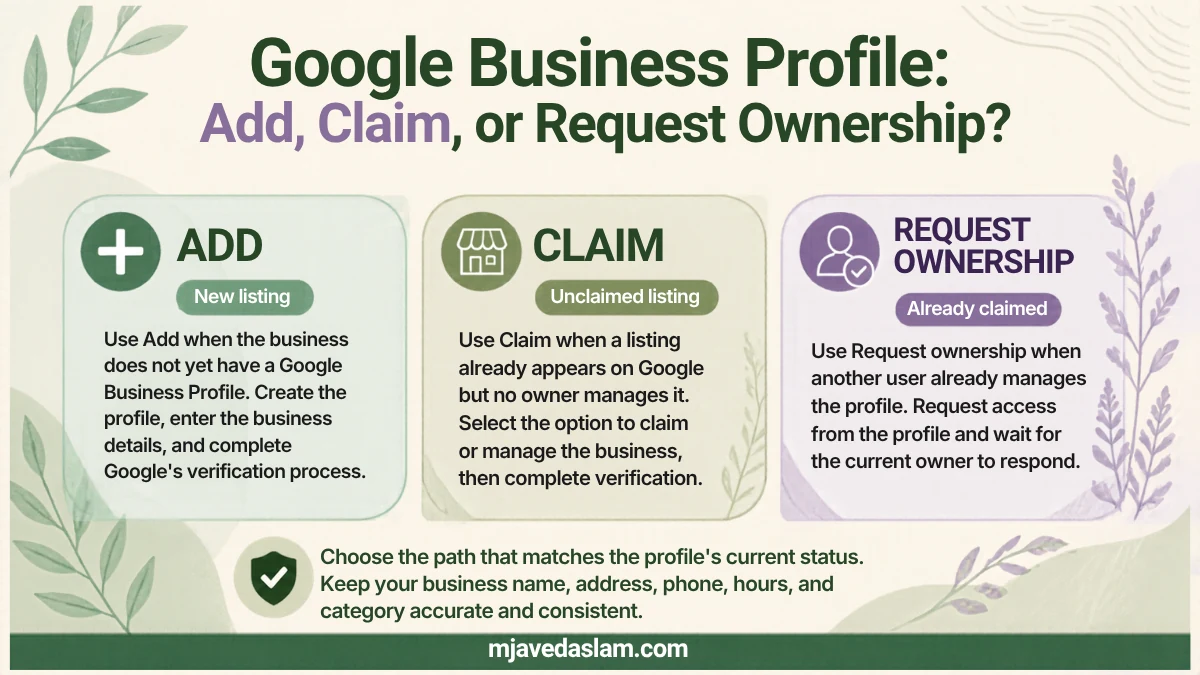
Google’s help docs split “add” and “claim.” Your path depends on what already exists:
- Nothing on Maps/Search for your business — Add a new profile, then verify.
- Listing exists but isn’t verified — Claim that unverified profile, then verify. Don’t create a second one.
- Listing is already verified by someone else — Request ownership from the current owner (ex-partner, old agency, previous owner, or a listing farm). Don’t open a duplicate.
Google’s official overview is Add or claim your Business Profile. UI labels move around over time — if you see “Own this business,” “Manage now,” or “Get verified,” you’re in the right family of screens. Note when your screen looks different; Google rolls out changes by account and region.
Before you start: one Google Account, correct details
Use a Google Account you (or the business) will keep long-term. A company email linked to a Google Account is ideal so you’re not locked out when a freelancers’ personal Gmail leaves. You need a Google Account either way — Gmail isn’t required.
Have these ready so you don’t create a messy listing:
- Exact business name as customers know it (follow Google’s naming guidelines — no keyword stuffing in the name).
- Primary phone that someone answers during business hours (IVR systems often fail phone verification).
- Website URL if you have one.
- Address that matches how you actually operate — storefront vs service-area (more on that below).
- Primary category that matches what you sell (e.g. Plumber, not “Local business”).
If you serve customers at their homes and don’t have a public storefront, you’ll usually set up as a service-area business and hide the street address. Get that choice right at creation — fixing a wrong address type later can trigger re-verification.
How to claim an unverified Google Business Profile (Maps)
This is the most common case: your café or clinic already shows on Maps because Google or customers created it, but nobody has verified ownership.
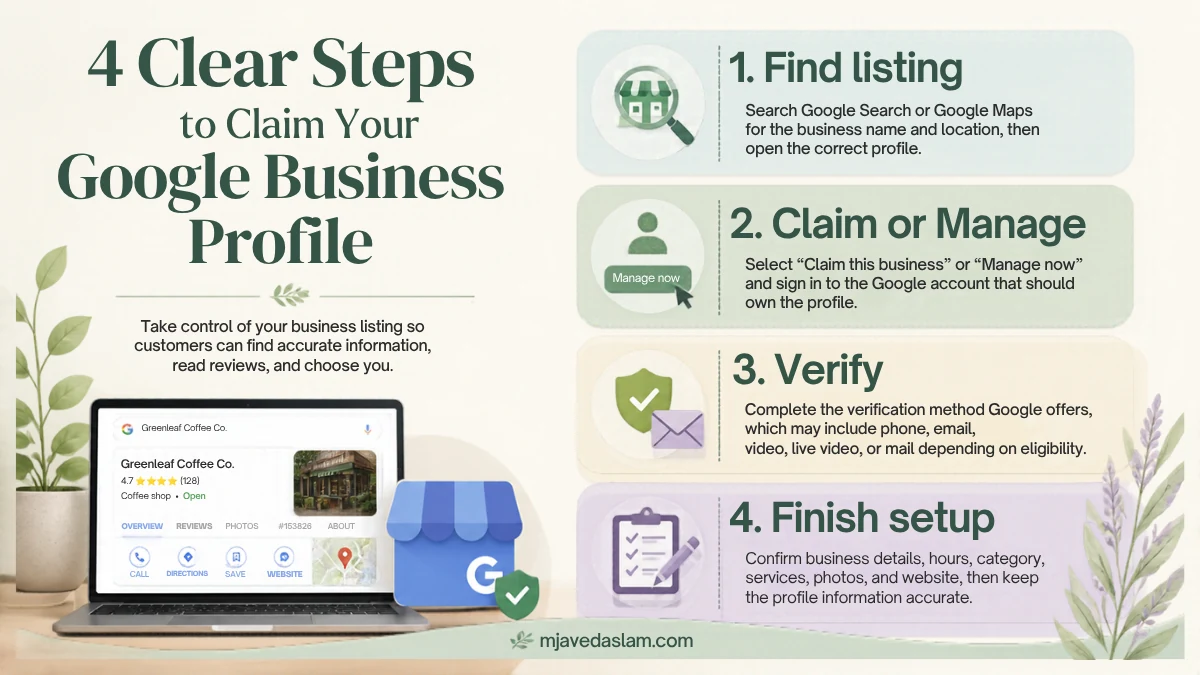
- On a computer, open Google Maps and search your business name plus city.
- Open the correct listing — check the address and phone so you don’t claim a namesake across town.
- Select Claim this business / Manage now. If you see a choice for another business, use I own or manage another business only when you’re switching listings.
- Sign in with the Google Account that should own the profile.
- Pick a verification option Google shows you (phone, SMS, email, postcard, video, or live video — availability varies).
- Finish the on-screen verification steps.
On the Google Maps app: search the business → open the profile → About → Claim this business / Manage now, then verify. Google documents both desktop and app flows in the same help article.
You can also start from business.google.com/add, enter the name and address, and select the existing listing when it appears.
How to add a Google Business Profile when nothing exists
If search turns up nothing accurate:
- Go to business.google.com/add.
- Choose Add your business to Google.
- Enter name, category, location or service area, contact details, and follow the prompts.
- Select a verification option and complete it.
Double-check the address against Google’s guidelines before you submit. A wrong pin or a residential address used when you shouldn’t show one is a common reason profiles get stuck later.
How to request ownership when someone else already verified it
If the profile is verified and you don’t manage it, Google’s path is request ownership — not a second listing.
- Find the profile via Maps/Search or business.google.com/add.
- Choose Claim this business (wording may vary).
- You’ll see that someone else verified it. Continue and request access / ownership if you’re authorized to manage the business.
- You’ll get a confirmation email. The current owner gets an email and has 3 days to respond.
After three days with no response, Google may give you an option to claim and verify yourself — but that option isn’t always available. If the owner approves, you can manage the profile. If they deny, you can appeal or suggest edits publicly while you sort out who should own it.
New owners and managers face a short lockout on some admin actions: Google states that for 7 days after joining, you typically can’t transfer primary ownership, remove other owners/managers, or delete/undelete the profile. Plan around that if you’re taking over from an agency.
Duplicates are against Google’s rules and confuse customers. If you already have two listings, use Google’s guidance on duplicate profiles and ownership issues rather than “winning” by creating a third.
Verification methods you’ll see (you don’t pick freely)
Google chooses which methods appear based on business type, public info, region and hours. From Google’s Verify your business help:
- Phone or SMS — Answer the business number or receive a text. IVR often fails.
- Email — Use the address shown on the verification screen.
- Postcard — Code mailed to the business address; Google notes most arrive within about 14 days, codes expire after 30 days, and editing name/address/category or requesting a new code can invalidate the one in the mail.
- Video recording — Google often recommends this when eligible; we’ll cover shot lists in a separate guide on video verification.
- Live video call — During your listed hours; show exterior, interior/equipment and proof you manage the place.
After you submit, Google may take up to 5 business days to finish review (sometimes longer). Some verifications are faster — for example when a related Search Console property or bulk verification applies. When you’re verified, you get a confirmation email.
Same-day checklist once you’re verified
Claiming without cleaning the profile wastes the win. Same day:
- Confirm name, address/service area, phone and website match your site and other listings (NAP consistency).
- Set primary category and a few accurate secondary categories.
- Add hours, including special hours if a holiday is coming.
- Upload real photos of the exterior, interior, team at work and products/services — not stock filler.
- Write a clear description and list services.
- Turn on messaging only if someone will reply quickly.
- Set up a review ask — Google’s built-in QR and review link flow is covered in how to create a Google review QR code.
That package is the backbone of local SEO. Reviews and photos help, but they don’t replace accurate categories, a working phone number and a site that matches what the profile promises. If you care about showing up when people ask AI-style questions about local services, a complete official profile also helps — more on that in how to show up in AI Overviews.
Common mistakes that slow claiming down
- Creating a duplicate because you couldn’t log into the old agency’s account. Request ownership instead.
- Stuffing keywords into the business name (“Best Plumber Dallas LLC Dallas Plumbing”). That violates guidelines and can delay or suspend the profile.
- Using a phone nobody answers when phone verification is offered.
- Editing the address while a postcard is in the mail — the code stops working.
- Claiming the wrong same-name business in another city. Always match address and phone.
- Handing primary ownership to a contractor without keeping an owner seat yourself. Keep at least one owner account the business controls.
FAQ: Claiming a Google Business Profile
Is it free to claim a Google Business Profile?
Yes. Google states you can add or claim your business at no charge. Ignore anyone who says you must pay Google to “activate” a basic profile.
What’s the difference between claiming and verifying?
Claiming (or adding) starts the process of associating your Google Account with the listing. Verification is how Google confirms you’re authorized — by phone, postcard, video and similar methods. You need verification to fully manage the profile.
Can I claim a Google Business Profile on my phone?
Yes for many flows. Google documents claiming an unverified listing in the Google Maps app (About → Claim this business / Manage now). Some management and QR features are still easier on desktop.
Someone else owns my Business Profile. What do I do?
Request ownership through Google’s ownership request flow. The current owner has three days to respond. Don’t create a second profile for the same location.
How long does verification take?
It depends on the method. Phone/SMS can be minutes. Postcards often take up to about two weeks to arrive. After you complete steps, Google’s review can take up to five business days. Video and live video timing varies.
Why don’t I see “Claim this business”?
You may already be an owner or manager (look for a “You manage this business profile” style badge), or the listing may already be verified under another account. Try signing in with other company accounts, or use the ownership request path.
Will claiming my profile make me rank #1 in the Map Pack?
No. Claiming and verifying lets you manage the listing. Ranking still depends on relevance, distance, prominence, reviews, categories, on-site SEO and competition. Treat claiming as the foundation — not a ranking guarantee.
Next step
Search your business on Maps today. If it’s unverified, claim it. If it’s missing, add it. If someone else owns it, request ownership. Then finish verification and tidy the profile before you spend on ads.
If you want help claiming, cleaning categories, or tying the profile into a wider local plan, start from my Google Business Profile service page or the contact form when you’re ready.