If you’ve been wondering how to create a google review QR code for your shop, clinic or service business, the short answer is: Google already built this into your Business Profile. On a computer, open your profile, go to reviews, choose “Get more reviews,” then download the QR code or copy the review link. No paid app required.
Reviews are one of the clearest signals customers and Google both look at when they compare local businesses. The hard part isn’t usually “do I want more reviews?” It’s making the ask easy the moment someone is happy with you — at the till, after a job, or in a thank-you email. A QR code and a clean review link solve that.
In this guide I’ll walk you through the official Google steps, how to grab the same review link for messages and receipts, where to place the code so people actually use it, and what Google’s rules say you must not do. I’ll keep it practical for small businesses — the same approach I’d use on a client’s Google Business Profile setup.
What a Google review QR code actually does
A Google review QR code is a scannable image that opens the “write a review” screen for your Business Profile on Google Maps / Search. The customer scans it with their phone camera, signs into a Google Account if needed, and leaves a star rating plus text. The companion piece is a google review link — the same destination as a URL you can paste into WhatsApp, SMS, email or a receipt.
Both come from the same place in your Business Profile. You’re not inventing a custom URL or relying on a random QR generator (those often break or insert a middleman). Google’s own help article covers creating a Google link or QR code to request reviews.
How to create a google review QR code (official steps)
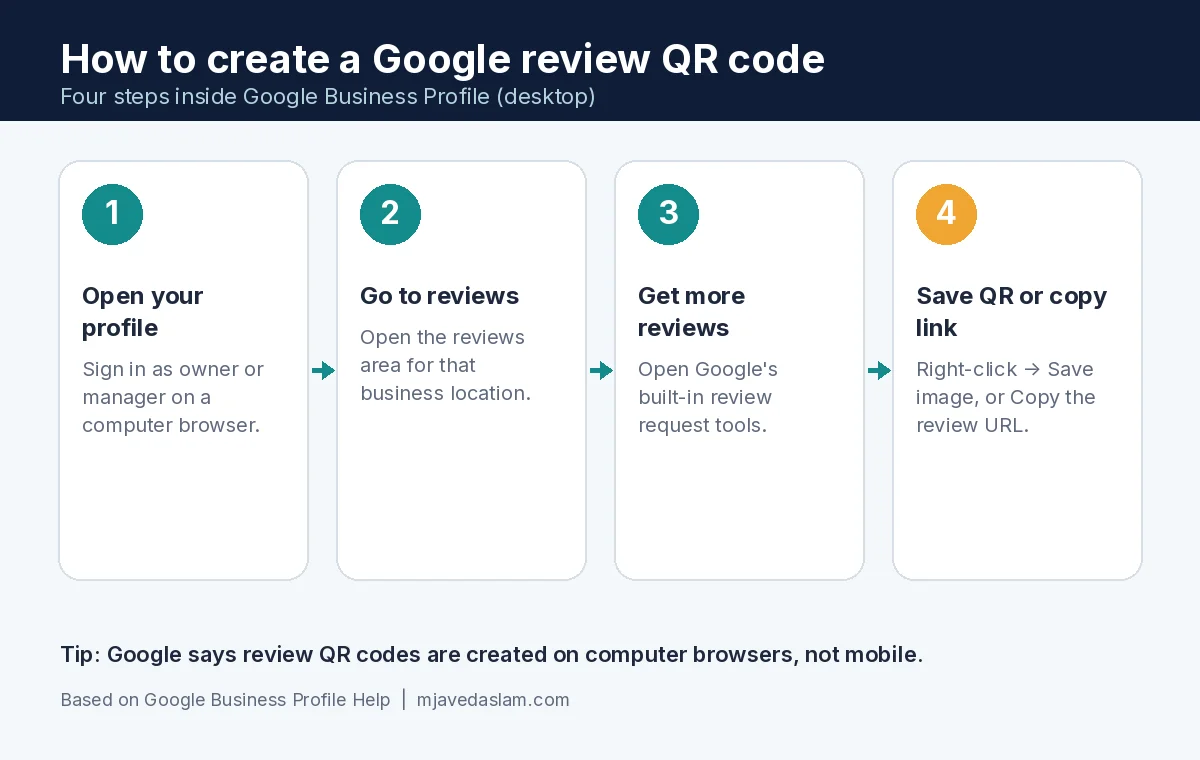
Google’s current flow is desktop-first. Their help docs state that review QR codes can be generated on a computer browser, not on mobile devices. So open a laptop or desktop and use a normal browser (Chrome is fine).
- Go to your Google Business Profile while signed in as an owner or manager.
- Open the reviews area for that location (look for options along the lines of Read reviews).
- Choose Get more reviews.
- You’ll see options to share the review request. To save the QR: right-click the QR code → Save image as… and store a PNG somewhere safe.
- To grab the link instead: select Copy next to the review link and paste it into a notes app or password manager so you don’t lose it.
That’s the whole creation step. Print the image, drop it into Canva if you want a nicer surround (your logo, a short line like “How was your visit? Scan to leave a Google review”), and keep the original file. If you manage multiple locations, repeat per profile — each Place has its own link and code.
How to create a google review link (same tool)
If you only need the URL — for WhatsApp after a job, a checkout SMS, or a footer in invoices — use the same Get more reviews screen and hit Copy. That link is your google business profile review link. Share it as-is; don’t wrap it in a link shortener that you never check, and don’t paste a generic Maps search URL that might land on the wrong listing.
Google also notes you can send review requests through email, WhatsApp or Facebook from that same flow. Use whatever channel your customers already reply on. The goal is one tap from “thanks, that was great” to the review form — not a scavenger hunt through Maps search results.
A note on Place ID URLs
Some older tutorials build a URL with your Place ID (the stable ID Google Maps uses for a location). Developers can look Place IDs up in Google’s Places documentation. For most small business owners, I still recommend copying the link from Business Profile first. It’s the path Google documents for requesting reviews, and it stays tied to the profile you manage.
Where to put your Google review QR code so people use it
Creating the code takes two minutes. Getting reviews takes placement and timing. Google itself suggests putting the link or QR on receipts, in thank-you emails, at the end of a chat, and printed in-store. Here’s how I’d prioritise that for a typical local business:
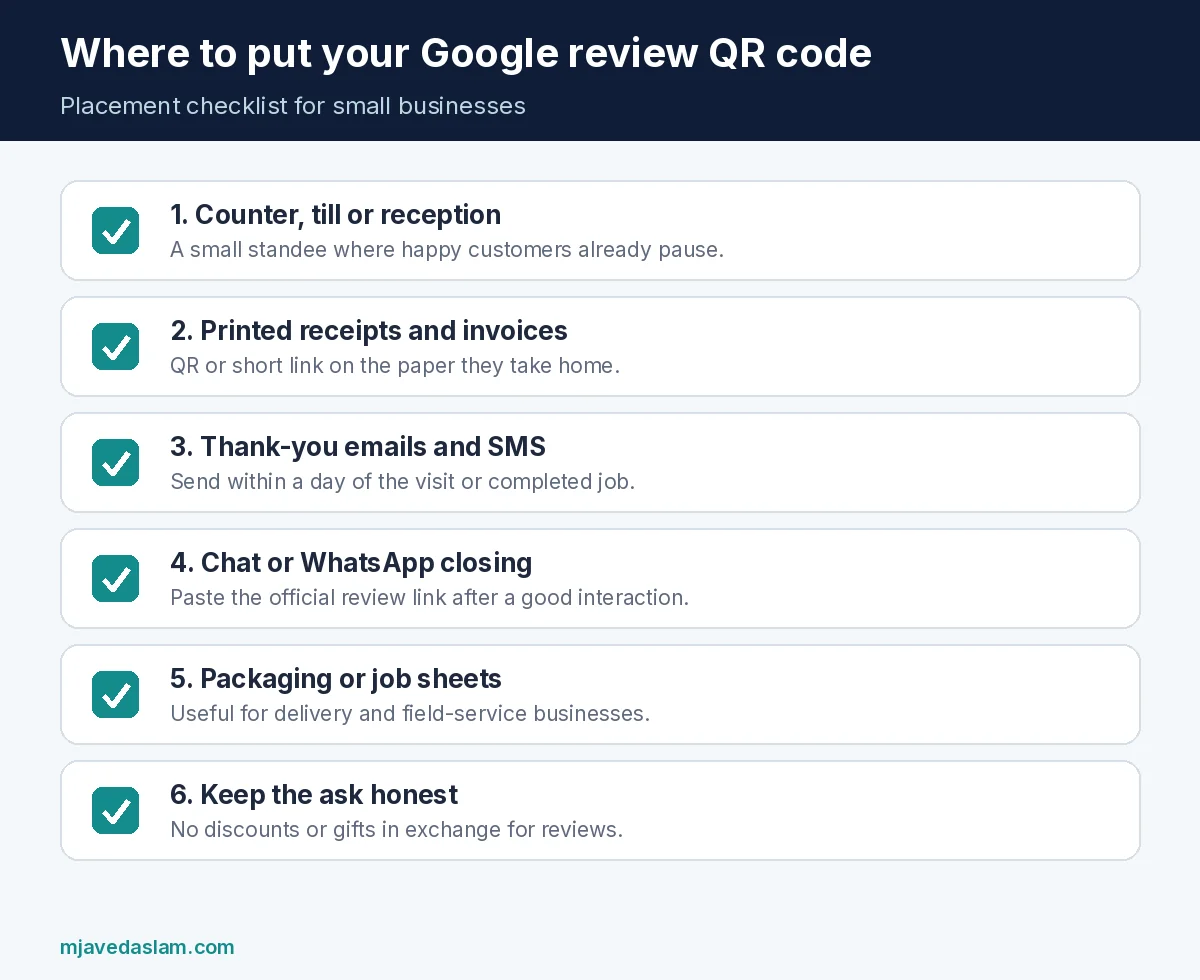
- Counter, reception or till — a small printed card or standee next to card machines. Ask when the customer is smiling, not when they’re rushing out empty-handed.
- Receipts and invoices — print the QR or short instruction with the link. Works for cafés, clinics and trades.
- Thank-you emails and SMS — send within a day of the job. One friendly sentence + the link beats a long marketing blast.
- Packaging or job sheets — for delivery and field service, the paper they already hold is free ad space.
- Near the exit — only if it’s readable and not competing with ten other stickers.
Skip the spammy version: blasting every past customer the same day you discover the feature, or posting “please review us” in every social comment. Consistency beats volume. Five honest asks a week from happy customers beats fifty cold emails.
Get more google reviews with a QR code — without breaking Google’s rules
This part matters more than design. Google is clear: reviews must reflect a genuine experience. Offering incentives — free or discounted goods or services — in exchange for posting a review, changing a review, or removing a negative one is treated as fake engagement and is prohibited. That warning appears on both the QR / link help page and Google’s tips to get more reviews, and it sits under Google’s wider contribution and Business Profile policies (see Google’s prohibited and restricted content rules for contributions).
So when you ask for google reviews, keep the ask clean:
- Do ask happy customers to share their honest experience.
- Do reply to reviews — positive and negative — professionally.
- Don’t trade discounts, gifts or entries for a five-star rating.
- Don’t tell people what star rating to leave.
- Don’t filter by only inviting people you expect will be glowing.
A balanced mix of feedback looks more trustworthy to the next customer reading your profile. Your job is to make leaving a review easy and to show you listen — not to manufacture a perfect score.
A simple script you can use
You don’t need a marketing speech. Try something like:
“If we made your day easier, would you mind leaving a quick Google review? You can scan this code — it takes about a minute. Honest feedback helps other local customers choose, and it helps us improve.”
For messages, the same idea in two lines plus the link is enough. If someone had a rough experience, fix the issue first. Asking for a public review while they’re still upset usually makes things worse.
How this ties into local SEO (and why your profile still has to be solid)
A QR code only helps if the profile behind it is healthy: correct name, categories, hours, services, photos, and a website that matches. Reviews support local visibility; they don’t replace the rest of local SEO or basic SEO on your site. Keep NAP details consistent, keep the profile complete, and make sure your site can be the “official” source when people (or AI answers) look you up — I covered that angle in how to show up in AI Overviews.
If you want a second pair of eyes on the profile, categories and review workflow, that’s exactly what I help with on Google Business Profile and local search projects — start from the service pages above or the contact form when you’re ready.
FAQ: Google review QR codes and review links
How do I create a Google review QR code for free?
Use Google Business Profile on a computer: Reviews → Get more reviews → save the QR image. Google’s tool doesn’t charge for the code or the link. Avoid paying for a third-party generator unless you have a specific design need — and even then, encode Google’s official review URL, not a tracking page you don’t control.
Can I create a Google review QR code on my phone?
According to Google’s help documentation, review QR codes can currently be generated on a computer browser, not on mobile. Create it on desktop, then send the image to your phone for printing or design work.
What’s the difference between the QR code and the review link?
Same destination. The QR is for print and in-person scans; the link is for email, SMS, WhatsApp and websites. Generate both from Get more reviews.
Where should I display the QR code?
Receipts, thank-you emails, chat closings, and a small in-store print near checkout work best. Put it where a satisfied customer already is — not buried on a rarely visited webpage alone.
Can I offer a discount for leaving a Google review?
No. Google prohibits offering incentives for posting, changing or removing reviews. Ask for honest feedback only.
Do customers need a Google Account?
Yes. Google notes customers must be signed into a Google Account to leave a review. They can create one with a non-Gmail address if needed.
Will more reviews automatically rank me #1 in the Map Pack?
No single tactic guarantees that. Reviews help, alongside relevance, distance, prominence and a well-kept profile and website. Treat the QR code as one reliable habit in a wider local SEO routine.
Quick checklist before you print
- Create the QR and copy the link from Business Profile on desktop.
- Save the original image; design a simple surround with a clear ask.
- Place it at checkout, on receipts and in thank-you messages.
- Ask only for honest reviews — no incentives, no star coaching.
- Reply to new reviews within a few days.
- Keep the rest of your profile and website accurate so the traffic you earn isn’t wasted.
That’s it. You now know how to create a google review QR code the way Google intends, how to share the matching review link, and how to ask without stepping on policy. Set it up once this week, put it where happy customers already stand, and let the reviews build from real work — not from tricks.