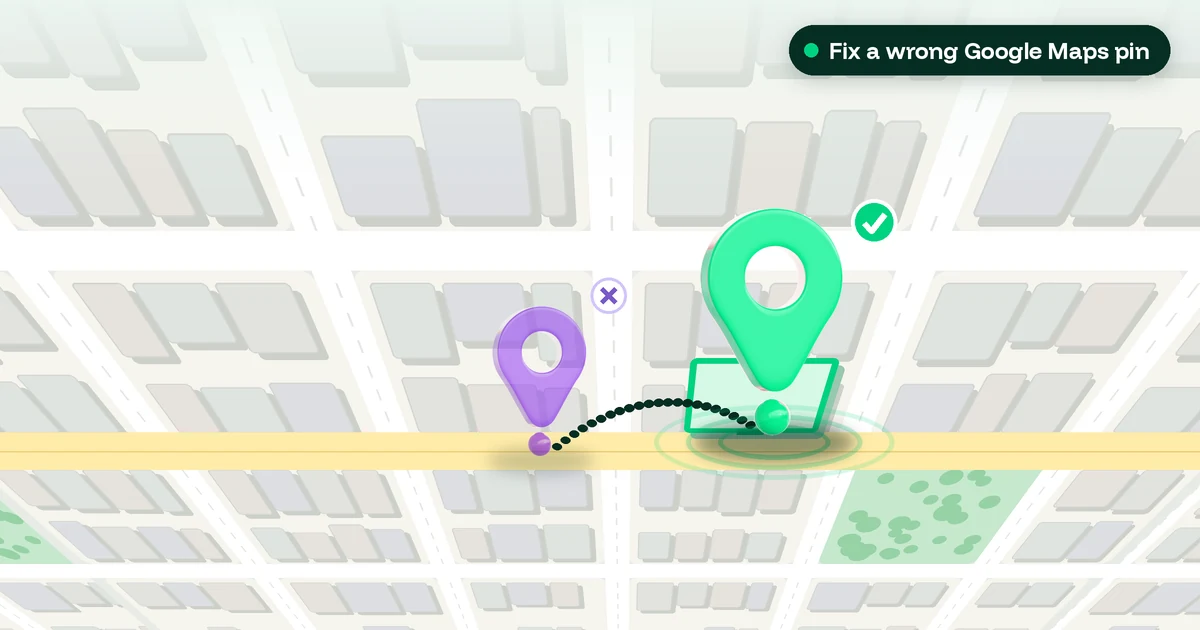
Here is how to fix a wrong Google Maps pin on your Business Profile: sign in to the Google Account that manages the profile, open your Business Profile on Google Search, select Edit profile > Location, then select Edit next to “Business location” and choose Adjust. Move the map until the pin sits on your building (I put it on the customer entrance), then select Done and Save. Google reviews the change. It usually shows up in about 10 minutes, but it can take up to 30 days. If you don’t own the listing, use Suggest an edit on Google Maps instead.
A wrong pin is one of the most expensive small problems I see on local profiles. The address on the profile looks fine, but the marker sits in the middle of the road, behind the building, or at a neighbour’s door, and customers following directions end up somewhere else. Some of them phone, and plenty just give up. This guide covers the owner fix on a computer and in the Maps app, the public “Suggest an edit” route, when a pin change can trigger re-verification, and what I do when Google leaves the edit pending or rejects it.
Before you move the pin: three quick checks
- Are you signed in to the right account? Google says you must be signed in to the Google Account linked to your Business Profile to edit your business info. If you can’t see an Edit profile button, you are using the wrong account or the profile hasn’t been claimed yet. My guide on how to claim a Google Business Profile covers that first step.
- Is it the pin or the address that’s wrong? If the street, number or suite is wrong, fix the address first. The pin alone is the right fix when the address is correct and only the marker is off.
- Do customers actually come to you? If you visit customers and don’t serve them at your address, Google says you should hide the address and list a service area instead. In that case there is no public pin to fix. My service-area business setup guide walks through it.
Why your Google Maps pin is in the wrong place
In my experience, wrong pins usually come from one of these causes:
- The address can’t be matched exactly. New buildings, rural roads and addresses without a street number often geocode to the middle of a street or a postcode area. Google’s address help says that if your address doesn’t have a street number, or the system can’t find the correct address, you can pin your location on the map yourself.
- The pin marks the plot, not the door. On large sites, retail parks and corner buildings, the pin can land on the right building but the wrong side, so directions take people round to the back.
- You moved, but only the address was changed. The text updated, but the marker stayed near the old spot or was guessed from the new address.
- Someone else changed it. Google says that if it receives reports that your business info isn’t accurate, it might update your profile. You’ll get a notification and an alert in the Edit profile section.
- You’re inside another business or a mall. The pin lands on the building’s main entrance or centre, not your unit.
How to fix a wrong Google Maps pin on a computer
This is the method I use most, because the larger map makes precise placement much easier. The steps follow Google’s help page on managing your business address:
- Sign in to the Google Account that owns or manages the profile.
- Go to your Business Profile. Searching your exact business name on Google usually brings up the owner view.
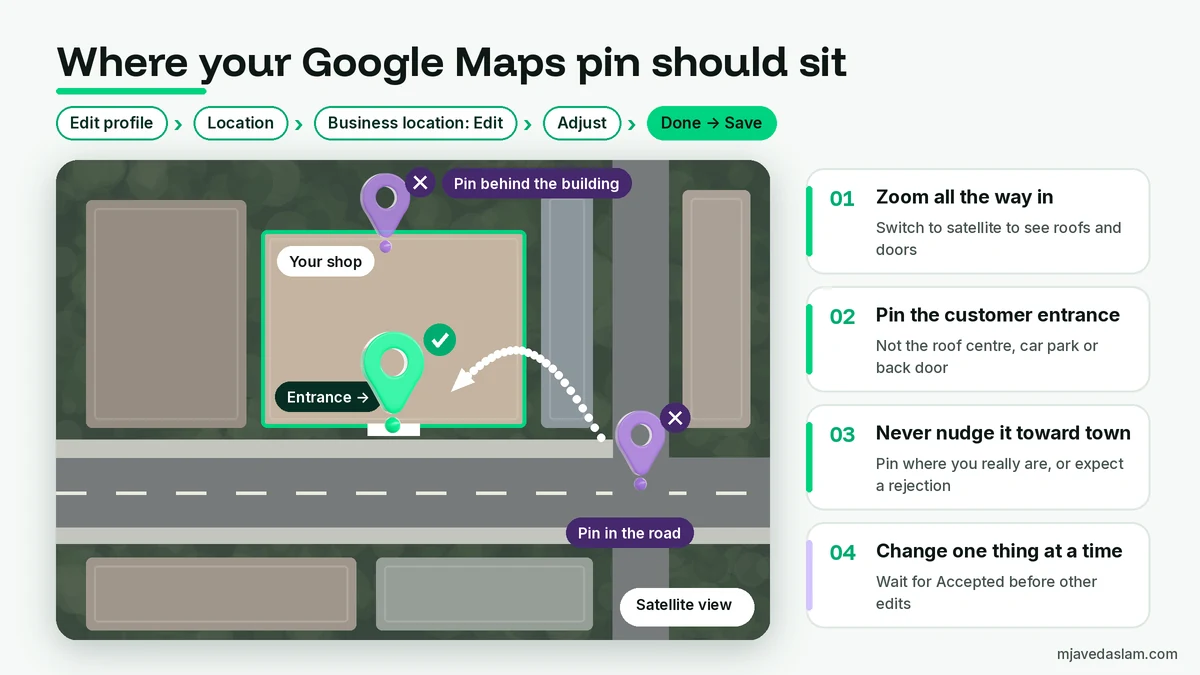
- Select Edit profile > Location.
- Next to “Business location,” select Edit.
- Select Adjust to change the pin location.
- Move the map so the pin points to your business location.
- Select Done, then Save.
A few placement habits make a real difference:
- Zoom in all the way and switch to satellite view. Google gives this tip for anyone moving a marker: zoom in far enough and use satellite view so you can see buildings and drop the marker precisely on the place.
- Put the pin where a customer should arrive. I place it on the customer entrance, not the middle of the roof and not the car park. If the entrance is round the side, the pin goes round the side.
- Don’t move it to look “closer” to the city centre. The pin must show where your business really is. Moving it towards a busier area is misrepresentation, and it’s the kind of edit Google is likely to reject.
If Google can’t find your address at all, you’ll get a warning and the parts of the address it can’t match are highlighted in red. Re-enter those parts first. If Google still can’t find it, the same Adjust option lets you set the pin by hand.
How to move the pin in the Google Maps app
Google’s help covers editing your business location from the Maps app on a phone or tablet:
- Open the Google Maps app and make sure you’re signed in to the account that manages the profile.
- At the bottom right, tap Business.
- Tap Edit profile > Location.
- Next to “Business location,” tap Edit.
- Check the address details. Where the app shows the map preview or an Adjust option, use it to move the map under the pin.
- Tap Save.
The app layout changes between Android, iPhone and app versions. Google says the features for managing a profile can differ between Search, Maps and your device’s operating system. If you don’t see a way to move the pin on your phone, don’t fight it. Do the pin on a computer and use the app for everything else. A phone is great for one job: stand at your front door, open Google Maps, and check that the blue dot and your business pin are in the same place.
Wrong pin, wrong address or moved? Pick the right fix
| What you see | The right fix | Re-verification? |
|---|---|---|
| Address correct, pin slightly off (wrong side, next door, in the road) | Edit profile > Location > Edit > Adjust the pin | Not mentioned by Google for a pin adjustment. In my experience a small nudge usually doesn’t trigger it. |
| Typo in street, number or suite | Edit the address, then check the pin | Google may ask. Follow the prompt if it appears. |
| You moved to a new address | Edit the address on the existing profile. Don’t create a new one. | Yes. Google says you must verify again after moving. |
| You’re inside a mall or another business | Correct address plus unit, then pin your unit’s entrance | Usually not, unless the address changes |
| You don’t serve customers at the address | Turn off “Show business address to customers” and set a service area | Possibly. Follow Google’s prompt. |
If you moved and someone already created a second listing at the new address, you now have a duplicate as well as a pin problem. I cover that in my guide on fixing a duplicate Google Business Profile.
Not the owner? How to suggest a pin fix on Google Maps
Anyone can suggest a correction to a place, and owners can use this route too while their own access is being sorted out. Google’s Maps help on fixing a missing address or wrong pin location gives these steps.
On a computer:
- Open Google Maps and search for the place or address.
- Click Suggest an edit > Wrong pin location or address.
- Enter the correct address information and move the map to the right spot.
- Click Submit.
On an Android phone:
- Open the Google Maps app and search for the address.
- Tap Suggest an edit > Fix an address.
- Move the map to the centre of the building.
- Enter the address information and tap Submit.
On Google Search: search the business, click Suggest an edit under the place summary, choose Location, and edit or report the address or its location on the map.
On iPhone, the wording can differ slightly, but look for Suggest an edit on the place and the location or address option. Keep in mind that suggested edits are public and Google reviews all of them. Google says adding a photo helps it verify a suggestion, and those photos are public under your name.
Will moving the pin trigger re-verification?
Google is clear about one case: in its Edit your Business Profile help, it says that if you move your business to a new address after it’s verified, you must verify your business again. It also says some businesses may need to verify before they can make changes at all.
For a simple pin adjustment at the same address, Google’s help doesn’t say re-verification is required. In my experience, small nudges at the same address usually go through without it. Large jumps, address changes and edits combined with name or category changes are what tend to trigger a new verification request. If Google asks, complete it promptly with the method it offers. For many businesses that is now a video, and I’ll cover how to verify Google Business Profile with video in a separate guide.
My rule: change one thing at a time. Fix the pin, wait until it’s accepted, then make any other edits. Bundling a pin move with a new name, category and phone number is asking for a review.
What to do when the pin edit is pending
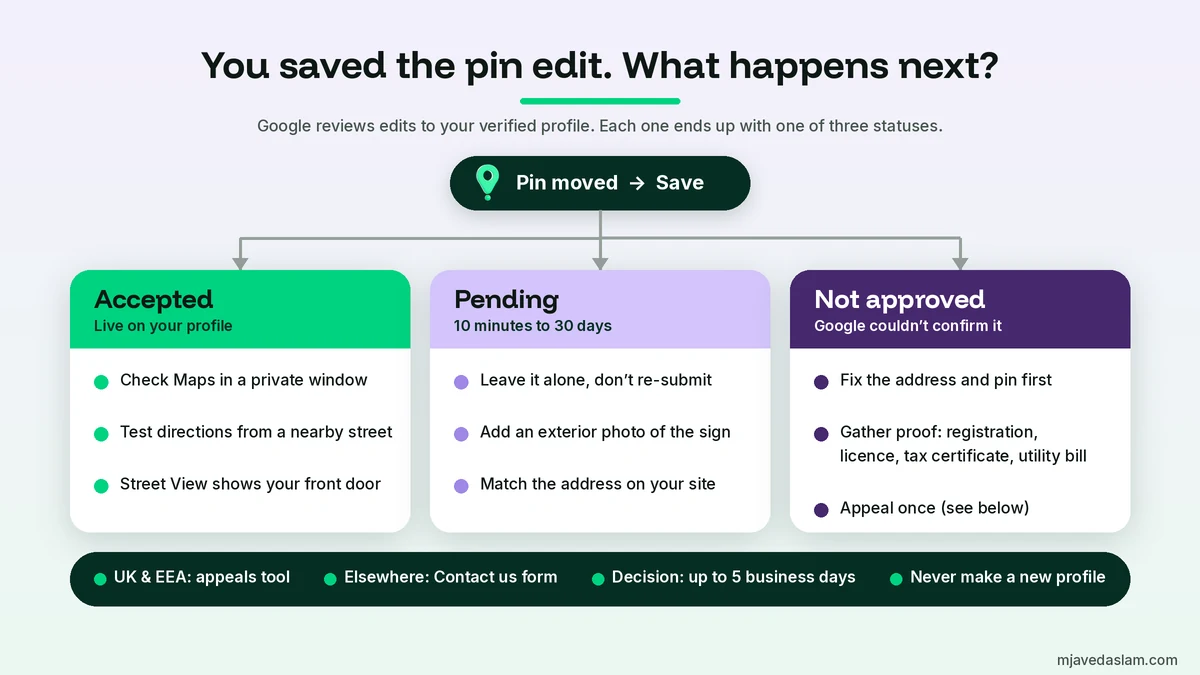
Google’s help page on what happens to your Business Profile edits says edits to a verified profile are reviewed against its guidelines, and each edit shows one of three statuses:
- Accepted: your updated info shows on your profile.
- Pending: still under review. This usually takes 10 minutes, but sometimes up to 30 days.
- Not approved: Google might not approve a change if it can’t confirm it’s accurate.
While an edit is pending, here’s what I do:
- Leave it alone. Re-submitting the same pin every day doesn’t speed it up. It just adds more edits for Google to review.
- Strengthen the real-world signals. Upload a clear exterior photo showing your signage and entrance. Make sure the address on your website, footer and contact page matches the profile exactly. A NAP consistency checklist helps here.
- Check for a Google update. If Google overrode your pin from user reports, you’ll see an alert in Edit profile. Review it there instead of starting from scratch.
- Check the public view, not just your dashboard. Open Google Maps in a private window, search your business, and request directions from a nearby street.
What to do when the pin edit is rejected (Not approved)
“Not approved” means Google couldn’t confirm the change was accurate. Before appealing, make the case easy to confirm:
- Check that the address is complete, with building, suite or floor numbers, and matches your signage, website and documents.
- Make sure the pin really is on your premises and not on a road, a car park or a neighbour’s building.
- Look for a duplicate or old listing at the same spot that may be confusing Google.
- Add recent exterior photos that show the entrance and permanent signage.
Then appeal through the right channel. Google’s appeals help page says rejected business information edits, including address edits, are appealed through the Business Profile appeals tool if your business is in the UK or EEA. Everywhere else, you use the Contact us form. Google lists the evidence that helps: official business registration, a business licence, tax certificates, and business utility bills (electricity, phone, cable or internet). The business name and address on every document must match your profile.
Three rules from that page save a lot of grief:
- Appeal decisions can take up to 5 business days. Don’t submit multiple appeals for the same issue before you get a decision.
- In the appeals tool, an appeal can only be submitted once, so attach everything the first time.
- Don’t create a new Business Profile for the same business to get around the rejected edit. That creates a duplicate and makes the problem worse.
If the profile has been suspended rather than just having one edit rejected, it has to be reinstated before you can appeal content decisions. That needs a different process, which I’ll cover in my guide to fixing a suspended Google Business Profile.
Fix Street View and driving directions at the same time
The pin also affects the “See outside” image people see. Google says that if Street View is available for your business, you can edit the map pin to link it to a more accurate Street View image. After the pin is accepted, check that the Street View image shows your front door, not the building across the road.
If the pin is right but driving directions still take people the wrong way (for example to a closed gate or the back service road), report the incorrect directions in Google Maps. Google’s address page links to that as a separate fix.
My 5-minute check after the pin is fixed
- Search the business in Google Maps in a private window and confirm the pin sits on the entrance in satellite view.
- Request driving and walking directions from a street a few blocks away.
- Open the Street View or “See outside” image and confirm it shows your shopfront.
- Ask a regular customer or a staff member to check on their phone.
- Over the next month, watch the Directions number in your Performance report. My guide on how to read Google Business Profile insights explains what that metric does and doesn’t count.
An accurate pin is basic local SEO hygiene. It won’t move you up on its own, but a wrong one sends ready-to-buy customers to the wrong door, and that undoes all the other work on your profile. If someone else helps manage the profile, add them as a user instead of sharing your password. Here’s how to add a manager to Google Business Profile.
FAQ: How to fix a wrong Google Maps pin
How do I move my business pin on Google Maps?
Sign in to the Google Account that manages your Business Profile, open the profile on Google Search, select Edit profile, then Location. Select Edit next to Business location, choose Adjust, drag the map until the pin sits on your building, then select Done and Save. In the Google Maps app, tap Business, then Edit profile, and follow the same Location steps.
How long does it take for a Google Maps pin change to show?
Google reviews edits to a verified profile. Most edits show within about 10 minutes, but a review can take up to 30 days. While it is pending, don’t keep re-submitting the same change.
Does moving the pin on Google Business Profile require re-verification?
Google says you must verify again if you move your business to a new address after it is verified. For a small pin adjustment at the same address, Google’s help doesn’t say re-verification is required. In my experience small nudges usually go through without it, but large jumps or bundled edits can trigger a verification request.
Why was my Google Maps pin edit not approved?
Google may not approve a change if it can’t confirm it’s accurate. Common causes are an incomplete address, a pin placed off your premises, a duplicate listing at the same spot, or signage and website details that don’t match. Fix those first, then appeal with documents such as a business registration, licence, tax certificate or utility bill.
Can I fix a wrong Google Maps pin if I don’t own the business?
Yes. On Google Maps, open the place, select Suggest an edit, then Wrong pin location or address, move the map so the pin is in the right place, and submit. Google reviews public edits, and the owner’s own edits usually carry more weight.
My pin is correct but Google directions are still wrong. What should I do?
Check the address is complete, then report the problem from the directions in Google Maps rather than moving a pin that is already right. If you are a service-area business without a storefront, hide your address instead of placing a pin where customers can’t visit.
Next step
Open Google Maps on your phone today, stand at your entrance, and check that your business pin and your blue dot line up. If they don’t, fix the pin on a computer using the steps above, change nothing else until it’s accepted, and keep proof of your address ready in case Google asks. If you’d rather have me check the pin, address, categories and duplicates for you, see my Google Business Profile management service.