
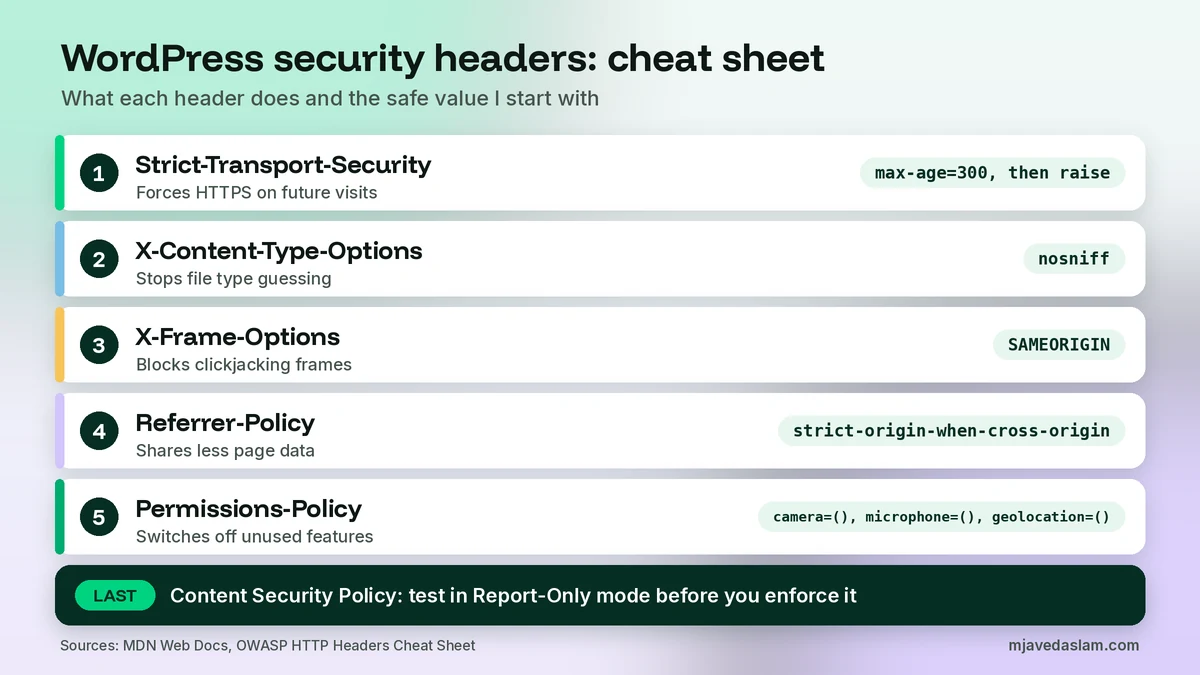
Here’s the short answer. WordPress security headers are extra lines your server sends with every page. They tell the visitor’s browser how to treat your site: always use HTTPS, don’t let other sites frame your pages, don’t guess file types, share less referrer data, and block browser features you never use. You don’t need a security plugin to add them. A few lines of PHP on the send_headers hook, or a few lines in .htaccess, do the job.
For most small business sites I start with five headers: Strict-Transport-Security (HSTS), X-Content-Type-Options: nosniff, X-Frame-Options: SAMEORIGIN, Referrer-Policy: strict-origin-when-cross-origin and a short Permissions-Policy. I add a Content Security Policy (CSP) last, and only after testing it in report-only mode, because it’s the one header that can quietly break forms, analytics and page builders.
Below I explain what each header does, give you copy-and-paste code for both methods, show the safe order to roll them out, and tell you how to test that nothing broke.
Do security headers help SEO?
Not directly, and I’d rather be honest about that. Google’s page experience documentation says Core Web Vitals are used by its ranking systems, and that other page experience aspects don’t directly help a site rank higher. HTTPS is one of those aspects. Security headers aren’t mentioned as a ranking factor at all.
So why do I add them on client sites? Because they protect the people who visit, and because a defaced or hijacked site is a far bigger SEO problem than any missing header. Headers are one layer of that protection. They also show up in security scans that some clients, partners and agencies run before they trust a site. If you’re working through the trust side of your website, my E-E-A-T checklist for small businesses covers the content signals; headers cover the technical ones.
If you’re chasing rankings this week, fix your Core Web Vitals in WordPress first. Then add security headers as part of a healthy, well-run site.
WordPress security headers explained: what each one does
Here are the headers worth knowing, with the value I start with on a typical brochure or service-business site. Your site may need different values, which I cover in each section below.
| Header | What it does | Safe starting value | Can it break things? |
|---|---|---|---|
| Strict-Transport-Security (HSTS) | Tells browsers to only use HTTPS for your domain in future visits | max-age=300 at first, then raise it in steps | Yes, if any part of your domain doesn’t work on HTTPS |
| X-Content-Type-Options | Stops the browser from guessing file types | nosniff | Rarely. Only if a server sends scripts or CSS with the wrong type |
| X-Frame-Options | Controls whether other sites can show your pages in a frame (clickjacking defence) | SAMEORIGIN | Only if a partner site legitimately frames your pages |
| Referrer-Policy | Controls how much of your page address is passed on when visitors click away | strict-origin-when-cross-origin | Rarely. It matches modern browser defaults |
| Permissions-Policy | Switches off browser features like camera, microphone and location for your pages | camera=(), microphone=(), geolocation=() | Yes, if your site or an embed actually uses those features |
| Content-Security-Policy (CSP) | Lists which sources of scripts, styles, images and frames the browser may load | Start with Content-Security-Policy-Report-Only | Yes. It’s the easiest header to get wrong |
What WordPress already sends on its own
WordPress core has a function called send_frame_options_header(). It sends X-Frame-Options: SAMEORIGIN and Content-Security-Policy: frame-ancestors 'self';, and core runs it on the login screen and in wp-admin. Your public pages don’t get those headers by default. That’s why a scan of your home page usually shows them missing, even though your login page is already protected against framing.
Before you add any header: three quick checks
- Take a backup and keep a way back in. If you edit
.htaccess, keep a copy of the original. A typo in that file can take the whole site down with a 500 error, and you’ll want to restore it from your host’s file manager in seconds. - See what’s already being sent. Your host, your CDN or an existing plugin may already add some of these headers. Adding the same header twice can create conflicting values. Run
curl -I https://yourdomain.com/in a terminal, or open your browser’s DevTools, go to the Network tab, click the first request and read the Response Headers. - Confirm HTTPS works everywhere. Visit the http:// and https:// versions of your domain, with and without www, plus any subdomains such as a shop or booking area. All of them should end up on a working https:// page. This matters most for HSTS.
Method 1: add security headers with a PHP snippet
WordPress has a hook made for this. The send_headers action fires when WordPress sends its own headers for a page, and you can add yours at the same moment. Put the code below in a child theme’s functions.php or in a code snippets plugin, which many site owners already use for small tweaks. Don’t put it in the parent theme, because a theme update will wipe it.
add_action( 'send_headers', function () {
    header( 'X-Content-Type-Options: nosniff' );
    header( 'X-Frame-Options: SAMEORIGIN' );
    header( 'Referrer-Policy: strict-origin-when-cross-origin' );
    header( 'Permissions-Policy: camera=(), microphone=(), geolocation=()' );
    header_remove( 'X-Powered-By' );

    // HSTS: start small, raise later (see the HSTS section).
    if ( is_ssl() ) {
        header( 'Strict-Transport-Security: max-age=300' );
    }
} );
What I like about this method: it only touches your WordPress pages, so it can’t affect wp-admin, and you can switch it off from the dashboard if something breaks. The is_ssl() check means HSTS is only sent on HTTPS responses, which is the only place browsers accept it anyway.
Know its limits, though:
- It covers pages WordPress builds. Images, CSS, JavaScript and PDFs are usually served straight by the web server, so they won’t get these headers.
- Some cache setups serve saved copies of pages as static files without running PHP. On those cached pages your PHP headers may be missing. Test a page while logged out, after the cache has warmed up.
- If your site needs geolocation, for example a store finder that asks for the visitor’s location, remove
geolocation=()from the Permissions-Policy line.
Method 2: add security headers in .htaccess
If your host runs Apache or LiteSpeed, which most shared WordPress hosts do, you can set headers in the .htaccess file in your site’s root folder. This covers every response, including images and files, and it works even when a cache serves static copies. Your server needs the mod_headers module, which the IfModule wrapper checks for.
<IfModule mod_headers.c>
Header always set X-Content-Type-Options "nosniff"
Header always set X-Frame-Options "SAMEORIGIN"
Header always set Referrer-Policy "strict-origin-when-cross-origin"
Header always set Permissions-Policy "camera=(), microphone=(), geolocation=()"
Header always set Strict-Transport-Security "max-age=300"
Header unset X-Powered-By
</IfModule>
Three rules I follow with this file:
- Place the block above the
# BEGIN WordPressline. WordPress rewrites the section between its own markers, so anything inside it can be lost. - Load your site straight after saving. If you see a 500 error, put the original file back and check for a typo or a missing quote.
- Pick one place per header. If you use .htaccess for a header, don’t also send it from PHP, or you may end up with two copies.
On Nginx servers there’s no .htaccess. The headers go in the server configuration with add_header, so ask your host or use the PHP method instead.
While you’re in the files that control crawling and access, it’s worth reading my guide to safe robots.txt edits in WordPress with Yoast. Both files are small, and both can do real damage with one wrong line.
HSTS: the header to roll out slowly
HSTS tells a browser that, for a set number of seconds, it must only connect to your domain over HTTPS. According to MDN, once a browser has seen the header it also won’t let the visitor click through certificate errors on your site. That’s the point: it protects people on public Wi-Fi from being pushed onto a fake, unencrypted version of your site.
It’s also why I never jump straight to a long value. The OWASP HTTP Headers Cheat Sheet warns that if your SSL certificate expires or is revoked while a long HSTS policy is active, real visitors can be locked out. The browser remembers the policy until it expires, and you can’t undo it over plain HTTP.
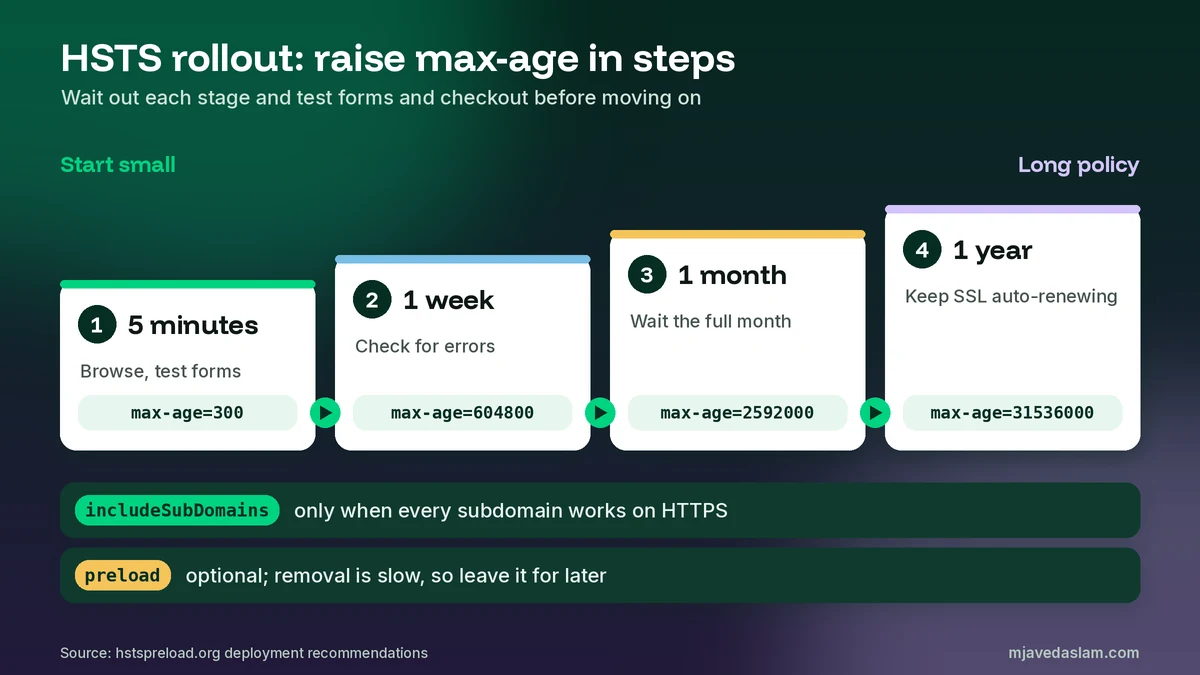
The rollout I use follows the steps on hstspreload.org:
- Send
max-age=300(5 minutes). Browse the site, check forms and checkout, and watch for errors. - Raise it to
max-age=604800(1 week), thenmax-age=2592000(1 month). Wait out each stage before moving on. - When everything has been stable, set a long value such as
max-age=31536000(1 year). - Add
includeSubDomainsonly when every subdomain, including old or internal ones, works on HTTPS.
Keep your certificate renewing automatically. Most hosts handle this, but check it once, because HSTS turns an expired certificate from a warning into a hard stop.
Should a small business use HSTS preload?
Usually not, at least not at first. Preloading means asking for your domain to be built into browsers as HTTPS-only. hstspreload.org lists the requirements: a valid certificate, a redirect from HTTP to HTTPS, all subdomains on HTTPS, and a header with a max-age of at least one year plus includeSubDomains and preload. The same site warns that removal tends to be slow and painful, and that new entries can take months to reach stable Chrome. For a local business site, normal HSTS gives most of the benefit with far less risk.
X-Frame-Options and frame-ancestors: stop clickjacking
Clickjacking is when another site loads your page inside a hidden frame and tricks people into clicking your buttons. X-Frame-Options stops that. SAMEORIGIN lets only your own site frame your pages; DENY blocks framing completely. MDN notes two traps: the old ALLOW-FROM value is obsolete and makes modern browsers ignore the header, and setting it in a <meta> tag has no effect. It must be a real HTTP header.
The modern version is the CSP directive frame-ancestors. frame-ancestors 'self' does the same job as SAMEORIGIN, and it lets you list specific partner domains if someone genuinely needs to embed your page. I send both, because they don’t conflict. One point people mix up: this header controls whether other sites can frame your pages. It has nothing to do with YouTube videos or Google Maps you embed on your own site.
X-Content-Type-Options: nosniff
This one has a single value, nosniff, and it’s the easiest win on the list. It tells the browser to trust the file type your server declares instead of guessing from the content. That blocks tricks where an uploaded file that should be plain text gets run as a web page. The only time it causes trouble is when a server labels a script or stylesheet with the wrong type, and that’s a server bug worth fixing anyway.
Referrer-Policy
When someone clicks a link from your site to another site, the browser can pass along the address of the page they came from. strict-origin-when-cross-origin sends the full address within your own site, only your domain name to other sites, and nothing when going from HTTPS to HTTP. OWASP notes that modern browsers already default to this value and recommends setting it explicitly anyway, so older or unusual browsers behave the same way. Your own analytics are not affected, because it doesn’t change what other sites send to you.
Permissions-Policy
This header lets you switch off browser features your site never uses. An empty pair of brackets disables a feature, so camera=(), microphone=(), geolocation=() means no page on your site, and no frame inside it, can ask for the camera, microphone or location. If an XSS bug or a bad script ever got onto the site, it couldn’t use those features either. Keep the list short and only include features you’re sure you don’t need.
Content Security Policy in WordPress: start in report-only mode
CSP is the most powerful header and the hardest to get right on WordPress. A full policy lists every source the browser may load scripts, styles, fonts, images and frames from. A typical WordPress site pulls from many places: the theme, plugins, Google Fonts, analytics, reCAPTCHA, chat widgets, video embeds. Many themes and plugins also print small inline scripts. Miss one source and that feature silently stops working.
Google’s own Tag Manager CSP guide shows how fiddly this gets. Google Analytics 4 and Google Ads need specific directives and domains. Google recommends a nonce, a random value generated fresh for every response, and says using 'unsafe-inline' is discouraged. Most small sites can’t generate nonces without custom development. If you track leads with GTM, as I explain in my guide to Google Ads conversion tracking in WordPress, test your tags carefully after any CSP change.
So I start with Content-Security-Policy-Report-Only. The browser checks the policy and flags anything that breaks it, but blocks nothing. MDN notes that violation reports are only sent if you add a report-to directive with an endpoint. Without one, I keep the browser’s DevTools console open and click through every page type and form, looking for report-only warnings.
A safe first policy that rarely breaks a WordPress front end looks like this:
Content-Security-Policy-Report-Only: frame-ancestors 'self'; object-src 'none'; base-uri 'self'; upgrade-insecure-requestsIt doesn’t restrict scripts yet, so it won’t stop an XSS attack on its own. What it does do: limit framing, block old plugin content like Flash objects, stop injected <base> tags from redirecting your links, and upgrade any leftover http:// resources to https://. When the console stays clean, switch the header name to Content-Security-Policy. Only then consider a stricter script-src list, and treat that as a small project with testing, not a five-minute tweak.
One warning if you set CSP in .htaccess: it also applies to wp-admin, where the block editor relies on inline scripts. Send CSP from the PHP snippet instead, so it only reaches public pages.
Headers I don’t add any more
- X-XSS-Protection. Many old guides still include it. OWASP says not to set it, or to send
X-XSS-Protection: 0, because in some cases it can create XSS problems in otherwise safe sites. CSP is the modern replacement. - Expect-CT and Public-Key-Pins. OWASP lists both as obsolete. Public-Key-Pins was removed from Chromium in 2018.
- X-Powered-By. I remove it rather than add anything. It tells attackers which PHP version you run. Removing it won’t stop a determined attacker, but there’s no reason to advertise.
How to test your WordPress security headers
After every change I run the same short checklist:
- Run
curl -I https://yourdomain.com/and confirm each header appears once, with the value you expect. - Scan the home page with MDN’s free HTTP Observatory. It grades your headers and explains each finding.
- Repeat the check on a blog post, a page, an image URL and your contact page. With the PHP method, images won’t show the headers, which is expected.
- Log out, clear the cache, and check a cached page. Missing headers there usually mean your cache serves static files.
- Submit your contact form, run a test booking or checkout, and confirm that analytics and conversion tags still fire.
- Log in to wp-admin and open the block editor to make sure nothing there changed.
If a change breaks something, remove the newest header first. Rolling out one header at a time makes the culprit obvious. A broken resource can also leave errors behind, so it’s worth a quick crawl afterwards with my guide to finding and fixing broken links in WordPress.
Common security header mistakes I fix
- Copying a long HSTS value with preload from a random guide. It’s hard to undo. Ramp up instead.
- Pasting a strict CSP straight into production. Contact forms, reCAPTCHA and tag managers stop working, and nobody notices until leads dry up.
- Sending the same header from three places. Host panel, plugin and .htaccess all add X-Frame-Options, sometimes with different values.
- Putting headers inside the WordPress block in .htaccess. The next permalink save or plugin update wipes them.
- Using meta tags. X-Frame-Options and frame-ancestors don’t work in
<meta>tags; they need real HTTP headers. - Chasing a perfect scanner grade. A clean, working site with sensible headers beats an A+ that broke the booking form.
FAQ
What are the most important security headers for a WordPress site?
For a typical small business site, start with Strict-Transport-Security (HSTS), X-Content-Type-Options: nosniff, X-Frame-Options: SAMEORIGIN, Referrer-Policy: strict-origin-when-cross-origin and a short Permissions-Policy. Add a Content Security Policy last, after testing it in report-only mode.
Can I add security headers in WordPress without a plugin?
Yes. Use the send_headers action in a child theme’s functions.php or a code snippet to send headers on WordPress pages, or add Header always set lines to .htaccess on Apache or LiteSpeed hosting to cover every file. Pick one method per header to avoid duplicates.
Do security headers improve Google rankings?
Not directly. Google says Core Web Vitals are used by its ranking systems and other page experience aspects don’t directly help a site rank higher. Security headers protect visitors and help keep the site from being abused, which supports SEO indirectly.
Is HSTS safe for a small WordPress site?
Yes, if every part of your domain works on HTTPS and your certificate renews automatically. Start with max-age=300, raise it to a week, then a month, then a year. Add includeSubDomains only when all subdomains work on HTTPS, and leave preload for later.
Why did my site break after adding a Content Security Policy?
Your policy probably blocked a script, style, font or frame the site needs, such as Google Tag Manager, reCAPTCHA or a page builder’s inline code. Switch to Content-Security-Policy-Report-Only, check the browser console for violations, and add the missing sources before enforcing it again.
Should I still use X-XSS-Protection?
No. OWASP recommends not setting it, or sending X-XSS-Protection: 0, because in some cases it can create XSS vulnerabilities. A Content Security Policy is the modern protection.
Next step
If you’d like a second pair of eyes before you touch .htaccess, I can check which WordPress security headers your site already sends, add the missing ones in the right order, and test forms, tracking and caching afterwards. See my SEO and technical SEO service, or get in touch with your website address and hosting company.