WordPress robots txt Yoast setup is usually simple: let Yoast create a robots.txt that allows crawling and points to your XML sitemap — then avoid the classic mistakes of blocking CSS/JS, blocking the sitemap, or Disallowing all of /. This guide is about safe edits for small WordPress sites, not Yoast’s XML sitemap toggles alone and not Core Web Vitals or broken-link crawls.
Service help: SEO.
WordPress robots.txt with Yoast: quick answer
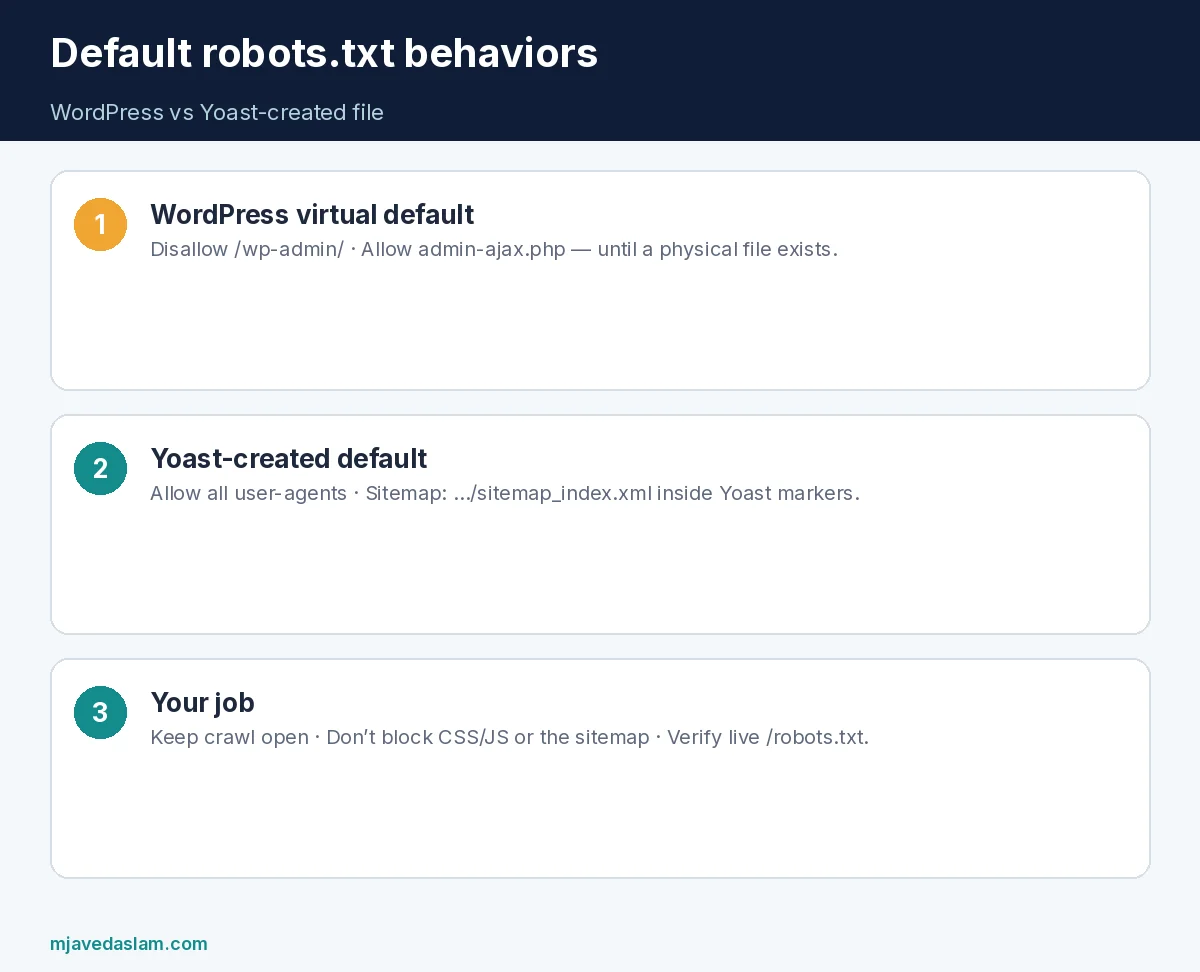
- WordPress’s virtual default is roughly: disallow
/wp-admin/, allow/wp-admin/admin-ajax.php. - When you create robots.txt through Yoast SEO, Yoast documents a block that allows all user-agents and adds a
Sitemap:line to yoursitemap_index.xml. - Edit in Yoast SEO → Tools → File editor (label can vary by version) when the file is writable; otherwise edit on the server.
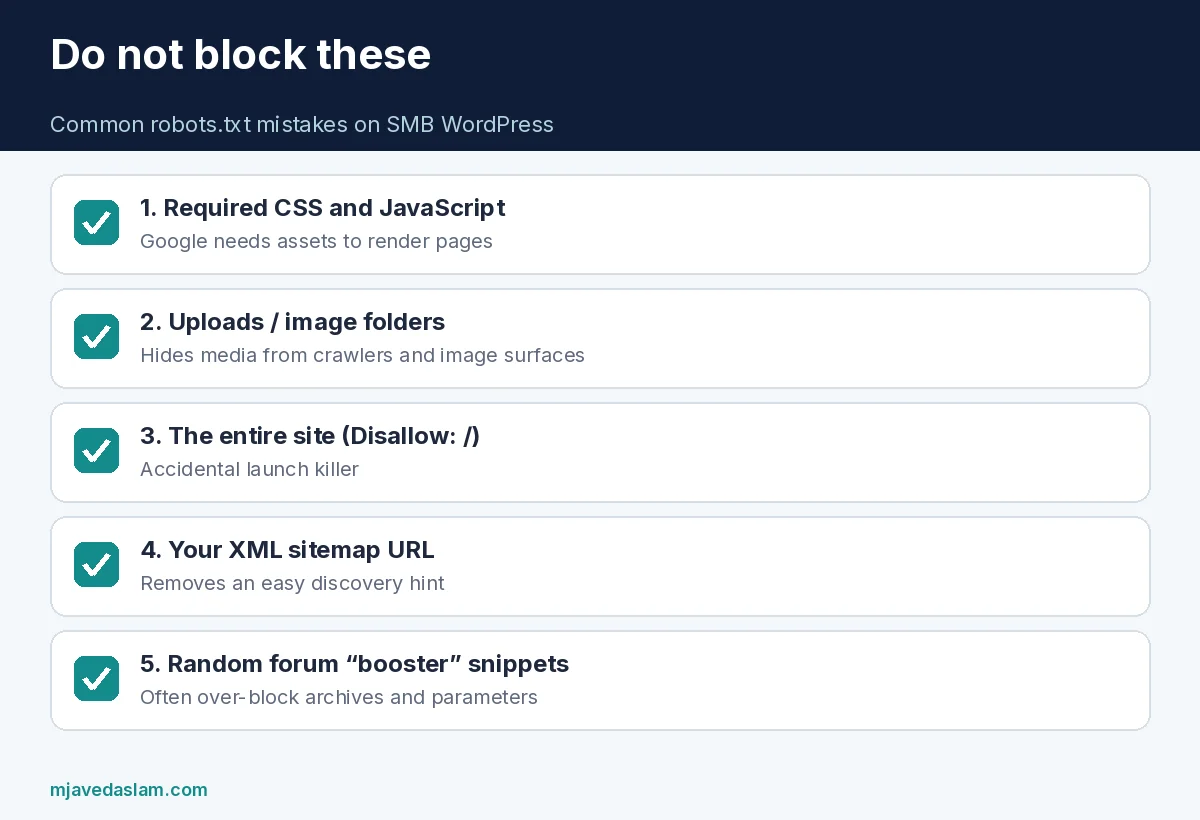
- Do not block required CSS/JS, the entire site, or your sitemap URL.
- Confirm live at
https://yoursite.com/robots.txtand with URL Inspection / robots testing — not only the plugin screen. - Keep sitemap settings healthy separately — Yoast XML sitemap settings.
What robots.txt does (and does not do)
Google’s robots.txt intro explains that the file tells crawlers which URLs they may access. It is not a security lock for private content, not a substitute for noindex, and not authentication. Sensitive pages need proper access control. For public marketing sites, robots.txt should usually stay open so Google can crawl pages, render assets, and discover the sitemap.
- Crawl control — suggest what bots may fetch.
- Not removal — already indexed URLs need Search Console removals / noindex, not only Disallow.
- Not a ranking boost — blocking thin sections can help crawl budget on huge sites; most small SMB sites should not over-engineer Disallow lists.
How to create or edit robots.txt in Yoast SEO
- In WordPress admin, open Yoast SEO.
- Open the Tools area and the robots.txt / file editor (Yoast’s Help: easiest path when the file is writable).
- Create the file if none exists — Yoast injects its default allow-all block plus your sitemap URL.
- Make only deliberate edits; save.
- Visit
/robots.txtin an incognito window and confirm the Sitemap line matches your real sitemap (usually/sitemap_index.xmlwith Yoast). - If WordPress file editing is disabled or the file is not writable, Yoast notes you may need to edit at the server level instead.
Safe patterns vs dangerous patterns
| Pattern | Verdict for most SMB sites |
|---|---|
| Yoast default allow + Sitemap line | Good starting point |
| Disallow: /wp-admin/ (WP default style) | Usually fine; ajax Allow rule matters for WP default |
| Disallow: /wp-json/ without a reason | Often unnecessary; can break tools that need the REST API |
| Disallow: /wp-content/uploads/ | Usually bad — hides images from image search / rendering needs |
| Disallow: /*.css$ or /wp-includes/ | Dangerous — Google needs CSS/JS to render |
| Disallow: / and empty Allow | Blocks the site — disaster if accidental |
| Removing the Sitemap: line | Unhelpful; keep sitemap discovery easy |
| Blocking /cart/ /checkout/ on Woo | Sometimes intentional; test that product pages stay crawlable |
Google’s create-robots.txt documentation shows Sitemap directives and warns that rules are prefix-based — a broad Disallow can sweep more URLs than you intended. Prefer narrow paths. When in doubt on a 20-page local service site, leave Yoast’s allow-all default alone.
How this fits with other WordPress SEO tasks
- XML sitemaps: configure which content types appear — sitemap article linked above.
- Indexing: use Yoast noindex for thank-you pages; do not rely on robots.txt alone.
- CWV / rendering: blocking assets can hurt how Google sees your layout — Core Web Vitals.
- Broken links: crawl what Google can crawl — broken links.
- Schema: FAQ / LocalBusiness still need crawlable pages — FAQ schema, LocalBusiness schema.
Verification checklist after any edit
- Open
/robots.txtpublicly — compare to the editor. - Confirm
Sitemap:URL returns 200 and lists key pages. - In Google Search Console, use robots.txt / URL inspection tooling available to your property to spot blocked resources on a money URL.
- Fetch a CSS and JS URL from the page source — they should not be Disallowed.
- Document the change in your site runbook with date and reason.
Agencies: never paste a “SEO booster robots.txt” from a random forum into a client site. Many of those snippets block archives in ways that also block paginated services or parameter URLs you still need. WordPress robots txt Yoast defaults exist so small sites stay crawlable; sophistication is optional.
If you use a reverse proxy, CDN, or custom server robots.txt that overrides WordPress, the Yoast editor may not be what Google sees. Always trust the live response headers/body at the site root. Multisite and subdirectory installs need extra care so one site’s Disallow does not ship on another.
Staging sites should disallow crawling or use auth — but production must not copy a staging Disallow: / by accident during launch. Add a launch checklist line: “robots.txt is production-safe.”
Example: reading a Yoast robots.txt like a human
A typical Yoast-created file wraps directives in # START YOAST BLOCK comments, allows all user-agents, and ends the block with your sitemap URL. Extra rules you add outside that block still apply — so a leftover Disallow: /? or plugin snippet below the Yoast markers can quietly undo the “open crawl” intent. When troubleshooting WordPress robots txt Yoast setups, scroll past the pretty comments and inventory every Disallow line.
If two plugins fight over robots.txt, disable the duplicate writer. One physical file at the web root should win. On some hosts, a server-level robots.txt in the home directory overrides WordPress entirely; ask support which path Google hits.
International sites with hreflang still need each language version crawlable. Do not Disallow /es/ just because the English site is primary — block only true duplicates you also noindex, and prefer canonicals for language variants when appropriate.
E-commerce note: blocking checkout and thank-you URLs can be fine; blocking category and product templates is not. Test a product URL in Search Console after any robots change. Local service sites rarely need Woo-style Disallows at all.
Change control: treat robots.txt like production DNS. One-line mistakes take a site dark to Googlebot while humans still see pages fine — which is why the failure mode is confusing. Pair every edit with a calendar reminder to re-check /robots.txt and a money URL’s rendered resources the next morning.
When you hire help, ask the contractor to paste the live robots.txt into the ticket before and after changes. That habit catches “I edited the staging copy” mistakes faster than any plugin screenshot.
Bottom line for wordpress robots txt yoast work on small sites: open crawl, visible sitemap line, no asset blocks, live URL verified. Everything else is optional complexity. If a change does not have a written business reason, do not make it.
FAQ: WordPress robots.txt with Yoast
Where is robots.txt in Yoast SEO?
Under Yoast SEO Tools / file editor when the file is writable. Confirm the live URL at /robots.txt.
Should I block /wp-admin in robots.txt?
WordPress’s default virtual robots.txt disallows /wp-admin/ while allowing admin-ajax. Yoast’s created default focuses on allow-all plus Sitemap. Either way, robots.txt is not real security for admin — use strong logins and limits.
Can robots.txt remove a page from Google?
Not reliably by itself. Use noindex and Search Console for removals; Disallow alone can leave URLs indexed without snippets.
Why did Google say CSS/JS is blocked?
A Disallow rule is catching asset paths. Remove those rules so Google can render the page.
Do I need a custom Disallow list for a 15-page brochure site?
Usually no. Yoast’s allow-all + sitemap line is enough. Spend time on content, GBP, and speed instead.
Yoast editor says I can’t edit the file — now what?
File permissions or DISALLOW_FILE_EDIT may block the UI. Edit robots.txt at the server/hosting level carefully, or fix writability with your host.