
Most small WordPress sites don’t need a custom sitemap plugin. They need sane yoast seo xml sitemap settings: turn the feature on, include money pages, exclude thin archives and thank-you URLs, then submit sitemap_index.xml in Google Search Console.
This guide is about include/exclude choices for a service or local-business site — not FAQ schema (#07) and not Core Web Vitals (#20). A sitemap helps crawlers discover URLs; it does not rank you by itself.
Yoast SEO XML sitemap settings (quick path)
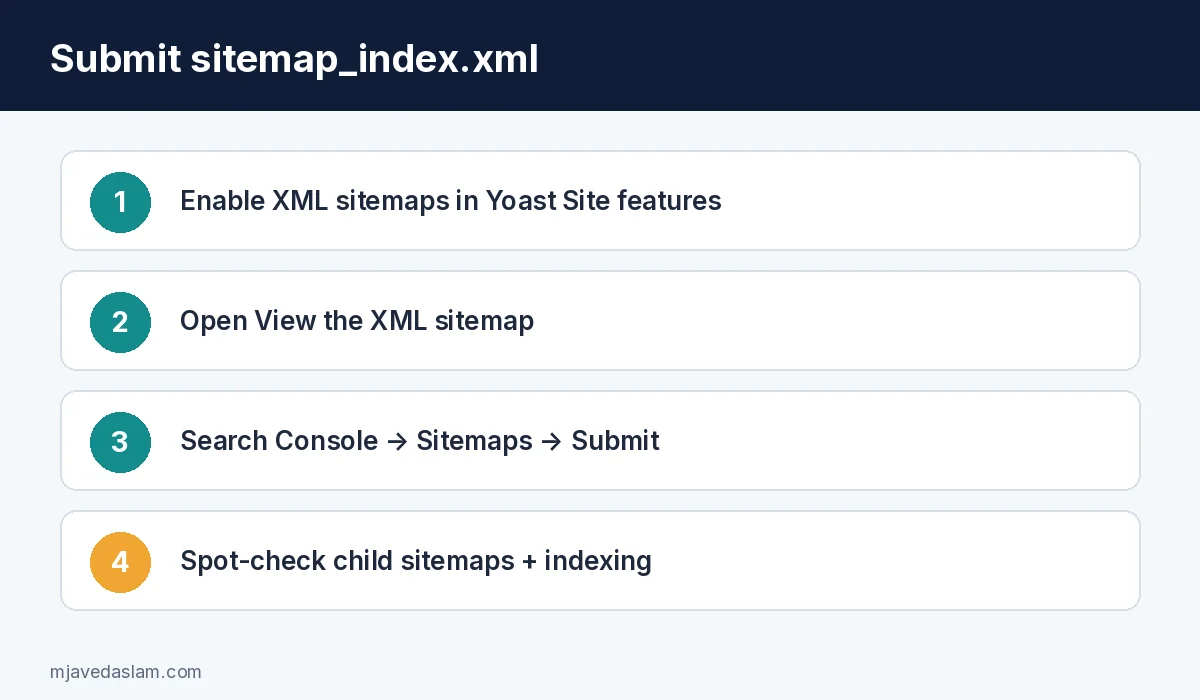
- In WordPress admin, open Yoast SEO → Settings.
- Under Site features → Technical SEO, set XML sitemaps to On (purple checkmark).
- Click View the XML sitemap — you should land on your sitemap index (commonly
https://yoursite.com/sitemap_index.xml). - Customize what appears via Content types, Categories & tags, and related Settings toggles (details below).
- In Google Search Console, submit that sitemap index URL under Sitemaps.
Yoast documents that the sitemap index and individual sitemaps update automatically as you add or change content. You do not rebuild a static file by hand after every post.
What to include on a small service site
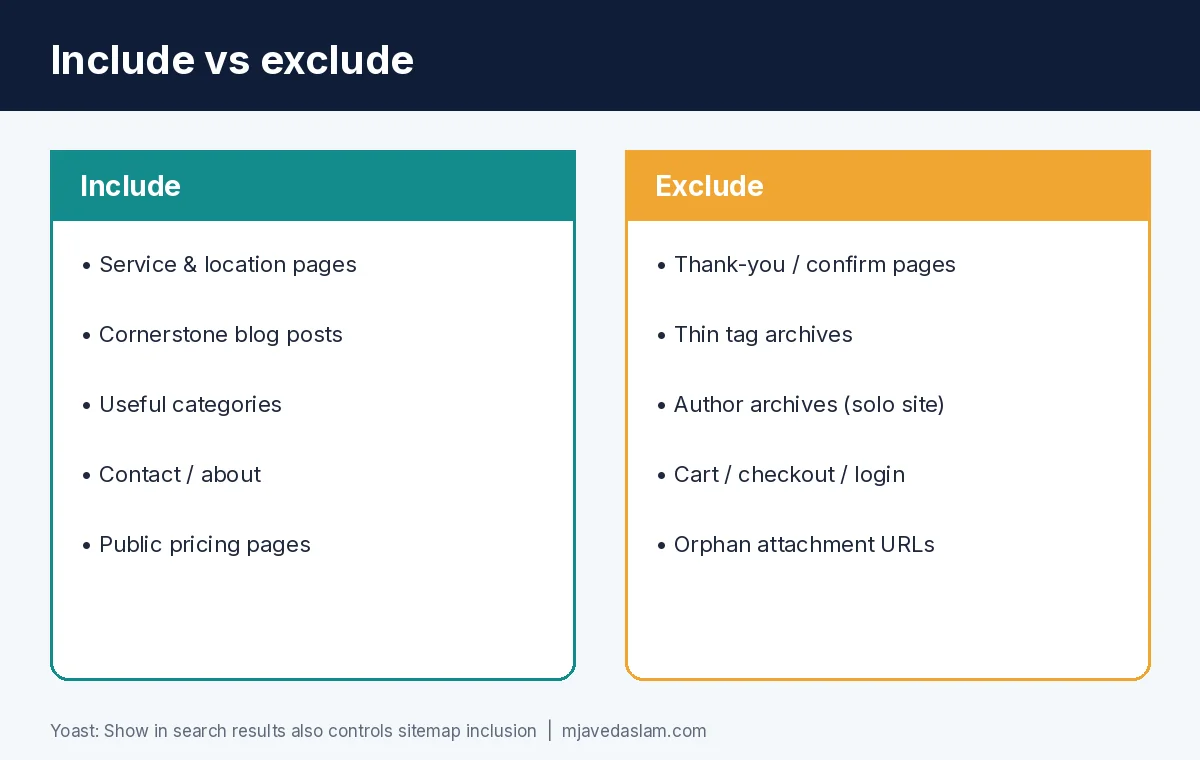
- Pages: Home, services, location/service-area pages, about, contact, pricing (if public), blog posts that answer real customer questions.
- Posts: Keep posts “Show in search results” on when they are meant to rank.
- Primary categories: Include category archives only if they are curated landing pages — not empty or near-empty tag dumps.
- Custom post types you actually want indexed (projects, locations) — leave unused CPTs out.
Google’s sitemap overview is clear: a sitemap lists URLs you think matter so crawlers can fetch them efficiently. It is not a ranking vote. Pair discovery with solid on-page work and internal links — SEO services if you want that done end-to-end.
What to exclude (most small sites)
- Thank-you / confirmation pages after forms — mark noindex so they leave the sitemap and Search.
- Utility pages: cart, checkout, my-account, login, password reset (if applicable).
- Thin tag archives with one post each — turn tags off in search results / sitemap via Categories & tags settings when tags add noise.
- Author archives on a one-author brochure site (customize/disable author sitemap exposure when those URLs are thin duplicates of the blog index).
- Attachment / media URLs that create empty attachment pages — Yoast discusses media/attachment behavior in its sitemap customize docs; don’t let orphan attachment URLs clutter discovery.
- Staging or “coming soon” leftovers if they somehow got indexed — fix noindex/canonical first.
Yoast’s customize guide: removing a content type from search results also removes it from the sitemap; showing it in search results shows it in the sitemap. Individual URLs can leave the sitemap when you noindex them.
Content types, taxonomies, and authors (the toggles that matter)
In Yoast SEO → Settings:
- Content types: For Posts, Pages, and each CPT, use Show [type] in search results? On/Off. Off → out of sitemap.
- Categories & tags: Same idea for taxonomies. Keep useful categories; drop noisy tags on small blogs.
- Author archives: Yoast can list author pages in a dedicated sitemap. On a solo local-business blog, author archives rarely deserve crawl attention — adjust so you are not advertising thin author URLs.
Some content types or taxonomies are not publicly registered and won’t show a simple toggle — Yoast notes you may need to make them public or use a developer filter. Most service sites never hit that edge case.
Submit (and monitor) in Search Console
- Property verified for the correct protocol/domain (https, www vs non-www).
- Sitemaps → enter
sitemap_index.xml(or the full URL Yoast’s “View” link shows) → Submit. - Check for “Couldn’t fetch” / “Sitemap can be read, but has errors.”
- Use Pages / indexing reports to see whether important URLs are discovered and indexed — a green sitemap status is not the same as “all money pages ranked.”
Google’s build-and-submit docs still apply: one sitemap index pointing at split child sitemaps is normal. Yoast splits large sitemaps for speed (their feature page notes chunking around large URL counts).
Common Yoast sitemap mistakes
- Leaving XML sitemaps Off after a migration or plugin conflict.
- Submitting an old All-in-One SEO / Rank Math sitemap URL after switching to Yoast.
- Including every tag archive on a 40-post blog.
- Expecting the sitemap to fix crawl issues caused by
noindex, blocked robots.txt, or login walls. - Ignoring Search Console “Excluded” reasons while celebrating “Success” on the Sitemaps report.
- Duplicating sitemaps with a second sitemap plugin — pick one generator.
Performance still matters for crawlers and humans — if LCP/INP are broken, fix that track separately: fix Core Web Vitals on WordPress. Structured data is a different lever: FAQ schema, LocalBusiness schema.
Small-site include/exclude cheat sheet
- Include: service pages, city pages you actively maintain, cornerstone posts, contact.
- Exclude: thank-you, legal pages you prefer noindex (optional — many keep privacy/terms indexed), tag spam, author archives on single-author sites, attachments.
- Re-check after: redesigns, plugin swaps, new CPT plugins, WooCommerce enablement.
Need a cleaner technical SEO pass beyond the sitemap toggle? Start at SEO.
After you change include/exclude toggles, reload sitemap_index.xml in a private window. Click into the posts and pages child sitemaps and spot-check that a new service page appears and a thank-you URL does not. If a URL is missing, confirm the post is Published (not Draft), not noindexed in the Yoast sidebar, and that its content type is set to show in search results.
Multi-location brands sometimes generate hundreds of near-duplicate city pages. A sitemap will happily list all of them — that does not make thin doorway pages a good idea. Only include location URLs you maintain with unique proof (teams, photos, reviews, services). Local SEO still needs GBP accuracy — Google Business Profile, local SEO.
If you use a security or firewall plugin, allow Googlebot to fetch the sitemap. Occasional “Couldn’t fetch” spikes happen during outages; persistent failures usually mean a block, DNS issue, or wrong property in Search Console.
Finally, don’t obsess over priority and changefreq values. Yoast’s Help notes limits around priority customization; Google has long treated those hints as soft at best. Spend the energy on excluding junk URLs and fixing real indexing errors instead.
When you publish a new service page, give Search Console a day or two before panicking about discovery — then use URL Inspection on that exact URL if it still never appears. Sitemaps are a hint, not a force-index button.
Caching plugins occasionally serve a stale sitemap to bots. If Search Console shows outdated last-read times after big structural changes, purge the cache (and any CDN cache) for sitemap_index.xml and the child sitemap paths, then request a refresh. Prefer excluding junk URLs over chasing perfect lastmod timestamps.
FAQ: Yoast SEO XML sitemap settings
Where is the Yoast XML sitemap URL?
With XML sitemaps enabled, use Yoast’s “View the XML sitemap” link — typically /sitemap_index.xml on the site root.
How do I exclude pages from the Yoast sitemap?
Turn off “Show in search results” for a content type/taxonomy in Yoast Settings, or noindex individual URLs. Both approaches remove URLs from the sitemap per Yoast’s customize guidance.
Should I include tags and author archives?
Only if they are useful landing pages. On most small service sites, tags and author archives are thin — exclude them from search results/sitemap.
Do I need Yoast Premium for XML sitemaps?
XML sitemaps are part of Yoast SEO’s feature set (Free includes sitemaps). Premium adds other products; don’t buy Premium only for a basic sitemap index.
Does a sitemap improve rankings?
No direct ranking boost. It helps discovery and crawl efficiency. Rankings still depend on relevance, experience, and links.
Why does Search Console say my sitemap has errors?
Common causes: wrong property URL, sitemap blocked, plugin conflict, or URLs returning errors/redirect chains. Open the specific error in GSC and fetch the sitemap URL in a browser while logged out.