

If you need how to set up google ads conversion tracking wordpress done correctly, treat it as three jobs: define the conversion in Google Ads, install the Google tag sitewide on WordPress, then fire an event on the thank-you page or button click — without double-tagging. Without that chain, Smart Bidding and your reports are guessing.
I’ll walk through the 2026-friendly path for small-business WordPress sites: Google Ads conversion actions, Google tag vs Google Tag Manager (GTM), where snippets go in WordPress, how to test, and the mistakes that inflate numbers. UI labels in Ads move; follow the live Help screens if a menu name differs.
What you’re setting up (quick answer)
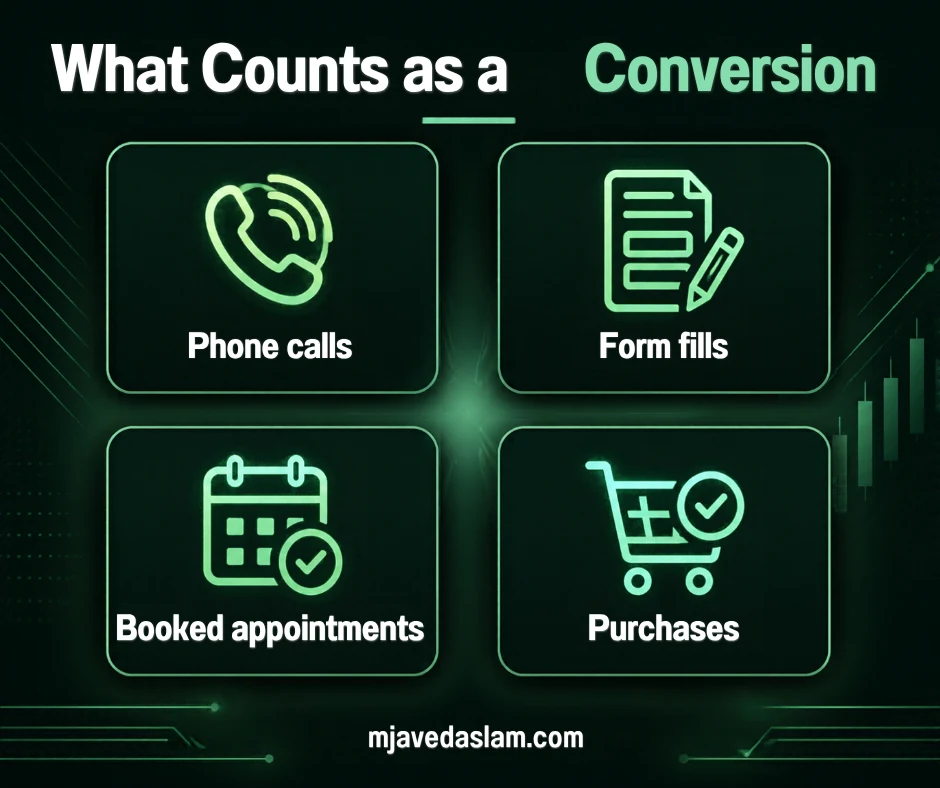
- In Google Ads, create a website conversion action for the result you care about (form thank-you, purchase, click-to-call button, etc.).
- Install the Google tag on every page (WordPress header, a trusted snippet plugin, Site Kit, or GTM).
- Add the event snippet (or GTM Conversion Tracking tag) so it fires only when the conversion happens.
- Verify in Google Ads / Tag Assistant that conversions record — then give it time before judging campaigns.
Google documents multiple conversion sources (website, calls, apps, offline). This guide focuses on website actions on WordPress. For wasted-click control after tracking works, pair this with a Google Ads negative keywords list for small business.
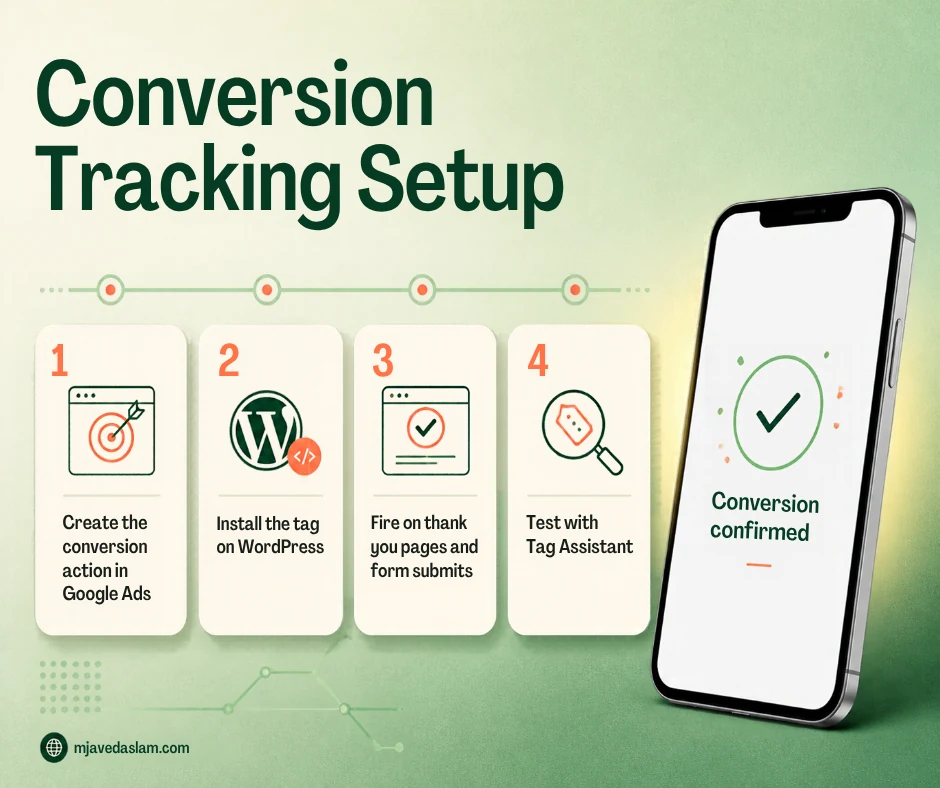
Step 1: Create the conversion action in Google Ads
In your Google Ads account (Goals / Conversions area — exact navigation varies):
- Create a new conversion action for Website.
- Choose category and settings that match the business (lead form, purchase, contact, etc.).
- Pick a setup method Google offers for your case:
- URL / page load: good when a unique thank-you URL loads after submit.
- Code / event: needed for button clicks, many AJAX forms, or dynamic values.
- Google Tag Manager: best if you already run GTM or want marketers to ship tags without theme edits.
- Import from Google Analytics: only if GA4 is linked correctly and the event is a key event — allow 24–48 hours after linking/marking before import options appear (per Google Ads Help).
- Save the Conversion ID and Conversion Label when Ads provides them (needed for GTM/manual tags). Note: some automatically created conversions don’t give a standalone label — create a manual website conversion if you need GTM fields.
Track separate actions separately (purchase vs newsletter vs call click). Use account-default conversion goals so the “Conversions” column reflects what you optimize toward.
Step 2: Put the Google tag on WordPress (sitewide)
Google’s site tag is now called the Google tag (gtag.js installations continue under that name). It belongs in the <head> of pages across the site. On WordPress, common safe patterns:
- Google Tag Manager container in the theme header + body (or a maintained GTM plugin) — then deploy Ads tags inside GTM.
- Snippet/header plugin (for example WPCode-style tools) pasting the Google tag once in the global header.
- Official or well-maintained Google plugins (such as Site Kit) when they match your stack — still audit so you don’t also hard-code the same tag.
- Child theme header.php only if you’re comfortable with theme updates and deployments.
Do not install the same Google tag via plugin and manual header and GTM Ads tags that duplicate the hit. Google Ads Help warns that CMS plugins plus manual tags can double-count.
Step 3: Fire the conversion on the right WordPress moment
Thank-you page (simplest)
If Contact Form 7, Gravity Forms, WooCommerce, or your builder redirects to /thank-you/:
- Keep the Google tag global.
- Add the event snippet only on that thank-you template/page (or fire a GTM tag on that Page URL).
- Confirm the thank-you URL is unique and not used for non-converting visits.
Button or AJAX form (no unique URL)
Use click / custom-event tracking: Google’s “track clicks as conversions” path, a GTM Click trigger, or your form plugin’s success callback that pushes a data layer event. This is where most WordPress lead-gen sites break — the form submits without a page load, so a thank-you-only snippet never runs.
Using Google Tag Manager
Per Tag Manager Help: create a Google Ads Conversion Tracking tag with Conversion ID and Label; trigger it on the thank-you Page View or a custom event. Optionally pass Transaction ID via a data layer variable to reduce duplicates. Automatically created Smart/auto goals may not expose a label — create a manual website conversion in Ads when you need those fields.
Step 4: Test before you scale spend
- Use Google’s tag diagnosis / Tag Assistant-style checks where available.
- Submit a real test lead from an ad click or Ads’ testing guidance for your tag type.
- In Google Ads, confirm recent conversion recording (can lag).
- Compare against your CRM or inbox for a day — if Ads shows 40 and you got 8 emails, you have duplicates or mis-fired tags.
Enhanced conversions and consent mode settings depend on your region and legal setup. Configure them from current Google Ads / tag documentation rather than copying old blog snippets.
WordPress-specific pitfalls
- Caching plugins serving a thank-you page without the event snippet to some users
- Form plugins that stay on the same URL after submit
- Multiple “Google Ads” plugins fighting each other
- Tracking phone calls only on the website while most customers tap the Map Pack call button (consider call conversions separately)
- Optimizing bids to a micro-conversion (menu click) instead of qualified leads
When tracking is solid, campaigns get easier to improve. If you want help wiring Ads measurement on a WordPress site, see Google Ads services and broader SEO when organic pages feed the same thank-you URLs.
A minimal WordPress example (thank-you URL)
Suppose Gravity Forms confirms on /contact-thanks/:
- Create a “Submit lead form” website conversion in Google Ads.
- Install the Google tag once in the global header (or fire all Ads tags from one GTM container).
- Configure the event to fire on Page View where the page path equals
/contact-thanks/. - Exclude that URL from menus and ads so people don’t land there cold.
- Submit one test form, then confirm the conversion in Ads before changing bid strategies.
If your form plugin offers a “success redirect” setting, use a dedicated slug — not the homepage. Homepage fires are almost always wrong for lead conversions.
Need negatives and query hygiene after measurement works? Return to the negative keywords starter. For local lead gen pages that feed those forms, keep Map Pack basics strong via local SEO.
FAQ: Google Ads conversion tracking on WordPress
Where do I put the Google Ads conversion tag in WordPress?
Install the Google tag sitewide in the header (theme, snippet plugin, Site Kit, or GTM). Place the event snippet only on the conversion page or fire it via GTM on the conversion trigger.
Do I need Google Tag Manager for WordPress?
No, but GTM is often cleaner once you manage multiple tags. Use either GTM or a single direct Google tag installation — not duplicate parallel setups.
Why are my Google Ads conversions doubled?
Usually duplicate tags (plugin + manual + GTM), thank-you page reloads, or missing transaction IDs on purchases. Remove extras and verify one fire per conversion.
Can I import GA4 conversions into Google Ads?
Yes if accounts are linked, you have the right permissions, and events are marked as key events. Google notes it can take 24–48 hours after linking or marking before import options appear.
What if my WordPress form doesn’t redirect?
Don’t rely on a thank-you URL. Use click/event tracking or a data layer success event through GTM or your form plugin’s hooks.
Is the global site tag the same as the Google tag?
Google states the global site tag (gtag.js) is now the Google tag; existing gtag.js installs continue with updated capabilities.