Blurry logos, stock storefronts, and “Content not approved” banners waste the clicks your listing already earns. This guide covers google business profile photos guidelines — official sizes and formats, what “Pending / Not approved / Live” means, why uploads get rejected, and how to rebuild a photo set customers (and Google’s review) will accept.
Photos and videos only show on Google after the profile is verified. Specs below come from Google’s manage-photos Help and related content policy. Distinct from claiming, categories, or description copy — this is the media troubleshooting playbook.
Google Business Profile photos guidelines (sizes & formats)
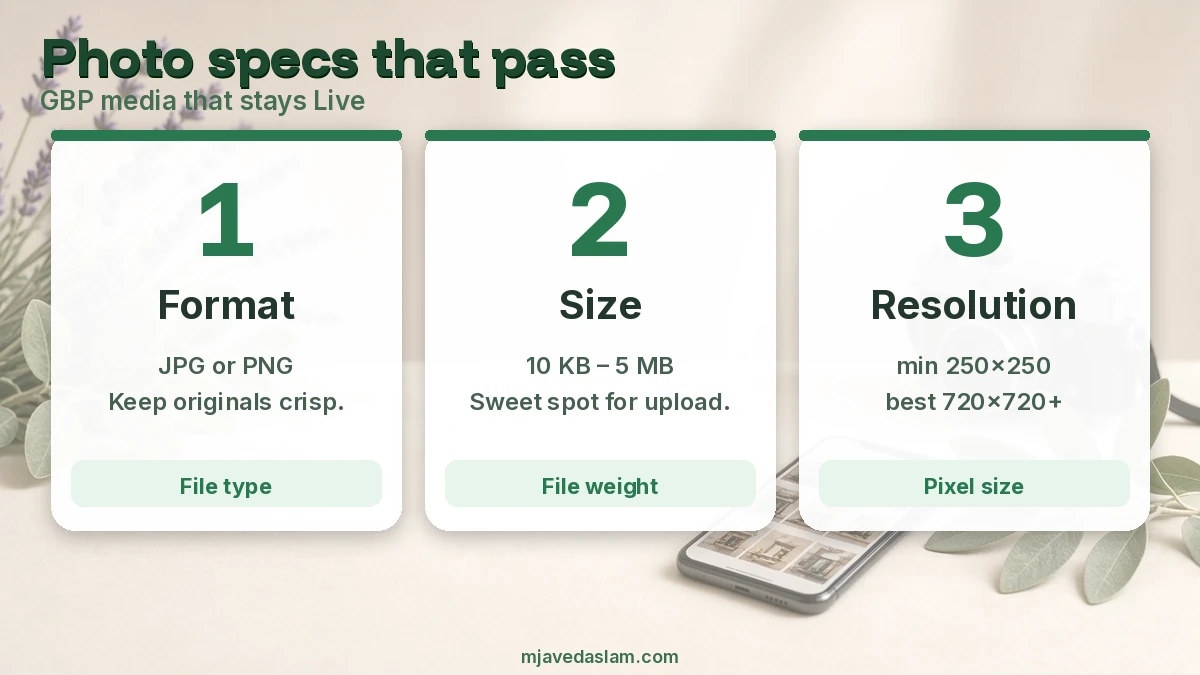
Google says photos look best when they meet:
- Format: JPG or PNG.
- File size: Between 10 KB and 5 MB.
- Recommended resolution: 720 × 720 px.
- Minimum resolution: 250 × 250 px.
- Quality: In focus, well lit, no significant alterations or excessive filters — the image should represent reality. Business-specific tips also warn against excessive AI alteration.
Video (when you use it on the profile): up to 30 seconds, up to 75 MB, 720p or higher.
If the profile isn’t verified yet, finish that first — claim and verify — or media stays Pending and never reaches customers.
Logo, cover, and business photo types
- Logo: Helps recognition; Google notes logos are highlighted when basic info (phone, hours, etc.) is complete. If the logo is missing, fill name, valid street address, categories, phone, and hours first.
- Cover: Best representation of the business at the top of the profile. Low quality (or stronger user photos) can mean Google shows something else first — selecting a cover doesn’t guarantee it leads.
- Business photos: Exterior, interior, products, team at work, food/drink, rooms/common areas depending on business type. Google’s tips article suggests adding at least three strong exteriors, three interiors, and three of products or “at work” shots when those apply.
Service-area businesses should still show real work and branded vehicles when address display is limited — see SAB profile setup.
Upload statuses: Pending, Not approved, Live
After upload, Google reviews media against photos/videos policies:
- Pending: Still uploading/processing, or the profile isn’t verified. Pending media doesn’t show on Search or Maps.
- Not approved: Flagged for policy issues; won’t show publicly.
- Live: Visible to customers on Search and Maps.
Tip from Help: it can take up to 24–48 hours before photos/videos show. Don’t panic-delete and re-upload every hour — that can make troubleshooting harder. On Search, photo source and view counts can appear on profile photos.
Why photos get rejected (and how to fix)
Common fixable causes I see with small businesses:
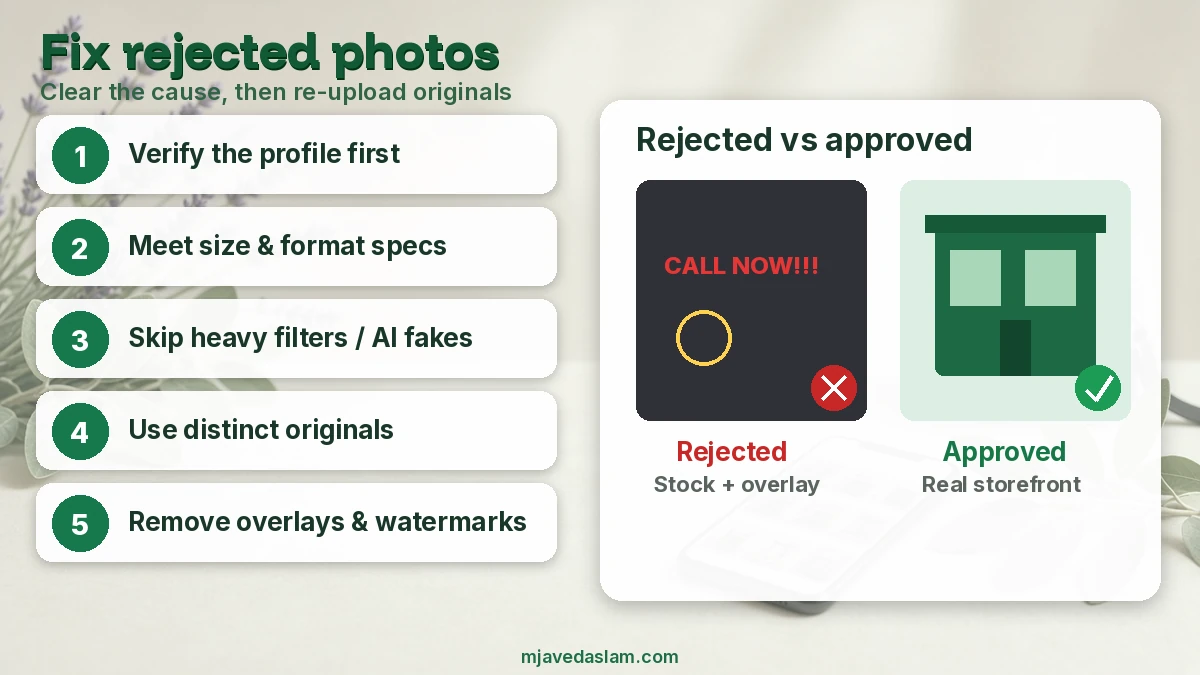
- Unverified / suspended / disabled profile: Content can be rejected until the profile is healthy again. Reinstate or verify before flooding uploads.
- Wrong tech specs: Too small (<250px), under 10 KB, over 5 MB, or a format that isn’t JPG/PNG.
- Heavy edits / filters / AI: Over-smoothed, collage, fake storefronts, or heavily manipulated images fail the “represent reality” bar.
- Duplicates: Help notes you may not find an upload if it’s a duplicate — try a distinct original file.
- Distracting overlays: Maps media tips discourage borders, collages, and distracting superimposed text/graphics; keep promotional overlays relevant and minimal.
- Wrong subject: Selfies where people dominate, screenshots, stock photos, or imagery clearly not of your place are weak and may be removed as low quality.
- Policy-prohibited content: Follow prohibited & restricted content rules that apply to Business Profile media.
Mobile uploads sometimes compress more aggressively than desktop. If a phone export lands under 10 KB or looks muddy, re-export from the camera roll at a larger dimension before uploading. Conversely, raw 20 MB phone videos fail the 75 MB / 30s video rules if you paste a long clip — trim first.
Watermarks with agency URLs, QR codes covering half the frame, and “Before/After” text banners are frequent rejection magnets. Tell the story in the caption or a Google post instead of burning marketing onto the pixels.
If every new photo flips to Not approved immediately, stop mass retries (they can look abusive), audit for watermarks/phone overlays, confirm verification status, and contact Google support for a manual look rather than uploading fifty variants overnight.
Profile-level problems (duplicates, suspensions) belong in those workflows — fix duplicates before blaming the JPEG.
A practical photo shoot checklist for SMBs
- Shoot exterior from the approaches customers actually use; day and dusk if useful.
- Interior: reception, main service area, clean details — no private customer faces without consent.
- Products/work: evenly lit, true colors, one hero item per frame.
- Export JPG, longest side ≥720px, file between 10 KB and 5 MB.
- Skip phone numbers, “CALL NOW,” and heavy logos burned into the image — put CTAs in profile fields and posts.
- Upload a batch, wait 24–48 hours, then check Live vs Not approved.
- Replace weak cover/logo only after basic NAP fields are complete.
Name files plainly (storefront-front.jpg) if you want — filename SEO is minor next to whether the photo is Live. What matters more is that the visual matches the address and category Google already trusts. A dentist’s operatory shot should not look like a café; a roofer’s before/after should show the actual roof plane, not a generic stock shingle.
For multi-location brands, upload per location, not one shared HQ lobby for every city. Google’s product experience is place-based: the wrong interior in another market confuses customers and can look like inaccurate content. Keep a simple shared drive folder per listing so staff don’t re-upload last year’s rejected file.
Pair media with a clear description and categories so the listing tells one story — description guide, primary category. For video verification of ownership (different from marketing video), see video verification.
How to add, change, or delete photos
On computer Search or Maps (labels can vary slightly):
- Search your business name and city.
- Photos → Add photos (multi-select allowed).
- For cover/logo: Add a cover photo / Add a logo (or Change cover / Change logo).
- To remove owner media: open Photos → select → Delete → confirm.
Newest media typically appears first. You can also request removal of some customer-added photos via Google’s customer-photo removal flow when policy allows.
When a competitor’s listing looks richer, don’t copy their watermarked collage. Shoot your own place on a clear day, keep EXIF if you want, and rotate seasonally (holiday decor, summer patio) so the profile doesn’t freeze in last year’s winter. Fresh, truthful media supports prominence better than another keyword-stuffed filename.
Owners sometimes ask whether more photos always mean better rankings. Google does not publish a fixed “photo count = rank” formula. Strong media helps customers choose you and can support engagement signals; weak or rejected media helps nobody. Prioritize approval and usefulness over volume.
Customer-uploaded photos can outrank your cover in the carousel. Encourage happy customers to leave real photos with reviews — then reply thoughtfully — rather than fighting every third-party upload. Request removal only when policy clearly allows it.
FAQ: Google Business Profile photos
What size should Google Business Profile photos be?
Recommended 720 × 720 px; minimum 250 × 250 px; file size between 10 KB and 5 MB; JPG or PNG.
Why are my Google Business Profile photos not showing?
Often Pending (still processing or unverified), Not approved (policy), waiting within the 24–48 hour window, or a cover overridden by stronger user photos.
Why were my Business Profile photos rejected?
Typical causes: unverified/suspended profile, size/format issues, heavy filters/AI edits, duplicates, overlays, or prohibited content. Fix the cause, then re-upload originals.
Can I use stock photos or AI-generated storefronts?
Google emphasizes reality and, for Maps media tips, media you captured at the place. Stock and heavily AI-altered scenes are poor fits and risk rejection or low-quality removal.
Do photos show before verification?
No. Help states photos and videos show on Google only after you verify the Business Profile.
How many photos should I add?
Google’s business-specific tips suggest at least three strong exteriors, three interiors, and three product or at-work photos when those categories apply — quality beats dumping dozens of near-duplicates.
Need a full profile cleanup including media? Start at Google Business Profile help or local SEO.