
Seeing two listings for the same shop on Maps is stressful — and searching how to fix duplicate google business profile issues usually turns up half-answers. Google’s rule is simple: you can have only one Business Profile for each business. Extra profiles can mislead customers and violate guidelines. If Google marks a profile as a duplicate, it won’t show on Search or Maps.
Fixing it safely means choosing the right path: merge two live Maps listings, remove a duplicate you created in your account, request ownership of the real profile, or appeal if two distinct businesses were incorrectly collapsed. Below is the decision tree I walk small businesses through — including review risks — without creating yet another listing that makes things worse.
First: diagnose which duplicate problem you have
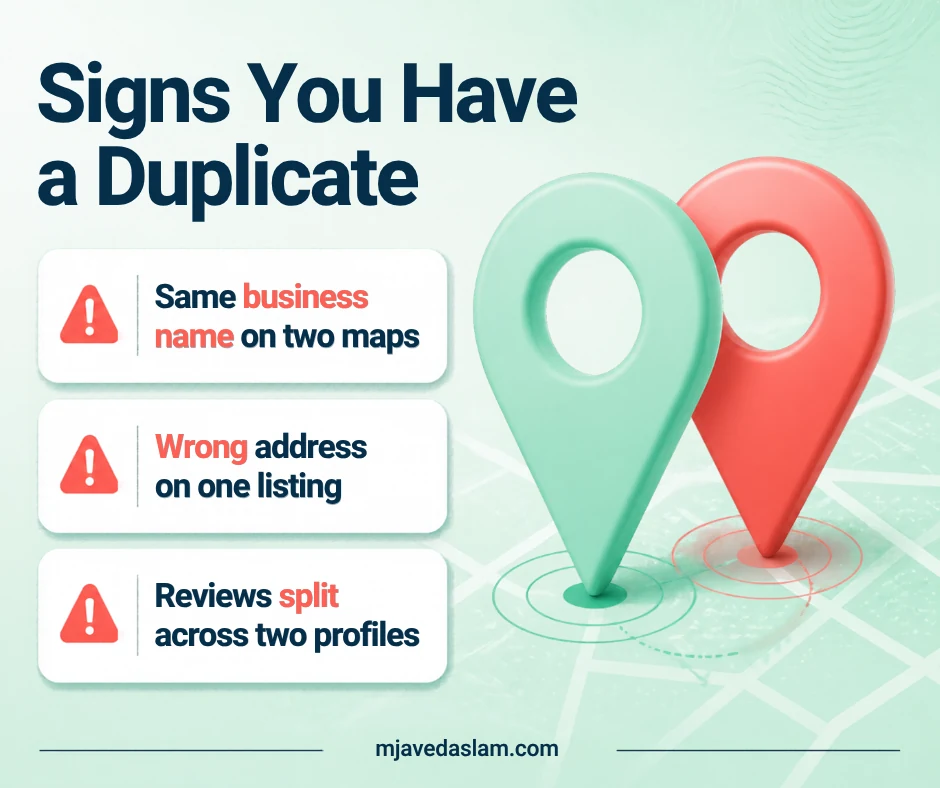
- Two listings on Google Maps for the same business at the same place → aim to merge via a Maps suggestion (subject to Google’s review).
- A second profile inside your Business Profile account that you created by mistake → remove the duplicate from your account (careful: content on the removed profile is lost).
- Someone else owns the real verified profile → request ownership / claim path, not a new listing.
- Your profile is marked duplicate and hidden → follow Google’s resolve-duplicate guidance; appeal only if two distinct eligible businesses were wrongly treated as one.
- You moved or offer multiple services → edit the existing profile (new address or services list). Do not create a new profile for the move or for each service.
If you haven’t claimed the correct listing yet, start with how to claim a Google Business Profile before you delete anything.
How to merge duplicate profiles that both show on Maps
Google’s Help says: to request a merge when two or more Business Profiles for the same business exist on Maps, report a suggestion on Google Maps. All merge requests are reviewed. For a successful merge, the profiles must represent the same business and should have the same info. When two profiles merge, reviews are combined, but replies to reviews may be lost.
Typical Maps path (labels can vary by app/version):
- Open Google Maps on a computer.
- Open the listing you believe is the duplicate.
- Choose Suggest an edit (or the equivalent report/edit control).
- Choose options to close or remove / mark as duplicate of another place when available.
- Select the primary place that should remain.
- Submit and wait for review. Google’s merge article historically noted contacting support if you already suggested an edit and haven’t heard back within about 72 hours — use current Help/Contact us if timelines differ.
Before you submit, align name, address, phone and website on both profiles as closely as truth allows. Mismatched data is a common reason merges stall.
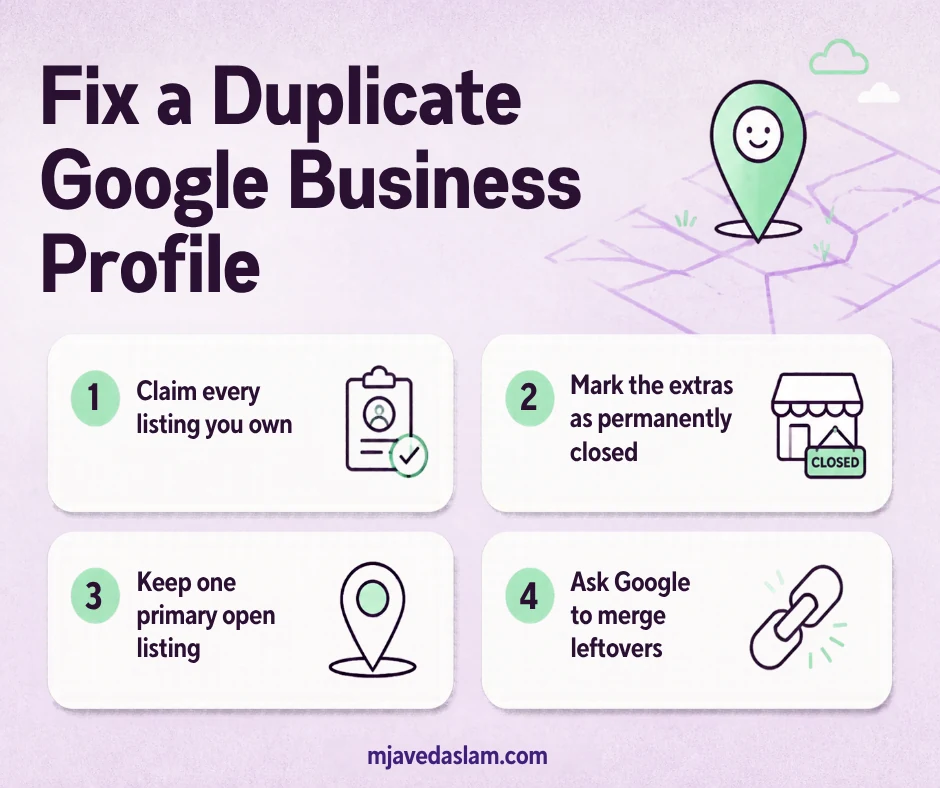
Which listing to keep as primary? Prefer the verified profile with the correct address, the phone customers already use, and the stronger legitimate review history. Never invent a “fresh” empty profile hoping to reboot reputation — that usually creates more duplicates and policy risk.
If you created a duplicate in your own account
Google’s guidance: if you created a duplicate of a business you already verified, remove it without affecting your verified listing. When you remove a duplicate profile, all content and linked managers on that profile are removed — so double-check you’re deleting the right one.
Practical sequence:
- Sign in to Business Profile Manager with the account that owns both.
- Copy any unique photos, posts or details you still need onto the keeper profile.
- Remove the duplicate from the account using Google’s remove-profile controls.
- Do not create a replacement listing afterward.
If someone else owns the profile (or you lost access)
If a verified profile already exists and someone else owns it, request access from the current owner. Google documents a response window (Help currently states the owner has 3 days to respond): approved, denied (you may appeal), or no response (you may get a claim option — not always available). If the Maps listing isn’t verified yet, claim and verify it instead of building a parallel profile.
Forgot which Google Account verified the business? Use Google’s account recovery tools before opening a brand-new listing. Creating “just one more” profile is how duplicates multiply.
When Google marks your profile as a duplicate
Help lists common reasons: an existing verified profile for the same business, multiple profiles at the same address, or multiple profiles for different services of the same business. A profile considered a duplicate won’t show on Search or Maps.
If two distinct, eligible businesses were incorrectly merged or marked duplicate, contact support to appeal. You’ll need to show they are separate — including permanent signage evidence when both serve customers at the same location.
Multiple businesses at one address can each have a profile when they are distinct businesses with different names and clearly visible signage differences (and otherwise eligible). Departments, practitioners and multi-brand setups have specific representation guidelines — follow Google’s “represent your business” rules rather than cloning listings for SEO.
Moves, rebrands and multi-service shops — don’t DIY a duplicate
- Moved locations: Update the address on the existing profile. Do not create a new Business Profile for the new address.
- Multiple services: List services on one profile. Do not create separate profiles per service.
- Significant rebrand: Check Google’s rebranding / representation guidelines before merging or splitting. Not every name change is a merge case.
Service-area businesses have extra address rules — see service-area Business Profile setup. Video verification notes live in how to verify with video.
Review and ranking reality check
Merges can combine reviews (replies may disappear). Removals discard that profile’s reviews, photos and posts. There is no honest shortcut to “keep every review forever while also wiping a listing.” Decide with eyes open.
Duplicates won’t be fixed by stuffing keywords into a third listing. One accurate, verified profile plus consistent NAP on your site beats a cluster of near-identical Maps pins. For ongoing profile quality, see Google Business Profile help and review-ask tools like the Google review QR code guide.
A careful cleanup order that avoids self-sabotage
When clients send me screenshots of three near-identical pins, I slow them down. Order matters:
- Search Maps and Search for the exact business name + city; list every URL/profile you find.
- Identify which profile (if any) you can already manage in Business Profile Manager.
- Recover old Google Accounts before opening support tickets about “unknown” owners.
- Only then merge, remove, or request ownership — one action at a time.
- After Google processes the change, re-check hours, categories, services, photos and review reply workflows on the survivor profile the same week.
Rushing creates suspensions and support loops. Patience plus one profile is the win.
FAQ: Fixing a duplicate Google Business Profile
How do I merge two Google Business Profiles?
If both represent the same business and appear on Maps, report a suggestion on Google Maps to request a merge. Requests are reviewed. Reviews may combine; review replies may be lost.
Will I lose reviews if I fix a duplicate?
On a successful merge, Google says reviews are combined but replies may be lost. If you remove a profile from your account, that profile’s reviews, photos and posts are removed with it.
Why was my profile marked as a duplicate?
Common reasons include an existing verified profile for the same business, multiple profiles sharing an address, or separate profiles for different services of one business.
Should I create a new profile to replace a duplicate?
No. Creating another profile usually worsens the problem and can violate guidelines. Fix ownership, merge, or remove — don’t stack listings.
Can two businesses at the same address both have profiles?
Yes, when they are distinct eligible businesses with different names and clearly visible signage differences. Same business / same services should not run multiple profiles.
What if I moved and made a new listing by mistake?
Update the original profile’s address instead. Contact Google Business Profile support if you need help untangling an accidental new profile after a move.