Nothing kills holiday trust faster than a Maps listing that says “Open” while your door is locked. This guide shows how to add holiday hours to google business profile with Special hours — before customers drive over, call, or leave a one-star “closed!” review.
Distinct from regular hours, More hours (delivery/senior windows), or marking Temporarily closed for long shutdowns. Set Special hours early for official holidays even when times match your normal schedule so Google’s holiday warning doesn’t leave customers guessing.
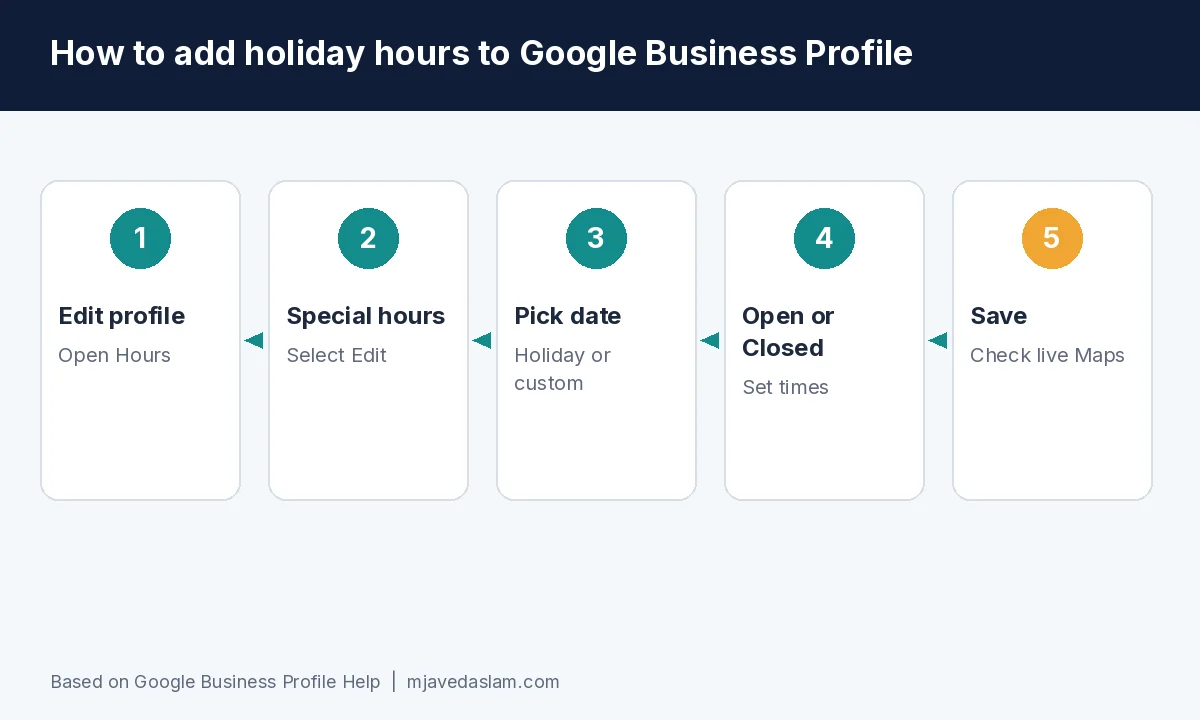
How to add holiday hours to Google Business Profile (quick steps)
- Open your verified Business Profile.
- Select Edit profile → Hours.
- Next to Special hours, select Edit.
- Pick a suggested holiday date (Review) or Add a date for a custom day.
- If open: uncheck Closed, enter open/close times (add multiple ranges with Add hours if needed).
- If closed that day: leave Closed checked.
- Save. Special hours show to customers only on those designated days.
Confirm Special hours again under Hours / Edit profile after saving. Labels can vary slightly by Search vs Maps vs Manager.
Special hours vs regular hours vs More hours vs Temporarily closed
- Regular / main hours: Your normal weekly schedule.
- Special hours: Temporary changes for holidays, special events, or exceptional circumstances — including closing for 7 days or less (Google’s Special hours Help also describes temporary adjustments for short holiday/event windows). Use these for holiday hours.
- More hours: Different times for specific services (e.g., delivery, takeout, senior hours) — not a substitute for holiday Special hours.
- Temporarily closed: Use when closed more than 7 days, for the off-season, or indefinitely — don’t stretch Special hours for a long winter shutdown.
Google’s “About holidays on Google” Help notes a warning may appear on profiles for listed holiday dates when hours might differ — set Special hours in advance so customers see your real plan.
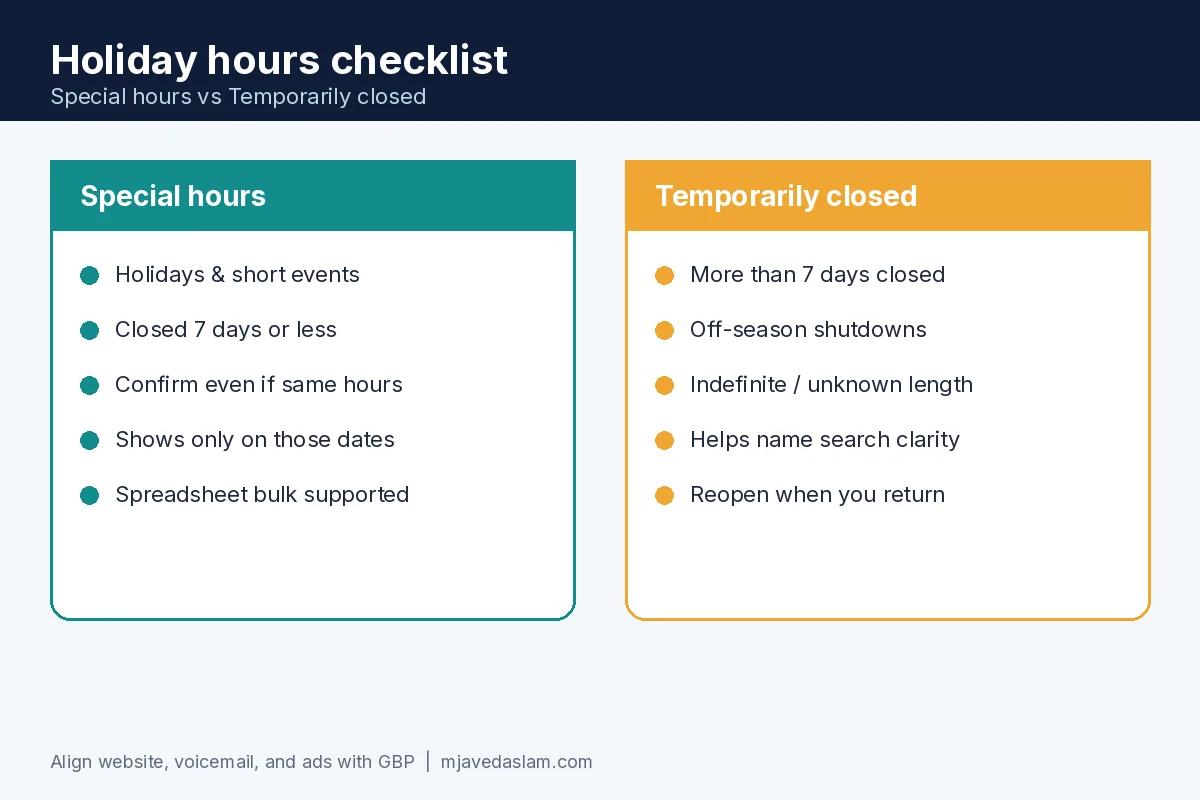
Holiday hours checklist (do this before the rush)
- List every holiday you’ll change (or close) through the season — including the day after if you’re half-staffed.
- Set Special hours at least several days ahead; don’t wait until Christmas Eve morning.
- Confirm official holidays even if hours stay the same — Help recommends this for clarity.
- Align website footer hours, voicemail, chat bots, and ads schedules with GBP.
- After saving, check the live profile on mobile Search/Maps as a customer would.
- Optional: edit the automatic hours-update post if you want more context for customers.
- Service-area businesses: still update hours — callers hate “open” profiles that never answer. See SAB setup.
Common mistakes that lose customers
- Leaving regular hours alone so Maps shows Open while you’re closed.
- Using Special hours for a two-week vacation (use Temporarily closed instead).
- Updating the website but forgetting GBP (or the reverse).
- Setting closed for the holiday but forgetting early close the day before.
- Multi-location brands updating HQ only — each location needs its own Special hours.
- Ignoring Google’s holiday warning and hoping customers “just know.”
Pair accurate hours with a clear description and photos so the listing feels trustworthy — description, photos guidelines. Reply calmly if someone reviews a holiday surprise — review response templates.
Bulk / multi-location tip
Google documents spreadsheet Special hours with date + time formats (24-hour or AM/PM) and x for all-day closure. If you only update Special hours, include required columns carefully — empty columns can erase existing data. Prefer Google’s current bulk Help when you run large location networks.
After the holiday
- Special hours apply only on designated days; regular hours resume automatically afterward.
- Delete obsolete Special hour rows you no longer need to keep the Hours editor clean.
- If you permanently change weekly hours after the season, edit main hours — don’t leave a forever Special hour hack.
Need a fuller profile cleanup? Start at Google Business Profile help or local SEO. Claim/verify first if you can’t edit hours — claim GBP.
Restaurants and clinics often need split holiday ranges (brunch only, or morning appointments then closed). Use Add hours on the Special hours date instead of rewriting the whole weekly grid. Retailers running doorbuster early opens should set those Special hours the same way — customers searching “open now” on Maps will thank you.
If your category or country doesn’t show certain hour fields, finish verification and confirm you’re editing the correct location. Duplicate listings cause “I updated hours but Maps still shows the old ones” tickets — fix duplicates first (fix duplicates).
Paid Search tip: if Google Ads sit schedules assume you’re open and GBP says closed, you pay for clicks you can’t answer. Align ad schedules with Special hours during peak holidays. Match-type and budget hygiene still matter — match types, Ads cost ranges (when published).
Finally, train whoever answers the phone with a one-page holiday cheat sheet matching GBP. The profile can’t save you if staff quote different hours than Maps.
Think in seasons, not single days. Thanksgiving through New Year often means early closes, blackout Sundays, or appointment-only windows. Build a short calendar of every date that differs from your weekly grid, then enter Special hours in one sitting so nothing slips. If Google suggests a holiday date in the editor, Review it — don’t assume the suggestion matches your local observance.
Service businesses that run emergency after-hours should still set Special hours honestly. “Always open” on a holiday when nobody answers the phone creates angry reviews that outlast the turkey leftovers. If you keep a true emergency line, say so in a GBP post and make sure the phone routing matches — then keep regular vs holiday windows accurate on the Hours tab.
International and multi-country brands: Google’s holidays list varies by country code. Confirm the dates that trigger warnings for each market you operate in. A US Christmas close may not map 1:1 to another country’s public holidays — set Special hours per location, not once for the whole brand.
When customers ask “are you open tomorrow?” in chat or comments, point them to the live profile rather than typing hours that go stale. Accurate Special hours also reduce the “drive-by closed” one-stars that show up every January. If a bad holiday review lands anyway, respond with facts and an invitation to return — templates help you stay consistent.
Related reading on this site: categories, video on GBP, and GBP posts best practices (use posts to explain holiday menus or appointment rules after hours are correct).
FAQ: Google Business Profile holiday hours
How do I add holiday hours on Google Business Profile?
Edit profile → Hours → Special hours → Edit → choose the date → set open times or Closed → Save.
What’s the difference between special hours and temporary closure?
Special hours cover short changes for holidays, events, or exceptional circumstances — including when closed 7 days or less. Use Temporarily closed when closed more than 7 days, for the off-season, or indefinitely. Long winter shutdowns belong there, not in Special hours.
Should I set special hours if I’m open normal times on a holiday?
Google recommends confirming hours for official holidays even when they match regular hours so customers trust the listing.
Will Google warn people about holidays?
For holidays listed in Google’s holidays Help, a warning may appear that hours might differ — Special hours override the guesswork.
Can I set holiday hours in advance?
Yes. Set Special hours ahead of the date; they show to customers only on the designated days, then regular hours resume. Confirm the saved dates under Hours / Special hours before you leave the editor.
Do holiday hours affect ranking?
Treat accurate hours as trust and conversion hygiene. Misleading open/closed status frustrates customers and can fuel bad reviews — don’t treat Special hours as a ranking lever.