If Google asks you how to verify Google Business Profile with video, the short version is: plan a single continuous clip of at least 30 seconds on your phone, record it live inside the Business Profile verification flow (not a pre-made file from your camera roll), and show location proof, proof the business exists, and proof you manage it. What you film depends on whether you’re a storefront/hybrid or a service-area business.
Video verification exists because postcard and phone options aren’t always offered. Google’s own help recommends video when you’re eligible. Owners fail it mostly by uploading an old edited clip, filming an empty lot with no street signs, or showing a name that doesn’t match the profile.
Here’s a shot list, the official rules, common rejection fixes, and how this ties to claiming the profile and service-area setup. Official source of truth: Google’s Verify your business with a video recording.
Rules that apply to every video
Before you touch record, Google requires the video to be:
- Live-captured in the verification flow — pre-recorded uploads aren’t allowed; you can’t film offline earlier and upload later.
- Unedited, unique, continuous — no cuts, no music overlays, no stitching clips together.
- At least 30 seconds.
- Recorded and uploaded from a mobile device through Business Profile.
Do not include:
- Bank, tax or ID numbers.
- Other private information.
- Other people’s faces.
Plan the walk before you start. Once you hit record in the app flow, you need a clear path from street → business proof → management proof without pausing to “figure it out.”
Storefront and hybrid businesses: what to film
Storefronts serve customers on-site with permanent signage. Hybrids also visit or deliver. If you don’t have permanent on-site signage, Google says to list as a service-area business instead.
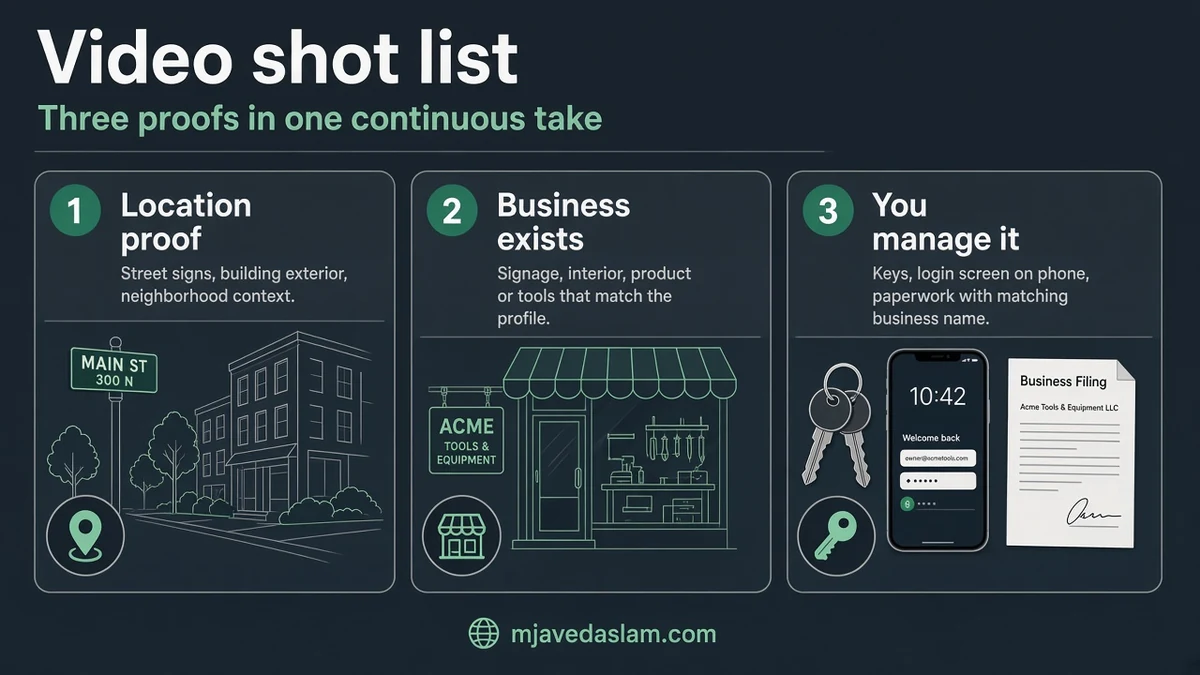
Your video must cover three beats:
- Location — Street signs, building numbers, nearby businesses or familiar landmarks that match the Maps pin.
- Business exists — Storefront, showroom or permanent signage. The name on the sign must match the Business Profile name.
- You manage it — Employee-only access: open a cash register, use a POS, enter kitchen, storage or staff areas.
Walk slowly. Hold on the street number long enough to read. Pan the permanent sign so the name is sharp. Then step inside for the management proof.
Service-area businesses: what to film
Service-area businesses go to the customer and don’t serve walk-ins at the business address (plumber, locksmith, mobile cleaner). Don’t publish a public street address on the profile if customers never visit — see Google’s service-area guidance and our setup guide linked above.
Your video must cover:
- Where you operate / base address markers — Street signs, landmarks or identifiers at the business base. Avoid empty land with nothing recognizable. Home-based operators can film neighborhood landmarks and signs near the address.
- Business exists — Tools, equipment, workspace, business cards or branded apparel/materials.
- You manage it — Perform a service, unlock a branded van, or show documents (permit, invoice, utility bill) that match the profile name — without exposing account numbers or sensitive IDs.
If the van isn’t wrapped, lean harder on tools + matching documents + neighborhood markers. Google’s community guide on service-area video verification echoes the same three proof types.
How to record and upload (mobile flow)
- On your phone, open your Business Profile.
- Tap Get verified. You may need to enter a phone number and continue.
- Choose the video / Capture video option when it’s offered. (Methods are assigned by Google — you can’t always force video if it isn’t available.)
- Allow camera and microphone if prompted.
- Tap Start recording, film your planned path without stopping.
- Tap Stop recording, then Upload video.
If you began on a computer, Google often shows a QR code so you can continue on mobile — video still has to be captured in that mobile flow.
After upload, Google reviews the submission. The general verification help notes reviews can take up to 5 business days (sometimes longer). You’ll get a notification if verified. If it fails, Get verified may reappear, or you’ll see a Review issues path for video problems — fix what Google flags and record a new live clip.
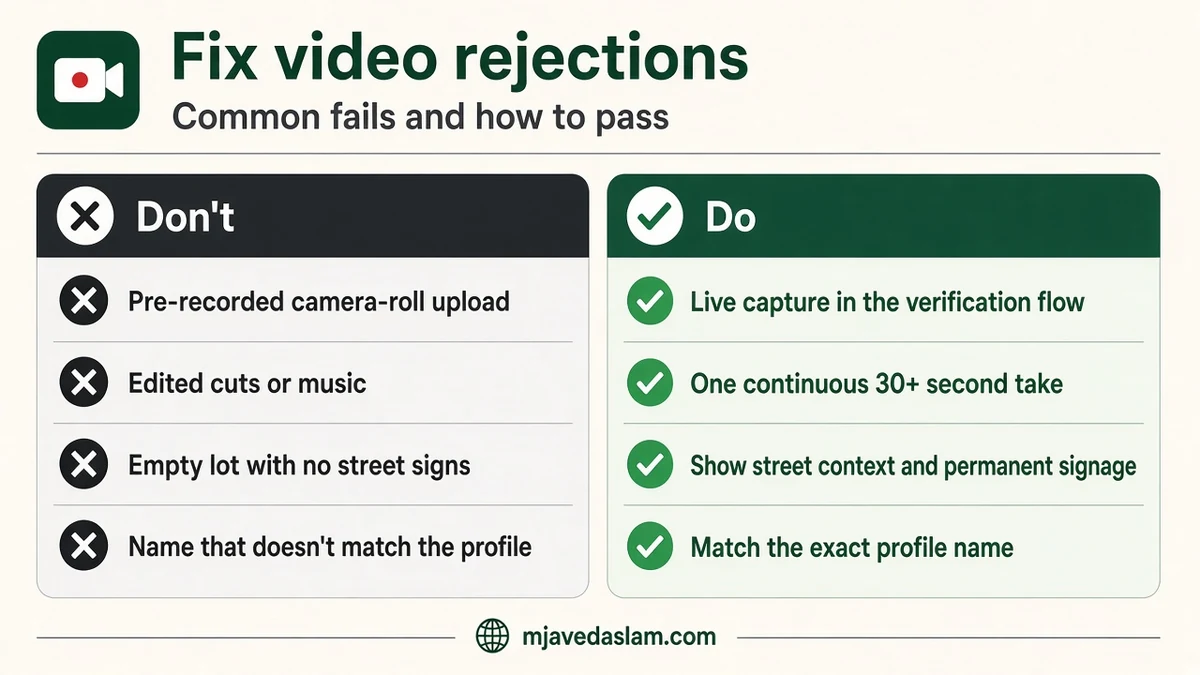
Common rejections and how to fix them
- Pre-recorded or edited footage — Only record inside the Get verified → Capture video flow.
- Name mismatch — Signage or documents must match the profile name (including DBA consistency). Fix the profile or film the matching legal/trade name you actually use on permanent materials.
- No clear street context — Empty parking lot with no signs fails location proof. Start on the street.
- No management proof — Outside-only beauty shots aren’t enough. Open something only staff can access, or show matching business documents carefully.
- Faces / sensitive numbers — Blur isn’t available mid-flow; simply don’t film other people or full account numbers. Cover sensitive digits before you record documents.
- Too short / chaotic — Stay over 30 seconds; move slower than feels natural.
- Wrong business type — Filming like a storefront when you have no permanent signage (or the reverse) confuses reviewers. Align the profile type first.
Live video call is a separate method when offered — different from this recorded upload. Google’s overview of methods is in Verify your business on Google.
Before you hit record: 5-minute prep
- Confirm the profile name, category and address/service-area settings are correct — editing mid-verification can cause headaches.
- If you still need to claim the listing, finish claiming Google Business Profile first.
- Charge the phone, clean the lens, film in daylight when possible.
- Put matching documents in order with sensitive numbers covered.
- Tell staff you’re filming so nobody walks into frame.
Once verified, finish the profile: hours, services, photos and a clean review ask (Google review QR code). Verification unlocks control; it doesn’t replace ongoing local SEO or a solid Google Business Profile setup.
After you’re verified
Don’t stop at the confirmation email. Same day, lock the basics: categories, hours, services, phone, website and a handful of real photos. Add owners or managers only from accounts the business controls. If an agency helps, keep yourself as an owner. Then set a simple review habit so the profile you just fought to verify actually collects proof from customers.
If video still fails after two careful attempts, try another method Google offers, or contact Google Business Profile support from the help pathways in the verification articles. Re-filming the same weak path won’t help — change what’s on camera.
FAQ: Google Business Profile video verification
Can I upload a video I already filmed?
No. Google requires live capture in the Business Profile mobile verification flow. Pre-recorded uploads aren’t allowed.
How long should the video be?
At least 30 seconds, continuous and unedited. Take the time you need to show all three proof types clearly.
What should a service-area business film?
Neighborhood/street markers for the base, tools or branded materials proving the business exists, and management proof (service in progress, branded vehicle access, or matching business documents without sensitive numbers).
What should a storefront film?
Street context for the Maps pin, permanent signage matching the profile name, and employee-only access such as POS, register, kitchen or storage.
How long does Google take to review?
Often up to five business days after you complete verification steps; occasionally longer. Watch for email/app notifications.
What if my video is rejected?
Use Review issues if shown, fix the specific gaps (location, existence, management, policy), then record a brand-new live video. Don’t re-upload the same clip.
Is video the only way to verify?
No. Google may offer phone, SMS, email, postcard, live video call or other options depending on the business. Methods are selected by Google, not freely chosen.
Next step
Write a 30-second shot list on paper, walk it once without recording, then open Get verified on your phone and film for real. One clean take beats five frantic ones.
If you want help preparing the profile and verification path for a storefront or field-service brand, start from Google Business Profile.