

Here’s the short answer. Google Business Profile multiple locations are best managed from one place: a business group in Business Profile Manager. Google calls it a business group, and its developer docs also call it a location group. Create the group, move every location into it, and give your team their own owner or manager access instead of sharing one password. Then give each location a unique store code and a few labels, so you can find, filter and update branches in bulk with a spreadsheet. If you have 10 or more locations of the same business, you can also ask Google to verify them all at once.
I help small chains and franchise owners with their profiles, and multi-location accounts are where I see the biggest mess. One branch sits in the owner’s old Gmail. Another was made by a former employee. A third has two duplicate profiles. This guide is the clean setup I use when a business has Google Business Profile multiple locations, usually 2 to 20 branches. If you have only one location, start with my guide on how to claim your Google Business Profile instead.
How Google Business Profile multiple locations work
Each branch of your business gets its own Business Profile. Google’s rule is simple: one profile for each real location, never more. The work is keeping all those profiles organised, consistent and safe as your team changes. Google gives you a few tools for that. Here they are in plain English:
| Term | What it is | Why it matters |
|---|---|---|
| Business Profile Manager | The dashboard at business.google.com that lists all the profiles you manage | The only place to create groups, import spreadsheets and bulk verify |
| Business group | A shared folder for profiles. It used to be called a business account. Developers call it a location group | Everyone you add to the group can work on every profile inside it |
| Group owner and manager | The two user roles of a business group | Owners control who has access. Managers do the daily edits |
| Store code | A unique ID for each location, also called a business code. Customers don’t see it | Spreadsheet updates use it to match each row to the right branch |
| Labels | Tags you add to locations, such as a city or region | Filter branches in the dashboard and in Google Ads location assets |
| Bulk verification | One verification request for a chain with 10 or more locations | Saves you from verifying each branch one by one |
One business group or several?
Before you click anything, decide how many groups you need. Google’s guide to business groups recommends limiting groups to one per business or brand. You also can’t import one spreadsheet across several groups, or download data from several groups into one file.
| Setup | Good for | The catch |
|---|---|---|
| One group | One brand with one team, such as a bakery with five branches | Everyone in the group can see and edit every branch |
| Several groups | Different brands, or regions with separate teams | Each group needs its own spreadsheet, and there is no single dashboard for all of them |
For most small chains with Google Business Profile multiple locations, I use one group. If one branch manager should only touch their own branch, you don’t need a second group. Leave them out of the group and add them as a manager of that single profile.
Agencies need a different rule: one group for each client. Never mix two clients in one group. It keeps access clean when a client leaves, and Google won’t bulk verify an account that holds several different businesses anyway.
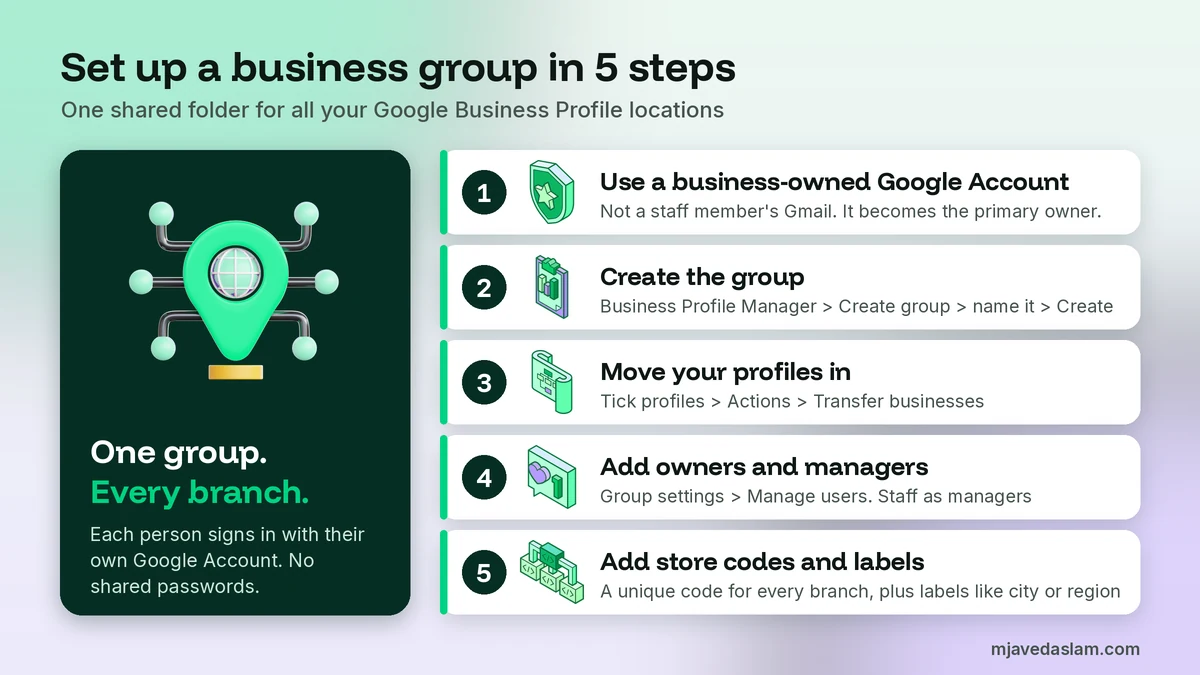
How to set up a business group in 5 steps
Google moves its menus now and then. If a label looks different on your screen, the steps below still follow the same order.
Step 1: Pick the right Google Account
Use a Google Account that belongs to the business, not a staff member’s personal Gmail. For bulk work, Google prefers an email on your own domain, like you@yourbusiness.com. Its bulk management guide says an address that doesn’t match your business domain can slow verification down. This account will become the primary owner, so keep the login safe and turn on 2-Step Verification.
Step 2: Create the business group
- Sign in to Business Profile Manager at business.google.com.
- If you have 2 or more profiles, select Create group at the top right.
- Enter a clear group name, such as your brand name.
- Select Create.
Google recommends creating the group first if you are new to Business Profile and plan to manage several businesses. Then you add and verify new branches straight inside the group.
Step 3: Move your existing profiles into the group
- In Business Profile Manager, tick the profiles you want to move.
- Select Actions, then Transfer businesses.
- Choose the business group and select Transfer.
You can only transfer profiles you manage, into a group you own or manage. If a branch sits in an old account you can’t open, use Google’s request access process first. My guide to transferring Google Business Profile ownership walks through that, including what to do when the old owner never replies.
Step 4: Add your team with the right role
Open the group, then go to Group settings and Manage users to add people. Here is how the two group roles differ, based on Google’s help page on business group owners and managers:
| Task | Group owner | Group manager |
|---|---|---|
| Add, edit and delete profiles in the group | Yes | Yes |
| Add or remove owners and managers | Yes | No |
| Transfer profiles to another group | Yes | No |
| Transfer or delete the whole group | Yes | No |
A group can have several owners but only one primary owner. The primary owner can’t leave until they hand that role to someone else. Google Groups (team mailing lists) can’t be added as owners or managers. Each person needs their own Google Account.
My rule of thumb: two owners on the business side (the owner and one trusted partner), and managers for everyone else, including any agency. Remember that anyone you add to the group can access every current and future profile in it. For one-branch access, add the person to that single profile instead. My guide on how to add a manager to a Google Business Profile shows those steps.
Step 5: Give every location a store code and labels
Store codes are what make bulk work safe. According to Google’s bulk upload spreadsheet guide, each code must be unique, up to 64 characters long, with no extra spaces and no special characters like < or >. Google suggests codes such as G1, G2, G3 or GMainStreet, GDowntown. I use a short brand prefix plus the area, like BKY-GULGASHT and BKY-CANTT.
Then add labels. Each location can have up to 10 labels of up to 50 characters. I usually add the city, the region and the branch type, such as “Multan”, “Punjab South” and “Drive-thru”. You can then search the dashboard by label, and labels can filter which branches show in your Google Ads location assets.
Example: a bakery with 6 branches
Here is how a typical setup looks. Say a bakery brand has 6 branches in Multan and Lahore. I create one business group called the brand name, owned by the owner’s business account, with the owner’s son as a second owner. The marketing freelancer and I are managers. Each branch manager is a manager of their own single profile only.
| Branch | Store code | Labels |
|---|---|---|
| Gulgasht, Multan | BKY-MUL-GULGASHT | Multan, Punjab South, Dine-in |
| Cantt, Multan | BKY-MUL-CANTT | Multan, Punjab South, Takeaway |
| Bosan Road, Multan | BKY-MUL-BOSAN | Multan, Punjab South, Dine-in |
| DHA, Lahore | BKY-LHR-DHA | Lahore, Punjab Central, Dine-in |
| Johar Town, Lahore | BKY-LHR-JOHAR | Lahore, Punjab Central, Takeaway |
| Model Town, Lahore | BKY-LHR-MODEL | Lahore, Punjab Central, Dine-in |
Now, when the Lahore branches change their Ramadan hours, the “Lahore” label finds all three in seconds. I download the latest data, keep only those three rows with the store code and hours columns, edit the hours and upload the file. The Multan rows aren’t in the file, so I only change what I meant to change. With 6 branches, this bakery can’t use bulk verification, so each new branch is verified on its own inside the group.
How to update many locations at once with a spreadsheet
Once codes are in place, you don’t need to open every branch to change something. Business Profile Manager lets you import a spreadsheet. The menu wording varies between Google’s pages, but the path is Add profile (or Add business), then Import. Accepted files are .xls, .xlsx, .ods and .csv.
Here is the safe way I do it:
- Download your current data first. Don’t start from a blank template if your branches already exist. Edit the latest download.
- Keep store codes exactly as they are. Google matches each row by its code. You can’t change a store code through the spreadsheet, and a wrong code can create a new, duplicate business.
- Delete columns you aren’t changing. Keep the store code column plus only the fields you want to update.
- Never leave a column with a heading but empty cells. Google’s guide says existing info under that column will be deleted. This one mistake can wipe the websites or hours from every branch.
- Preview before you apply. After upload, select Preview changes. If you see more new businesses than you expected, stop and check your codes.
Spreadsheets are perfect for the boring jobs: new hours across all branches, a new website structure, or holiday hours for every location before Eid or Christmas. If you add UTM tags to each branch’s website link, keep them short, because the website field shows up to 256 characters. My guide to UTM links for Google Business Profile explains the tagging.
Bulk verification for 10 or more locations
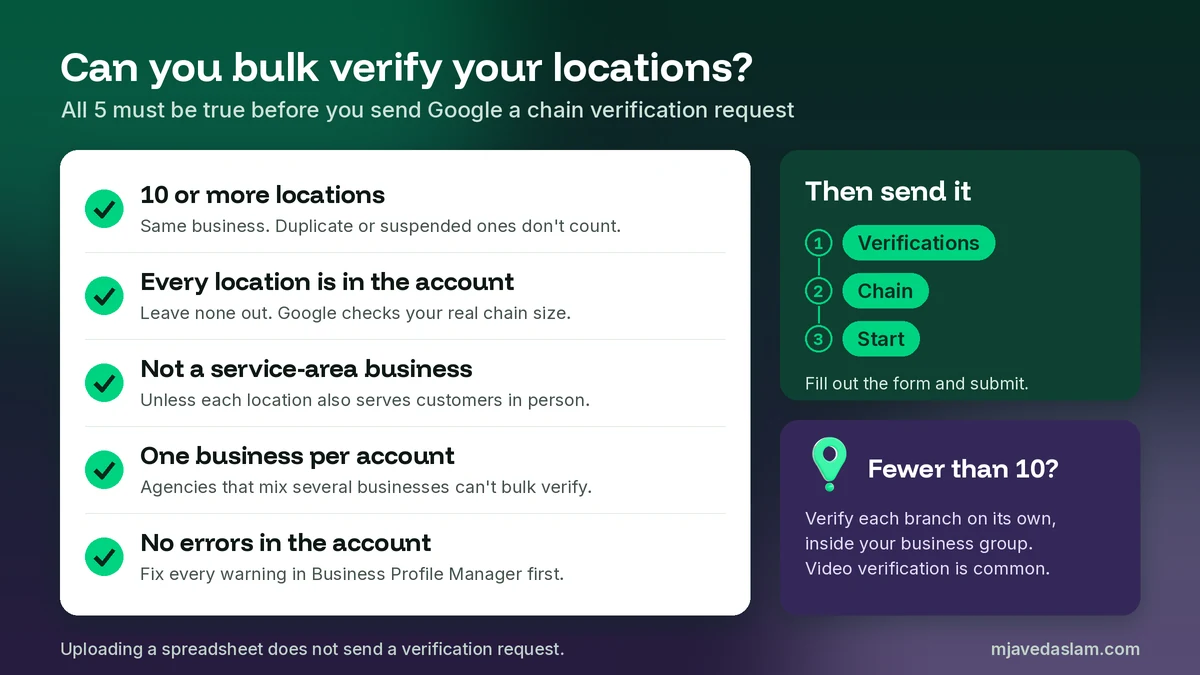
Verifying 15 branches one by one is slow, and it is the biggest time sink with Google Business Profile multiple locations. If you qualify, Google’s bulk verification process lets you verify the whole chain with one request. Check these rules first:
- 10 or more locations of the same business. Duplicate, suspended or disabled profiles don’t count toward the 10.
- Every location you manage is in the account. Google wants evidence of your real chain size, so don’t leave any out.
- Not a service-area business. Plumbers and similar businesses can only bulk verify if their locations also serve customers in person during normal hours.
- No mixing of businesses. Agencies with more than one business in one account can’t bulk verify.
- No errors on the account. Fix every warning in the dashboard first.
To send the request, open Business Profile Manager and select Verifications, then Chain, then Start. Fill out the form and submit. Google reviews the details, may contact you for more information, and emails you when it is done. Uploading a spreadsheet does not send a verification request by itself. If you can’t find the Verifications tab, you probably don’t have enough eligible locations.
Two more things from Google’s pages. You may still be asked for video verification, with an authorised person at the location. And Google can remove bulk verification from accounts that stop managing their profiles, so keep fixing errors and updating your branches.
Fewer than 10 locations?
Then you verify each branch on its own, which is normal for small chains. Many new profiles I set up now go through video. My guide to Google Business Profile video verification covers what to film so you pass the first time. Do it inside the business group, so each verified branch is already in the right place.
Keep every branch consistent (Google’s chain rules)
Managing many profiles is also about following Google’s guidelines for representing your business. These are the chain rules I check in every audit:
- Same name for every branch in the same country, unless the real-world signs really differ. Don’t add the area to the name, like “Brand – Gulgasht”, unless that is your actual signage. My Google Business Profile name guidelines explain what’s allowed.
- Same primary category for branches that offer the same service. Sub-brands or different types of sites (store, warehouse, office) can follow their own rule. See my guide to choosing the primary category.
- A direct phone number or website for each branch. Google wants a number that reaches that location, and a page for that branch if you can. A central call centre number is a weaker choice.
- One profile per location. Never create two profiles for the same branch, in one account or across several. If you already have some, fix the duplicate profiles before anything else.
- Service-area branches need real separate teams. You can have one profile for each location with its own staff and service area. Google says the service area shouldn’t stretch more than about 2 hours of driving from where you are based. My service-area business guide goes deeper.
A weekly routine for Google Business Profile multiple locations
Setup is a one-time job. Results from Google Business Profile multiple locations come from steady care. This is the routine I give to clients with several branches:
- Every week: reply to new reviews at every branch. A shared set of review response templates keeps the tone the same, but always add something specific to that branch.
- Every week: check the dashboard for warnings, suggested edits from Google and branches that show as needing attention.
- Every month: export insights for all locations in one spreadsheet and compare branches. A branch with falling calls or direction requests needs a closer look.
- Every quarter: review who has access. Remove former staff and old agencies, and confirm the primary owner is still the right person.
- Before holidays: push special hours to all branches with one spreadsheet upload.
Your website should match your profiles too. Each branch deserves its own location page with the same name, address and phone number, and LocalBusiness schema on that page. And keep every branch’s details identical on other sites. My guide to local citation building explains why that consistency matters.
Common multi-location mistakes I fix in audits
- One shared Gmail password. Google itself says business groups are the safer way to work together. When someone leaves, you remove one user instead of changing a password everyone uses.
- Branches spread across many accounts. Move them all into one group, or you will never see the full picture.
- An agency as primary owner. The business should own its profiles. Agencies should be managers.
- Changing store codes. Pick a code system once and keep it. If a branch moves to a new address, Google’s guide says to replace its old code with a new one.
- Empty spreadsheet columns. As noted above, they can delete data across all branches in one click.
- Closed branches left open. When a branch shuts for good, mark it closed. My guide on how to close a Google Business Profile shows the difference between closing and removing.
If you also run Google Ads, link the business group to your Ads account so your branches can show as location assets. Then use Google Ads location targeting so each branch’s ads reach people near it.
FAQ: Google Business Profile multiple locations
Can one Google Business Profile have multiple locations?
No. Google allows one Business Profile for each real location, so every branch needs its own profile. To manage them together, put all the profiles in one business group in Business Profile Manager and give your team access to that group.
What is a location group in Google Business Profile?
A location group is the same thing as a business group, which used to be called a business account. It works like a shared folder for your profiles. Everyone you add as a group owner or manager can work on every current and future profile in the group, without sharing a password.
How many locations do I need for bulk verification?
You need 10 or more locations of the same business in your account. Duplicate, suspended or disabled profiles don’t count. Service-area businesses without customer-facing locations, and agency accounts that mix several businesses, can’t bulk verify. With fewer than 10 locations, verify each one on its own.
Can I manage multiple Google Business Profiles from one Google Account?
Yes. One Google Account can own or manage many profiles, and Business Profile Manager lists them all. If more than one person needs access, create a business group, so each person signs in with their own account and you can remove anyone without changing passwords.
Should my agency be an owner or a manager of my business group?
In most cases, make the agency a manager. Managers can add, edit and delete profiles in the group, but they can’t add or remove users or transfer the group. Keep primary ownership with a Google Account that belongs to your business.
Do all my branches need the same name on Google?
Yes, within the same country, unless the real-world name on the signs actually differs from branch to branch. Branches that offer the same service should also share the same primary category. Don’t add areas or keywords to the name unless that is your real signage.
Next step
Open Business Profile Manager today and count your profiles. Are all your branches in one place, and does every one have a store code? If not, create a business group and move them in. That one hour of work makes every future update to your Google Business Profile multiple locations faster and safer. If you would rather have me audit and organise your locations, see my Google Business Profile management service.