

Google Ads location targeting is how you tell Google where your ads can show: countries, states, cities, postal codes, or a radius around an address. For most US small businesses I manage, the fix that stops wasted spend is not “more keywords” — it’s tightening location targets and changing Location options from the broad default (“people in, regularly in, or interested in your areas”) to Presence: people in or regularly in your service area.
If you run a plumber in Austin and leave the default interest setting on, you can pay for clicks from people researching Austin while they sit in another state. Google documents that pattern and how to prevent it. This guide walks through the settings that matter, a practical setup checklist, radius rules, exclusions, and how to spot out-of-area clicks — then ties into my Google Ads service work for local brands.
What Google Ads location targeting actually controls
Per Google Ads Help on targeting ads to geographic locations, you can show ads in:
- Countries — fine for national ecommerce; usually too wide for a single-location service business.
- Areas within a country — regions, cities, or postal codes (availability depends on the country).
- Radius (proximity) targeting — a distance around an address or point. Google requires a radius of at least 1 km (~0.6 miles). Very small targets may show ads only intermittently or not at all.
- Location groups — places of interest, your business locations, or certain demographic tiers where available.
Location targeting does not redraw political borders for you, and Google notes accuracy is best-effort based on signals (settings, device, behavior) — not a GPS guarantee on every click.
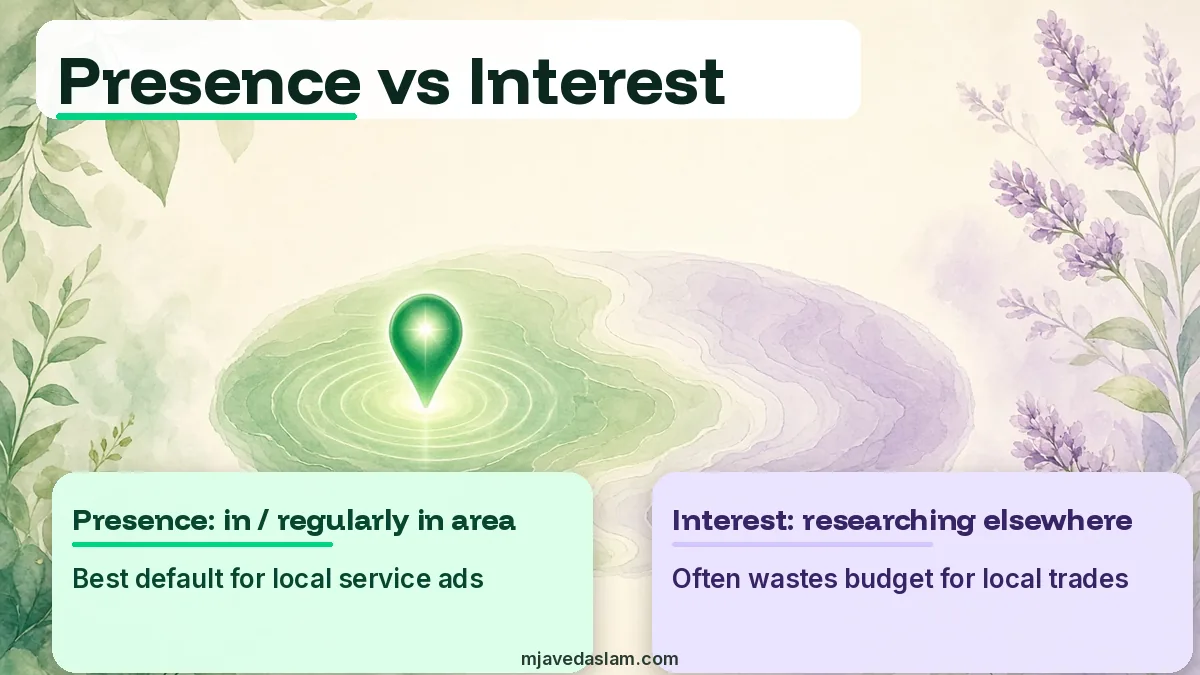
The setting most local advertisers miss: Location options (Presence vs interest)
Inside campaign settings → Locations → Location options, Google’s default target is often described as: People in, regularly in, or who’ve shown interest in your included locations (recommended). That reaches people physically in the area and people elsewhere who seem interested in it.
For many home-service and storefront businesses, that “interested in” bucket is where budgets leak. Google’s help on preventing clicks outside your geo targets says to switch to:
Presence: People in or regularly in your targeted locations
Then save. Ads then aim at people likely physically (or regularly) in those places — still not perfect, but far tighter for “plumber near me” style intent.
| Location option | Who can see ads | Best when |
|---|---|---|
| Presence or interest (default / recommended label) | In/regularly in the area or interested in it | Tourism, shipping nationally, destination businesses |
| Presence only | In or regularly in the targeted locations | Local services, storefronts, delivery radii you can actually serve |
Pair Presence with honest service-area pages on your site — guided by solid local SEO — so the click lands on a page that matches the city or ZIP you bid on.
How to set Google Ads location targeting (Search campaign checklist)
- Open Google Ads → Campaigns → select the campaign → Settings.
- Open Locations. Remove country-wide targets if you only serve a metro.
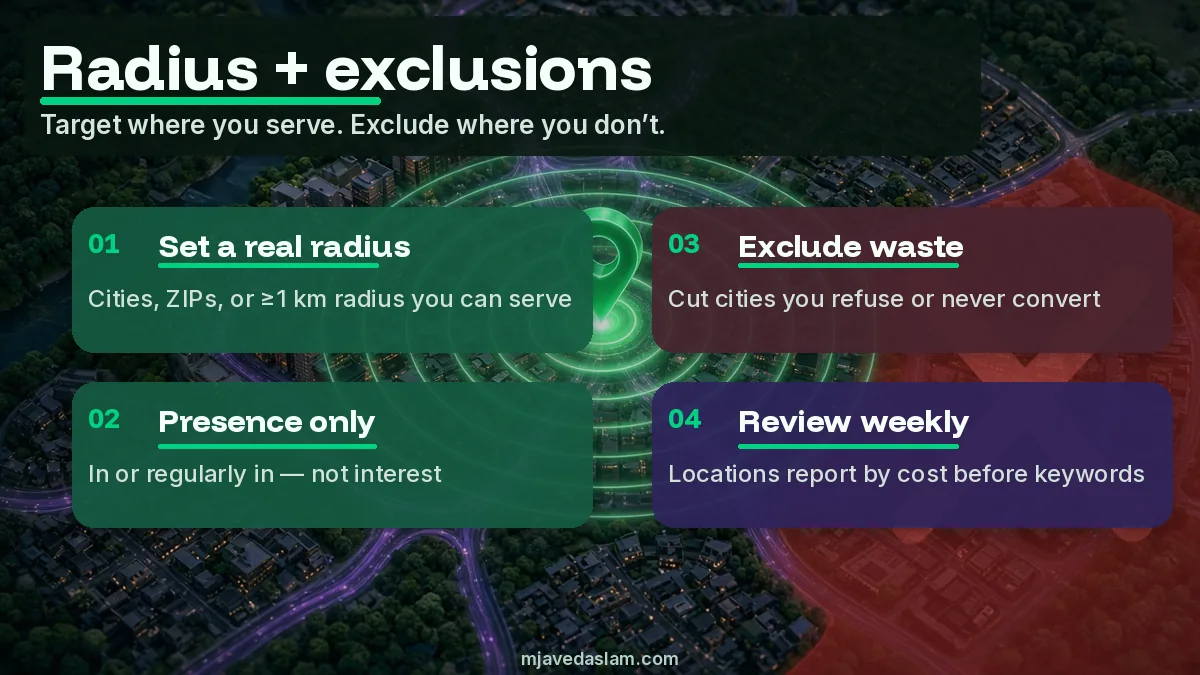
- Add the cities, counties, or postal codes you truly cover — or use Target a radius around your shop/yard (minimum 1 km).
- Open Location options → choose Presence: People in or regularly in your targeted locations for most local service ads → Save.
- Add location exclusions for cities you never serve (or that convert poorly).
- Put the city or neighborhood in ad headlines/descriptions where it fits (“Austin drain cleaning”) so distant “interest” searchers self-select away — Google suggests this when traffic still leaks.
- After 1–2 weeks, open the locations report and exclude or split budgets by place performance.
Keep language targeting aligned (e.g., English ads + English language target for a US local campaign). Mismatched language and geo settings create odd traffic.
Radius vs city/ZIP list: which should you use?
- Radius — Simple for “we drive about 20 miles from the shop.” Easy to explain to owners. Watch the 1 km minimum and don’t make the circle so small that volume dies.
- Cities / ZIPs — Better when your coverage is shaped like a metro with holes (you serve Dallas and Plano but not a far suburb). Matches how many teams talk about routes.
- Hybrid approach — Start with cities you name on your website and GBP service areas; use radius only if your ops truly work that way.
Your Google Business Profile service area and your Ads geo should tell the same story. If GBP lists five towns and Ads targets an entire state, you’ll pay for calls you refuse. Align them with service-area Business Profile setup.
Exclusions, wasted spend, and the locations report
Exclusions remove places inside a broader target (example: target Texas, exclude a city you don’t serve). Use them when a wide region is simpler than listing dozens of ZIPs — but prefer tight includes when you can.
In the locations report, look for:
- Clicks from regions you don’t serve → exclude or switch to Presence.
- One ZIP with strong conversion rate → consider a separate campaign with higher bids.
- High spend, zero calls from a city → pause that target or fix the landing page.
Call tracking and conversion setup matter here — a geo report without conversions is just a map of curiosity. If you’re on WordPress, wire conversions properly in Google Ads (tag + thank-you page) before you trust the Locations report — traffic tips in increasing blog traffic on WordPress won’t replace Ads conversion setup, but a clean site helps landing quality.
Local assets vs location targeting (don’t confuse them)
Location targeting decides where the auction can show your ad. Location assets (formerly extensions) show address, map pin, or distance when eligible. You need both for many local Search campaigns: tight geo + location assets. Assets alone won’t stop out-of-state interest clicks. Enable call and location assets early so Presence-targeted ads still show phone and map details — more asset guidance will land on this site soon; until then start from Google Ads services.
Common Google Ads location targeting mistakes
- Leaving Presence-or-interest on for a strictly local trade.
- Targeting the whole United States “to get data” with a $30/day budget.
- Radius under practical coverage — or so huge it becomes a fake state campaign.
- Ads geo that doesn’t match GBP / website cities — confused customers, refused leads.
- Ignoring the locations report for months while blaming keywords.
- Buying “nationwide leads” you can’t serve — burns trust and Quality Score over time.
Negative keywords still matter inside a good geo — build a practical negative list inside Google Ads — but negatives won’t fix a campaign aimed at the wrong map. Align the geo with your Google Business Profile service area first.
A simple weekly location hygiene routine
You don’t need an enterprise geo dashboard. Once a week for the first month of a new local campaign, then monthly:
- Open the campaign’s locations report (geographic view).
- Sort by cost. Note any city/region outside your service promise.
- Exclude obvious misfires or tighten the include list.
- Confirm Location options still say Presence if that’s your policy — UI experiments sometimes confuse clients who click “recommended” again.
- Spot-check three search terms from out-of-area clicks; add negatives if the query is research junk, not a geo bug.
When budgets are tiny, one wrong metro can burn a week of spend. Location hygiene is cheaper than rewriting every ad group. If you’re choosing channels first, weigh search intent vs social carefully — but whichever paid channel you pick, map accuracy still decides whether leads are callable. For paid search execution, start at Google Ads services.
Smart campaigns and some simplified flows expose fewer geo controls. If you can’t find Location options, you may be in a limited campaign type — graduate to a standard Search campaign when you need Presence-only and ZIP-level control. That’s a common reason owners tell me “Google keeps sending me another state.”
FAQ: Google Ads location targeting
What is Google Ads location targeting?
It’s the campaign setting that limits where your ads can appear — by country, region, city, postal code, radius, or location groups — so you focus spend on places you can serve.
What is the difference between Presence and Presence or interest?
Presence (people in or regularly in your locations) focuses on physical/regular presence. Presence or interest also includes people outside the area who seem interested in it. Many local service advertisers prefer Presence to cut wasted clicks.
What is the minimum radius for Google Ads radius targeting?
Google states radius targeting requires at least 1 km around a location. Extremely small targets may show rarely or not at all.
Why am I getting clicks outside my targeted locations?
Often the Location option is still on Presence or interest, or people are researching your city from elsewhere. Switch to Presence, add city names in ad text, and use exclusions. Google notes location signals are best-effort, not perfect.
Should small local businesses target an entire country?
Usually no. Target the cities, ZIPs, or radius you can actually serve, match that list on your website and Google Business Profile, and expand only when ops and budget allow.
Do location assets replace location targeting?
No. Assets display location information on eligible ads. Targeting controls which geographic auctions you enter. Use both.
Next step
Open one active Search campaign today. Check Locations and Location options. If you only serve a metro, drop nationwide targets, set Presence, and schedule a locations-report review next week. When you want the geo, keywords, and landing pages working as one system, start from Google Ads services.