How to enable messaging on Google Business Profile in 2026 means turning on Chat under Contact — WhatsApp or text message — on a claimed and verified listing, then staffing replies like a real channel (not a vanity button). Google’s Help frames this as giving customers a direct way to contact you in real time; availability is still limited to select regions.
This is the Chat / messaging setup guide. It is not the booking-link walkthrough, the posts cadence piece, or the review-reply templates article — those stay separate so each query gets one clear job.
How to enable messaging on Google Business Profile (quick answer)
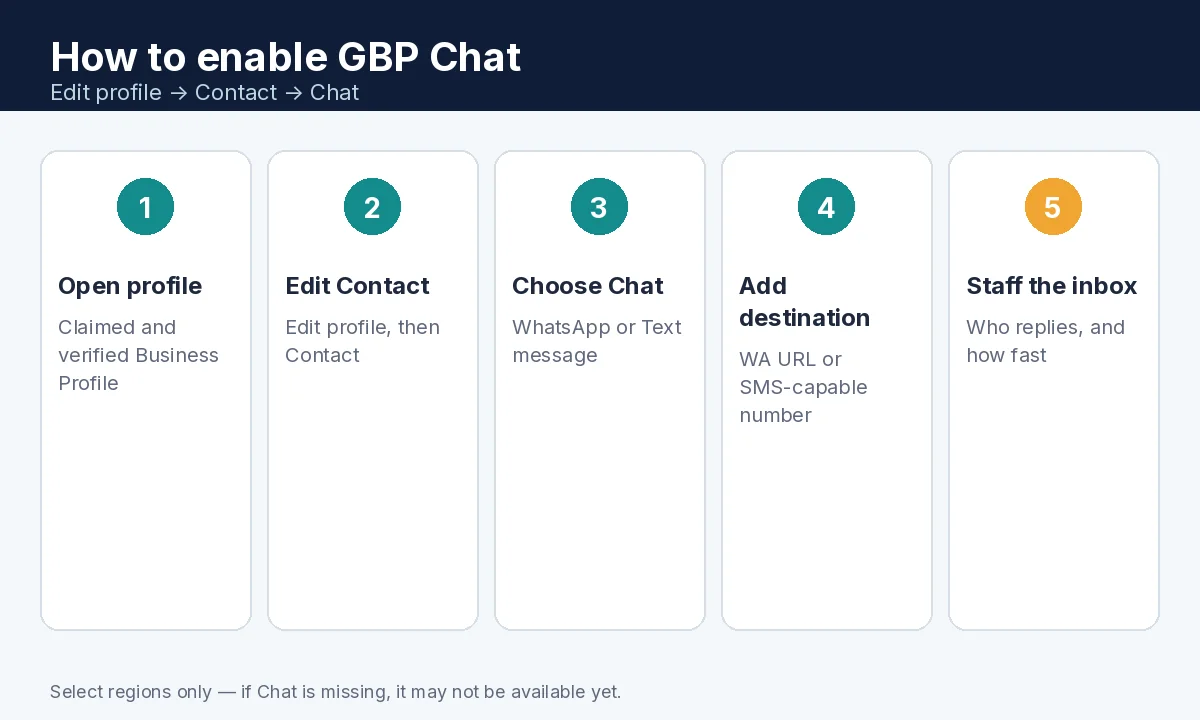
- Confirm the profile is claimed and verified.
- Open the profile → Edit profile → Contact.
- Beside Chat, select Edit.
- Choose WhatsApp or Text message.
- Add a WhatsApp click-to-chat URL or a phone number that can receive SMS.
- Save. If you add both options, Google shows customers the text message option only.
- Assign who replies, set a response target (for example same business day), and watch Chat performance in Insights when available.
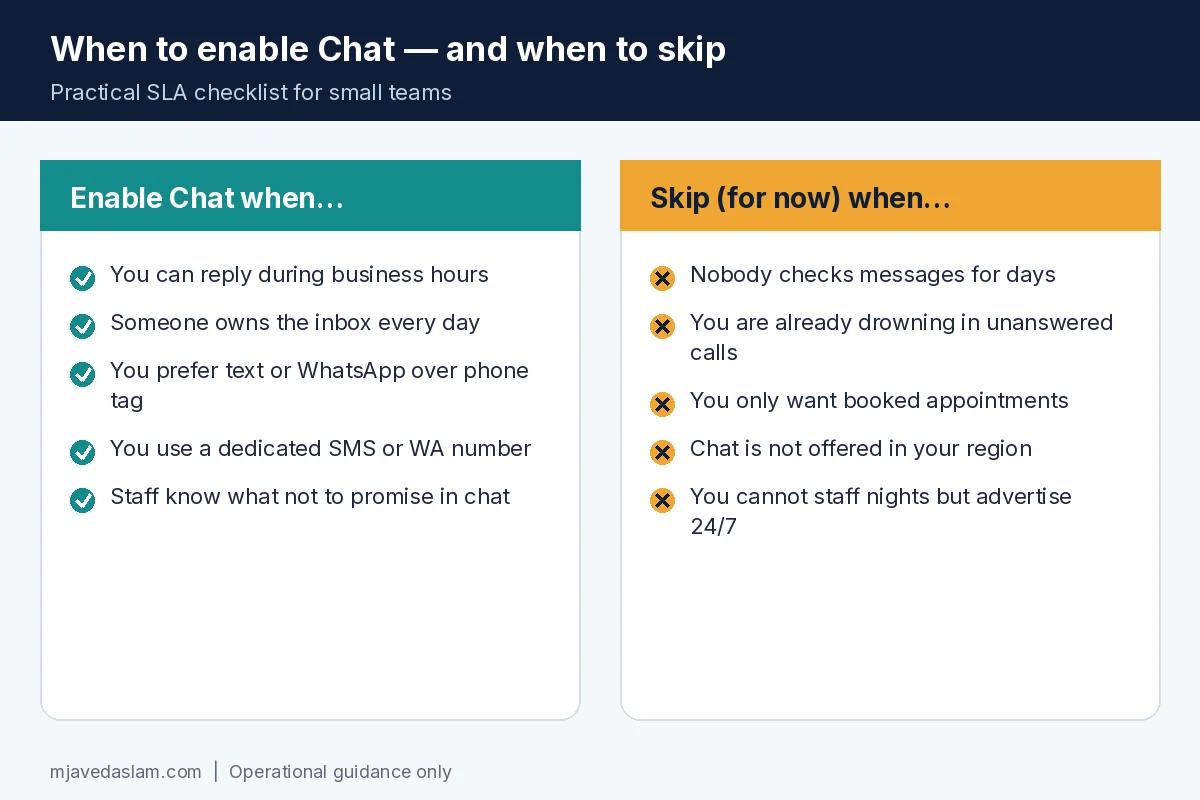
- Skip Chat if nobody will answer — a dead Message button trains customers to distrust you.
What “messaging” means on GBP in 2026
Google’s current Help title is Chat with customers from your Business Profile. Claimed, verified businesses can add a WhatsApp or text messaging option to contact info so people can reach you from Search or Maps. That is different from:
- The profile phone number / Call button
- A website booking or appointment link (covered separately)
- GBP Posts under Updates / From the owner
- Review replies in the reviews inbox
Important caveats from Help:
- Select regions only — if you do not see Chat, it may simply not be available for your profile yet.
- Different Business Profiles can reuse the same WhatsApp link.
- Chat metrics can be reviewed in Business Profile performance reporting when Chat is active.
Step-by-step: turn on Chat
- Go to your Business Profile (Search, Maps, or the manager experience you use).
- Select Edit profile, then Contact.
- Next to Chat, select Edit.
- Open the Chat dropdown and pick WhatsApp or Text message.
- For WhatsApp: paste a valid click-to-chat style URL for your business WhatsApp account. For text: enter a number that can receive SMS (often a mobile or SMS-capable line your team monitors).
- Save changes and test from a customer view (or a colleague’s phone) that the Chat path opens the right destination.
UI labels shift slightly between desktop Search, Maps, and the Business Profile manager. If Contact → Chat is missing after verification, assume regional availability — not a “secret setting” you failed to find. Keep the rest of Contact accurate while you are there (phone, website) — profile description and claim/verify still come first.
WhatsApp vs text message — which to pick
- Text message: Lowest friction for many U.S./Canada customers who already text vendors. Use a number your staff actually answers; shared personal phones create privacy and handoff problems.
- WhatsApp: Stronger where WhatsApp is the default consumer app. Use a business-owned account and a stable click-to-chat URL. Google notes multiple profiles may share one WhatsApp link — still keep branding clear so customers know who is answering.
- Both configured: Help states only the text message option is shown to customers if both are added. Prefer the channel you will staff; do not “collect both” for vanity.
Do not paste a personal WhatsApp that goes silent after 6 p.m. if your hours say you are open. Align Chat availability with published hours — or say in the first auto-reply (where your messaging app supports it) when humans return.
Response SLA: the part most “how to enable” posts skip
Turning Chat on without a reply plan is worse than leaving it off. Practical defaults for small teams:
- Same business day for non-emergency local services (plumbing quotes, clinic questions, shop hours clarifications).
- Under one hour during posted open hours if you sell urgency (emergency trades, same-day openings) — and only if you can keep that promise.
- Named owner: one person (or a shared inbox with a rotator) owns unread Chat/SMS/WhatsApp every open day.
- Script the first reply: confirm who you are, ask one clarifying question, offer the next step (call, book link, estimate visit). Avoid medical/legal/financial promises in chat.
- After-hours: either disable expectations or use an auto-reply that states when you return — never imply live chat if nobody is watching.
Pair Chat with review hygiene: customers who wait days in Chat often leave the wait in a public review — keep review response templates ready. For appointment-heavy businesses, a booking link may convert better than open-ended chat — see the booking-link guide when you publish it; until then, send people to a clear booking page from your website field.
When to skip messaging (for now)
- Chat is not offered on your profile (regional / eligibility).
- You already miss calls and emails — adding a third channel multiplies ghosts.
- You only want scheduled appointments and your booking flow already works.
- Owner-operated solo shops with unpredictable field days and no shared inbox.
- Regulated advice categories where informal chat creates compliance risk (get counsel; this article is operational, not legal advice).
Skipping Chat is a valid local SEO decision. A complete profile with accurate hours, categories, photos, and posts still helps you get found — posts best practices, photos guidelines, Google Business Profile service.
Quality checks after you enable Chat
- Customer-view test: open your listing in an incognito/mobile Maps session and tap Chat.
- Confirm the WhatsApp URL or SMS number lands on the monitored account.
- If both options were ever saved, remember customers see text message only — remove the unused path if it confuses your team.
- Train staff: no quoting competitors’ prices you cannot honor; no “guaranteed ranking” or medical claims; escalate angry threads to a phone call.
- Check performance reporting for Chat when Google surfaces those metrics for your account.
- Keep phone and website fields truthful so Call / Website remain trustworthy alternatives — local SEO.
Service-area businesses should still follow SAB rules for address visibility; Chat does not replace a correct service-area setup — service-area business guide.
If Chat disappears after an edit, re-check verification status and regional availability before assuming a bug. Suspended or restricted profiles need fixing first — messaging will not paper over a Trust & Safety issue. Keep categories honest so the right customers message you — primary category.
Example first-reply you can adapt: “Thanks for messaging [Business]. We’re open [hours]. Are you looking for [service A] or [service B]? If you prefer, book here: [link] or call [profile number].” Short, branded, and next-step oriented beats a novel.
Revisit Chat quarterly: if Insights show taps but your CRM shows no conversations, the destination number/URL may be wrong — or staff may be clearing threads without logging jobs. Fix the handoff before you advertise “message us on Google” in ads or posts.
FAQ: Google Business Profile messaging
How do I turn on messaging on Google Business Profile?
On a claimed, verified profile, go to Edit profile → Contact → Chat → Edit, choose WhatsApp or Text message, add the URL or SMS-capable number, and save. Chat may not appear in every region.
Can I use both WhatsApp and text message on GBP?
You can configure options, but Google’s Help says if both are added, only the text message option is shown to customers. Staff the channel customers actually see.
Why don’t I see Chat on my Business Profile?
Chat options are available for select regions and may not be available for your profile. Confirm verification first; if Contact has no Chat control, treat it as unavailable rather than broken.
Is Google Business Profile messaging the same as a booking link?
No. Chat opens WhatsApp or SMS. Booking / appointment links are separate website-style actions some categories can add. Use Chat for questions; use booking when you want a scheduled slot.
How fast should I reply to GBP messages?
Google does not publish a universal SLA. Practically, reply the same business day at minimum — faster if you market urgency — and set after-hours expectations honestly.
Should every small business enable GBP Chat?
Only if someone will answer. An ignored Message button hurts trust more than a clean profile with Call and Website alone.