Google Business Profile products and services are two different editors on your profile: services for what you perform (with optional prices and descriptions), and products for physical goods you sell in a local store (product editor and, where eligible, Local Inventory / in-store products). Filling them helps Search and Maps highlight what you actually offer when someone looks for that service or item nearby.
This guide covers only products and services lists. It is not attributes (Yes/No amenities), primary category, description rewrite, booking links, or photos policy — those stay in their own posts so this keyword stays clean.
Hands-on profile work: Google Business Profile services.
Google Business Profile products and services — quick answer
- Services: Open your Business Profile → Edit services → pick suggested services for your category or Add custom service → optional price and description → Save. Group into categories if you offer several types.
- Products (product editor): Aimed at local stores selling physical goods — especially when you lack barcodes, a full e-commerce site, or fresh stock feeds. Open the profile → Edit Products → add image, name, and details → Publish. Products must follow Google’s shopping ads policy.
- In-store / Local Inventory: Where eligible, Google’s Local Inventory app (formerly Pointy) can sync in-store products onto Search and Maps automatically — separate from the manual product editor.
- If Merchant Center is already linked, Edit Products may route you into Merchant Center instead of the simple editor.
- Do not put prices or phone numbers in custom service names — Google rejects those; put price in the service detail fields.
Eligibility and menus vary by category and country. If Edit services or Edit Products is missing, your category or region may not support that editor yet.
Services editor (what you perform)
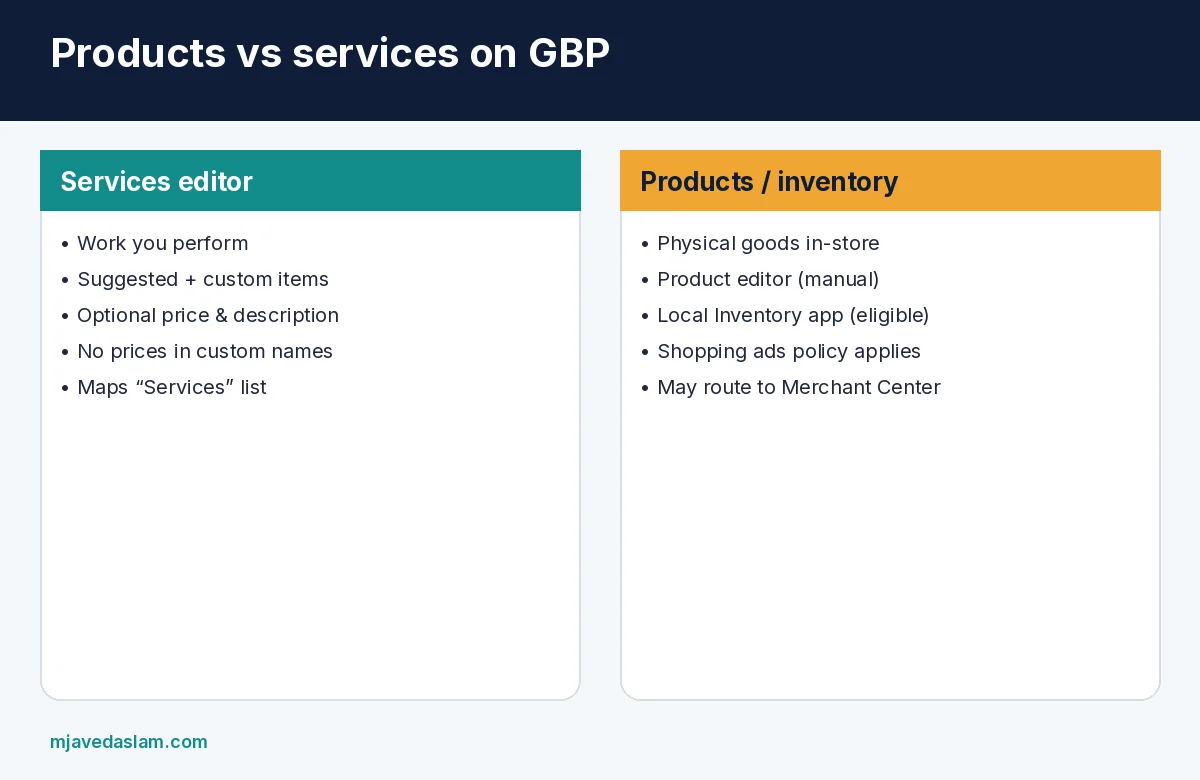
Google’s Help on managing services explains that businesses in certain categories — often service businesses — can showcase offerings on the profile. On Maps, customers may see a full list under “Services.” Suggested options match your business type (a plumber might see “Install faucet” or “Repair toilet”). You can also create custom services, group them into categories, and add descriptions and prices.
Practical tips I use with clients:
- Mirror the language customers actually search (“men’s fade,” “AC tune-up”) — not internal SKU codes.
- Add realistic price ranges when your shop is comfortable publishing them; leave blank if prices are quote-only.
- Keep custom service names clean: no profanity, gibberish, personal info, prices, or phone numbers in the name field (Google auto-rejects those).
- Align the list with your website service pages and with booking or call scripts so the front desk is not surprised.
Category still drives relevance — pair services with an honest primary category: primary category guide.
Product editor (physical goods without a full feed)
Google’s product editor Help is for local stores selling physical goods. It is especially relevant if you do not have a website for purchases, your products lack barcodes, or you do not have fresh stock-availability data. Items you add can appear on Business Profiles in Google Search. Scene generation in Product Studio is documented as US-only for that feature; always check the live UI for your country.
Steps in short: sign in → open the profile → Edit Products → add or edit → Publish (or Menu → Delete to remove). If a Merchant Center account is already linked, Edit Products may send you to manage products there — request access if you lack it.
Policy note from Google: products submitted through the product editor must adhere to the shopping ads policy; violations can remove all products you uploaded. Treat images and titles like a mini catalog audit, not a dumping ground for banned categories.
In-store products and Local Inventory (when you have stock systems)
Google’s in-store products Help describes showcasing inventory on Search and Maps. The former Pointy product is now the Local Inventory app, integrated into Google. Where you are eligible, automated in-store product sync is a different path than manually typing a few hero SKUs in the product editor. Use Local Inventory when you have POS/stock data and eligibility; use the product editor when you need a simple visible catalog without barcodes or feeds.
Do not invent “rank boost” numbers for listing products. The job is clarity: shoppers see what you sell and can decide to visit or call.
Products vs services vs attributes vs booking
| Feature | Use it for |
|---|---|
| Services editor | Jobs you perform (haircut, repair, consult) |
| Product editor / Local Inventory | Physical goods on shelves |
| Attributes | Amenities, payments, accessibility — attributes guide |
| Booking / links | Appointment URLs — booking link guide |
| Description | Short narrative — description guide |
Retailers often need both: services for alterations or repair desks, products for merchandise. Service-only shops usually skip the product editor.
Examples by business type
- Hair salon: Services = women’s cut, color, keratin; optional prices; products only if you retail shampoo on the shelf.
- Auto shop: Services = oil change, brake job; products if you sell tires or batteries in a retail bay.
- Boutique: Lean on product editor or Local Inventory; services only if you offer styling appointments.
- Plumber / HVAC: Services list is the priority; products are rarely the right tool.
Common mistakes
- Stuffing keyword spam into custom service names.
- Putting prices inside the service name instead of the price field.
- Uploading products that violate shopping ads policy (restricted categories, misleading images).
- Creating a second profile to “test” products after a rejection — fix guidelines instead; duplicates create worse problems: fix duplicates.
- Leaving services blank while writing a long description that tries to list every offering in prose.
- Ignoring Merchant Center routing when Edit Products redirects — unfinished handoffs leave an empty public catalog.
Keep hours and photos honest while you edit catalogs — holiday hours, photos guidelines. Map Pack context: Map Pack checklist. Cluster: local SEO.
Ops checklist (45 minutes)
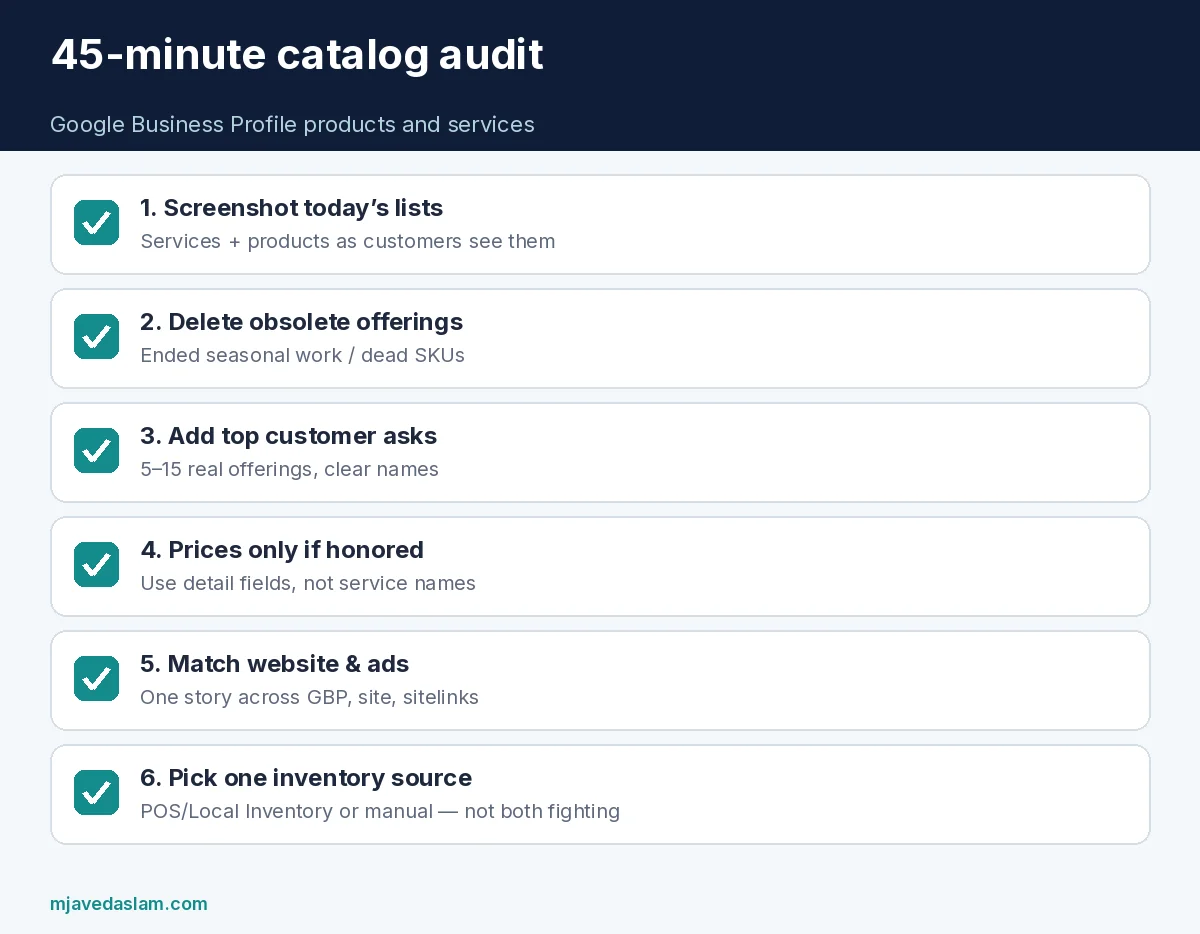
- Export or screenshot today’s services and products.
- Delete obsolete offerings (discontinued SKUs, seasonal services that ended).
- Add the top 5–15 offerings customers actually ask for.
- Add prices only where the shop will honor them without awkward phone calls.
- Match website menu / shop pages to the GBP list.
- If eligible for Local Inventory, decide which system owns truth (POS vs manual editor) — never maintain two conflicting catalogs.
- Note “catalog last audited: [date]” in your ops runbook.
When a new service launches, update Google Business Profile products and services the same week you update the site and ads sitelinks. Stale lists train customers to call for work you no longer do — and train Google on outdated offerings.
Multi-location brands should give each store manager authority to confirm local inventory and service menus before HQ pushes a global list. A downtown boutique and a mall kiosk rarely share the same SKU set.
If Edit Products or Edit services never appears, confirm you are on the verified owner account, on the correct location, and that the category supports the feature. Switching to an inaccurate category just to unlock an editor is a poor trade for long-term relevance.
FAQ: Google Business Profile products and services
What is the difference between products and services on GBP?
Services describe work you perform; products are physical goods. They use different editors and eligibility rules.
Why don’t I see Edit Products?
The product editor targets local stores selling physical goods and may be unavailable by category or region. Linked Merchant Center can also change the Edit Products path.
Can I add custom services?
Yes. Use Add custom service, keep names clean (no prices or phone numbers in the name), and add price/description in the detail fields.
Do products boost Map Pack ranking?
Google does not publish a ranking guarantee for listing products. Treat catalogs as clarity and conversion tools, not a paid rank lever.
What is Local Inventory vs the product editor?
Local Inventory (formerly Pointy) can sync in-store stock for eligible businesses; the product editor is a manual catalog for stores that need a simpler path without barcodes or fresh feeds.
Where should prices go?
In the service or product detail fields — not inside custom service names, which Google may reject.
For Google Business Profile products and services across a franchise, keep one source of truth per location and audit quarterly — empty or spammy lists hurt trust faster than a short, accurate menu.