Here’s the short answer. When your business moves, you usually change the address on Google Business Profile by editing the profile you already have, not by making a new one. Go to Edit profile, then Location, then Business location, enter the new address, check the map pin and save. Google will ask you to verify your business again, and if you keep the same business name, Google says it moves your reviews automatically. The main exceptions are venues tied to their location, like restaurants and hotels, and cases where your address was simply wrong. I cover both below.
I’m Javed Aslam, a local SEO consultant in Pakistan. I set up and fix Google Business Profiles for small businesses, and a move is one of the riskiest moments for a listing. One wrong click, like creating a second profile at the new place, can split your reviews or get a profile hidden as a duplicate. This guide walks through what Google’s help pages say, the exact steps, re-verification, what happens to your reviews, and what to update after the move. If your address is right but the marker sits in the wrong spot, my guide on how to fix a wrong Google Maps pin is the better fit.
What Google says about changing your address after a move
Google covers moves on several help pages. Here are the key lines, quoted from those pages and checked today:
- Don’t make a new profile: “If your business relocates, do not create a new Business Profile for the new location. Instead, update the existing profile with the new address.” This is from Google’s page on resolving duplicate profiles.
- Verify again: “If you move your business to a new address after it’s verified, you must verify your business again.” This is from Google’s page on how to edit your Business Profile.
- Reviews: “If you move to a new address and keep the same business name, Google will transfer your reviews automatically. For certain business categories, like hotels, golf courses, or scenic attractions, reviews might not be automatically moved.” The same page warns: “Do not create a new Business Profile because of a change in a physical location or ownership.” That’s from Google’s page on moving your reviews across Business Profiles.
- Address format: Google’s page on how to manage your business address asks for a complete street address and says to include building, suite, floor and other unit info.
There’s one page that reads differently. Google’s overview of Business Profile policies has a “Location change” section that says: “Location edits will be rejected for businesses whose physical identity is directly tied to customer experience (e.g., dining, lodging, or entertainment venues).” The next line says: “If your business has relocated, you must mark the existing profile as permanently closed and create a new Business Profile at the new location.” And then: “If your business has not moved and you need to fix an incorrect address, you must contact us.”
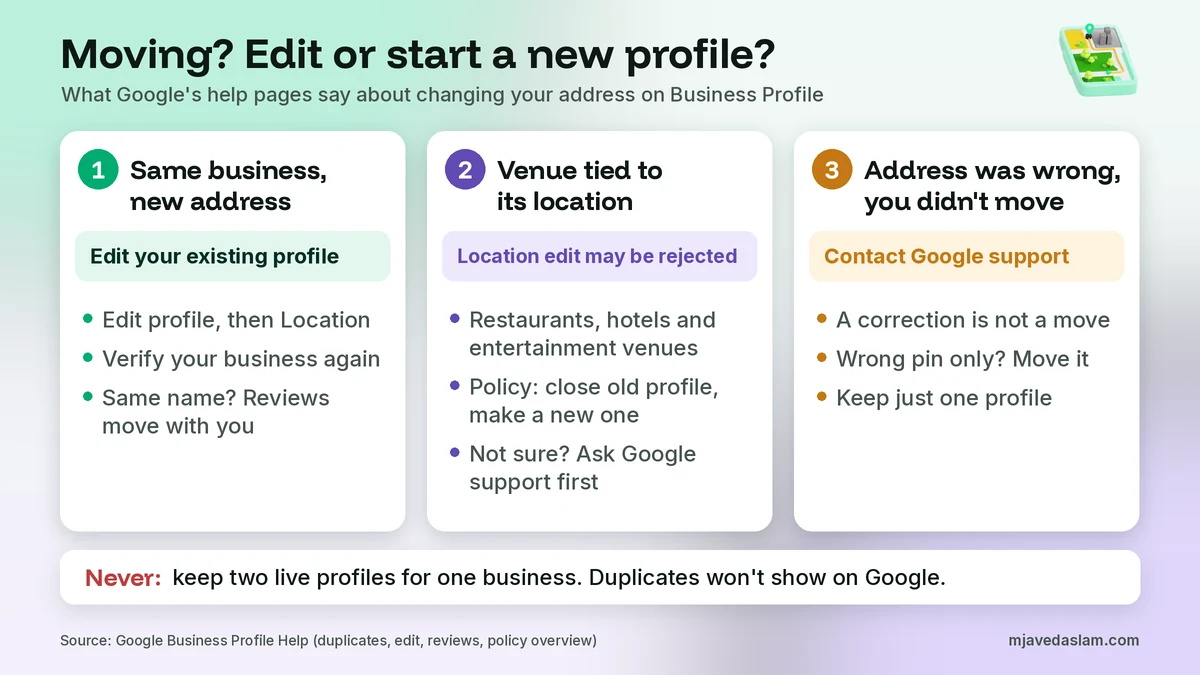
So Google’s pages don’t fully agree. Here’s how I read them, and I want to be clear this is my interpretation, not a Google statement. Three separate help pages (duplicates, reviews and edit) tell an ordinary business to edit its existing profile and verify again, and the reviews page explains how reviews follow you when you do. The close-and-recreate line sits right under the rule about venues whose identity is tied to the place, like a restaurant, hotel or entertainment venue. So for a shop, office, clinic or workshop that moves and keeps its name, I follow the edit route. If you run a venue of that kind, or Google rejects your address edit, talk to Google support before you close anything, so you know which route applies to your profile.
Change the address or start a new profile? Pick your situation
Most confusion comes from mixing up different situations. This table matches each one to what Google’s pages say:
| Your situation | What to do | Where Google says it |
|---|---|---|
| Same business, same name, moving to a new address | Edit the address on your existing profile, then verify again | Duplicate profiles page; Edit your Business Profile page |
| Venue tied to its location (restaurant, hotel, entertainment venue) | Expect the location edit to be rejected. Google’s policy says to mark the old profile permanently closed and create a new one. Contact support first if unsure | Overview of Business Profile policies (Location change) |
| Your address on Google is wrong, but you never moved | Contact Google support to fix it. If only the marker is off, adjust the pin | Overview of Business Profile policies; Manage your business address |
| You already created a new profile at the new address by mistake | Contact Google to transfer reviews from the old profile. Don’t keep two live profiles | Move your reviews page; Duplicate profiles page |
| A different business now runs at your old address | Your old profile should be marked permanently closed, not renamed for the new business | Overview of Business Profile policies (Identity change) |
| Service-area business moving its base | Edit the (hidden) address and check your service areas still fit | Manage your service areas page |
| You’re closing one branch and keeping others | That’s a closure, not a move. Mark that location permanently closed | Mark your business as closed page |
If you end up with two profiles for one business, Google says a duplicate “won’t show on Google Search or Maps.” My guide to fixing a duplicate Google Business Profile explains the merge and removal options. For the last row, see my guide on how to close a Google Business Profile.
Before you move: plan the gap
Google doesn’t publish a rule about how many days before or after a move you should change the address. Here’s what I’d do, based on how verification works:
- Change the address when you can actually serve customers at the new place. Google’s address guidelines say to create your profile for your actual, real-world location, and live video verification asks you to show your location and business during the call. You can’t do that from an empty unit or from your old shop.
- Put permanent signage up early. Google’s guidelines for representing your business say: “Businesses showing their address on Google should maintain permanent fixed signage of their business name at the address.” Signage also helps with video verification.
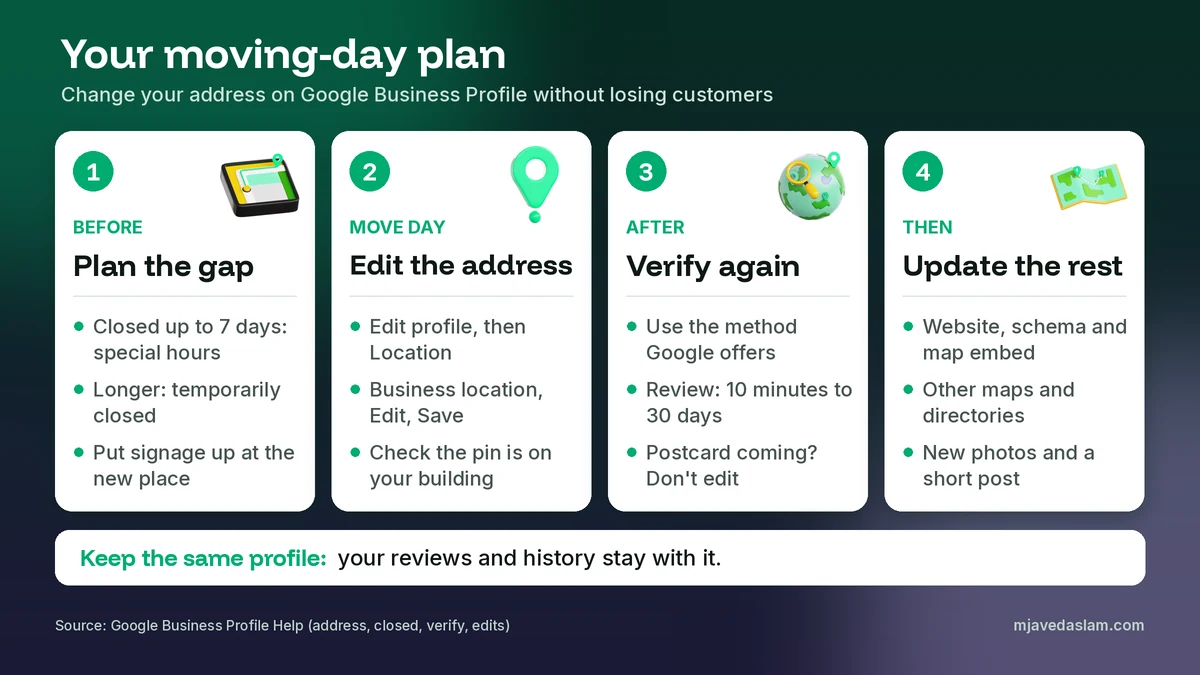
- Cover any closed days. Google’s page on how to mark your business as closed says to use special hours if you’re closed for 7 days or less, and “Temporarily closed” if you’re closed for more than 7 days. Don’t mark the profile permanently closed if you’re only moving. My guide to Google Business Profile holiday hours shows how special hours work.
- Check your access. To edit, you need to sign in to the Google Account linked to the profile. If a past employee or agency owns it, sort that out before move week.
- Don’t change other big details at the same time. Google’s edit page says a business name change after verification “might” need verification again too. If you’re rebranding and moving, I’d do one change at a time so it’s clear what Google is reviewing.
How to change the address on Google Business Profile, step by step
These steps are from Google’s page on how to manage your business address. The labels can shift a little as Google updates its screens.
On Google Search (computer or phone browser)
- Sign in to the Google Account that manages your profile and go to your Business Profile. Searching “my business” is a quick way to find it.
- Select Edit profile, then Location.
- Next to “Business location,” select Edit.
- Enter your new address details.
- If Google can’t find your address, you’ll see a warning. Re-enter the parts highlighted in red.
- If Google still can’t find it, select Adjust to set a pin on the map where your business is.
- Select Save.
In the Google Maps app
- Open the Google Maps app on your phone.
- At the bottom right, tap Business.
- Select Edit profile, then Location.
- Next to “Business location,” select Edit, enter the new address and select Save.
Get the new address right the first time
Google’s address rules are short, and they matter more during a move because a new address gets reviewed:
- Enter a complete street address. Include building, suite and floor numbers. Google says to put your physical address in Address Line 1 and a mailbox or suite number in Address Line 2.
- Only include what’s part of your official address. Where the official address isn’t accurate, Google allows nearby cross-streets or landmarks. Avoid wording like “Across from Central Park.”
- P.O. boxes or mailboxes at remote locations aren’t acceptable, and a rented mailing address you don’t work from (a virtual office) isn’t eligible.
- Don’t put URLs or keywords in the address lines.
If you’re moving into a shared or co-working space, read my guide on virtual offices and co-working spaces on Google Business Profile first. Google only allows a co-working office with clear signage, customers received during business hours, and your own staff there during those hours. After saving, zoom in on the map and check the pin sits on your new building, not the street or the old spot.
Verify again after the move
Once the new address is saved, expect Google to ask you to verify. Google’s verification help page says the methods are “automatically determined by Google and can’t be changed,” and the options depend on “your business type, public info, region, or business hours.” You may see phone or text, email, video recording, live video call or postcard. In some cases you may need more than one method.
- Video: Google recommends video verification if you’re eligible. For a live video call, be ready to show outside signs, nearby businesses or a street sign, your products or equipment, and proof you manage the place, like access to staff-only areas or keys. My Google Business Profile video verification guide goes through it in detail.
- Postcard: Google says most codes arrive within 14 days and codes expire after 30 days. While you wait, “Do not edit your business name, address, or category,” or the code won’t work, and don’t request a new code. My postcard verification guide covers the common problems.
- Review time: after you complete the steps, Google says verification reviews take up to 5 business days, and on rare occasions longer.
Your edit also goes through Google’s normal review. Google’s page on what happens to your Business Profile edits says edits usually take up to 10 minutes but can take up to 30 days, and each edit shows as Accepted, Pending or Not approved. Google adds that it “might not approve changes if it can’t confirm its accuracy.” If your new address comes back as not approved, my guide to Google Business Profile edits not approved explains what to check and how to appeal.
What happens to your reviews when you move
This is the question I hear most, so here’s exactly what Google’s reviews page says:
- Moved and kept the same name: Google says it will transfer your reviews automatically.
- Some categories are different: for hotels, golf courses or scenic attractions, reviews might not be moved automatically.
- New profile created by mistake: if you unintentionally created and verified a new profile because of a change in location or ownership, Google says to contact it to transfer your reviews from the old profile to the new one.
- Closed profiles keep their reviews: if a business closes temporarily or permanently, the reviews stay on that profile. Customers can review a temporarily closed business but not a permanently closed one.
- Big changes can cost reviews: Google says that if significant business changes occur, it might remove irrelevant reviews, and “Not all business changes qualify to move or remove reviews.”
In plain words: if you edit the same profile and keep the same name, your reviews stay with you. The trouble starts when owners make a second profile and leave the old one behind. And if two profiles for the same business are merged, Google’s duplicate page says “their reviews are combined, but replies to reviews may be lost.” If reviews look missing after a move, my guide to Google reviews not showing covers the usual causes.
Service-area and hybrid businesses that move
If you visit customers instead of having them visit you, such as a plumber or cleaner, your address is usually hidden. You still need an accurate address behind the scenes. Google’s service area help page says service-area businesses visit or deliver to customers but don’t serve them at their address, and they should remove the address from public view. The guidelines also say a service area shouldn’t extend farther than about 2 hours of driving time from where your business is based.
So when your base moves, update the address on the profile (it stays hidden) and look again at your service areas. If you moved to a new city, the old list of areas may no longer be within reach. Google lets you set up to 20 service areas by city, postal code or other area, and says service area edits may take up to 48 hours to show if approved. My guide to service-area businesses on Google Business Profile has the full setup.
Hybrid businesses, like a garage that also offers roadside help, show their storefront address and a service area. Google says the storefront should be staffed and able to receive customers during its stated hours. After a move, make sure the new site meets that before you show its address.
If the address change goes wrong
Moves don’t always go smoothly. Here’s where I look first:
- Edit stuck on pending or not approved: check that the address matches your signage, website and documents exactly, and that the pin sits on your building. Then follow the steps in my guide to edits not approved.
- Profile disappeared from Maps after the move: it may be waiting for re-verification, or it may have been flagged as a duplicate. My guide to why a Google Business Profile is not showing walks through the checks.
- Suspended after the move: read Google’s address rules again before you appeal. Google’s policy overview says profiles with a P.O. Box address will be suspended, and its guidelines say a virtual office isn’t eligible.
- Old location still showing as a separate listing: that’s a duplicate. Ask for a merge or removal, as explained in my duplicate profile guide.
- You need a person: my guide on how to contact Google Business Profile support shows the official routes.
After the move: update your address everywhere else
Google doesn’t only use what you type into your profile. Its page on how Google sources business information says profile info is compiled from publicly available information like your official website, licensed data from third parties, and users who contribute facts such as addresses and phone numbers. Old addresses on other sites can confuse customers and send mixed signals, so I clean them up in this order:
- Your website. Update the contact page, footer, Google map embed and any location pages. If you use LocalBusiness schema, change the address there too. My guide to LocalBusiness schema in WordPress shows where it lives.
- Other maps and directories. Update Apple Maps, Bing and the business directories you’re listed on. My guides to Apple Business Connect vs Google Business Profile and citation building for beginners cover where to start.
- Phone number, if it changed too. A new landline often comes with a new address. My guide on how to change your Google Business Profile phone number covers that edit.
- Photos. Add new photos of the outside, entrance and signage, so people recognise the new place. My Google Business Profile photo guidelines explain what works.
- A post for regular customers. A short update saying where you’ve moved helps people who search for you by name. See my Google Business Profile posts guide.
- Everything printed and shared. Business cards, invoices, social media profiles, email signatures and delivery app listings.
Will moving change where you rank on Google Maps?
It can, and it’s worth being honest about that. Google’s page with tips to improve your local ranking says local results are mainly based on relevance, distance and popularity (the page calls the last one prominence), and distance “refers to how far each business is from the customer who’s searching.” When you move, you are closer to some searchers and farther from others, so the results people see can change. Google also says “there’s no way to request or pay for a better local ranking on Google,” so I won’t promise a recovery date.
What you control is the rest: a complete and accurate profile, the right category, fresh photos, steady honest reviews, and a website that matches your new address. Keeping the same profile helps, because you keep your existing reviews and history instead of starting from zero. My guide on how to rank in the Google Map Pack covers those steps. Don’t place the pin anywhere except your real building. Google’s guidelines ask for a precise, accurate address, and a pin dropped somewhere you aren’t breaks that rule.
A note for businesses in Pakistan
Many addresses here don’t have a clear street number, especially in older markets and new housing schemes. Google’s address page allows for this: if your address doesn’t have a street number or Google can’t find it, you can pin your location on the map. Where the official address isn’t accurate, Google allows nearby cross-streets or landmarks, such as a well-known chowk or plaza. It still asks you not to write the address only as a direction, like “Across from Central Park.” Write the address the way it appears on your signage and documents, then place the pin carefully on your building. In my view, a clean address and a precise pin give Google less to question when you verify again.
Frequently asked questions
How do I change my business address on Google Business Profile?
Go to your Business Profile, select Edit profile, then Location. Next to “Business location,” select Edit, enter the new address and select Save. If Google can’t find the address, select Adjust and place the pin on the map. In the Google Maps app, tap Business, then follow the same Edit profile and Location steps.
Should I create a new Google Business Profile when I move?
For most businesses, no. Google’s duplicate profile page says that if your business relocates, you should not create a new profile and should update the existing profile with the new address instead. Google’s policy overview has a stricter line for relocated businesses, and it sits next to a rule that location edits are rejected for venues like restaurants, hotels and entertainment places. If your edit is rejected, contact Google support before you create anything new.
Will I lose my Google reviews if I change my address?
Usually not. Google says that if you move to a new address and keep the same business name, it will transfer your reviews automatically. For some categories, like hotels, golf courses or scenic attractions, reviews might not be moved automatically. If you created a new profile by mistake, Google says to contact it to transfer the reviews.
Do I need to verify again after changing my address?
Yes. Google’s edit page says that if you move your business to a new address after it’s verified, you must verify your business again. The verification methods you see are chosen by Google and depend on things like your business type, region and hours.
How long does an address change take on Google?
Google says profile changes usually show up in about 10 minutes, but in some cases they can take up to 30 days. If a postcard is part of your verification, most codes arrive within 14 days, and verification reviews can take up to 5 business days.
What if my address on Google is wrong but I haven’t moved?
That is a correction, not a move. Google’s policy overview says that if your business has not moved and you need to fix an incorrect address, you must contact Google. If only the map marker is in the wrong spot, you can adjust the pin from the Location section of your profile.
Next step
If you change the address on Google Business Profile the right way, you keep your reviews, avoid duplicates and get back to normal faster. If you’re planning a move and want a second pair of eyes on the timing, the verification or the clean-up, see my Google Business Profile service page, or get in touch with your old and new address and the city you serve, and I’ll tell you what I’d do first.