Here’s the short answer. To add a menu to Google Business Profile, open your profile on Google Search or Maps and select Edit menu. From there you can build a structured menu with sections, dishes, descriptions and prices, upload menu photos or a PDF, and (on some profiles) let Google’s AI turn a menu photo into a full menu. You can also add a menu link under Edit profile, then Business information, then Contact. The menu editor is only for food and drink businesses, and Google says changes can take 24 to 48 hours to show.
I’m Javed Aslam, a local SEO consultant in Pakistan. I set up and fix Google Business Profiles for small businesses, including restaurants, cafes and bakeries. A missing or out-of-date menu is one of the most common gaps I find on food profiles. People want to see dishes and prices before they visit, and if you don’t give Google a menu, it may show an old customer photo or a menu it picked up somewhere else. This guide covers what Google’s help pages say, each way to add a menu, the menu link rules, and what to do when the Edit menu option is missing. If you sell products or services rather than food, my guide to Google Business Profile products and services is the better starting point.
What Google says about menus on Business Profile
Google covers menus on a few help pages. These are the key lines, quoted from those pages and checked today:
- Who gets the menu editor: “Restaurants can list their menu items on their Business Profile on Google. This feature is available to food and drink businesses.” Google’s page on how to edit your Business Profile adds: “The menu editor is for food and drink businesses only,” and labels the feature “limited availability.”
- How it’s organised: “To keep your menu organized, group items into sections, such as appetizers, desserts, and main courses. It can take 24–48 hours for your changes to display on Google Maps and Search.” That’s from Google’s page about the menu editor.
- Menu link: Google’s page on managing your local business links says you can add “a single link” that helps customers “check a menu.”
- Menu rules: Google’s guidelines for representing your business on Google say the menu “should be representative of the items and services that are available for customers at the business,” that “sample menus that only list ‘popular items’ (or similar excerpts) should not be submitted,” and that “menu URLs can’t be direct links to third-party ordering or delivery services.”
- Menus from your website: “Google may transcribe menu data from your business website so that it appears accurately on your Business Profile.” When Google finds more than one menu source, you can pick a preferred one.
Google’s guide to getting started with a Business Profile for your restaurant puts it simply: use the menu editor “to set a preferred menu or create a detailed menu with sections, dishes, descriptions, and prices,” manage your menu URL, and upload photos of your menu.
Four ways to add a menu (and which one to use)
There isn’t one menu setting. There are several, and they show different things to customers. Here’s how they compare, based on Google’s help pages:
| Option | What customers see | Who can use it | Best for |
|---|---|---|---|
| Menu link | A link to your menu page | Any business with a menu page (food menus, or full service menus) | Restaurants with a menu page on their own website |
| Menu editor | Sections, dishes, descriptions and prices under “Menu” | Food and drink businesses (limited availability) | A clear, searchable menu on Google |
| Menu photos or PDF | Images of your printed menu under the “Menu” tab | Food and drink businesses | A quick start, or a printed menu you change often |
| AI from a menu photo | A detailed menu built from your photo or PDF (you review it first) | Some profiles; experimental | Turning a printed menu into a structured one fast |
| Popular dishes (Maps app) | Dish names and photos | Owners and customers | Showing your best-known dishes |
| Services editor | Your services, with optional descriptions and prices | Service businesses in certain categories | Salons, clinics, workshops and other non-food businesses |
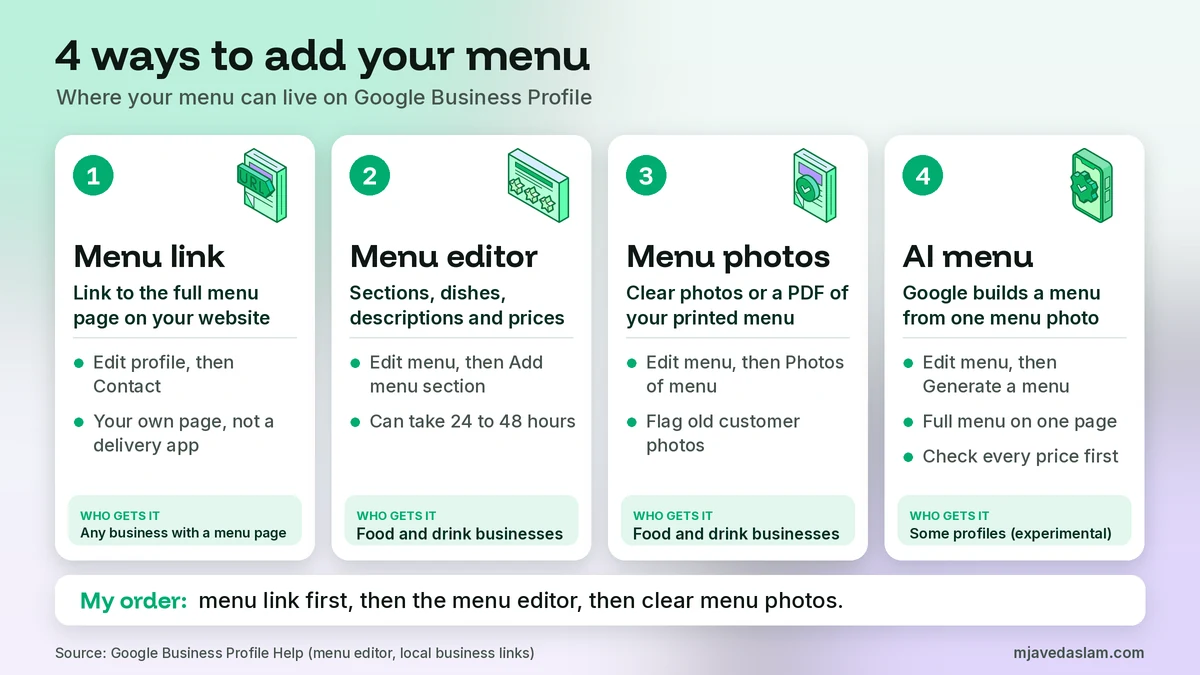
For most restaurants, I set up two things first: a menu link to the menu page on the website, and a structured menu in the menu editor. Then I add clear menu photos. That’s my own working order, not a Google rule, but it means customers find your menu whether they tap the link, scroll the Menu tab or look at photos.
How to add a menu link to Google Business Profile
A menu link sends people to your full menu. Here are Google’s steps from the menu editor page:
- Go to your Business Profile (search for your business name while signed in, or open it in the Google Maps app).
- Select Edit profile, then Business information, then Contact, then Menu link. On a desktop, using Google Search, the path is Edit profile, then Contact, then Menu link.
- Enter the URL where your menu can be found.
- Select Save.
Use a page on your own website that shows the whole menu, ideally as text and not only as a picture. In my experience, a text menu is easier for customers to read on a phone, and it’s easier for Google to read too. If you want to see how many visits that link sends to your site, add UTM tags to it. My guide on UTM tracking for Google Business Profile shows how.
Menu link rules: what Google allows
Google’s guidelines have a short Menu section. It says there are two kinds of menu: one for an eating and drinking place that “lists the complete set of food and drink items,” and one for a service business, “like a barber, spa, or car repair shop,” that lists the complete set of services. Both must follow these rules:
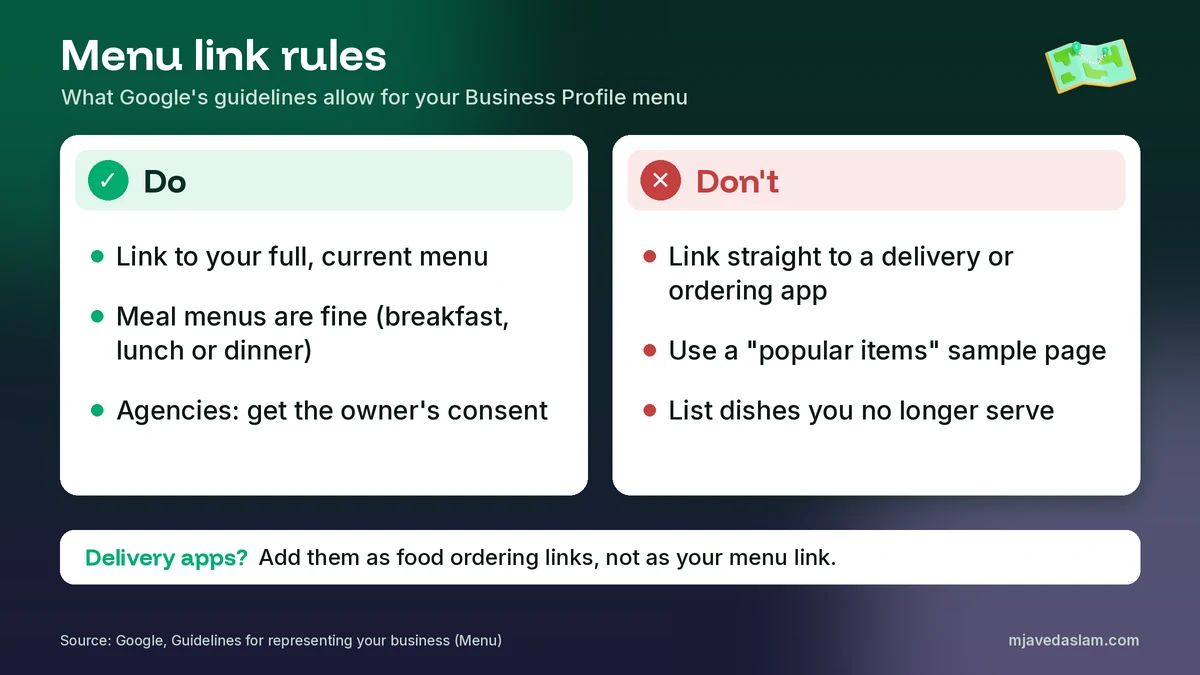
- Show what’s really on offer. The menu should represent the items and services customers can actually get.
- Meal-specific menus are fine. Google says full menus “can be meal-specific (like breakfast, lunch, or dinner) and have links to other menu pages.” For example, you can link to your dinner menu if it links on to your breakfast and lunch menus.
- No “popular items” samples. A page with only your top 10 dishes isn’t a full menu.
- No direct links to delivery or ordering apps. “Menu URLs can’t be direct links to third-party ordering or delivery services.”
- Agencies need consent. “Third parties that manage Business Profiles on behalf of clients must notify and have the consent of the business owner to submit a menu URL for a business.”
So where do your delivery apps go? Into the food ordering links, which are a separate feature. Google’s page on local business links says you can add up to 10 links per category, including links to “place a food order.” I explain how these buttons fit together in my guide to the Google Business Profile booking link.
How to add menu items with the menu editor
The menu editor gives you a structured menu: sections, items, descriptions and prices. Google’s steps from the menu editor page are:
- Go to your Business Profile.
- Above the search results, select Edit menu.
- To start a section, select Add menu section, enter the section name (for example, Starters) and an item for that section, then select Save.
- To add more dishes, select Add menu item, enter the item info and select Save.
- To change something, select the item or section, enter your changes and select Save.
- To delete a single item, select Delete at the bottom of the item info. To delete a whole section and all its items, select Delete at the bottom of the section info and confirm.
When you finish, Google shows a message. If all is well, you’ll see: “Your menu has been updated. The updates will be published shortly.” If something fails, you’ll see “Something went wrong. Please try again.” Google says to try again and wait 24 hours, and to contact its support team if you get the same error again.
Copy an existing menu source
Some businesses see an option to copy menu data Google already has from another source. Google says: “By selecting Copy, you can add, delete, and edit menu sections, items, descriptions, and prices.” Before you accept suggested items, you can check where they came from by clicking the name of the third-party provider under “Add these menu items?” I always check the prices line by line, because a copied menu can be out of date.
Tips for a menu customers can use
- Use the section names from your printed menu, so the two match.
- Write short, plain descriptions: what’s in the dish, the portion and anything people often ask about.
- Keep prices current. If prices change often, update the menu editor at the same time as your printed menu.
- If you manage several branches, Google says that to update a menu across multiple Business Profiles “you must do so with Business Profile API.” My multi-location Google Business Profile guide covers the wider setup.
These tips are my own advice from working on food profiles. Google doesn’t publish rules for writing dish descriptions.
Create a menu from a photo or PDF with AI
Google has an experimental option that turns a menu photo or PDF into a detailed menu. Google’s page says “Creating a menu from a menu photo is experimental,” and you must agree to the Google Generative AI Additional Terms of Service. It captures the section name, the item or dish name, the description and the price. If you have the option, the steps are:
- Go to your Business Profile and select Edit menu.
- At the top, select Photos of menu, then Select photos. You can take a photo with your camera or upload one you already have.
- Select Generate a menu.
- Review the menu to make sure it’s accurate.
- Select Publish and edit.
Google’s tips are short: “Make sure the menu photo is high quality,” blurry or low-contrast photos may not work well, and “the full menu must fit on one page and be captured on one photo.” A long menu printed over several pages won’t fit that rule, so for those I build the menu in the editor by hand. Whatever AI creates, check every price before you publish. A wrong price on Google leads to awkward conversations at the counter.
Add menu photos and handle old customer photos
Menu photos show under the “Menu” tab on Google. Google says your customers can add a menu photo, and you can upload your own photo or a PDF. To add one:
- Go to your Business Profile and select Edit menu.
- At the top, select Photos of menu.
- Use Select photos or a PDF to upload from your device, or drag and drop the files.
To remove a menu photo you uploaded, find it and select Delete. If a customer uploaded an old or wrong menu photo, Google says to “flag it for removal and upload a new, accurate menu photo yourself.” Google’s page on how to report inappropriate photos or videos says the review can take several business days, and sending several reports for the same photo may slow it down.
For the photo files, Google’s photo and video page lists JPG or PNG, between 10 KB and 5 MB, with a recommended resolution of 720 px by 720 px and a minimum of 250 px by 250 px. Google’s tips for business-specific photos also say food and drink photos “add color and detail to your menu,” and suggest adding at least three photos of the food or drinks you serve, showing your most popular items, with evenly lit shots. My Google Business Profile photo guidelines cover the rest of the photo set.
Add popular dishes in the Google Maps app
Google’s page on managing popular dish names explains how to add dishes from the Google Maps app:
- Open the Google Maps app and search for your restaurant’s name and city.
- Tap Menu, then in your Business Profile tap Menu, then Add.
- Add a photo of the dish, enter the dish name and tap Done.
Google says both you and your customers can add photos and names of dishes, but “dish names added by you will get precedence over dish names added by customers.” Photos added through Maps also appear in your general photos list. If a dish name is wrong, you can suggest an edit, mark it as incorrect, or flag that the dish isn’t served at your restaurant. Google says it aims to post dish name edits “within a few days,” but doesn’t guarantee they’ll be published. For more on managing your profile from your phone, see my Google Business Profile in the Maps app guide.
When Google shows a menu you didn’t add
Sometimes a menu appears on your profile even though you never added one. Google’s menu page gives two reasons:
- More than one menu source. When Google finds multiple menu sources, the Menu tab shows the options and when each was last updated. To choose one, go to your Business Profile, select Edit menu, pick your preferred source from the “Full menu” tab and select Save.
- Menu transcription. “Google may transcribe menu data from your business website.” If that data is wrong, Google points you to the steps to edit or delete a menu item or section.
Google also links to a way to opt out of menu transcription. Be careful here. That link goes to a Search Console page on how to opt out of display on local search results and other Google properties. It works for your whole domain, not just the menu: content Google has crawled from your site won’t be displayed in local search results (and some other Google properties), and current content is removed within 30 days. In my view, most restaurants are better off fixing the menu on their website and in the editor than opting out.
Don’t see Edit menu? Common reasons
This is the question I get most. Based on Google’s help pages, these are the usual causes:
- Your category isn’t food or drink. The menu editor is for food and drink businesses only. Check your primary category first. My guide to choosing a Google Business Profile primary category explains how to pick the right one. Don’t change your category just to get a menu tool; it has to describe your business.
- Your menu comes from the API. Google says: “If you have a menu provided by the Business Profile API, you may not have this feature in Business Profile or Google Search.”
- The feature isn’t available to you yet. Google labels menus as “limited availability,” so not every eligible profile has every option, such as the AI menu.
- The profile isn’t verified, or you’re not a manager. Google’s page on what happens to your edits says unverified profiles can edit only some info, and “to edit all your info, verify your profile.” You also need to be signed in to an account that manages the profile. See my guide on how to add a manager to Google Business Profile.
- Your edit is still under review. Edits usually take up to 10 minutes to review, but sometimes up to 30 days, and menu changes can take 24 to 48 hours to display. If an edit shows as Not approved, my guide on Google Business Profile edits not approved walks through the fixes.
If none of these fit and the editor keeps failing, my guide on how to contact Google Business Profile support explains the quickest routes to a real answer.
Not a restaurant? Use the services editor
If you run a salon, clinic, garage or other service business, you won’t get the food menu editor. You get the services editor instead. Google’s page on managing your services says businesses in certain categories “might have the option to showcase their offerings directly on their Business Profile,” and that on the Google Maps app, “customers can view your full menu under ‘Services.'”
To add services, go to your Business Profile, select Edit services, choose the services you offer and select Save. You can add a price and description to each one, or create a custom service. Google warns that custom services that break policy are rejected automatically, so avoid “profanity, gibberish, personal information, prices, or phone numbers” in custom service names. Put prices in the price field, not in the name.
If services don’t appear after you save, see my guide on Google Business Profile services not showing. Google’s guidelines also allow a menu link for a service business, as long as it lists the complete set of services.
Menu, ordering and booking links: don’t mix them up
Restaurants often have three kinds of links, and each has its own place. The menu link shows your menu. Food ordering links let people order pickup or delivery. Booking links let people reserve a table. Google’s page on managing online ordering options explains that you manage ordering from Food ordering on your profile, where you can add custom ordering links, set a preferred provider, and hide third-party providers.
If a delivery app’s link appears on your profile and you don’t want it, Google’s links page says you can hide third-party food ordering providers for pickup, delivery or both from Food ordering. Keep your menu link pointing to your own menu page. Use the ordering links for the apps. Your Google Business Profile attributes, such as dine-in, takeaway and delivery, should match what you actually offer.
Does adding a menu help your ranking?
I’ll be careful here. Google doesn’t say a menu is a ranking factor. Its page with tips to improve your local ranking says local results are “mainly based on relevance, distance, and popularity” (the section is called Prominence), and that “businesses with complete and accurate info are more likely to show up in local search results.” It describes relevance as “how well a Business Profile matches what someone is searching for,” and says to “provide complete and detailed business info.”
My reading is this: a full, accurate menu makes your profile more complete and gives customers what they need to choose you, but I won’t promise it moves you up the Map Pack. Reviews, the right category, distance and a strong website still matter more. My guide on how to rank in the Google Map Pack covers those steps, and my LocalBusiness schema guide for WordPress helps your website describe your restaurant clearly.
Track how many people look at your menu
Google’s page on Business Profile performance includes a Menus metric: “The number of times people clicked on the menu content per user, per day. It includes menu photos, menu links, and structured menu data on your Business Profile.” Check it a few weeks after you add or update the menu, and compare it with calls and direction requests. My guide to Google Business Profile insights explains how to read the rest of the report.
You can also post about new dishes or a new menu. Google’s restaurant guide suggests creating posts to feature offers, updates or events. See my Google Business Profile posts guide for what works.
A note for restaurants in Pakistan
Many restaurants here share their menu only as a Facebook post or a WhatsApp image, and many list themselves on delivery apps such as Foodpanda. That’s fine for those channels, but it doesn’t give Google a proper menu. Under Google’s rules, a delivery app page can’t be your menu link, so put your full menu on a simple page on your own website and use that. Add the delivery app as a food ordering link instead.
Write dish names the way customers search for them. If your printed menu uses both English and Urdu names, such as “Chicken Karahi” with the Urdu name beside it, keep the name customers know best in the editor and add the other in the description. Show prices in rupees and update them when your printed menu changes. In my view, a menu with old prices does more harm than a short menu with correct ones. If you take a photo for the AI tool, use a clean, flat, well-lit copy of the full menu on one page.
Frequently asked questions
How do I add a menu to my Google Business Profile?
Go to your Business Profile and select Edit menu. To build a structured menu, select Add menu section, enter a section name and an item, then select Save, and keep adding items with Add menu item. To add a link instead, select Edit profile, then Business information, then Contact, then Menu link, enter the URL of your menu page and select Save. You can also upload menu photos or a PDF from Edit menu.
Why don’t I see the Edit menu option?
Google says the menu editor is available to food and drink businesses only, and it lists the feature as limited availability. If your menu comes from the Business Profile API, you may not have the editor in Business Profile or Google Search. Check that your primary category is a food or drink category and that you’re signed in to an account that manages the profile.
Can I link my Foodpanda or delivery app page as my menu link?
No. Google’s guidelines say menu URLs can’t be direct links to third-party ordering or delivery services. Use your own menu page as the menu link and add delivery apps as food ordering links instead.
How long does it take for a menu to show on Google?
Google’s menu editor page says it can take 24 to 48 hours for menu changes to display on Google Maps and Search. Other profile edits usually take up to 10 minutes to review, but sometimes up to 30 days.
Can I upload a PDF menu to Google Business Profile?
Yes. From Edit menu, select Photos of menu and upload photos or a PDF. Some profiles can also use an experimental AI option that turns a menu photo or PDF into a detailed menu, but you need to review it before you publish, and the full menu has to fit on one page and one photo.
Can service businesses add a menu?
The food menu editor is for food and drink businesses. Service businesses use the services editor instead, and Google says customers can view that full menu under “Services” in the Google Maps app. Google’s guidelines also allow a menu link for a service business, such as a barber or spa, if it lists the complete set of services.
Next step
When you add a menu to Google Business Profile the right way, customers see real dishes and real prices before they visit, and Google has less reason to show an old photo or someone else’s menu. If you want help setting up your menu, ordering links and photos, see my Google Business Profile service page, or get in touch with your restaurant name and city, and I’ll tell you what I’d fix first.