
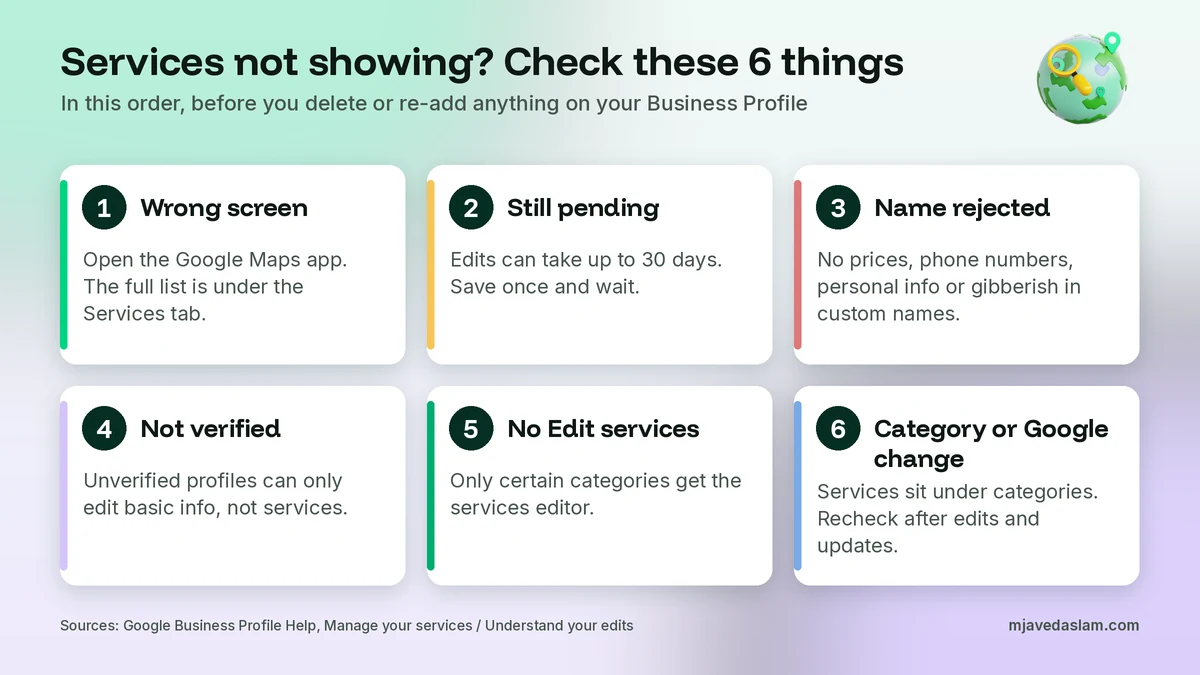
Here’s the short answer. When your Google Business Profile services are not showing, it’s almost always one of a few causes. You’re looking in the wrong place (the full list lives under Services in the Google Maps app). The edit is still Pending, which Google says can take up to 30 days. A custom service name broke Google’s rules and was rejected automatically. The profile isn’t verified yet. Your business category doesn’t offer the services editor. Or a category change or a Google update has replaced what you entered. Check those in that order. In rarer cases the profile is suspended, and nothing you save will stick until that’s fixed. To get a custom service approved, keep the name plain: no prices, no phone numbers, no personal details, no gibberish. Put the price in the price field, save once, and wait.
I manage Google Business Profiles for local businesses in Pakistan and abroad, and “my services disappeared” is one of the most common messages I get. Most of the time nothing is broken. The owner checked the desktop result instead of the Maps app, or typed “AC Repair Rs 2,500, call 0300…” into the service name. In this guide I’ll walk through each cause, the exact fix, and how I set prices so they help instead of causing trouble. If you haven’t taken control of your listing yet, start with how to claim your Google Business Profile.
Where your services actually show on Google
Before you fix anything, make sure you know where to look. Google’s help page on how to manage your services on your Business Profile says two things. When local customers search for an offering you provide, that service may be highlighted on your profile. And on the Google Maps app, customers can view your full menu under “Services.”
So the place to check is the Maps app on a phone. Search for your business, open the profile, and look for the Services tab. A desktop search result may show one highlighted service or none at all, depending on what the person searched for. That’s normal. It doesn’t mean your list is gone.
I also check while signed out, or from a phone that isn’t logged in to the owner account. When you’re signed in as the owner, you can see your own pending edits, and that can make you think a change is live when customers can’t see it yet.
Google Business Profile services not showing: quick diagnosis
Here’s the table I use when a client tells me their services are missing. Find the row that matches what you see, then jump to the fix below.
| What you see | Most likely cause | What to do |
|---|---|---|
| Services show for you, but not on a signed-out phone | Edit still pending | Wait. Google says review usually takes 10 minutes but can take up to 30 days |
| One custom service never appears, the others do | Name broke the custom service rules | Rename it without prices, phone numbers, personal info or gibberish |
| There’s no Edit services button at all | Category doesn’t offer services, or profile isn’t verified | Check verification first, then your categories |
| Services vanished after you changed categories | Services are tied to categories | Re-add the services under your current categories |
| Services or details changed without you doing anything | Google update or a user’s suggested edit | Look for the notification in Edit profile and correct it |
| Nothing you save goes live | Profile is suspended or restricted | Fix the suspension first. Content edits won’t stick until then |
Fix 1: Check the right screen before you change anything
This sounds too simple, but it solves a lot of cases. Open the Google Maps app, find your business, and scroll the tabs at the top of the profile. If you see Services and your list is there, the services are working. They just aren’t highlighted for every search on desktop.
If you want people to see your services from the main search result too, the best lever is still a specific primary category and a clear description. My guide to choosing your Google Business Profile primary category explains how the category shapes what Google shows. Your services list supports that. It doesn’t replace it.
Fix 2: Your edit is still pending
Google reviews edits to a verified profile before they go live. Its page on what happens to your Business Profile edits lists three statuses. Accepted means the new info displays on your profile. Pending means the edit is still under review, which usually takes 10 minutes but sometimes up to 30 days. Not approved means Google might not approve a change if it can’t confirm it’s accurate.
My rule here is simple: save once, then leave it alone. When owners see Pending, they often delete the service and add it again, or rename it three times in a day. Each change is a new edit for Google to review. I note the date I saved, check again after a few days, and only act if the status changes to Not approved or the 30 days pass.
If you’re editing lots of fields at the same time, such as name, category and hours, expect the whole batch to take longer. When I do a full profile clean-up, I add services last, after the bigger changes have been accepted.
Fix 3: A custom service name was rejected
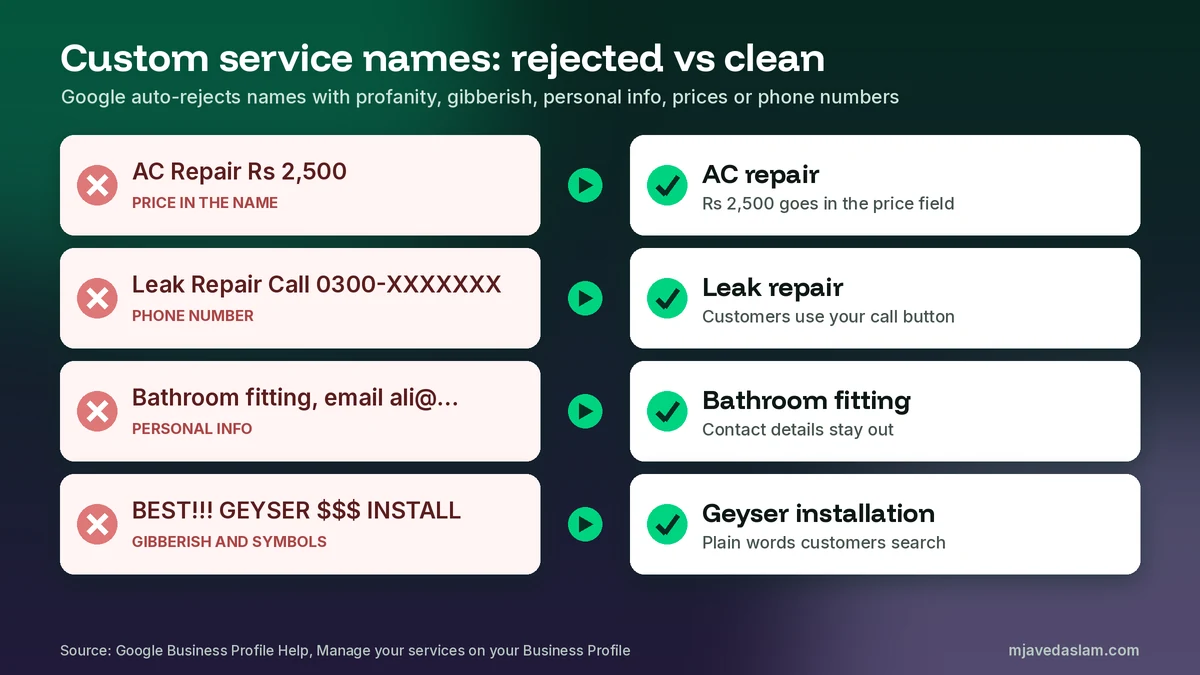
This is the most common reason one service is missing while the rest show. Google’s services help page is clear: custom services that violate policy are automatically rejected. It tells you to avoid profanity, gibberish, personal information, prices and phone numbers in custom service names.
In Pakistan I see the same mistakes again and again. A price in the name (“Geyser Repair Rs 1500”). A WhatsApp number in the name. An email address so customers can “send details.” Rows of stars, exclamation marks or all-caps words. Every one of those can get the service rejected.
Here’s how I rename them:
| Rejected-style name | Problem | Clean name |
|---|---|---|
| AC Repair Rs 2,500 | Price in the name | AC repair (price goes in the price field) |
| Leak Repair Call 0300-XXXXXXX | Phone number in the name | Leak repair |
| Bathroom fitting – email ali@… for quote | Personal information | Bathroom fitting |
| BEST!!! GEYSER $$$ INSTALL | Symbols and gibberish | Geyser installation |
I also keep names short and specific. Google’s Business Profile API reference, which listing tools use, recommends custom service names of 140 characters or less and descriptions of 250 characters or less. In the editor, I aim for two to five words, the way a customer would say it: “water tank cleaning,” not “professional water tank cleaning and washing service in all areas.”
One more check: list only services you really do at this business. Google’s guidelines say a service menu should represent the services that are available for customers at the business. If you add jobs you don’t actually do, you’re inviting trouble, and customers who call for them will be disappointed.
Fix 4: The profile isn’t verified yet
On an unverified profile, Google only lets you edit some info, such as business name, category, address, hours, phone number and website. That’s from the same edit status page. To edit everything else, including services, you need to verify.
So if a new client tells me the services editor is missing or nothing they add appears, I check verification first. If you’re stuck there, my guides on Google Business Profile video verification and postcard verification cover the usual problems.
Fix 5: There’s no Edit services option for your category
Services aren’t available to every business. Google says businesses in certain categories, like service businesses, might have the option to show their offerings, and its business category page lists updating a list of services as a category-specific feature for some business types, such as health and beauty. Restaurants get a menu editor instead.
If you don’t see Edit services, ask two questions. First, is your primary category the most specific one that’s true? A broad category may not offer the same suggested services as a specific one. Second, do you have honest secondary categories for the other main things you do? Google lets you add more categories, and the services editor lets you add a category and then add services under it.
What I don’t do is add a category just to unlock services. Google’s category help says not to choose a category for every product or service, and its edit help says not to use categories solely as keywords. Changing categories can also ask you to verify again. If your category simply has no services option, put your main services in your Google Business Profile description and on your website instead.
Fix 6: Services disappeared after a category change
Services in Google’s system are linked to categories. The Business Profile API reference shows that each suggested (structured) service comes from Google’s list for a category, and each custom service is stored under a category. So when you remove or swap a category, the services that sat under it may no longer fit.
That’s why I always check the services list right after any category edit. If services went missing, re-add them under the category that’s on your profile now. If you replaced a broad category with a more specific one, look at the new suggested services first. They’re often closer to what customers search for than the custom ones you typed before.
Fix 7: Google or a user changed your services
Sometimes services change without you touching them. Google’s page on Google updates on your Business Profile explains that Google gathers info from different sources, like user reports and licensed content, and may update your profile. Info changed by Google shows in blue in the profile editor, and you’ll see a notification at the top.
For certain suggested edits, Google may notify you first. You then have 4 days to accept or reject the suggestion. If you don’t respond, Google may publish it if it’s backed by other public info, like your website. This is a good reason to keep your website’s services page in line with your profile. When the two match, there’s less for Google to “correct.”
Fix 8: The profile is suspended or restricted
If nothing you save ever shows, check whether the profile is suspended. Google’s appeals help page says a suspended or disabled profile must be reinstated before you can appeal any content decisions. Get the suspension fixed first, then come back to services. If you suspect a second listing is causing problems, see how I fix a duplicate Google Business Profile.
How to add service prices without causing problems
Prices are useful. They help customers decide before they call, and they cut down on time-wasting enquiries. But they need to go in the right place. Google’s help says that once a service is added, you can open it and add info such as price and description. That’s the only place a price should go.
Here’s how I handle prices for clients:
- Price in the price field, never in the name. A price in the custom service name is one of the reasons Google lists for automatic rejection.
- Only add a fixed price if it’s really fixed. In the API reference, a service price is treated as a fixed price. If your editor shows price options, pick the one that matches how you really charge.
- If the price depends on the job, leave it blank. Use the description to say what affects the price, for example “Price depends on tank size. Free inspection before we quote.” A wrong price creates angry calls.
- Use your local currency. For my Pakistani clients that’s rupees, and the number should match what’s on the website and what staff say on the phone.
- Review prices every few months. Old prices are a quick way to lose trust. I put a reminder in my calendar for each client when prices change, such as before summer for AC work.
Short service descriptions help too. Say what’s included, how long it takes, or where you do it. Leave out promotions like “50% off this week.” Google’s guidelines tell you not to focus your business description on promotions, prices and sales, and I apply the same rule to service descriptions. Offers belong in posts.
What to do if a service edit is rejected
First, rename the service using the rules above and save it once. In my experience, a rejected custom service usually goes through once the price or phone number is out of the name.
If you think Google got it wrong, look at Google’s appeals options. For businesses in the UK or EEA, the appeals tool covers rejected business information edits, listed as name, category, address, phone and website. For the rest of the world, which includes Pakistan, Google points rejected profile edits to Contact us. Services aren’t on that list, so a cleaned-up resubmission is usually faster than an appeal.
If you do appeal anything, prepare proof first. Google gives examples like business registration, a business licence, tax certificates and utility bills, with the name and address matching your profile. Appeals can take up to 5 business days, and Google says not to submit more than one for the same issue.
Above all, don’t create a new profile to get a clean start. Google’s appeals page says not to make a new Business Profile for the same business. A duplicate can cause much bigger problems than a missing service.
My services setup checklist
When I build or clean up a services list, this is the order I follow. It takes about 30 minutes for a small business.
- Confirm the profile is verified and not suspended.
- Check the primary and secondary categories are specific and true.
- Open Edit services and add Google’s suggested services first, because they match how Google groups searches.
- Add custom services only for real jobs that aren’t suggested, with short, plain names.
- Add a price only where it’s fixed; otherwise write what affects the price in the description.
- Group services under the right category so the list reads well in the Maps app.
- Save once, note the date, and check the status after a few days.
- Open the Maps app on a signed-out phone and confirm the Services tab looks right.
- Match the services page on your website to the same names.
For businesses that travel to customers, also check your service areas. My guide on service-area businesses on Google Business Profile covers that. And if customers should book online, add a booking link so the services list leads to an action. You can also manage most of this from your phone with the Google Business Profile app (Google Maps).
A note for businesses in Pakistan
Many profiles I audit in Pakistan have the same three problems: phone or WhatsApp numbers inside service names, prices in the names, and services copied from a competitor that the business doesn’t offer. Fix those three and most “not showing” issues go away.
Use the words your customers use. If people search for “UPS repair” or “solar panel installation,” use those words, not a long English sentence. Keep each name in one language and don’t repeat the same service in two spellings. One clean entry is better than three near-copies.
FAQ
Why are my Google Business Profile services not showing?
Usually because the edit is still pending, a custom service name broke Google’s rules, the profile isn’t verified, your category doesn’t support services, or a category change removed them. Check the Services tab in the Google Maps app first, because that’s where Google shows the full list.
How long does it take for services to show on Google Business Profile?
Google says edits usually take up to 10 minutes to review, but sometimes up to 30 days. Save once and avoid editing the same service again while it’s pending.
Why was my custom service rejected?
Google automatically rejects custom services that break its policy. Its help page says to avoid profanity, gibberish, personal information, prices and phone numbers in custom service names. Rename the service plainly and save it again.
Can I add prices to my Google Business Profile services?
Yes. Open the service in Edit services and add the price in the price field, not in the name. Only add a price if it’s really fixed. If it depends on the job, leave it blank and explain what affects the price in the description.
Why don’t I see the Edit services option?
Services are only available for certain categories, and some options need a verified profile. Check that you’re verified, then make sure your primary category is the most specific true one. Don’t add categories just to unlock services.
Can I appeal a rejected service?
Google’s appeals tool covers rejected business information edits such as name, category, address, phone and website, and outside the UK and EEA it points rejected profile edits to Contact us. For a rejected custom service, fixing the name and saving it again is usually the quickest route.
Next step
If your services still won’t show, or you’d like someone to rebuild the list with the right categories, names and prices, I can audit your profile and fix it. See my Google Business Profile service page, or get in touch with your business name and city. Once your Google Business Profile services are showing properly, keep them current and they’ll keep working for you.