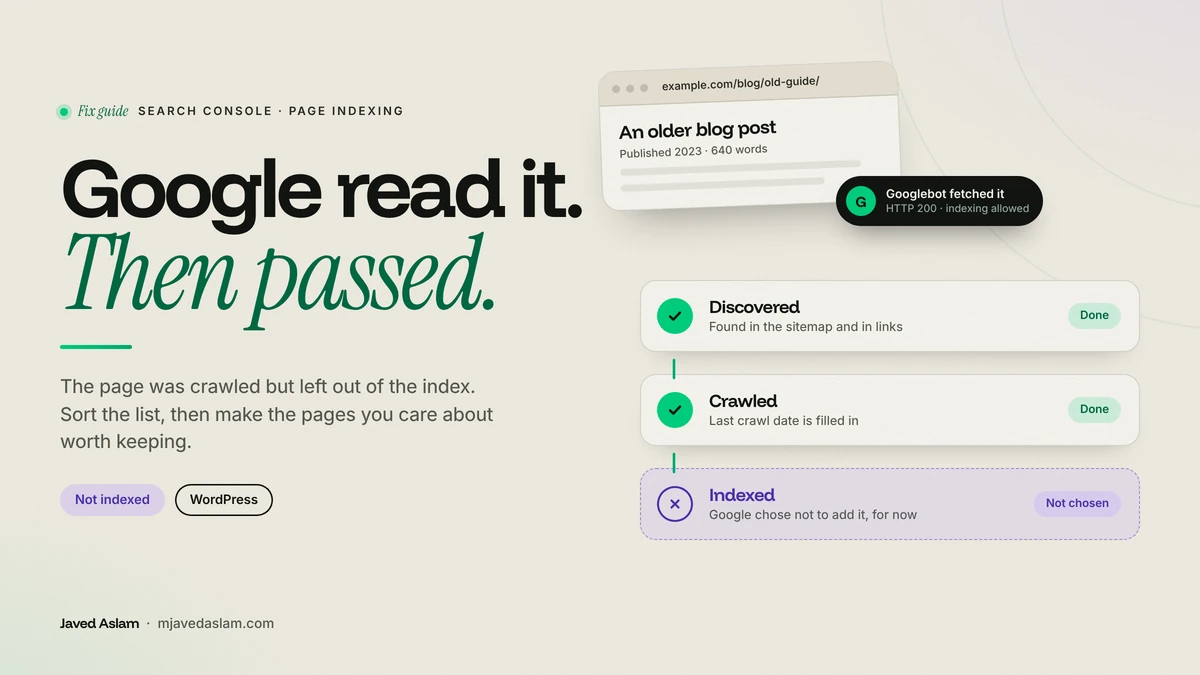
Here’s the short answer. Crawled – currently not indexed in Google Search Console means Googlebot fetched the page, read it, and decided not to add it to the index, at least for now. It is not a penalty and it is not a crawl error. Google’s own help page says it is a common message that doesn’t always need attention. The fix only matters for pages you actually want in search results, and for those it is usually about making the page more useful and better connected, not about pressing “Request indexing” again.
I’m Javed Aslam, a digital marketer, and I go through the Page indexing report on WordPress sites most weeks. This row causes more worry than almost any other, because unlike discovered currently not indexed, Google has already seen the page. It looked, and it said no. In this guide I’ll show you how I sort the list, which WordPress URLs you can safely ignore, and the five-step fix I use on posts and pages that should be ranking.
What “crawled – currently not indexed” means
Google’s Page indexing report help describes the status in two sentences: the page was crawled by Google but not indexed, and because Google doesn’t index all pages across the web, this is a common message for many sites that doesn’t necessarily indicate an issue. For important pages, Google suggests using the URL Inspection tool to check whether something on your site is getting in the way, such as blocking its crawlers.
Google’s guide to how Search works says the same thing more bluntly: indexing isn’t guaranteed, and not every page that Google processes will be indexed. It lists three common reasons a page isn’t indexed: the content quality is low, robots meta rules disallow indexing, or the site’s design makes indexing difficult.
Read the status name as three facts:
- Crawled: Googlebot visited the URL and got the page. The report shows a last crawl date, unlike the discovered status.
- Currently: this is Google’s latest decision, not a permanent one. Every time Google recrawls the page, it can decide again.
- Not indexed: right now the page can’t appear in Google Search results, not even for its exact title.
If you’re not sure which of the two “not indexed” rows you’re looking at, check the last crawl date. An empty date means Google hasn’t fetched the page yet, which is the discovered status and a crawl-queue problem. A filled-in date means this status, which is a selection problem. My guide to discovered currently not indexed covers the first one, so here I’ll stay with pages Google has already read.
First, decide whether you need to do anything
Two things from Google’s help page keep this in proportion. The example list in the report is capped at 1,000 URLs and isn’t guaranteed to show every affected URL, so treat it as a sample. And Google’s guide for non-experts says that if your site has fewer than 500 pages, you probably don’t need the Page indexing report at all. A few site: searches for your key pages tell you enough.
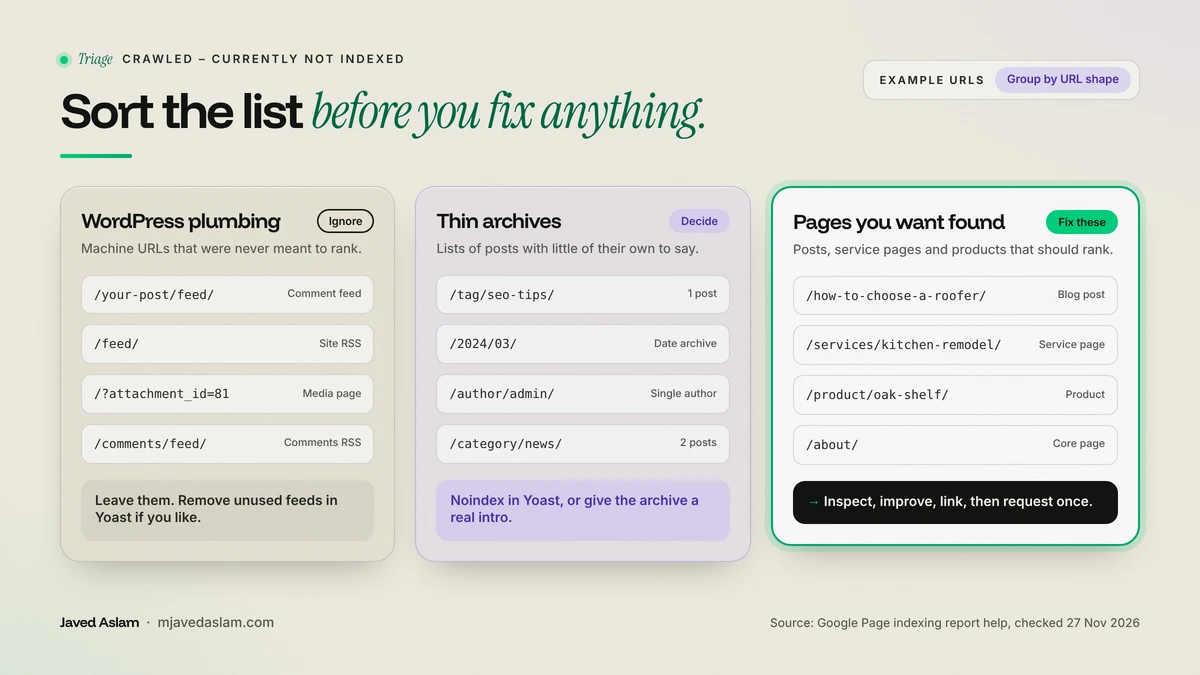
So before fixing anything, open Indexing → Pages, click Crawled – currently not indexed, and sort the example URLs by their shape. On WordPress sites they almost always fall into three groups.
Group 1: WordPress plumbing you can ignore
WordPress creates URLs that exist for software, not for searchers. The most common ones I find in this row:
- RSS feeds. Your main
/feed/, the/comments/feed/URL, and a comment feed for every single post at/post-name/feed/. A busy blog can have hundreds of these. - Attachment pages. Older sites often have
?attachment_id=URLs or/post-name/image-name/pages that show one image and nothing else. - Leftovers from old setups. URLs from a plugin or page builder you removed, as long as they still return a page.
Here’s a first-hand check from my own site, run on 27 November 2026. I loaded the comment feed of my discovered currently not indexed post at /discovered-currently-not-indexed/feed/. It returned a 200 with application/rss+xml and no noindex header, so Google can crawl it like any other URL. It’s exactly the kind of URL I expect to see in this row, and it’s not a problem. Nobody needs a comment feed to rank.
If the feed URLs bother you, Yoast SEO has a Crawl optimization section under Yoast SEO → Settings → Advanced where you can remove the feeds you don’t use. That’s optional tidying. For attachment pages, recent WordPress versions turn them off by default on new installs, and Yoast has a Media pages setting in the same Advanced area. With media pages turned off, attachment URLs redirect to the file itself.
Group 2: Thin archives you should decide on
Tag pages with one post, date archives like /2024/03/, an author archive on a one-author blog, and category pages with only a couple of posts. These are lists of links with nothing of their own to say, so it’s no surprise Google passes on them.
You have two honest options. Either noindex the archive type in Yoast, or give the archive a reason to exist with a real introduction and enough posts to be worth browsing. On my site, tag archives and internal search results are already set to noindex, follow, which I checked in the page source on the same day. Archives with that tag move to the Excluded by ‘noindex’ tag row instead, which is the correct place for them. Don’t block these URLs in your robots.txt to make them disappear. If Google can’t crawl the page, it can’t see the noindex tag either.
Group 3: Pages you want found
Blog posts, service pages, product pages, your About page. If any of these are in the row, that’s where your time goes. One example from my own site: an older, general post about using Twitter in a digital marketing strategy shows this status. URL Inspection says Google last crawled it on 15 July 2026 and didn’t index it. The page loads fine and allows indexing. It simply covers a topic hundreds of sites have already covered, in a less specific way. That’s the typical story, and the fix below is what I’m applying to it.
The five-step fix for a page you want indexed
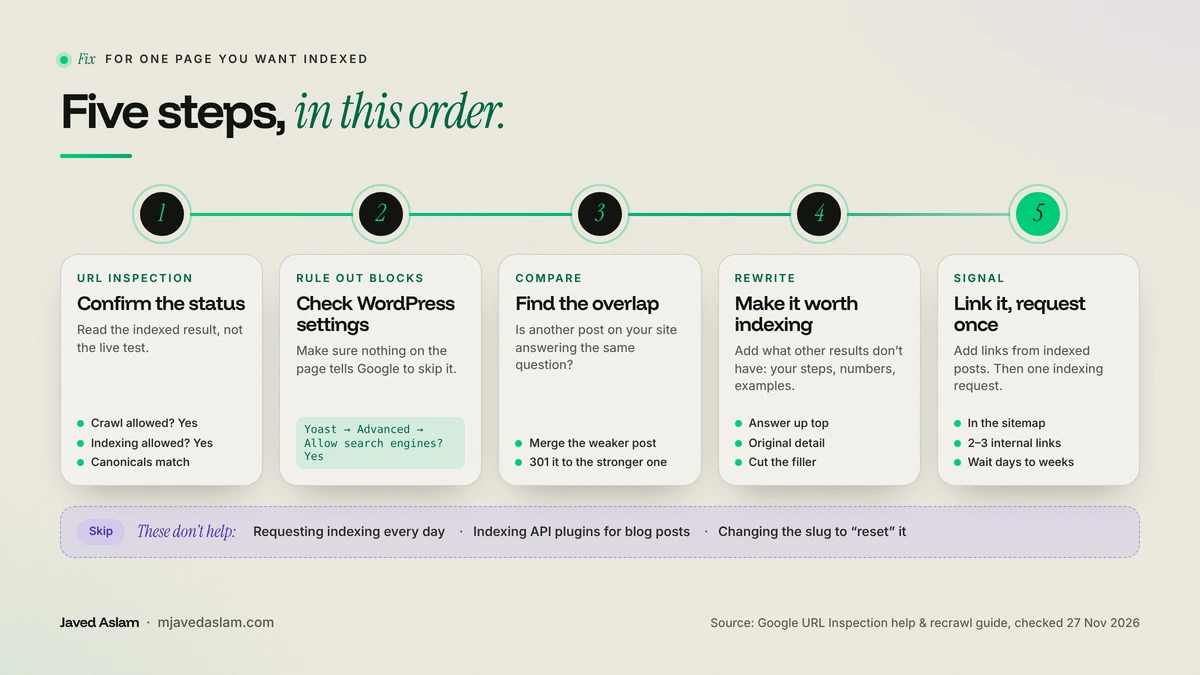
Work on one page at a time, starting with the pages that matter most to your business. The order matters: the indexing request comes last.
1. Confirm the status in URL Inspection
Paste the URL into the search bar at the top of Search Console. Google’s URL Inspection tool help points out that the main result is not a live test. It shows the most recently indexed or crawled version, so start there. Expand Page indexing and check these fields:
- Last crawl: when Google last fetched the page. If you’ve improved the page since then, Google hasn’t seen those changes yet.
- Crawl allowed? should be Yes. If it says No, a robots.txt rule is blocking the URL.
- Indexing allowed? should be Yes. Google’s help notes one trap here: if the page is blocked by robots.txt, this field always shows Yes, because Google can’t see the noindex rule.
- User-declared canonical and Google-selected canonical should both be this page’s own URL.
If the two canonicals don’t match, you’re dealing with a duplication problem, not a quality one. My guides to duplicate without user-selected canonical and alternate page with proper canonical tag show how to read those fields. Then click Test live URL, open View tested page, and check the screenshot to make sure Google sees your actual content, not an empty theme shell or a cookie wall.
2. Rule out WordPress settings
This takes two minutes and saves you from rewriting a page that was never the problem:
- Open the post, go to the Yoast SEO box, open Advanced, and check that Allow search engines to show this Post in search results? (or Page) is set to Yes or to the default, which is Yes for posts and pages unless you changed it.
- In Settings → Reading, make sure Discourage search engines from indexing this site is unticked. It’s often left on after a staging copy goes live.
- View the page source and search for
rel="canonical". There should be exactly one, pointing to this page’s own address. - Check the post is in your sitemap. My guide to Yoast SEO XML sitemap settings shows where to look and which content types belong in it.
3. Look for overlap on your own site
Search Google for site:yourdomain.com plus the main topic of the page. If you have two or three posts answering the same question, Google often indexes one and leaves the others out. I see this all the time on blogs that published several posts on one topic over the years.
The fix is to merge. Move the best parts of the weaker post into the stronger one, then send the old URL to the new one with a 301 redirect. The old URL will then show up as page with redirect in Search Console, which is expected and fine.
4. Make the page worth indexing
When the page is technically clean and unique on your site, the remaining question is whether it adds anything to what’s already in the results. Google’s guide to creating helpful, reliable, people-first content asks questions like these: does the content provide original information, reporting, research or analysis? Does it provide substantial value when compared to other pages in search results? If it draws on other sources, does it avoid simply copying or rewriting them?
In practice, these are the edits I make:
- Answer the question in the first two or three sentences, the way you’d answer a customer on the phone.
- Add what only you can add: your own steps, screenshots, prices you’ve actually quoted, mistakes you’ve seen clients make.
- Cut the generic opening paragraphs and the section that repeats every other article on the topic.
- Make the title and main heading say exactly what the page covers. Vague titles make vague pages.
- Update anything out of date. A 2021 screenshot of a menu that has since changed tells readers and Google the page is stale.
If you want a structured way to check this, my E-E-A-T checklist for small business sites walks through the trust signals I look for on service and blog pages.
5. Link to it, then request indexing once
Add two or three links to the page from related posts that are already indexed, using anchor text that describes the page. A post that only appears in the sitemap and on page nine of your blog archive doesn’t look important, to readers or to Google.
Then, and only then, inspect the URL and click Request indexing. Google’s guide on how to ask Google to recrawl your URLs is clear on three points: there’s a quota for individual requests, requesting a recrawl multiple times for the same URL won’t get it crawled any faster, and a request doesn’t guarantee inclusion in search results. Crawling can take anywhere from a few days to a few weeks. So request once, note the date, and check back after a week or two.
When many real pages are in this row
One or two posts is a page problem. Dozens of good-looking posts is usually a site problem, and fixing pages one by one won’t be enough. The patterns I look for:
- A batch of similar posts published quickly. Many near-identical location or service pages, or AI-drafted posts on overlapping topics. Google indexes a few and passes on the rest.
- Large numbers of thin posts from early blogging days, which make the whole blog look low-value.
- Weak internal linking, where new posts are only reachable through the sitemap.
Here the fix is editorial: merge overlapping posts, improve or remove the weakest ones, and slow down publishing until the posts you have are indexed. Google’s help page also mentions a form for reporting an indexing issue, but only after you’ve fully diagnosed your site and suspect a genuine site-wide bug on Google’s side. In my experience that’s rarely the cause.
What not to do
- Don’t request indexing every day. Google says repeated requests for the same URL don’t speed anything up, and you’ll burn your daily quota on a page Google has already judged.
- Don’t use Indexing API plugins for blog posts. Google’s Indexing API documentation says the API can only be used for pages with job postings or livestream videos (JobPosting or BroadcastEvent in a VideoObject). It isn’t a shortcut for normal pages.
- Don’t change the slug to “reset” the page. A new URL with the same content is still the same content. You lose the old URL’s history and add a redirect for nothing.
- Don’t delete a post just because it’s in this row. Check whether it gets traffic from other sources, earns links, or can be merged first.
- Don’t wait on Validate fix. It’s optional. Google updates the count whenever it recrawls an affected URL, whether or not you started a validation, and validation typically takes up to about two weeks.
How long does it take to get indexed after a fix?
There’s no fixed timeline. Google’s recrawl guide says crawling can take a few days to a few weeks, and a recrawl only means Google looks again. It still makes its own decision. What I do is note the date I made the changes and requested indexing, then check URL Inspection after a week or two. If the last crawl date is after my changes and the status hasn’t changed, the page needs more work, usually in step 3 or 4. If the last crawl date hasn’t moved, the page needs more internal links pointing to it.
FAQ
01Is crawled currently not indexed an error?
No. Google’s Page indexing report help says the page was crawled but not indexed, and that this is a common message which doesn’t necessarily indicate an issue. It only needs work when an important page, such as a post or service page you want ranking, is in the list.
02What is the difference between crawled and discovered currently not indexed?
Discovered means Google knows the URL but hasn’t crawled it yet, so the last crawl date is empty. Crawled means Google has already fetched and read the page and chose not to index it. The first is usually a crawl-queue issue. The second is usually about content quality, duplication or how well the page is linked.
03How do I fix crawled currently not indexed in WordPress?
Confirm the status in URL Inspection, check that Yoast allows the page in search results and that there is one correct canonical, merge any overlapping posts, improve the page with original detail, add internal links from indexed posts, then request indexing once.
04Should I keep requesting indexing until it works?
No. Google says there is a quota for indexing requests, that requesting a recrawl multiple times for the same URL won’t get it crawled any faster, and that a request doesn’t guarantee indexing. Improve the page, request once, and check back after a week or two.
05Why are my WordPress feed URLs crawled but not indexed?
WordPress creates RSS feeds for the whole site, for comments, and for every post. Google can crawl them, but they aren’t pages for searchers, so they usually aren’t indexed. That is expected. You can remove unused feeds in Yoast SEO’s Crawl optimization settings, but you don’t have to.
Next step
Open the Page indexing report, click Crawled – currently not indexed, and sort the example URLs into the three groups above. Leave the feeds and media URLs alone, make a decision on thin archives, and take the pages you want found through the five steps one at a time, most important first.
If a page you care about has been stuck in this row for weeks and you can’t see why, get in touch and I’ll take a look.

✳Written by
Javed Aslam
Digital marketer, copywriter and SEO specialist. I help small businesses get found, read and chosen. More about me.