

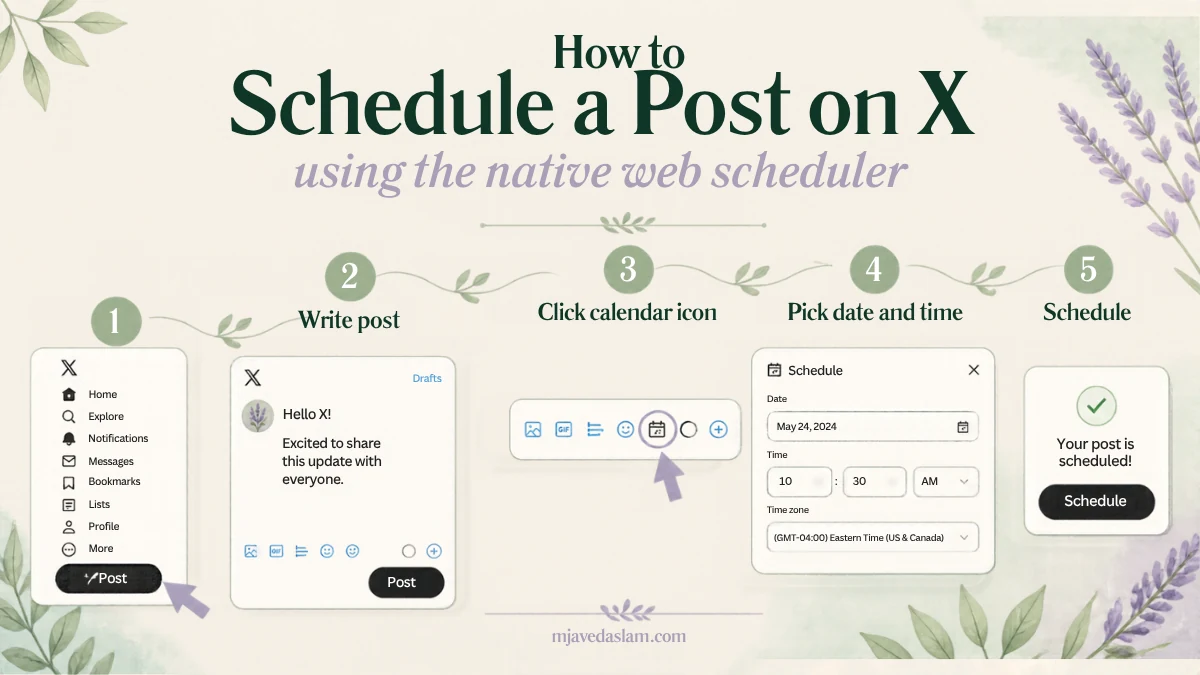
If you want to know how to schedule tweets on X without paying for a tool, use X’s native scheduler on the website: open the Post composer, write your post, tap the calendar icon, pick a date and time, Confirm, then Schedule. It’s free, one post at a time, and aimed at the desktop web composer — not the phone apps.
Scheduling matters for small businesses that can’t live in the feed all day. You batch ideas when you have quiet time, then publish when your customers are actually scrolling. The native tool is enough for a light cadence. When you need a calendar, threads in bulk, or mobile scheduling, that’s when a third-party tool earns its keep.
Here’s the practical path I recommend: native scheduler first, X Pro if you like columns, then a free or paid tool only when you hit a clear limit. I’ll also point you to my roundup of Twitter / X marketing tools and a planned comparison of free X scheduling tools when you outgrow the built-in option.
What you need (and what you don’t)
You need an X account and a browser on x.com. You do not need X Premium just to queue a standard post with the native calendar icon. Premium changes character limits and other features; it isn’t the gate for basic scheduling on the web composer.
Expect these limits with the native path:
- Desktop / web first — Established how-to guides (Buffer, Sprout Social and others) describe the calendar icon on the web composer. The official mobile apps are not a reliable place to schedule.
- One post at a time — No bulk CSV upload in the native composer.
- Polls — Buffer’s guide notes you generally can’t schedule polls the same way; post those live when you need them.
- Far-ahead dates — Third-party writeups commonly cite scheduling up to about 18 months out on native; confirm the date picker on your account because UI caps can change.
UI labels shift. If your composer shows “Schedule” instead of “Post” after you set a time, you’re in the right flow. If the calendar icon is missing on a phone browser, request the desktop site or switch to a laptop.
How to schedule a post on X (native web steps)
- Sign in at x.com in a desktop browser.
- Click Post (or the compose field) to open the composer.
- Write your text. Add images, a GIF, video, mentions or a link the same way you would for an immediate post.
- Click the calendar / schedule icon in the composer toolbar (same row as media and emoji).
- Choose the future date and time. Check the timezone shown so an evening post doesn’t publish at breakfast.
- Click Confirm.
- Click Schedule (it replaces the usual Post button once a time is attached).
That’s the whole native flow. Media, hashtags and links go out exactly as you wrote them. Proofread before you Schedule — editing later means finding the item in Unsent posts.
Where to find, edit or delete scheduled posts
Open the composer again and look for Unsent posts / Drafts, then the Scheduled tab. That’s the queue. From there you can open an item to edit or delete before it publishes. Buffer’s public how-to matches this path: Post → Drafts → Scheduled → Edit → select → Delete.
There is no full month calendar inside the basic composer. If you need a week view across several accounts, that’s a reason to move to X Pro or a dedicated scheduler.
Scheduling from X Pro (formerly TweetDeck)
X Pro is X’s column-based web workspace (the product line that replaced TweetDeck). It’s useful when you watch mentions, lists and a schedule side by side. Availability and Premium requirements for X Pro have changed over time — check what your account sees when you open pro.x.com.
If X Pro is available to you, use its composer scheduling the same way you’d think about the main site: draft → set time → schedule, then keep a Scheduled column or view so nothing gets lost. For many solo owners, the main x.com composer is simpler; X Pro shines when you’re monitoring conversations while posts go out.
Can you schedule tweets on the X mobile app?
Short answer: don’t count on it. Major guides in 2025–2026 still describe native scheduling as a web/desktop feature. On a phone, open x.com in the browser and request the desktop site if the calendar icon is missing, or schedule from a laptop.
If you truly need mobile scheduling every day, use a reputable third-party app that supports X — that’s one of the clearest “upgrade” triggers.
When the native scheduler is enough (and when it isn’t)
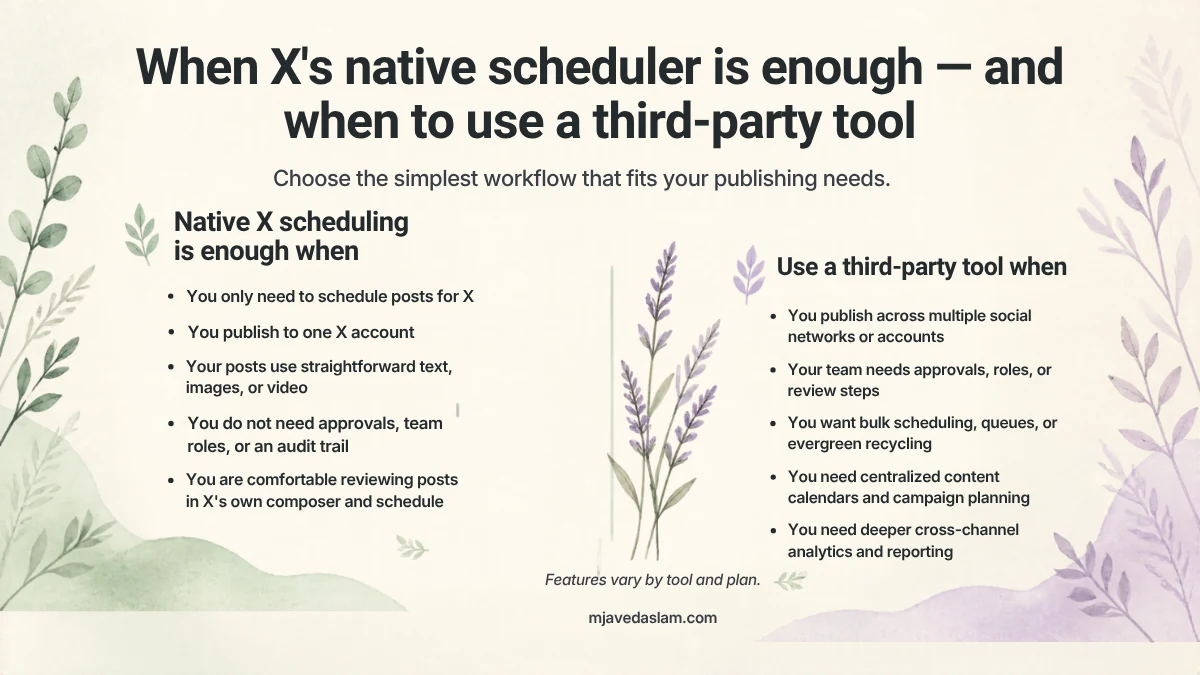
Stay native if you:
- Post a few times a week from one account.
- Mostly schedule single posts (not long thread campaigns).
- Are fine managing the queue from a computer.
Add a tool if you:
- Need a visual content calendar or team approvals.
- Schedule the same idea across X, LinkedIn and others.
- Want bulk scheduling, first comments, or reliable mobile apps.
- Hit composer/queue friction (draft clutter, missed timezone mistakes).
I’m not going to crown a single “best” SaaS here — pricing and X API access change. Start with free tiers, connect only accounts you control, and revoke access if you stop using the tool. For a broader toolkit view, see top Twitter marketing tools; for a free-tier shootout, wait for / follow best free X scheduling tools.
Practical scheduling habits for small businesses
- Batch weekly — One 45-minute block beats seven rushed posts.
- Leave reply time — Scheduled posts still need a human in the replies. Dead silence after a promo post feels automated.
- Use your own analytics — X Analytics (when available on your account) beats generic “best time to post” charts. Test two windows for two weeks.
- Don’t schedule sensitive news — Product outages, political takes and apology posts should stay manual.
- Match the offer to the profile — Link to a page that loads fast and matches the promise in the post. Scheduling junk to a weak landing page just wastes the click.
If X is only one slice of your marketing, keep the workflow light. A clear Google Business Profile and local pages often drive more calls than a busy feed — start from services or local SEO if that’s the real gap.
Threads, quote posts and Premium-length posts
Quote posts: Use Quote on the original post, write your comment, then use the same calendar icon on the web composer.
Threads: Native scheduling of full multi-post threads is awkwardly limited compared with tools built for threads. Many owners write the thread live or use a scheduler that supports thread steps. Don’t promise yourself a 12-part native queue if the composer only schedules the first post cleanly — verify on your account before you plan a campaign around it.
Longer Premium posts: Character limits differ for Premium vs free accounts. Some third-party tools advertise scheduling longer Premium posts; the native composer’s behavior can lag feature rollouts. If long-form matters, test one scheduled Premium-length post before you build a calendar on it.
Developers automating publish times should read X’s current manage Tweets API docs — that’s a different path from the clickable calendar icon, and API access tiers change.
FAQ: Scheduling tweets on X
How do I schedule tweets on X for free?
Use the calendar icon in the Post composer on x.com in a browser. Confirm the date and time, then click Schedule. No paid tool required for basic single-post scheduling.
Can I schedule tweets on the X mobile app?
Not reliably. Use the desktop website, a mobile browser with desktop mode, or a third-party app that supports scheduling.
Where do my scheduled posts go?
Open the composer → Unsent posts / Drafts → Scheduled. Edit or delete from there before publish time.
Do I need X Premium to schedule posts?
No for basic native scheduling on the web composer. Premium affects other features (including longer posts); it isn’t described by major guides as the unlock for the calendar icon itself.
How far in advance can I schedule?
Third-party documentation commonly cites up to about 18 months on the native scheduler. Always confirm the date picker on your account, and avoid scheduling polls the same way.
Native scheduler vs Buffer or similar tools — which should I use?
Native for a simple solo queue. A tool when you need calendars, mobile scheduling, multi-platform posting or team workflows.
Will scheduling posts guarantee more followers or sales?
No. Scheduling only controls timing. Results still depend on the offer, creative, replies and whether X is even the right channel for your customers.
Quick checklist
- Schedule from x.com on desktop with the calendar icon.
- Double-check timezone before you Confirm.
- Review the Scheduled tab weekly so stale posts don’t fire.
- Keep reply time on your calendar after queued promos.
- Upgrade to X Pro or a tool only when you feel a specific pain — not because a landing page said so.
That’s how to schedule tweets on X in 2026 without overcomplicating it: native first, habits second, tools when the queue demands it. If you want help tying social posting into a wider small-business marketing plan, start from the services page or the contact form.