GoHighLevel Smart Lists are saved, filtered views of your contacts. You set filters, such as a tag, a custom field value, a date or recent activity, save the result as a named list, and the list updates itself as contacts change. Your team opens “Hot leads” or “Past customers due for service” with one click instead of rebuilding filters every morning, and you can run bulk actions on exactly the right people.
This guide covers how Smart Lists work, when to use tags versus custom fields, a set of list recipes worth saving, bulk actions and how to use them safely, and how to keep your contact data clean enough for lists to be trusted. I build GoHighLevel systems for US service businesses, and messy segmentation is one of the most common problems in HighLevel accounts.
What a Smart List is (and isn’t)
In GoHighLevel, the Contacts area shows all contacts in the sub-account. When you add filters and save the view, it becomes a Smart List, shown as a tab along the top of the contacts screen. Key points:
- It’s dynamic. A Smart List isn’t a fixed export. When a contact gains the tag or meets the condition, they appear; when they no longer match, they drop off.
- It’s a view, not a workflow. Saving a Smart List doesn’t send anything. It just shows you the right contacts. Automation happens in workflows, and you can use the same conditions there.
- It can be shared. You can share lists with other users in the account, so everyone works from the same definitions.
- Columns are customisable. Choose which fields appear, such as phone, tags, last activity or a custom field, so each list shows what that team needs.
Exact menu names and options change as HighLevel updates the interface, so check the HighLevel help centre if a button has moved.
How to create a Smart List
- Go to Contacts in the sub-account.
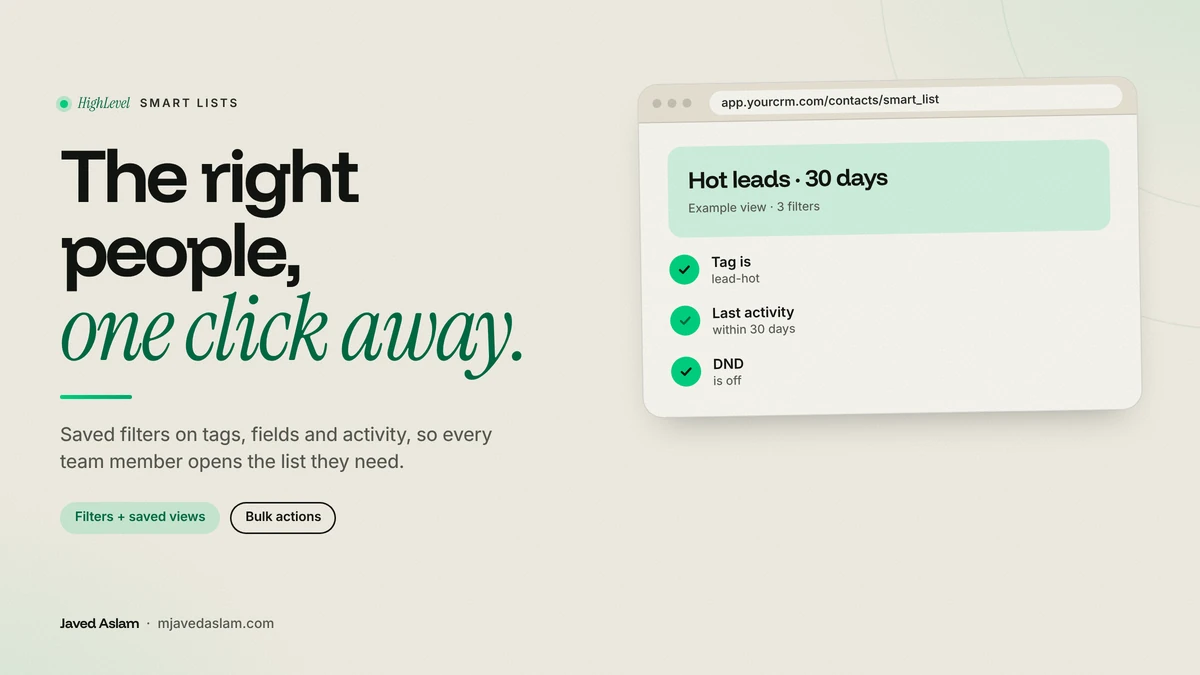
- Click the filter option and add one or more conditions, for example “Tag is lead-hot” and “Last activity is within 30 days”.
- Check the results look right. Open a few contacts to confirm they belong.
- Save the view as a new Smart List with a clear name.
- Adjust the visible columns and sort order.
- Share it with the users who need it.
Name lists so anyone can understand them: “Leads: new, not contacted (48h)” is better than “List 3”.
Filters you’ll use most
Smart Lists can filter on many contact properties. The most useful for service businesses:
- Tags: has tag, doesn’t have tag. The workhorse of segmentation.
- Custom fields: service type, last service date, property type, lead score, and so on. My guide to GoHighLevel custom fields covers how to set these up.
- Dates: created date, last activity, appointment dates, or date custom fields.
- Contact details: has phone, has email, city, state, source.
- Communication status: DND (do not disturb) settings, so you can exclude people who opted out.
- Opportunities and pipeline stage, where available, to find contacts tied to deals in a particular stage.
Combine filters with AND logic to narrow a list. Where you need OR logic, for example “tag is lead-hot OR tag is lead-warm”, check whether the current filter options support it, or use a single shared tag.
Tags vs custom fields: which to use
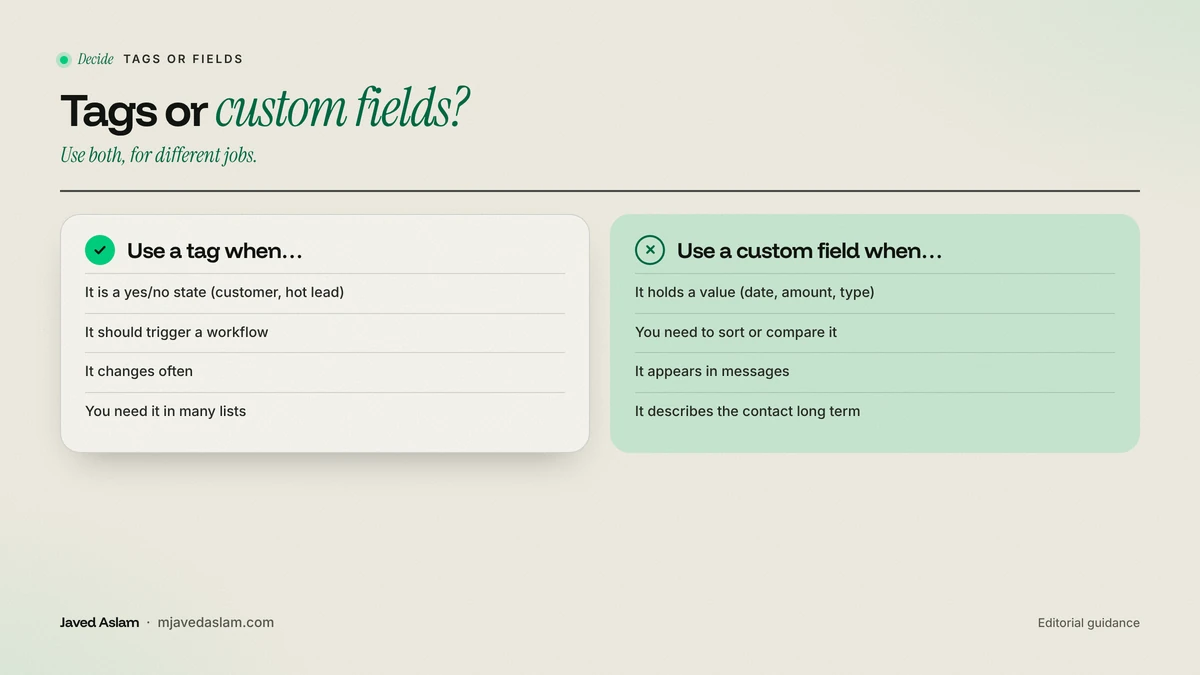
Smart Lists are only as good as the data behind them. A common question is whether something should be a tag or a custom field.
Use a tag when:
- It’s a yes/no state: customer, hot lead, no-show, newsletter.
- It should trigger a workflow when added or removed.
- It changes often.
- You need it across many lists and workflows.
Use a custom field when:
- It holds a value: a date, an amount, a service type, a property size.
- You need to compare or sort it, for example “service date more than 11 months ago”.
- It appears inside messages, such as “Your last [service] was in March”.
- It describes the contact long term.
A good rule: tags for status, fields for facts. A contact might have the tag “customer” and a custom field “last service date: 2026-03-14”. Smart Lists then combine them: customers whose last service was more than 11 months ago.
Tag naming that scales
Without a naming system, accounts end up with hundreds of overlapping tags: “hot”, “Hot Lead”, “hot-lead”, “HOT”. Lists break because nobody knows which tag is current. Use a simple convention:
- Prefix by type: “lead-“, “customer-“, “source-“, “campaign-“, “status-“.
- Lowercase with hyphens: “lead-hot”, “source-google-ads”, “campaign-spring-2026”.
- Document it: keep a short tag dictionary in a shared doc so the team uses the same names.
- Delete unused tags every quarter.
Smart List recipes worth saving
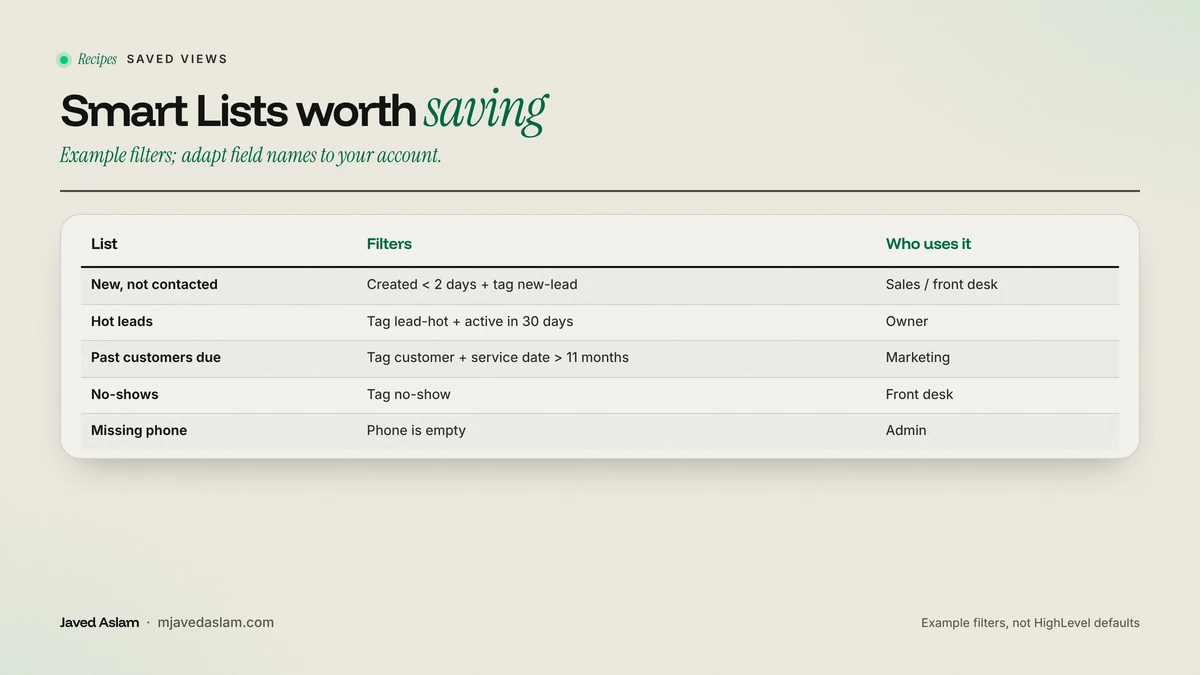
These are example recipes. Adjust the tag and field names to match your account.
For the front desk or sales team
- New leads, not contacted: created in the last 2 days, tag “lead-new”, no tag “status-contacted”. Work this list first every morning.
- Hot leads: tag “lead-hot”, last activity within 30 days.
- Quotes sent, no reply: tag “status-quote-sent”, no tag “status-won” or “status-lost”, created more than 3 days ago.
- No-shows to rebook: tag “status-no-show” in the last 14 days.
For marketing
- Past customers due for service: tag “customer”, last service date more than 11 months ago, DND off.
- Newsletter list: has email, tag “newsletter”, email not unsubscribed.
- Reactivation candidates: last activity more than 12 months ago, not a current customer. See my guide to database reactivation campaigns.
- Review candidates: tag “status-job-complete” in the last 7 days, no tag “review-requested”.
For admin and data quality
- Missing phone: phone is empty.
- Missing source: source is empty, created in the last 30 days. Fix these to keep reporting accurate.
- Possible duplicates: use HighLevel’s duplicate contact settings and merge tools, and review contacts with the same phone or email.
Bulk actions: powerful, so be careful
From a Smart List, you can select contacts and run bulk actions. Depending on your account and permissions, these include adding or removing tags, adding contacts to a workflow, sending a text or email, exporting, and deleting.
Bulk actions save hours, but they can also cause damage in seconds. Follow these rules:
- Check the count first. If you expected 50 contacts and the list shows 5,000, stop.
- Exclude opt-outs. Always filter out DND contacts before sending marketing messages, and make sure you have consent to text. My guide to A2P 10DLC covers texting rules.
- Prefer workflows over bulk sends. Adding contacts to a workflow gives you stop conditions, delays and reporting. A bulk text has none of that.
- Send in batches if replies will need a human response, so your team can keep up.
- Restrict delete and export permissions to admins. Exports contain personal data, and deletes can’t always be undone.
Smart Lists and workflows together
Smart Lists show you who matches. Workflows act on them automatically. A good pattern is to define a segment once and use it in both places:
- The workflow adds the tag “status-quote-sent” when a quote goes out and removes it when the deal is won or lost.
- The Smart List “Quotes sent, no reply” uses that tag, so the sales team sees exactly who to call.
- A second workflow sends an automatic reminder after three days to the same people.
This keeps the team’s manual work and the automation in sync. My guide to GoHighLevel automation covers workflow building, and GoHighLevel pipelines covers deal stages, which are often a better fit than tags for tracking sales progress.
Smart Lists vs pipelines
People sometimes try to manage sales entirely with tags and Smart Lists. Pipelines are usually better for that, because each deal has a stage, a value and a history. Use pipelines for “where is this deal?” and Smart Lists for “which contacts match these conditions?”. They work well together: a Smart List can surface contacts in a particular stage who haven’t been contacted recently.
Lists for email campaigns
When you send an email campaign in GoHighLevel, you’ll usually choose recipients by tag or Smart List. Build a dedicated list for each recurring campaign, such as the monthly newsletter, and check it before each send. Exclude unsubscribed contacts and anyone who bounced. My guide to GoHighLevel email marketing covers deliverability and setup.
Keeping your data clean
Smart Lists are only trusted if the data is clean. A monthly 20-minute routine:
- Open the “Missing source” and “Missing phone” lists and fix what you can.
- Merge duplicates.
- Review new tags created this month and remove any that break the naming convention.
- Check that key workflows are still adding and removing tags correctly.
- Archive or delete lists nobody uses.
Common mistakes
- Too many similar lists with unclear names, so nobody knows which is right.
- Tags used for facts, such as “service-march-2026”, which belong in a date field.
- Bulk texting without excluding DND contacts.
- Lists built on tags nothing maintains, so the list slowly becomes wrong.
- Everyone has delete and export rights.
Frequently asked questions
01What are Smart Lists in GoHighLevel?
They’re saved, filtered views of your contacts that update automatically as contacts change, based on tags, custom fields, dates, activity and other conditions.
02How do I create a Smart List in GoHighLevel?
In Contacts, add the filters you need, check the results, then save the view as a new Smart List with a clear name. You can customise columns and share it with other users.
03Should I use tags or custom fields for segmentation?
Use tags for yes/no statuses that change or trigger workflows, and custom fields for values like dates, amounts and service types. Most good segments combine both.
04Can I send texts or emails to a Smart List?
Yes, through bulk actions or by choosing the list in a campaign. For anything more than a one-off message, adding contacts to a workflow is safer because it has stop conditions and reporting.
05Do Smart Lists update automatically?
Yes. Contacts enter and leave the list as their tags, fields and activity change.
06Can I share Smart Lists with my team?
Yes, you can share lists with other users in the account so everyone works from the same definitions.
Want your GoHighLevel contacts organised properly?
I set up tags, custom fields, Smart Lists and workflows so your team always knows who to contact next. See my GoHighLevel services or email me.

✳Written by
Javed Aslam
Digital marketer, copywriter and SEO specialist. I help small businesses get found, read and chosen. More about me.